Why Integrate Home Assistant with Alexa?
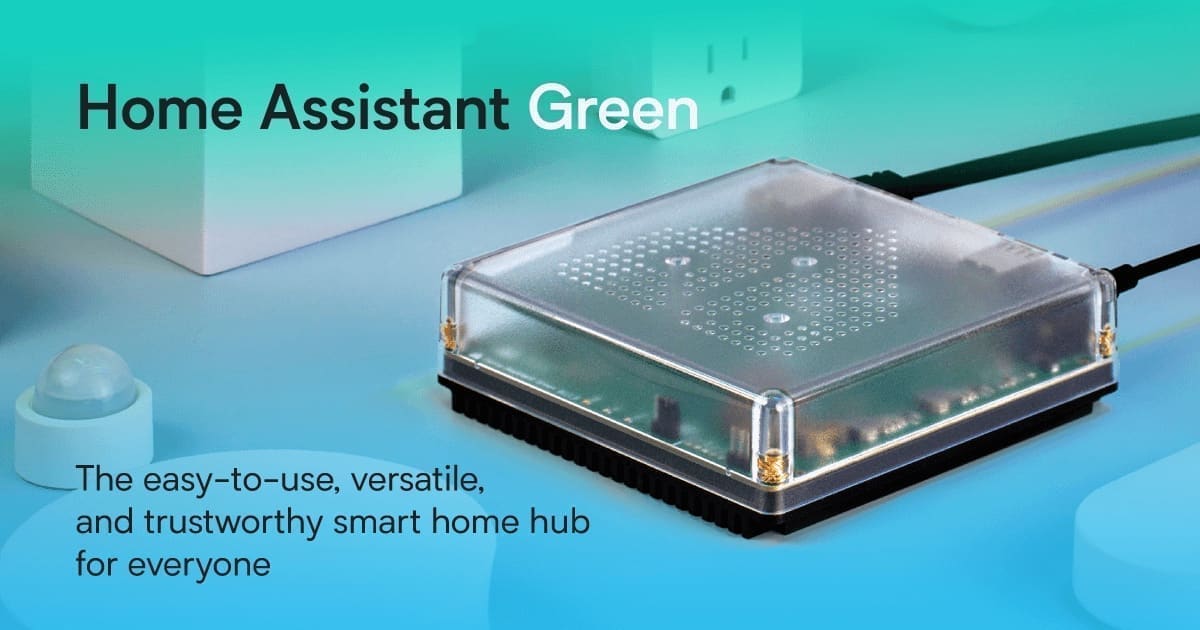
Alexa natively supports a growing list of UK smart home brands, but it has blind spots. Devices on Zigbee, Z-Wave, or local-only protocols (IKEA TRADFRI, older TP-Link Kasa models, DIY ESP8266 sensors) are invisible to the Alexa ecosystem unless routed through a bridge. Home Assistant acts as that bridge, exposing any entity it controls -- lights, thermostats, locks, scenes, scripts -- to Alexa as a standard smart home device.
The practical result is that you can say Alexa, set the living room to 21 degrees and trigger a Home Assistant climate entity on a tado or Hive receiver that Alexa would never see directly. Or say Alexa, goodnight to fire a Home Assistant scene that dims every light, locks the front door, and arms your Ring Alarm -- all in a single command. If you would rather keep an automation entirely native to Alexa instead of routing it through Home Assistant, see our guide to Alexa Routines for how the built-in trigger and action options compare.
What You Need Before You Start
- A running Home Assistant instance -- Raspberry Pi 4, an Intel NUC, or a dedicated VM running Home Assistant OS or Supervised all work fine. If you have not yet set up Home Assistant, read our full UK setup guide first.
- An Amazon account with at least one Echo device registered to it.
- A choice of integration method -- Nabu Casa cloud (paid, simplest) or self-hosted AWS Lambda (free ongoing, more work upfront).
Step 1: Connect Alexa to Home Assistant
There are two ways to link Alexa to Home Assistant — pick one route below depending on whether you would rather pay a small monthly fee for a five-minute setup, or spend an hour configuring a free self-hosted alternative.
Route A: Nabu Casa Home Assistant Cloud (recommended)
Nabu Casa is the official cloud service built by the Home Assistant team. At $7.50 per month (billed in USD; roughly £6-£7 at current exchange rates, prices vary by retailer), it bundles encrypted remote access, Alexa integration, and Google Assistant integration into one subscription. A portion of every subscription funds ongoing Home Assistant development.
- In Home Assistant, navigate to Settings > Home Assistant Cloud and sign in or create a Nabu Casa account.
- Once signed in, scroll to the Alexa section and toggle it On.
- Open the Alexa app on your phone, go to More > Skills & Games, and search for Home Assistant.
- Enable the Home Assistant Smart Home skill and sign in with your Nabu Casa credentials when prompted.
- Say Alexa, discover new devices or use the Alexa app's device discovery. Alexa will pull in every entity you have exposed in Home Assistant.
Route B: self-hosted AWS Lambda (no monthly fee)
If you would rather avoid an ongoing subscription, you can replicate what Nabu Casa does using an AWS Lambda function. AWS Lambda's free tier covers up to one million requests per month -- far more than any home automation setup will generate -- so the running cost is effectively zero. The trade-off is a more involved initial setup of roughly 60-90 minutes.
Prerequisites for the Self-Hosted Route
- An Amazon Developer account (free) at developer.amazon.com.
- An AWS account (free tier is sufficient).
- A publicly accessible Home Assistant URL over HTTPS, with a valid certificate -- a self-signed certificate will not work. Options include Nginx Proxy Manager with a Let's Encrypt certificate and port-forwarding, or a Cloudflare Tunnel if your ISP blocks inbound ports.
High-Level Setup Steps
- Create an Alexa Smart Home Skill in the Amazon Developer Console. Under the skill's endpoint, select AWS Lambda ARN.
- Create a Lambda function in the AWS Console. Home Assistant's official documentation provides a Python zip package to upload. Deploy it in the eu-west-1 (Ireland) region for the lowest latency from the UK.
- Link the skill to the Lambda function by pasting the Lambda ARN into the Alexa Developer Console skill endpoint field, and the skill ID into the Lambda trigger settings.
- Set up Login with Amazon (LWA) -- this handles the OAuth flow when you enable the skill in the Alexa app. You register an LWA Security Profile in the Amazon Developer Console and enter the client ID and secret in your Home Assistant
configuration.yamlunder thealexa:block. - Enable the skill in the Alexa app and complete the account-linking step, which redirects you to your Home Assistant login page.
- Run Alexa, discover new devices to pull in your entities.
The Home Assistant documentation at home-assistant.io/integrations/alexa.smart_home/ covers each step with screenshots. The process is more involved than Nabu Casa but gives you full control over your data and zero ongoing cost.
Step 2: Choose which entities Alexa can control
By default, not every entity in Home Assistant is visible to Alexa -- this is intentional. Sensitive devices such as locks and alarm panels are hidden unless you explicitly expose them. To control which entities Alexa can see:
- Go to Settings > Voice assistants > Expose.
- Filter by Alexa and tick the entities you want available.
- Give each entity a friendly name that you would actually say aloud -- kitchen ceiling rather than light.kitchen_ceiling_1.
After changing the exposed list, say Alexa, discover new devices again so the new entities appear in the Alexa app.
Step 3: Control Echo devices from Home Assistant (optional)
The integrations above let Alexa control Home Assistant. The newer Alexa Devices integration (available from Home Assistant 2025.6 onwards) works in the other direction: it lets Home Assistant control your Echo devices. You can use it to push text-to-speech announcements to your Echo speakers, trigger routines, or use Echo devices as media players.
To enable it, go to Settings > Devices & Services > Add Integration and search for Alexa Devices. You sign in with your Amazon account credentials. This integration does not require Nabu Casa or AWS Lambda and is free. Note that it uses Amazon's unofficial internal API, so it may be affected by changes Amazon makes to that API in the future.
Comparing the Three Approaches
| Approach | Cost | Direction | Setup Effort |
|---|---|---|---|
| Nabu Casa | ~£6-£7/month | Alexa to HA | 5-10 minutes |
| Self-hosted Lambda | Free (AWS free tier) | Alexa to HA | 60-90 minutes |
| Alexa Devices integration | Free | HA to Alexa | 5 minutes |
Most UK users with a single Home Assistant instance and no existing AWS familiarity will find Nabu Casa the most practical choice. If you run several Home Assistant instances or already use AWS, the Lambda route is worth the one-time effort.
Practical Alexa Voice Commands for UK Homes
Once the integration is running, Alexa understands standard smart home commands for every exposed entity:
- Lights: Alexa, dim the hallway to 40 percent -- works with any bulb exposed through Home Assistant, including Zigbee bulbs on a ConBee or SkyConnect stick.
- Climate: Alexa, set the thermostat to 20 -- Alexa uses Celsius automatically for UK accounts.
- Scenes: Alexa, turn on Movie Mode -- scenes and scripts exposed from Home Assistant appear as devices in Alexa.
- Switches and plugs: Alexa, turn off the kettle plug -- any smart plug tracked in Home Assistant becomes voice-controllable.
- Locks (with PIN): Alexa, unlock the front door -- Alexa requires a voice PIN for unlock commands as a safety measure, which you set in the Alexa app.
Music commands work the same way once a streaming service is linked in the Alexa app rather than Home Assistant itself -- see our guide to using Spotify on smart speakers in the UK for linking steps and what changes between the free and Premium tiers.
Troubleshooting Common Issues
Alexa Says That Device Is Not Responding
This usually means your Home Assistant instance is temporarily unreachable. Check that your Nabu Casa subscription is active, or that your external URL and SSL certificate are valid if using the Lambda method. Restarting Home Assistant often resolves brief connectivity drops.
Entities Do Not Appear After Discovery
Confirm the entity is toggled on in Settings > Voice assistants > Expose and filtered to Alexa. Also check that the entity's friendly name contains no special characters -- Alexa has difficulty with names that include hyphens or parentheses.
Climate Entities Show Incorrect Temperature Scale
Alexa uses the temperature unit tied to your Amazon account's region. UK accounts default to Celsius. If you see Fahrenheit, go to the Alexa app, More > Settings > Device Settings, select your Echo device, and confirm the temperature unit is set to Celsius.
Getting More From the Integration
The Home Assistant and Alexa combination becomes especially powerful when combined with automations. You can create Home Assistant automations that trigger on an Alexa routine -- for example, saying Alexa, I am leaving runs an Alexa routine that calls a Home Assistant scene via a virtual switch, which in turn sets the heating to away mode, turns off all lights, and arms the alarm. This kind of cross-platform chaining is where the integration earns its place in a serious smart home setup.
If you are weighing whether to add Amazon's newer generative-AI layer on top of this setup, see our coverage of Alexa+ Early Access ending in the UK — it does not change how the Skill API integration above works, but it does affect what a new Echo device costs to run long-term.