What Are Home Assistant Automations?
An automation in Home Assistant is a rule that runs automatically when something happens. Every automation follows the same logic: when a trigger fires, check optional conditions, and then perform one or more actions. The entire process runs locally on your Home Assistant hardware — no internet connection required, no cloud service to go down, no monthly fee.
This local-first approach is one of the biggest advantages over voice assistants like Amazon Alexa or Google Home, whose automations rely entirely on the manufacturer's cloud. If your broadband goes down, your Home Assistant automations keep running exactly as configured.
The Three Building Blocks
Triggers
A trigger is the event that starts an automation. Home Assistant supports a wide range of trigger types:
- State trigger: fires when a device or entity changes state — for example, when a motion sensor detects movement, when a door sensor opens, or when a person's phone arrives home.
- Time trigger: fires at a specific time of day or on a repeating schedule (using cron-style syntax for fine-grained control).
- Sun trigger: fires at sunrise or sunset, offset by a configurable number of minutes. Particularly useful in the UK where sunrise and sunset times shift considerably across the year.
- Numeric state trigger: fires when a numeric sensor crosses a threshold — for example, when indoor CO₂ concentration exceeds 1,000 ppm or when outdoor temperature drops below 5 °C.
- Calendar trigger: fires based on events in a connected Google or local calendar — handy for holiday modes.
- MQTT trigger: responds to messages on a specific MQTT topic, useful for custom integrations and DIY devices.
You can combine multiple triggers in one automation using OR logic — the automation starts if any one of the listed triggers fires.
Conditions
Conditions are optional filters applied after the trigger fires. If any condition returns false, the automation stops without executing its actions. Conditions let you avoid unwanted behaviour — for example, preventing lights turning on automatically if someone has manually switched them off, or stopping a heating automation from running during a scheduled away period.
Common condition types include time-window conditions (only run between 07:00 and 22:00), state conditions (only run if the living room light is currently off), and numeric state conditions (only run if the thermostat is below the target temperature). You can combine conditions with AND or OR logic.
Actions
Actions are what the automation actually does when it runs. A single automation can contain multiple sequential or parallel actions. Examples include:
- Turn lights on or off, or set them to a specific brightness and colour temperature.
- Set a thermostat to a target temperature.
- Send a notification to your phone via the Home Assistant companion app.
- Activate a scene (a saved snapshot of multiple device states).
- Call a script — a reusable sequence of steps you can trigger from multiple automations.
- Play a media file or text-to-speech announcement on a speaker.
- Delay for a specified period before continuing to the next action.
Creating Automations: The Visual Editor vs YAML
Home Assistant offers two ways to create automations. The visual editor (Settings → Automations & Scenes → Create Automation) walks you through choosing triggers, conditions, and actions without writing any code. It is the recommended starting point for everyone. For each step, Home Assistant shows a searchable list of your devices and entities, making it straightforward to find the exact sensor or device you want.
The YAML editor is available as a toggle inside the same interface and gives you full control over the automation's syntax. Every automation created in the visual editor can be viewed and edited as YAML. Power users prefer YAML for complex logic such as templates, dynamic variables, and looping constructs. All automations are stored in automations.yaml inside your Home Assistant configuration directory and are backed up automatically if you use the built-in backup feature.
If you are new to Home Assistant and have not yet completed your installation, our Home Assistant UK setup guide covers hardware choices, installation, and the first-boot wizard in full detail.
Practical UK Automation Examples
1. Sunset Lighting
Trigger: Sun → Sunset (offset: −15 minutes). Condition: Someone is home (person entity is not away). Action: Turn on hallway and living room lights at 80% brightness.
Using a sun trigger rather than a fixed clock time means the automation adapts to the UK's wide seasonal variation — lights come on at the right time in both mid-winter and midsummer without any manual adjustments.
2. Motion-Activated Lights with Auto-Off
Trigger: Motion sensor detects movement in kitchen. Condition: Time is between 06:00 and 23:00; lux sensor reads below 50 lx. Action: Turn on kitchen lights; wait 5 minutes; check if motion sensor is still clear; turn lights off.
The lux condition prevents the automation from running in bright daylight, saving energy without you having to remember to turn lights off. A household that eliminates unnecessary lighting periods in five rooms can realistically save several kWh per week — meaningful at current Ofgem unit rates of 26.11p per kWh for Q3 2026.
3. Off-Peak Energy Scheduling (Octopus Agile / Economy 7)
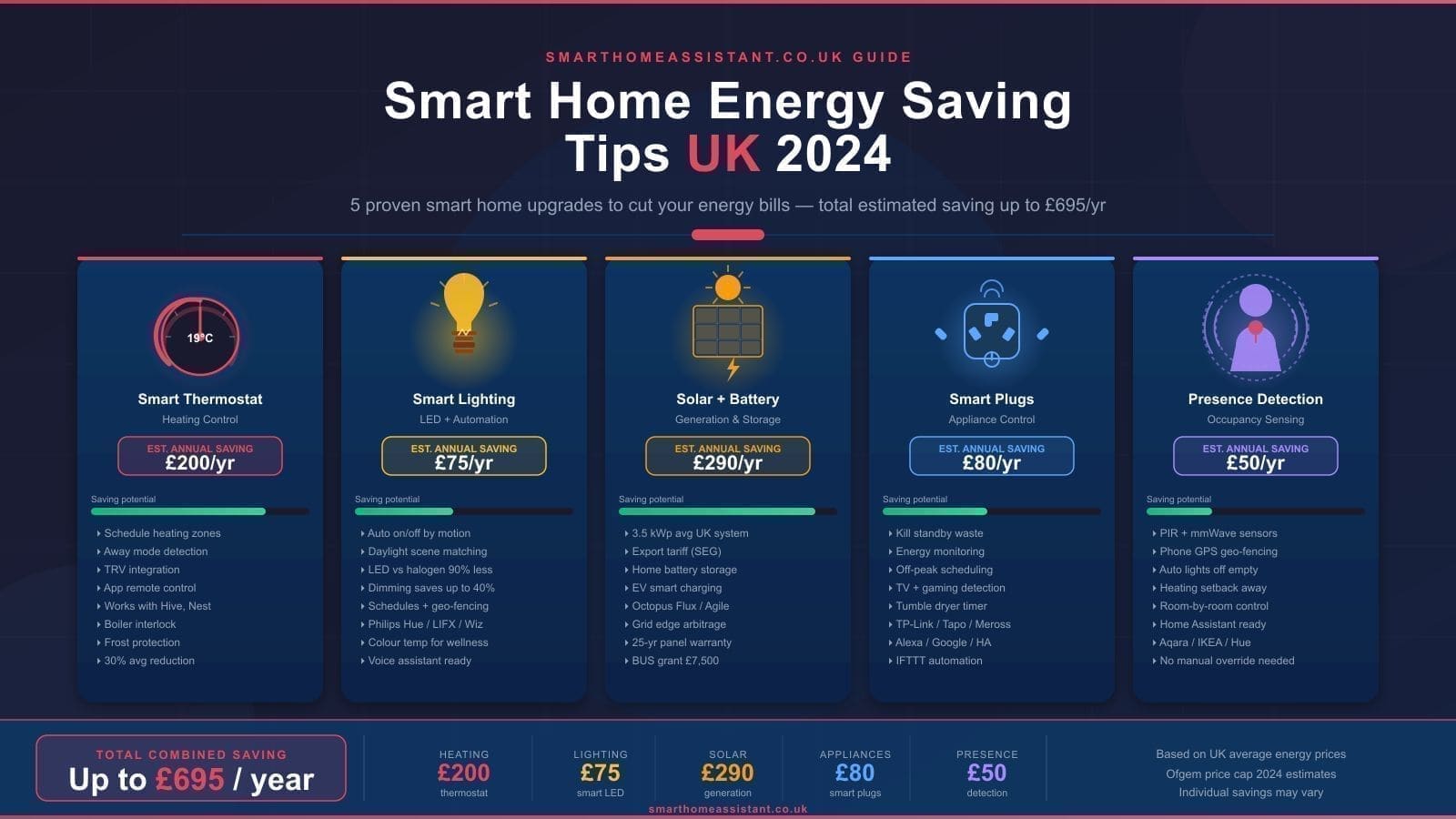
For UK households on a time-of-use tariff such as Octopus Agile or Economy 7, Home Assistant can shift energy-hungry tasks to cheaper overnight periods. The Octopus Energy integration (available via HACS or as a built-in integration in recent Home Assistant versions) exposes your real-time Agile rate as a sensor entity. You can then trigger automations when the rate drops below a threshold.
Example: EV charging automation. Trigger: Octopus Agile rate sensor falls below 5p/kWh. Condition: EV charger is plugged in and battery is below 80%. Action: Turn on smart EV charger socket. A second automation turns the charger off when the rate rises above 15p/kWh. Households with an EV on Agile tariff that shift charging to cheap periods report saving £150–£300 per year compared to charging at peak times.
For a deeper look at the hardware needed to measure electricity in the first place, see our Home Assistant energy monitoring UK guide, covering smart plugs, CT clamp monitors, and SMETS2 smart meter integration. Example: Dishwasher or washing machine. Use a smart plug with energy monitoring to detect when the appliance is loaded (typically drawing 3–5 W in standby). A time trigger at 00:30 (within the Economy 7 off-peak window) can send a notification asking if you want to delay-start the appliance, or simply trigger a smart socket to power it on.
4. Heating Boost on Cold Mornings
Trigger: Time 06:45 on weekdays (Monday–Friday). Condition: Outdoor temperature sensor reads below 5 °C; no one is on holiday (calendar condition). Action: Set thermostat to 21 °C; send notification: Cold morning — heating boosted.
Home Assistant integrates directly with the most popular UK smart thermostats including Tado, Hive, and Nest. Our guide to the best smart thermostats for UK homes covers which models work best with Home Assistant and support local control — a key consideration if you want automations that work even when your broadband is down.
5. Away Mode
Trigger: Zone trigger — last person leaves the Home zone (detected via the Home Assistant companion app on your phone). Condition: Time is between 08:00 and 20:00. Action: Turn off all lights; set heating to 16 °C eco mode; lock the smart lock; send notification: Everyone left — home is secured.
The zone integration uses your phone's GPS to detect when you leave a defined area around your home, without constant battery drain. Home Assistant combines GPS with Bluetooth and Wi-Fi presence detection for more reliable results than any single method alone. If you want to configure the underlying device_tracker entities yourself — GPS, network scanning, or Ping — see our Home Assistant device tracker guide.
Using Blueprints to Speed Up Automation
Blueprints are reusable automation templates shared by the Home Assistant community. Instead of building a complex automation from scratch, you import a Blueprint URL and fill in your specific devices. The official Blueprint Exchange on the Home Assistant community forum contains hundreds of ready-made automations covering motion-activated lights with illuminance, presence-based heating, and Octopus Agile scheduling.
To import a Blueprint: go to Settings → Automations & Scenes → Blueprints tab → Import Blueprint, paste the URL, and click Preview. Once imported, you can create as many automation instances from it as you need, each configured for different rooms or devices.
Tips for UK-Specific Automations
- Use UK time zone. Ensure your Home Assistant instance is set to
Europe/Londonso that time triggers respect GMT/BST clock changes automatically. - Account for British Summer Time. Sun triggers adapt automatically, but fixed-time triggers set in winter will run one hour earlier in summer relative to local clocks unless Home Assistant's time zone is correct.
- Integrate with Octopus or British Gas. Both Octopus Energy and British Gas Hive have official Home Assistant integrations. Octopus exposes real-time tariff rates; Hive exposes heating and hot water controls.
- Use a Zigbee coordinator for reliable sensors. Battery-powered door, window, and motion sensors are the most useful triggers for automations. Zigbee sensors report state changes in under one second and last 1–2 years on a single battery. Our guide to the best Zigbee stick for Home Assistant UK explains which USB coordinator to buy and how to set it up.
- Test automations in trace mode. Home Assistant logs the last 5 runs of every automation in Settings → Automations → three-dot menu → Traces. If an automation is not running as expected, the trace shows which trigger fired, which conditions passed or failed, and which actions executed.
Common Pitfalls to Avoid
Trigger loops. Avoid automations that trigger themselves — for example, an automation that turns a light on when it detects the light is off, which then fires again immediately. Use conditions or the last_triggered attribute to add a cooldown period.
Over-complex automations. A single automation with ten triggers, five conditions, and fifteen actions is hard to debug. Break large automations into a main automation that calls helper scripts, each handling one logical step.
Missing entity checks. If you automate based on a device that is unavailable (offline, battery dead), Home Assistant may skip the action silently. Add a condition that checks the entity's state is not unavailable before acting, or use a notification to alert you when a sensor goes offline.
Where possible, prefer entity-based triggers and actions over device-based ones. Device references point at an internal device ID rather than the entity itself, and that ID isn't always stable across Home Assistant updates — see our guide to fixing automations broken by the Home Assistant 2026.8 device split for a recent example of what can go wrong and how to spot it.
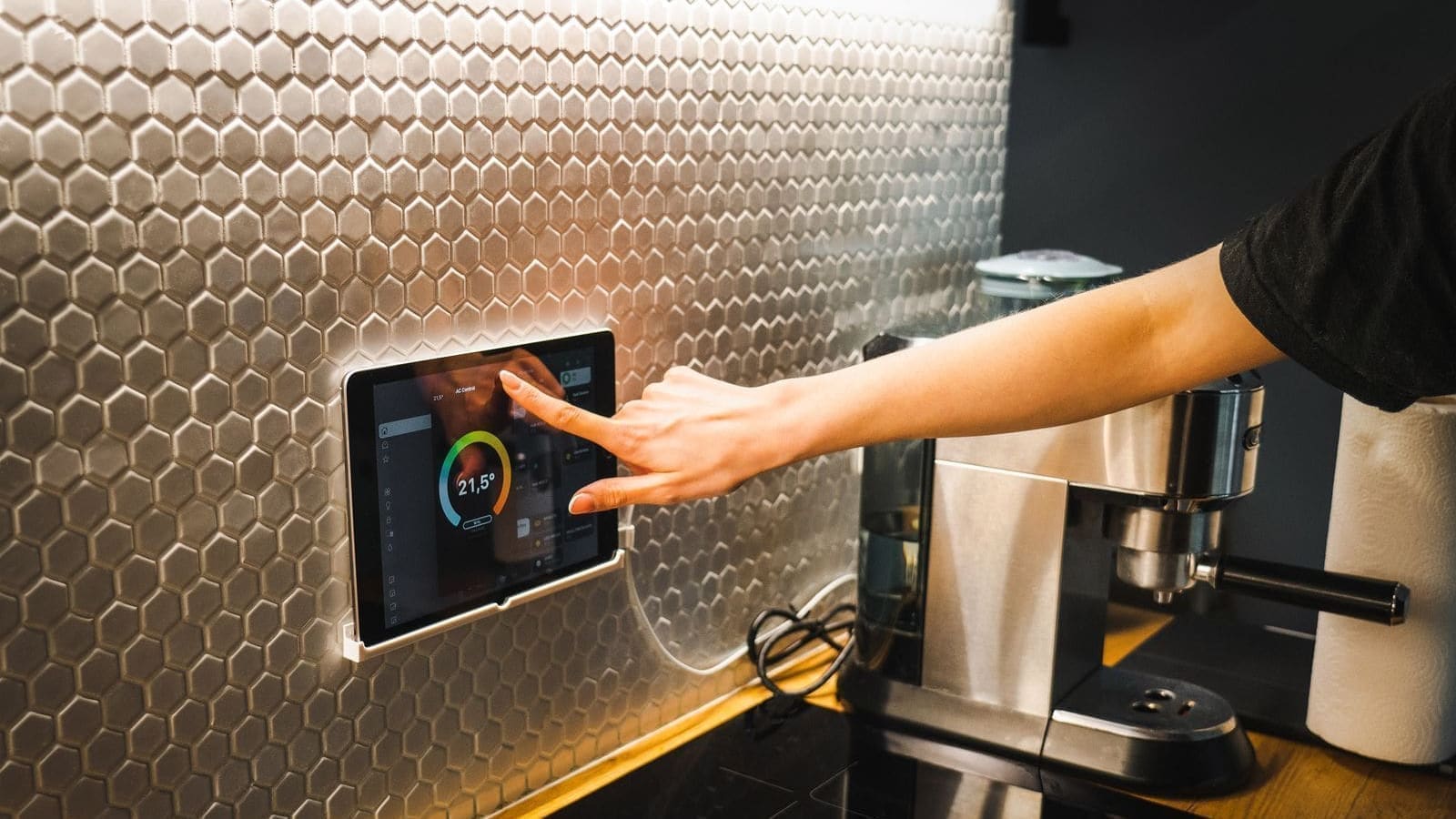
Once your automations are running, a polished dashboard makes it easy to monitor and override them at a glance. Our Home Assistant dashboard guide covers Lovelace views, custom HACS cards, and wall-mounted tablet setups. And if you want to trigger automations by voice without relying on Alexa or Google, our Home Assistant voice assistant UK guide explains how to set up Whisper, Piper, and the Voice Preview Edition for a fully local, private voice control setup. If you use Amazon Echo speakers in your home, the Home Assistant Alexa integration guide explains how to trigger these automations with Alexa voice commands. And if you find writing YAML daunting, the AI Automation Suggester can read your actual devices and generate ready-to-paste YAML automations for you using an AI model.
If you want to have some fun with your setup, see our guide on turning your doorbell camera into an AI commentator.