What Are the Fundamentals of a Home Assistant Dashboard?
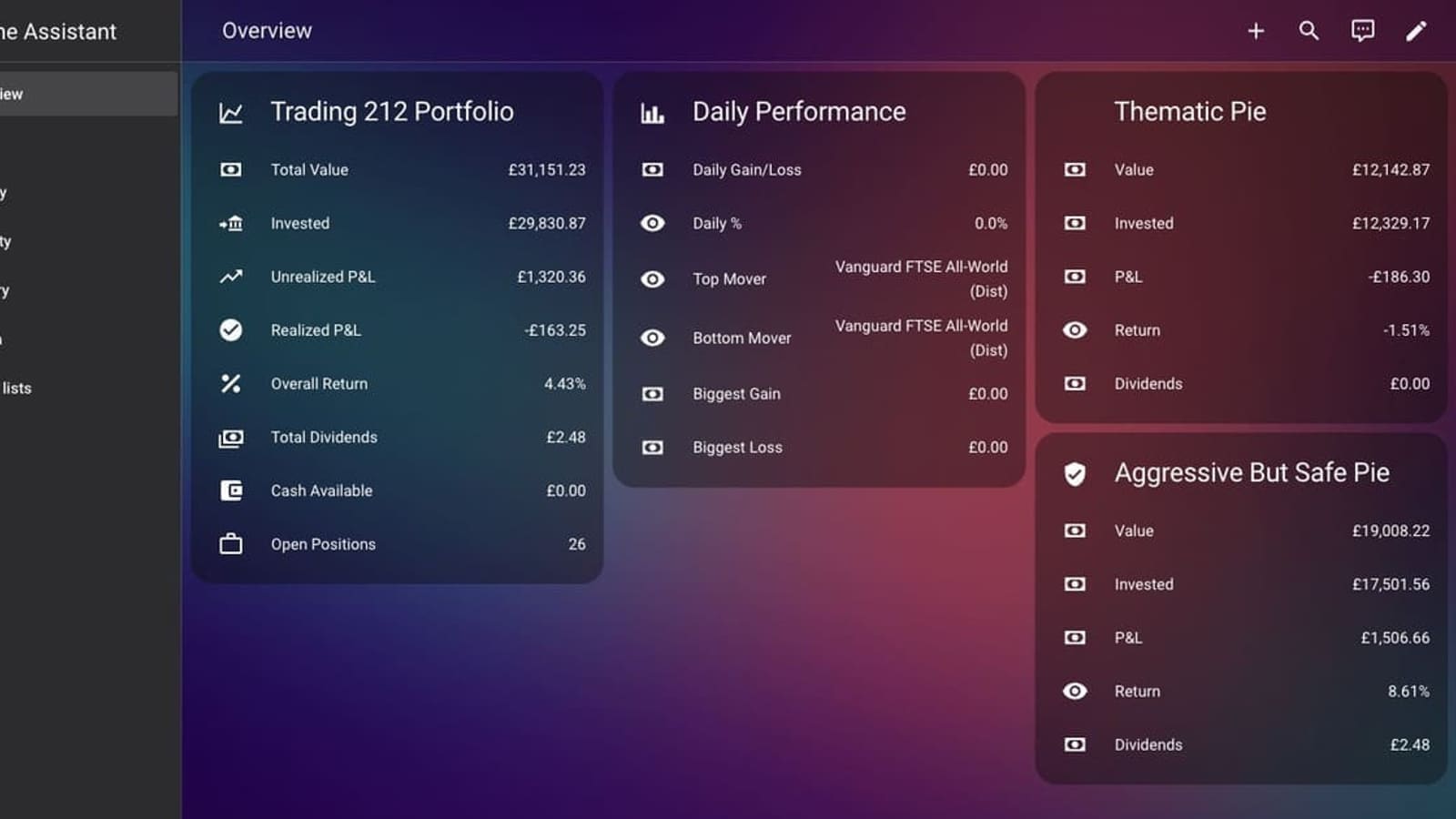
Home Assistant ships with a default Overview dashboard that auto-populates with every entity you have added. It is a reasonable starting point, but most users quickly want more control. Dashboards are composed of views (the tabs at the top) and cards (the individual tiles within each view). You can have as many dashboards and views as you like.
View Layout Types
Home Assistant currently offers three core view layouts, each suited to a different style of use:
- Sections (default since 2024.6) — arranges cards in a responsive grid. Cards can be resized individually, and you can label each section with a heading card. This is the best layout for most users.
- Masonry — the original layout, which stacks cards in columns based on their natural height. Good for information-heavy views where heights vary.
- Panel — fills the entire view with a single card. Ideal for a full-screen floorplan or camera view.
To create a new dashboard, go to Settings › Dashboards and click Add Dashboard. Give it a title and icon, then choose whether it should be visible in the sidebar.
This guide focuses on organising and designing a dashboard you will actually use day to day. If you want a deeper technical dive into the Lovelace system itself — YAML editing, the visual editor, and Mushroom cards — see our Home Assistant Lovelace dashboard guide.
Which Built-In Cards Are Worth Knowing?
Home Assistant includes over twenty card types out of the box. The ones you will reach for most often are:
- Entities card — lists multiple entities in a compact table. Useful for a quick room summary.
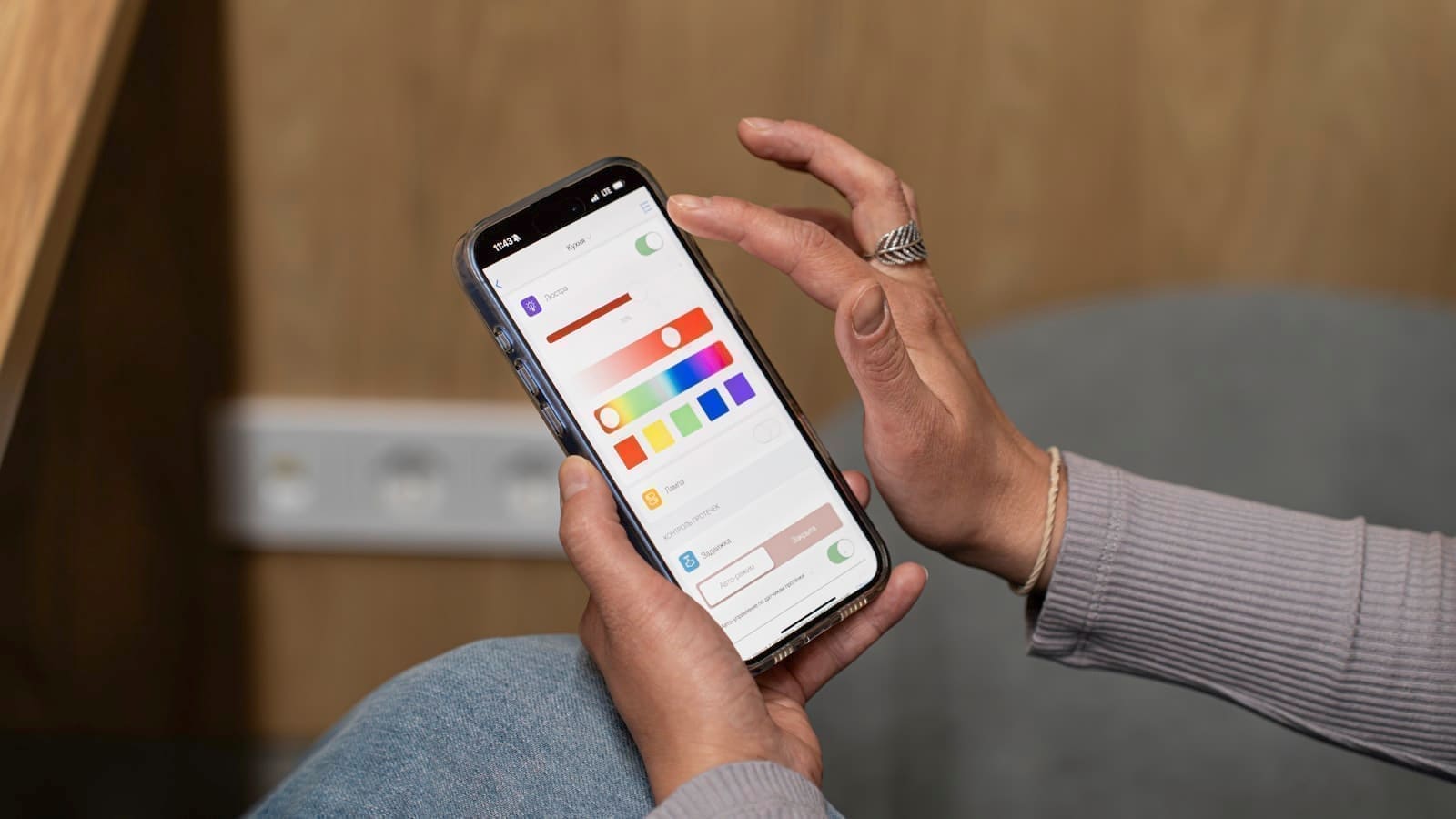
- Tile card — a modern, icon-focused card that replaces the older entity card for single devices. Supports one-tap actions and features such as brightness sliders for lights.
- Glance card — shows several sensors at a glance in a compact icon grid.
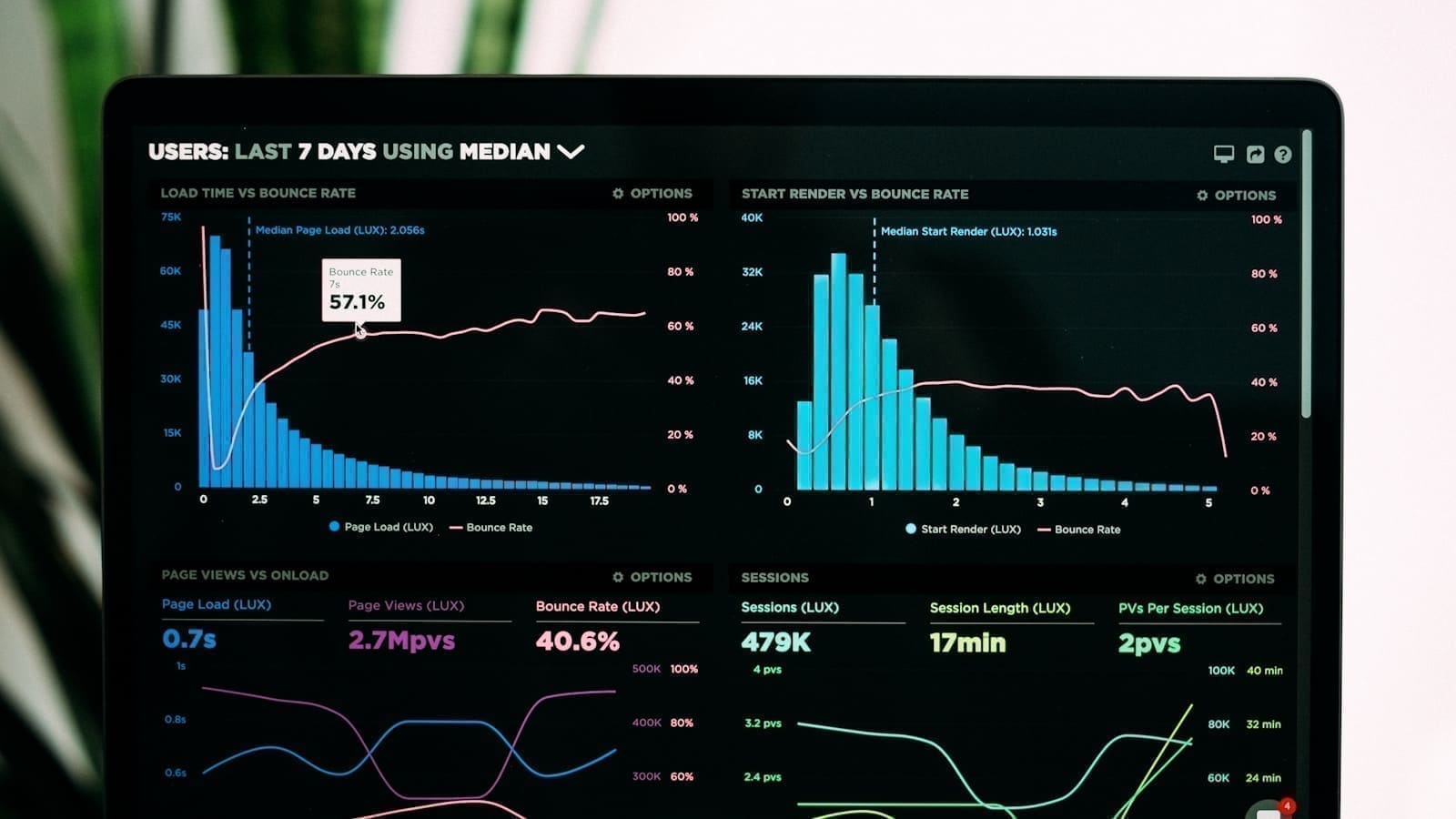
- History graph card — renders a line or bar chart of sensor history. Perfect for temperature or energy over the past 24 hours.
- Gauge card — a semicircular gauge ideal for humidity, CO₂, or battery percentage.
- Energy distribution card — visualises grid import, solar production, and battery flow in a single diagram. Added automatically when you configure the Energy integration.
- Heading card — a stylish section divider that can show entity states inline. Great for labelling rooms in the Sections layout.
- Conditional card — wraps any other card and shows or hides it based on an entity state. Use this to display a Heating active banner only when the boiler is running; our conditional visibility cards guide covers both this and the newer per-card Visibility tab in detail.
Installing HACS for Community Cards
The Home Assistant Community Store (HACS) unlocks hundreds of community-built cards that transform your dashboard. HACS is not installed by default, but adding it takes around ten minutes.
The official installation method is to run the HACS installer script in a terminal on your Home Assistant host, then restart and enable the HACS integration. Full instructions are in the HACS documentation. Once installed, HACS appears in the sidebar.
To add a custom card, open HACS › Frontend, search for the card you want, click Download, and reload your browser. The card then appears in the dashboard card picker alongside built-in cards.
Recommended HACS Cards
- Mushroom Cards — a polished, mobile-first card collection with a soft colour palette. The Mushroom Chips card is particularly useful for a compact status bar at the top of a view.
- Bubble Card — minimalist pop-up cards that keep your dashboard clean by hiding detail until needed. Ideal for touch-screen displays in common areas.
- Mini Graph Card — a compact sparkline card that fits far more data into a small space than the built-in History Graph.
- Apexcharts Card — a fully-featured charting card for advanced energy and sensor graphs, with support for multiple series and stacked bars.
- Floorplan Card — lets you overlay entity states on an SVG floor plan of your home, so you can see at a glance which rooms are occupied or which lights are on.
- Octopus Energy Rates Card — displays Octopus Agile or Intelligent rates per 30-minute slot, invaluable if you are on a dynamic UK tariff.
Building a UK Energy View
One of the most practical dashboard additions for UK households is a dedicated energy view. With the Ofgem price cap setting the unit rate for electricity at around 26p per kWh from July 2026 (for a typical direct-debit customer on a standard variable tariff), knowing exactly how much power each appliance uses has never been more important.
To set up energy tracking, go to Settings › Dashboards › Energy and add your consumption sources. If you have a smart meter with a Home Assistant integration (such as Hildebrand Glow or an n3rgy-compatible device), the data flows automatically. You can then enter your current unit rate in pence to see costs in pounds rather than kilowatt-hours.
A well-structured energy view might include:
- The built-in Energy Distribution card for the headline flow diagram.
- An Energy Usage Graph card showing hourly bar charts for the current day.
- Individual Tile cards for the highest-consuming circuits (EV charger, immersion heater, tumble dryer) fed from circuit-level monitors such as a Shelly EM or Emporia Vue.
- If you are on Octopus Agile, the Octopus Energy Rates Card from HACS to show when the cheapest slots are.
For more detail on setting up the integration itself, see our full guide on Home Assistant energy monitoring in the UK.
Organising Views by Room or Function
The most maintainable dashboards follow a clear information hierarchy. A popular approach for UK homes is:
- Home view — a single-page summary: occupancy, weather, current energy spend, and quick controls for lights and heating.
- Rooms view — one tab per room, or a single view with Sections headings per room.
- Energy view — all energy and cost cards in one place.
- Security view — cameras, door locks, and alarm panel.
- Automations view — status of key automations, plus on/off toggles for those that should be easily overridden.
A room view earns its keep with a real history card, not just a live number — our AirGradient ONE review shows what that looks like in practice: a kitchen air-quality card with CO2, PM2.5 and TVOC graphs that catch a cooking spike and let you see it clear over the following minutes.
If you are new to writing automations to complement your dashboard, the Home Assistant automations guide walks through triggers, conditions, and actions in plain language.
What Are the Options for Wall-Mounted Dashboard Displays?
A wall-mounted tablet running your Home Assistant dashboard in kiosk mode is one of the most satisfying smart-home upgrades you can make. It puts controls at arm's reach for anyone in the household, without needing to find a phone.
Hardware Options
- Raspberry Pi with the official 7-inch Touch Display 2 — a compact, low-power option. Run Chromium in kiosk mode on Raspberry Pi OS Lite, pointing at your Home Assistant URL. The screen is small but adequate for a hallway or kitchen.
- Repurposed Android tablet — mid-range tablets such as the Samsung Galaxy Tab A are widely available in the UK. Install the Fully Kiosk Browser app (a small one-time purchase) and point it at your dashboard. Fully Kiosk supports screen dimming on motion, remote management, and the Home Assistant integration for brightness control.
- Fire HD tablet — Amazon Fire tablets are often heavily discounted in the UK, and with the Google Play Store sideloaded they run the Home Assistant companion app or Fully Kiosk effectively.
- Dedicated PoE Android wall tablet — purpose-built wall panels with Power over Ethernet are starting to appear from factory-direct sellers, doing away with a mains adapter and battery altogether. See our first look at an Android PoE wall tablet for Home Assistant for specs and caveats (unverified — no hands-on unit tested yet).
Kiosk Mode
The Kiosk Mode HACS integration (a frontend module, not a card) hides the Home Assistant header and sidebar so your wall tablet shows only the dashboard. You can configure which users see kiosk mode, which is useful if you want full access on your phone but a clean display-only view on the wall tablet.
Tips for a Clean, Fast Dashboard
- Use the Sections layout with heading cards to create clear visual hierarchy without custom CSS.
- Limit entities per view to those you actually interact with daily. Move rarely-touched settings to a dedicated admin view.
- Use Conditional cards to show context-sensitive controls, such as an EV charging card that only appears when the car is plugged in.
- Test on mobile — Home Assistant's companion app uses the same Lovelace UI. The Sections layout adapts well to phone screens; the Masonry layout can get cramped.
- Back up your dashboard YAML — once you have a dashboard you are happy with, download the raw configuration from the dashboard editor and keep a copy in version control.
Lovelace is built for day-to-day control, but the default recorder only keeps a short rolling window of history behind it. If you want dashboards that chart months of sensor data instead of days, see our guide to setting up InfluxDB and Grafana with Home Assistant.