Why Bother with an IoT VLAN?
Most smart home devices are made to a price. Firmware update cycles are short, default credentials are sometimes left in place, and manufacturers have historically been slow to patch vulnerabilities. The UK Government's Product Security and Telecommunications Infrastructure (PSTI) Act 2022 tightened requirements for IoT device security — but millions of older devices remain in homes without those protections.
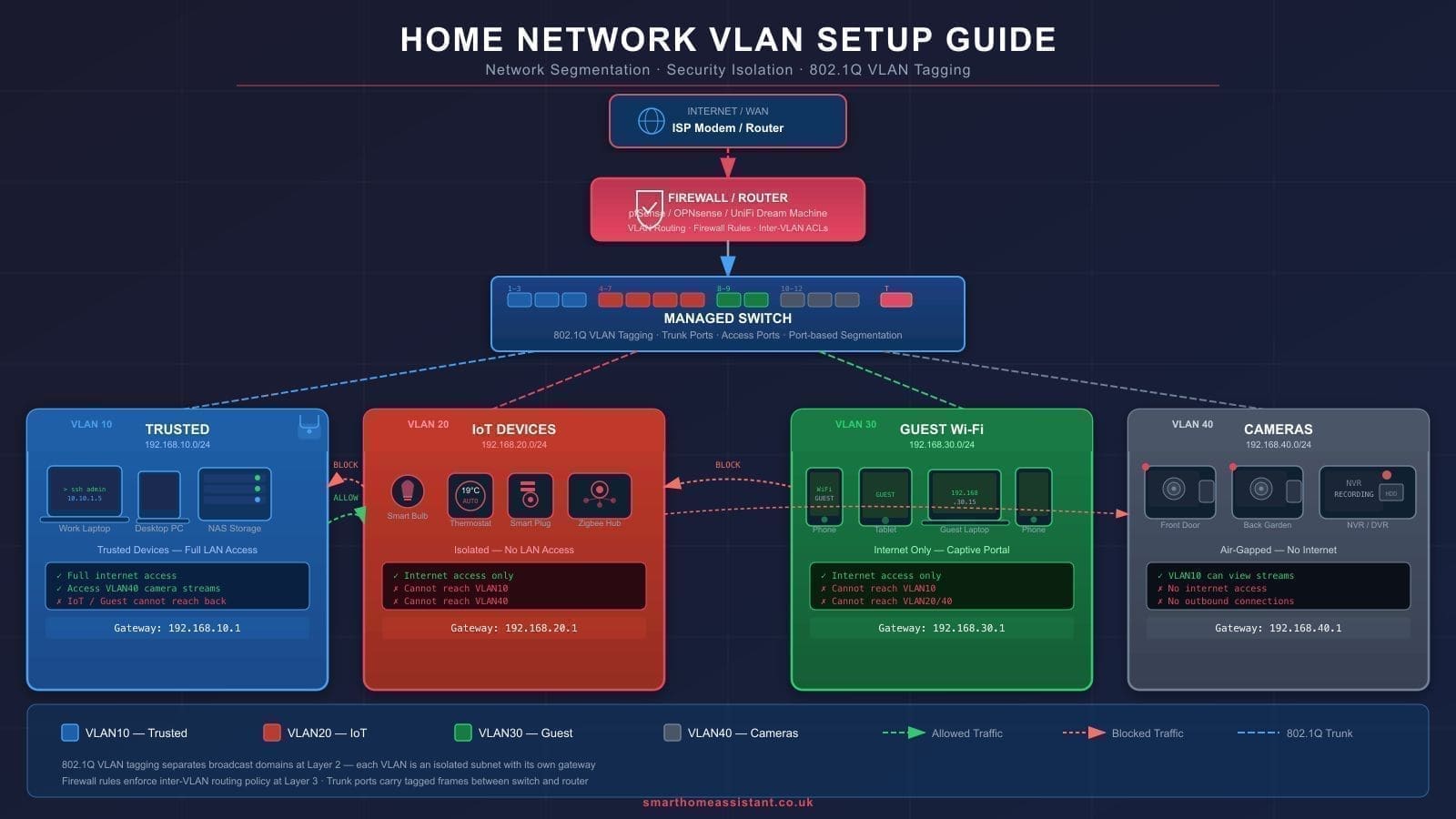
Network segmentation via a VLAN (Virtual Local Area Network) addresses the risk directly. Devices on your IoT VLAN can reach the internet to phone home, but they cannot initiate connections to your main LAN where personal computers, NAS drives, and banking sessions live. If one smart plug is compromised, the blast radius is contained.
Home Assistant sits at the centre of this architecture. Run on your main LAN (or on a dedicated management VLAN), it needs to reach your IoT devices to control and monitor them — but those devices should not be able to reach back uninvited.
Hardware You Will Need
Standard consumer routers — the white plastic boxes supplied by Virgin Media, BT, or Sky — do not support 802.1Q VLAN tagging. To run an IoT VLAN you need managed networking hardware. The good news is that the UK market has several affordable options.
VLAN-Capable Routers and Gateways
TP-Link Omada ER605 — The most accessible entry point for home users. The ER605 is a wired VPN router supporting up to 3 WAN ports and full VLAN management via the free Omada Software Controller. It supports IEEE 802.1Q VLAN tagging and pairs naturally with Omada-managed switches and access points. Prices vary by retailer; check Amazon UK, Scan, and TP-Link's UK store for current pricing.
Ubiquiti UniFi Dream Machine (UDM) or Dream Router — The UDM range bundles router, switch, and Wi-Fi access point in one unit and offers polished VLAN support through the UniFi Network application. It is pricier than Omada but the interface is widely regarded as easier to learn. Prices vary by retailer. If you are considering UniFi, our Ubiquiti UniFi home setup guide walks through the full installation process for UK homes.
OPNsense on a mini PC — A free, open-source firewall OS that runs on any x86 machine. Pair a second-hand mini PC with a dual-NIC card and you have a highly capable gateway for a modest outlay. OPNsense has native VLAN support and an mDNS proxy (Avahi) built in.
Managed Switches
If your router handles VLAN tagging at the gateway, you still need a managed switch to carry tagged traffic to wired ports around the house. The TP-Link TL-SG108E 8-port smart switch is a popular, inexpensive choice available from Amazon UK. For larger installations, the Omada TL-SG2210P adds PoE for powering access points.
VLAN-Aware Wi-Fi Access Points
Your access point must support multiple SSIDs mapped to separate VLANs. Omada EAP access points do this natively when managed by the Omada controller. UniFi APs handle it equally well. If you already have a capable mesh system, check whether it supports VLAN-tagged SSIDs — our guide to the best mesh Wi-Fi systems UK covers which units support network segmentation.
Step 1: Plan Your VLAN Layout
Before touching any configuration, sketch your network on paper. A sensible three-VLAN plan for a UK smart home looks like this:
- VLAN 1 — Main LAN (192.168.1.0/24): Trusted devices. Laptops, phones, NAS, Home Assistant server, desktop PCs.
- VLAN 20 — IoT (192.168.20.0/24): All smart devices. Bulbs, plugs, cameras, thermostats, media streamers.
- VLAN 30 — Guest (192.168.30.0/24): Visitor Wi-Fi. Internet-only, no access to Main or IoT.
Home Assistant lives on VLAN 1 (or its own management VLAN). IoT devices connect to an SSID that maps to VLAN 20. The firewall enforces the boundaries.
The exact steps differ by hardware, but the logical sequence is the same regardless of whether you are using Omada, UniFi, or OPNsense.
Step 2: Create the VLAN Interface
In your router or firewall, add a new VLAN interface:
- VLAN ID:
20 - Name:
IoT - Subnet:
192.168.20.0/24 - Gateway (your router's address on that VLAN):
192.168.20.1 - DHCP: enabled, range
192.168.20.100–192.168.20.254
In Omada, navigate to Settings > Wired Networks > LAN and click Add. In UniFi, go to Settings > Networks > Create New Network. In OPNsense, go to Interfaces > Other Types > VLAN.
Step 3: Create a Dedicated IoT SSID
On your access point controller, add a new SSID (for example SmartHome-IoT) and tag it to VLAN 20. Use WPA2 or WPA3. Enable client isolation so IoT devices cannot talk directly to each other over Wi-Fi — this stops a compromised device from scanning its peers.
Do not expose this SSID prominently. You only need to connect devices once; there is no reason for guests to see it.
Step 4: Set Firewall Rules
Firewall rules are applied on the IoT interface and define what the VLAN can and cannot do. Apply them in this order (most firewalls process rules top to bottom, first match wins):
- Allow established/related traffic — Permits return traffic for connections initiated from the main LAN. This rule must come first.
- Block IoT → Main LAN — Drop all traffic from
192.168.20.0/24destined for192.168.1.0/24. This is the critical isolation rule. - Allow IoT → Internet — Permit traffic from the IoT VLAN out to WAN so devices can reach their cloud services.
- Allow Home Assistant → IoT — On the Main LAN interface, create a rule permitting traffic from the Home Assistant server IP to
192.168.20.0/24. This lets HA poll and control devices.
If you use a dedicated router for your smart home setup, our round-up of the best routers for smart homes UK covers models with built-in VLAN and firewall capabilities.
Solving the mDNS Problem
This is the step most guides gloss over — and the one most likely to cause frustration. Home Assistant, ESPHome devices, Apple HomeKit accessories, and Chromecast all rely on multicast DNS (mDNS / Bonjour / Zeroconf) for automatic discovery. Multicast traffic does not cross VLAN boundaries. Move your devices to VLAN 20 and Home Assistant on VLAN 1 can no longer see them.
The solution is an mDNS reflector — a service that listens for mDNS broadcasts on one VLAN and re-broadcasts them onto another.
Option A: Avahi (OPNsense / Linux)
If you are running OPNsense, install the Avahi package from System > Firmware > Plugins and configure it to bridge your main LAN and IoT VLAN interfaces. Avahi is an open-source mDNS/DNS-SD daemon that handles the re-broadcasting automatically.
Option B: UniFi mDNS Repeater
UniFi Network has a built-in mDNS option under Settings > Networks. Enable mDNS on both your Main and IoT networks. This uses UniFi's own repeater service to bridge discovery across VLANs.
Option C: Omada IGMP Snooping + mDNS
On Omada, enable IGMP Snooping and configure the mDNS gateway feature available in Omada Controller v5.9 and later. Navigate to Settings > Services > mDNS Gateway and add your IoT and Main LAN networks to the same mDNS group.
Option D: Home Assistant Add-on
If your router cannot run an mDNS reflector, the Home Assistant add-on store includes community add-ons such as mdns-repeater. With Home Assistant on a dual-NIC machine or with a VLAN interface configured on the HA host itself, the add-on can repeat mDNS between networks without any router-level configuration.
Step 5: Assign Devices to the IoT VLAN
Once the network is live, the process is straightforward: connect each smart device to your new SmartHome-IoT SSID. For devices that are already set up, you will need to reconfigure their Wi-Fi credentials — most have a reset button that puts them back into pairing mode.
Keep a spreadsheet of device MAC addresses and assigned IPs. Consider setting DHCP reservations in your router so each device always gets the same IP. This makes firewall rule writing easier and helps you spot unexpected devices on the network.
Home Assistant integrations that rely on local polling (ESPHome, WLED, Shelly) will reconnect automatically once mDNS is working correctly. Integrations that use a hub (Zigbee, Z-Wave) are unaffected — the hub itself moves to the IoT VLAN, but the radio protocol it uses does not pass through the network at all.
Step 6: Test the Setup
After configuration, verify each layer:
- Isolation: From a device on the IoT VLAN, try pinging your main LAN gateway (
192.168.1.1). The ping should fail. - Internet access: From the same IoT device, ping
8.8.8.8. This should succeed. - HA discovery: Open Home Assistant and check that integrations for devices on the IoT VLAN still show as available. If an integration shows as unavailable, your mDNS reflector may need attention.
- HA control: Trigger an automation or manually control a device on the IoT VLAN. Confirm the command arrives.
Ongoing Maintenance
A VLAN setup is largely set-and-forget, but a few habits keep it healthy:
- Review the DHCP lease table monthly and flag unknown MAC addresses.
- Keep router and switch firmware updated — managed hardware vendors release security patches regularly.
- When adding a new smart device, always connect it to the IoT SSID rather than your main network.
- If a device stops responding in Home Assistant, check whether it has migrated to the wrong SSID (some devices remember multiple networks and switch unexpectedly).
Once your IoT VLAN is running, consider adding Pi-hole to your main LAN for network-wide DNS ad-blocking — it works well alongside a segmented network and integrates directly with Home Assistant.
Before diving into VLAN configuration, make sure your foundation is right — our Home Assistant network setup guide covers static IP assignment, wired vs Wi-Fi, and remote access options for UK homes. For a step-by-step walkthrough of securing that remote access with a self-hosted VPN, see our WireGuard VPN guide for Home Assistant.
With an IoT VLAN in place, your smart home becomes substantially more resilient. Home Assistant retains full control while your personal devices stay shielded from whatever risks a budget smart plug might harbour.