Why Your Network Foundation Matters
Home Assistant is a hub: every smart bulb, thermostat, sensor, and camera in your home talks through it. If the network connection to your HA instance is unreliable, every one of those integrations becomes unreliable in turn. A wired, correctly-addressed, network-segmented installation removes an entire category of troubleshooting and lets you focus on building automations rather than chasing dropped connections.
What do you need before you start?
- A working Home Assistant installation — this guide assumes Home Assistant OS is already installed and running; see our Home Assistant UK setup guide if you have not done this yet.
- Admin access to your router — you will need this to set a DHCP reservation, configure port forwarding, or check VLAN support.
- A VLAN-capable router or switch (optional) — only needed if you plan to segment IoT devices; UniFi, TP-Link Omada, and pfSense/OPNsense all support this, but a typical ISP-supplied router does not.
Step 1: Choose wired Ethernet or Wi-Fi
The Home Assistant project itself recommends wired Ethernet over Wi-Fi for reliability reasons, and it is hard to argue with that advice. A Gigabit Ethernet cable eliminates packet loss, interference from neighbouring 2.4 GHz networks, and the reconnection delays that can cause integrations to time out. If your installation spot has a nearby Ethernet port — even a powerline adapter — use it.
When Wi-Fi is your only option: Home Assistant OS uses NetworkManager and supports WPA2/WPA3 Wi-Fi out of the box. You can configure it through Settings → System → Network in the UI, or via the CLI. Place your HA device as close as possible to your router or access point, and consider a mesh system if coverage is patchy — see our guide to the best mesh Wi-Fi systems UK for top-rated options.
Step 2: Choose your hardware platform
The network setup steps are the same regardless of your hardware, but your hardware choice will influence where you can physically place the device and therefore what cabling is practical.
Home Assistant Green (Recommended for Most UK Users)
Home Assistant Green is the officially supported plug-and-play appliance from Nabu Casa. It costs around £90 and comes with Home Assistant OS pre-installed. It has a single Gigabit Ethernet port and no Wi-Fi module — you must use a wired connection, which is actually a feature, not a limitation. Prices vary by retailer; check everythingsmart.io and Pimoroni for current UK stock.
Raspberry Pi 5
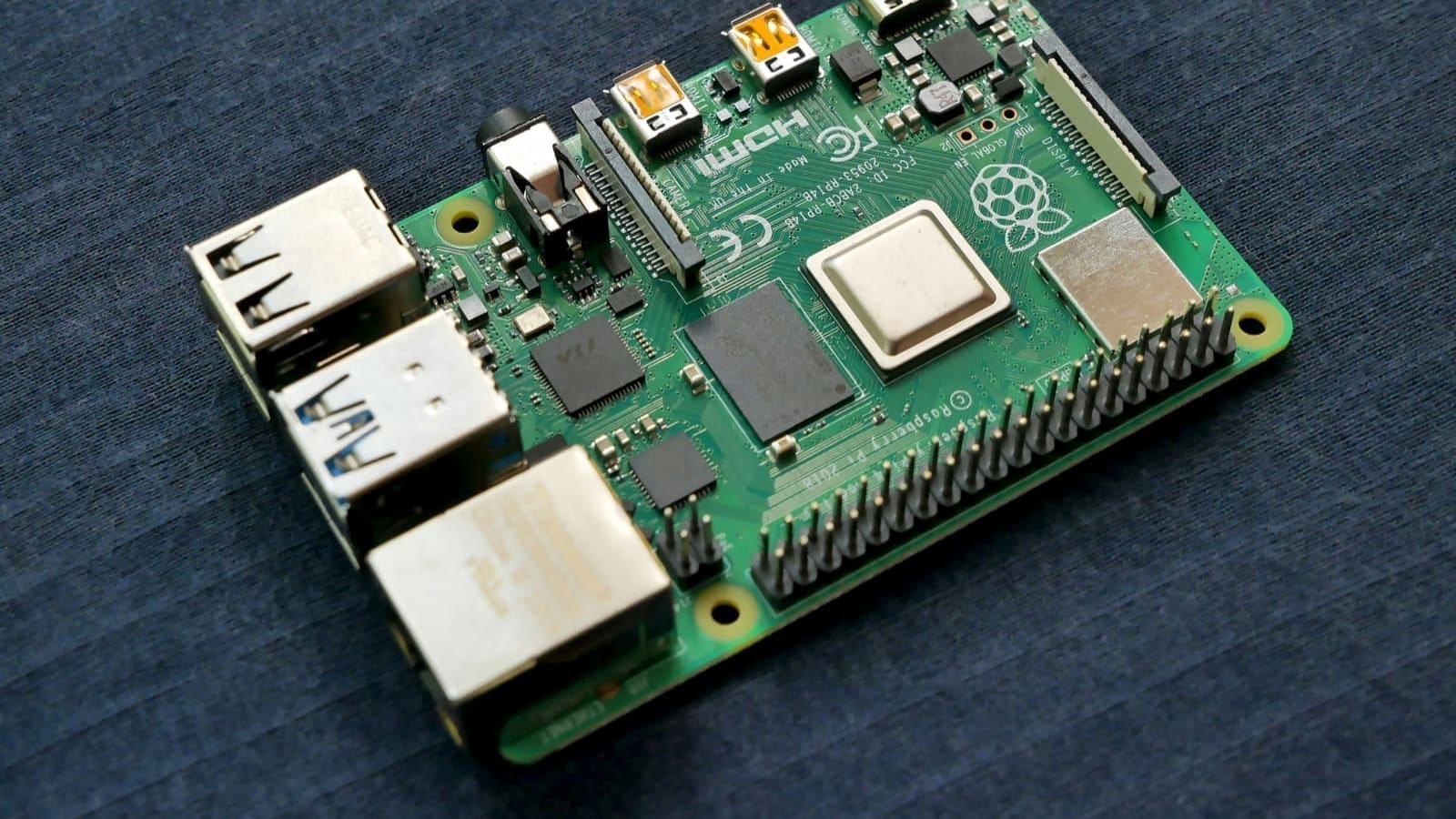
Raspberry Pi 5 is the recommended single-board option. The Pi 4 and Pi 5 both carry Gigabit Ethernet and dual-band Wi-Fi. Critically, Home Assistant's continuous database writes will destroy an SD card within months; pair a Pi 5 with an NVMe hat and SSD for reliable, long-term storage. The Pi 5 with NVMe hat costs roughly £110–£120 all in, but prices vary by retailer.
Mini PCs and Intel NUC
Mini PCs such as the Beelink MINI S12 or a used Intel NUC i3 offer substantially more processing headroom than a Pi and are well-suited to users running many integrations or add-ons like Frigate NVR. A used NUC can be found for £100–£150 on the UK second-hand market; prices vary widely. All these platforms support Gigabit Ethernet and can run Home Assistant OS directly.
Step 3: Assign a static IP address
Home Assistant should always live at the same IP address. If the address changes after a router restart, integrations that reference the HA host by IP — including some Zigbee coordinators, MQTT brokers, and camera streams — will silently break.
There are two approaches:
DHCP Reservation (Preferred)
DHCP reservation is configured on your router: you tell the router to always assign the same IP to the MAC address of your HA device. This is called a static lease, IP binding, or address reservation depending on your router firmware (BT Smart Hub, Virgin Media Hub, Sky Hub, and OpenWrt all support it). The advantage is that HA itself stays in automatic (DHCP) mode and you make the change in one place.
Static IP via Home Assistant OS
If you prefer to set the address on the device itself, go to Settings → System → Network, select your interface, switch IPv4 from Automatic to Static, and enter your chosen address, subnet mask (typically 255.255.255.0), gateway (your router's IP, usually 192.168.1.1 or 192.168.0.1 on UK ISP hubs), and DNS server (your router's IP or a public resolver such as 1.1.1.1). Choose an address outside your router's DHCP range to avoid conflicts.
Step 4: Segment IoT devices with a VLAN
Network segmentation — placing your smart home devices on a separate VLAN from your computers, phones, and NAS — is the single most effective security measure you can take. A compromised smart bulb on an isolated IoT VLAN cannot probe your laptop or your NAS; the network enforces the boundary.
The recommended architecture for a UK home consists of three logical networks:
- Main LAN (e.g. 192.168.1.0/24) — your computers, phones, and tablets
- IoT VLAN (e.g. 192.168.20.0/24) — smart bulbs, plugs, sensors, cameras
- Home Assistant — HA sits on the Main LAN (or on its own management VLAN) with firewall rules permitting it to reach into the IoT VLAN
This requires a managed switch and a router or firewall that supports VLAN tagging — hardware such as UniFi, TP-Link Omada, or pfSense/OPNsense. If you use UniFi, our IoT VLAN with Home Assistant: full UK setup guide covers the exact switch port and firewall rule configuration step by step.
mDNS and Device Discovery Across VLANs
The one pitfall of VLAN segmentation is that it breaks mDNS-based device discovery. Protocols such as Matter, HomeKit, Chromecast, and Sonos rely on multicast DNS to find devices on the local network — and multicast does not cross VLAN boundaries by default. The solution is to enable an mDNS reflector or proxy in your router (called Multicast Enhancement in UniFi, or available as the avahi-daemon package in OpenWrt). Once active, HA can discover devices on the IoT VLAN without compromising the security boundary.
Firewall Rules
Your firewall should enforce a default-deny policy between VLANs, then add targeted allow rules:
- Allow IoT VLAN to HA IP on port 8123 (the HA web interface)
- Allow IoT VLAN to HA IP on port 1883 (MQTT, if you use it)
- Block IoT VLAN to Main LAN (everything else)
- Allow HA IP to IoT VLAN (so HA can reach devices to control them)
Step 5: Set up remote access
Once your local network is solid, you will want access to HA when you are away from home. There are two main approaches.
Nabu Casa Home Assistant Cloud
Home Assistant Cloud, run by Nabu Casa (the company behind HA), provides encrypted remote access with no router port-forwarding required. The subscription costs £6.50 per month or £65 per year (prices include VAT). It also unlocks Google Assistant and Amazon Alexa cloud integrations, plus the Assist speech engine. For most UK users it is the simplest and most reliable option.
Self-Hosted Remote Access
Advanced users can self-host remote access using a reverse proxy (NGINX or Caddy) behind a domain with a Let's Encrypt TLS certificate, or via a WireGuard or Tailscale VPN. Tailscale's free tier covers most home users and requires no open ports. If you go the domain route, you will need to configure your ISP router to forward port 443 to your HA instance — check whether your UK ISP provides a dynamic DNS service or whether you need a third-party provider such as Cloudflare.
Step 6: Test your setup
Once everything is in place, run through this checklist before calling it done:
- Home Assistant is reachable at its static IP or hostname from another device on the same network
- A router restart does not change HA's IP address
- IoT devices on the VLAN appear in HA integrations (mDNS working)
- A laptop on the main LAN cannot ping IoT VLAN devices directly (firewall working)
- Remote access works from a mobile data connection (not just Wi-Fi)
A reliable network is the foundation everything else in Home Assistant is built on. Once it is right, take a few minutes to read our full Home Assistant UK setup guide to move on to software configuration, integrations, and your first automations.