What a Home Assistant group actually does
The Group integration combines multiple entities of the same type into a single entity that represents them all. A light group made from three kitchen lights behaves like a fourth light entity: turning it on turns on the members, and its own state reflects theirs. You can put the group on a dashboard, target it in an automation, or expose it to a voice assistant, all without touching the individual member entities.
Groups can be created for these entity types: binary sensor, button, cover, event, fan, input number, light, lock, media player, notify, number, sensor, switch, and valve.
Creating a group from the UI (2026 workflow)
Groups are created as Helpers, not as a separate menu:
- Go to Settings > Devices & services > Helpers
- Select Create helper
- Choose Group from the list
- Pick the group type (light, switch, cover, and so on), give it a name, and select the member entities
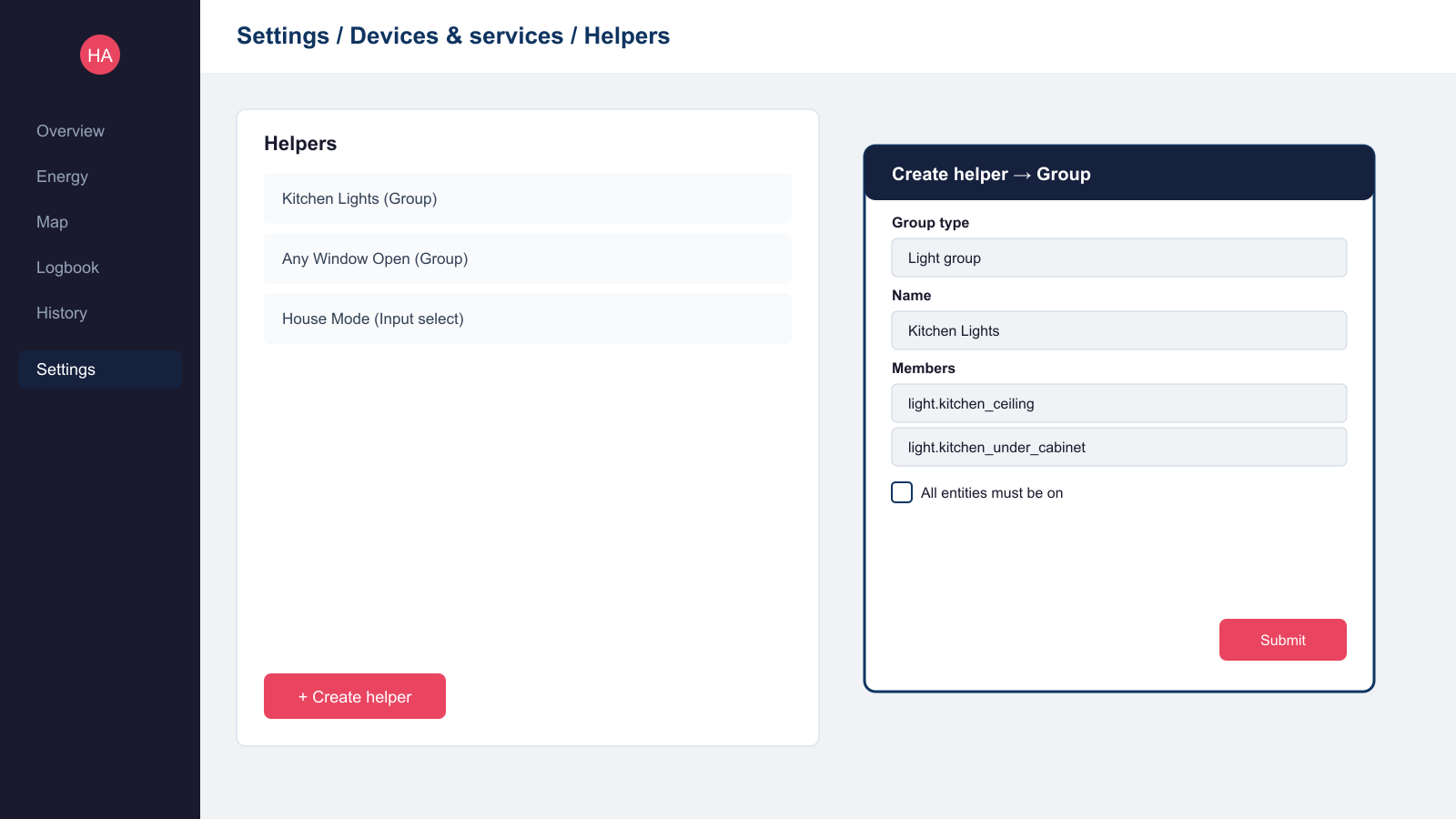
Existing groups can be edited from the same Helpers list — select the group and adjust its members or options.
If you've already read our Home Assistant Helpers guide, this will feel familiar: groups are just one helper type alongside input booleans, template sensors and the rest.
Creating a group in YAML
Groups can also be defined in configuration.yaml, nested under the relevant domain rather than a top-level group: block:
light:
  - platform: group
    name: "Kitchen Lights"
    entities:
      - light.kitchen_ceiling_lights
      - light.kitchen_under_cabinet_lights
The same pattern applies to switches, covers, fans and the other supported domains — just change the top-level key and the entity IDs.
A note on old-style groups: Home Assistant's documentation explicitly discourages the legacy top-level group: syntax that predates this per-domain approach, since the current groups are designed as a full replacement for it. If you inherited a config with old-style groups, migrate them to the per-domain syntax or the Helpers UI.
Any vs all: how group state logic works
By default, a group uses "any" logic: if any member entity is on, the group is on. That's the right behaviour for something like "Any Window Open" — grouping every window's binary sensor so the group turns on the moment a single window opens.
For binary sensor, light and switch groups, you can flip this with the All entities option: the group only turns on once every member is on. That's useful for checks like "every downstairs light is off" or a security condition that should only trigger once every relevant switch is in the same state.
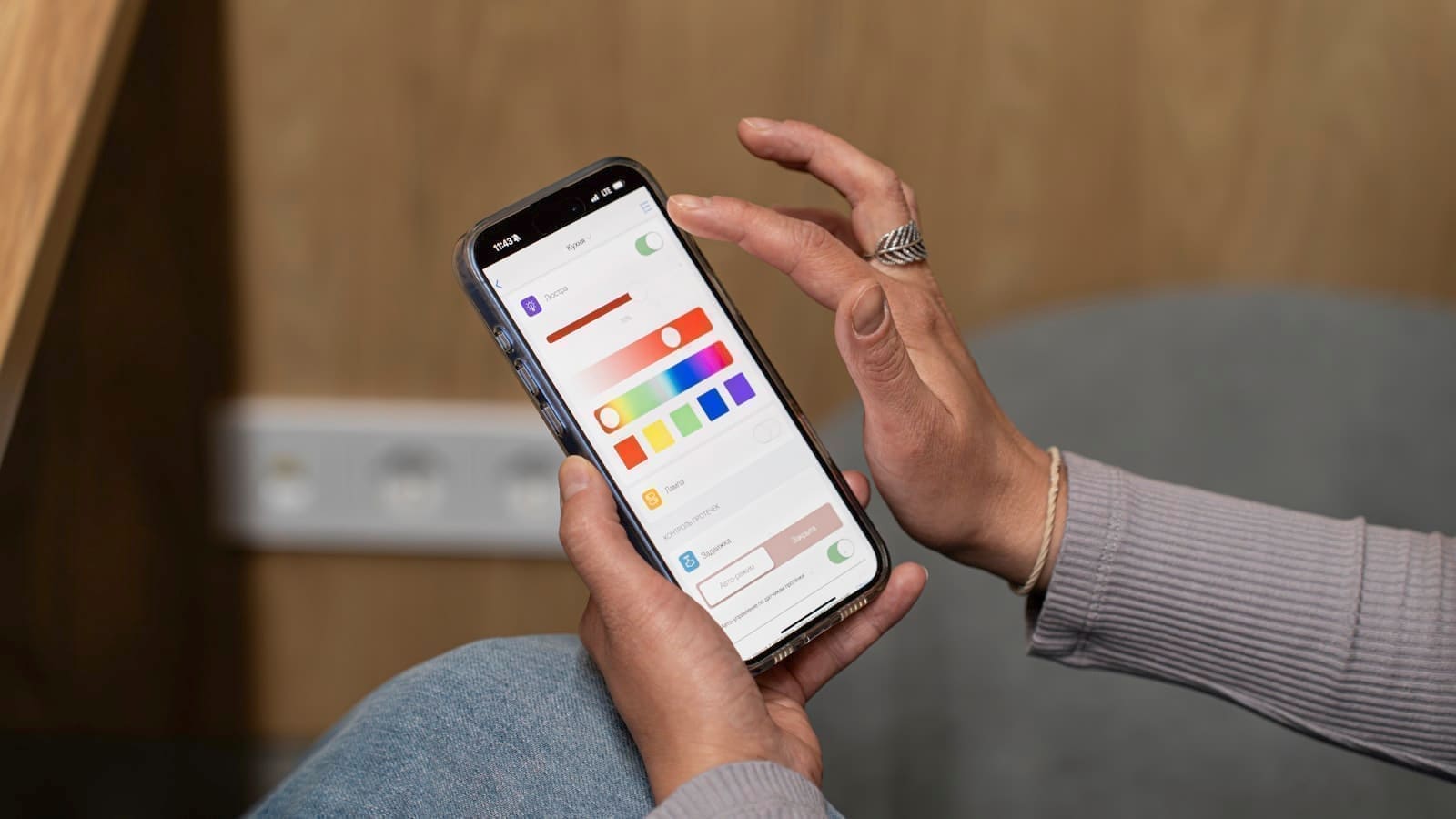
Watch out for colour averaging. When a light group's members are set to evenly spaced colours around the colour wheel (roughly opposite each other), the group's reported average colour can default misleadingly to red or light blue rather than a sensible blend. If a light group's colour readout looks wrong, this averaging quirk is usually why — check the member lights individually rather than trusting the group's colour at a glance.
Common use cases
- Whole-room lighting: group every light in a room into one togglable entity for a single dashboard tile or voice command.
- "Any X open/triggered" sensors: group door and window binary sensors, or multiple motion sensors, into one summary entity using the default any-based logic.
- "All X off/on" checks: use the All entities option to confirm every member switch, light or sensor shares the same state before an automation proceeds.
- Simplifying automations: target one group entity in an automation trigger or action instead of listing every member individually — useful once you've also read our templates guide for more advanced conditions.
Using groups in automations
Once a group exists, you can target it in an automation exactly like any other entity — which is often the whole point of creating one. A trigger that watches binary_sensor.any_window_open fires the moment a single window sensor changes state, without you having to list every sensor in the trigger itself. That keeps automations shorter and means a newly added window sensor only needs to be added to the group, not to every automation that cares about open windows.
A simple automation using the "Any Window Open" group from earlier might trigger on the group turning on and send a notification, while a "Kitchen Lights" group action could be called from a scene, a script, or a time-based automation that turns the group off at a set hour. The group absorbs the list of member entities, so the automation itself only has to reason about one thing turning on or off.
This also makes groups useful for voice assistants: exposing one group entity to Google Assistant or Amazon Alexa gives you a single voice command ("turn off kitchen lights") instead of requiring the assistant to control several entities individually.
Groups vs Areas vs Floors vs Labels vs Zones
These five organisational tools get confused constantly because they all involve "grouping" something — but they solve different problems:
- Group (the helper): combines multiple entities into one new controllable entity. An entity can belong to more than one group.
- Area: a logical grouping of devices and entities matching a room in your home. It's for organising what's already there, not for creating a new controllable entity the way a group does.
- Floor: groups several Areas together. Devices and entities can't be assigned to a floor directly, only via their area.
- Label: a cross-cutting tag you can attach to areas, devices, entities, automations, scenes and scripts — useful for grouping by function (e.g. "Security") rather than location, and an item can carry several labels at once.
- Zone: a geographic location (home, work, a family member's house) used mainly for presence detection and location-based automations — not for organising entities on a dashboard at all.
In short: use an Area to say where something is, a Label to say what category it belongs to, a Zone to say where a person or device is geographically, and a Group when you want one new entity that represents several others. They're complementary, not competing — a group entity can itself have an area and labels assigned to it.
Getting more from your groups
Groups pair naturally with scenes for one-tap room states, and with scripts when you want a group toggle to trigger a longer sequence rather than a simple on/off. If you're just getting started with Helpers in general, our Helpers guide is the best next stop.