What Is the media_player Entity?
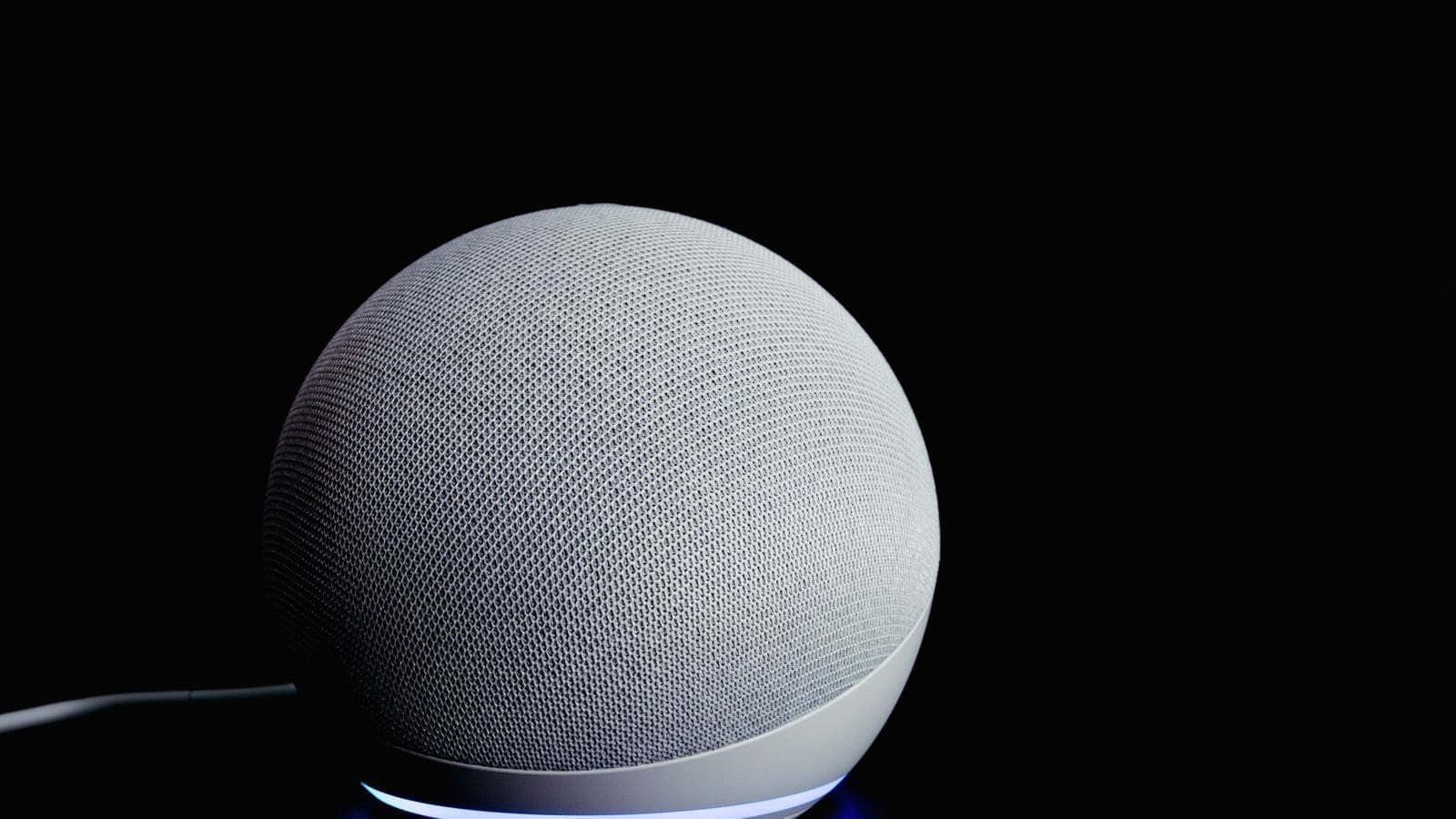
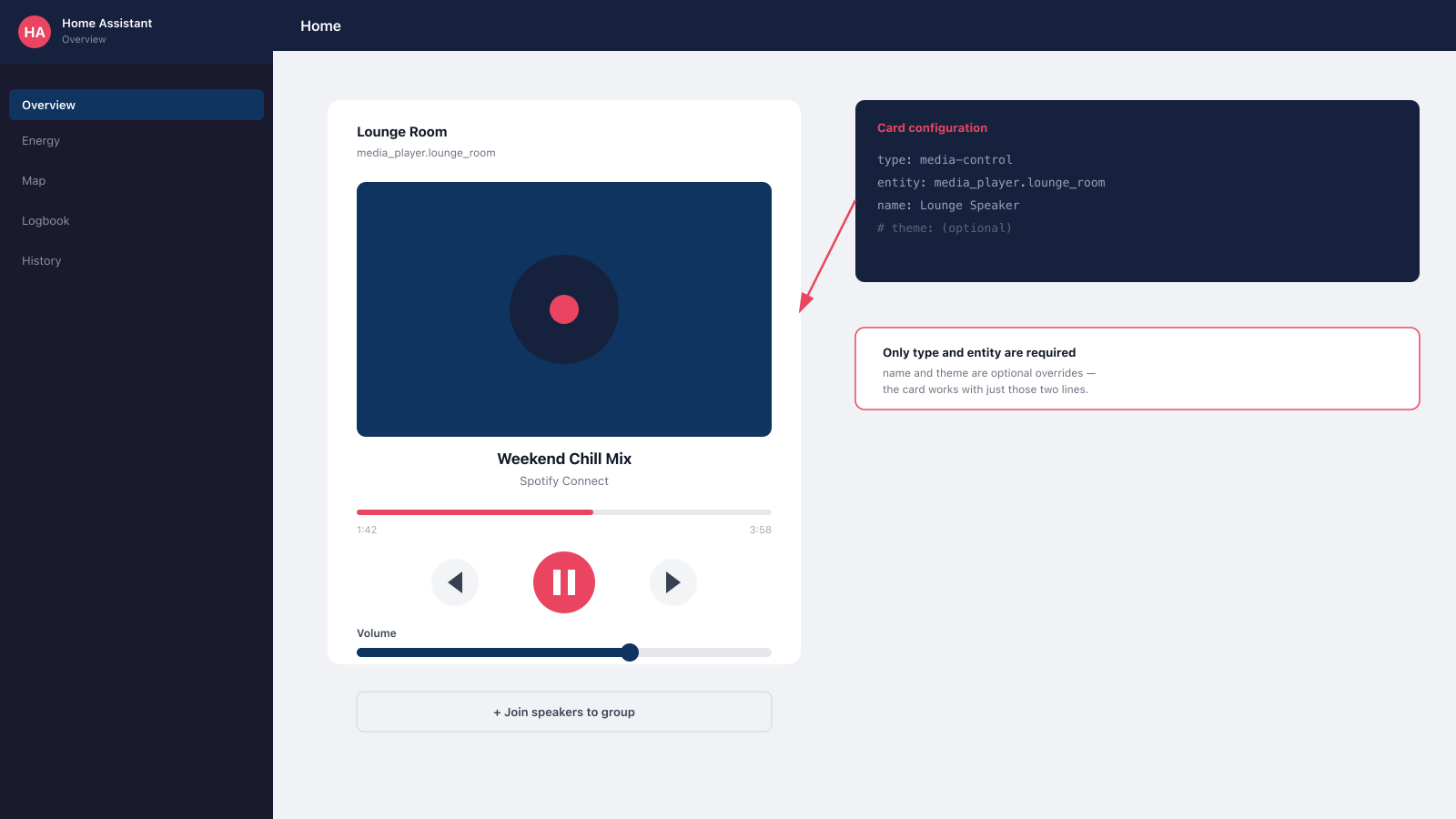
media_player is a "building block" domain — it doesn't do anything on its own, but other integrations (Google Cast, Sonos, Apple TV, HEOS, Spotify and dozens more) plug into it to expose a consistent entity for every playback device they support. According to Home Assistant's own documentation, a media_player entity can report one of several states: off (turned off, not accepting commands), on (turned on, but no further detail known), idle (on and accepting commands, but nothing currently playing), playing, paused, buffering, unavailable and unknown. Each entity is also tagged with a device class — tv, speaker, receiver or projector — which changes the icon shown in the UI, though the underlying entity behaves the same way regardless of class.
Adding Media Players to Home Assistant
Most media players are added the same way as any other integration: Settings → Devices & Services → Add Integration, then search for the brand or protocol. Home Assistant will usually auto-discover Cast devices, Sonos speakers and other mDNS-broadcasting hardware on the local network and offer to set them up automatically, with a notification appearing on the Devices & Services page. Common sources of media_player entities include Google Cast (Chromecast, Cast-enabled speakers and TVs, Android TV), Sonos, Apple TV, Denon HEOS, and streaming service integrations like Spotify, which exposes your active Spotify Connect device as a media_player entity too. For Cast and Google-ecosystem speakers specifically, our Home Assistant Google Cast guide covers setup, casting and troubleshooting for that integration in more depth.
The Media Control Lovelace Card
The built-in "Media control" card is the standard way to put a media_player entity on a dashboard. It shows playback state, artwork where available, and transport controls (play/pause, next/previous, volume), and only needs two things in its YAML configuration: type: media-control and an entity pointing at a media_player entity ID. An optional name field overrides the displayed name, and an optional theme field lets the card use a different loaded theme from the rest of the dashboard. A minimal example looks like this:
type: media-control
entity: media_player.lounge_room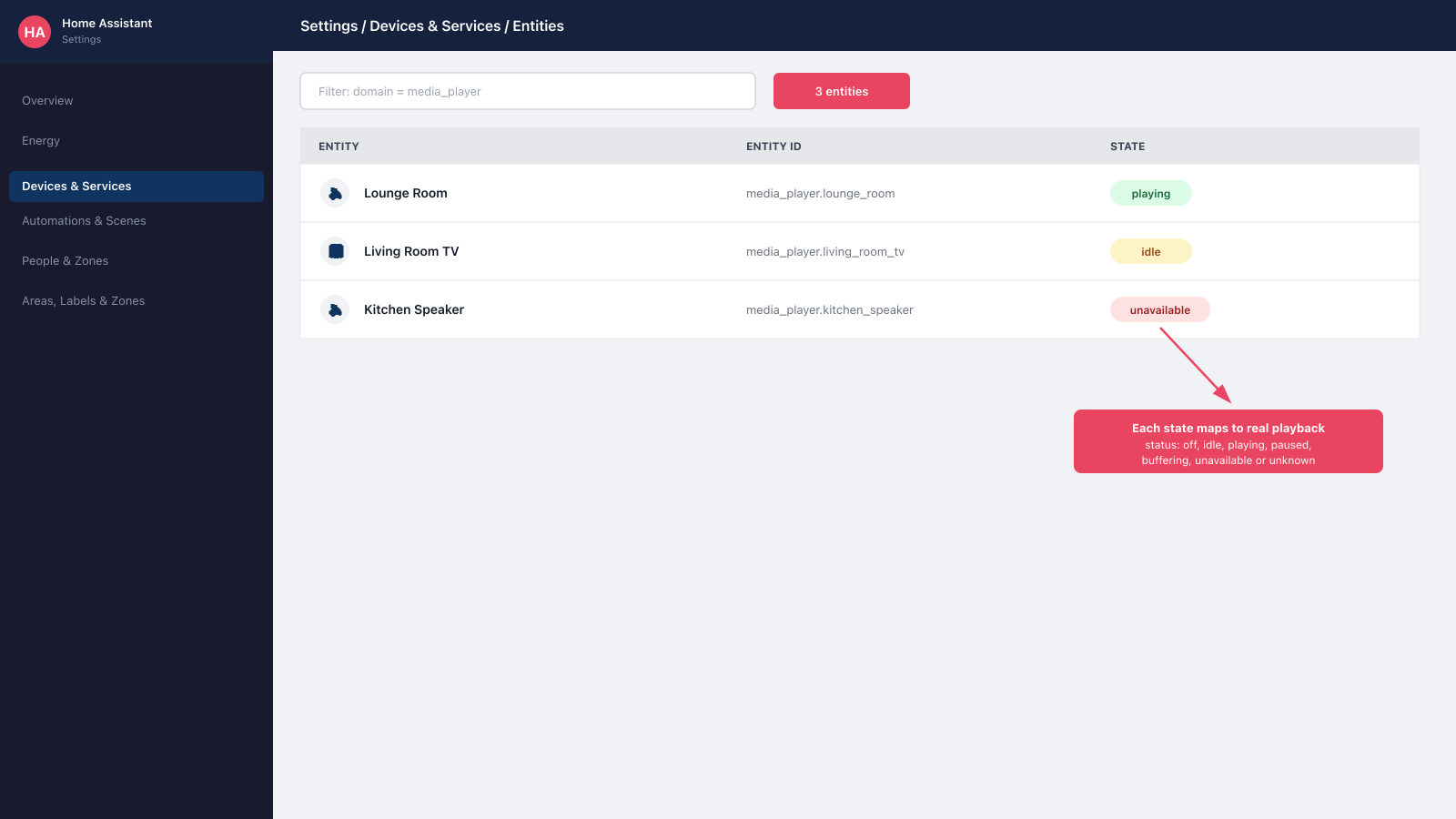
If you'd rather build dashboards from cards that pack more information into less space, our Mushroom cards guide covers a popular custom card set that includes its own media control layout, and the Lovelace dashboard guide covers dashboard basics if you're setting one up from scratch.
Grouping and Casting Multiple Speakers
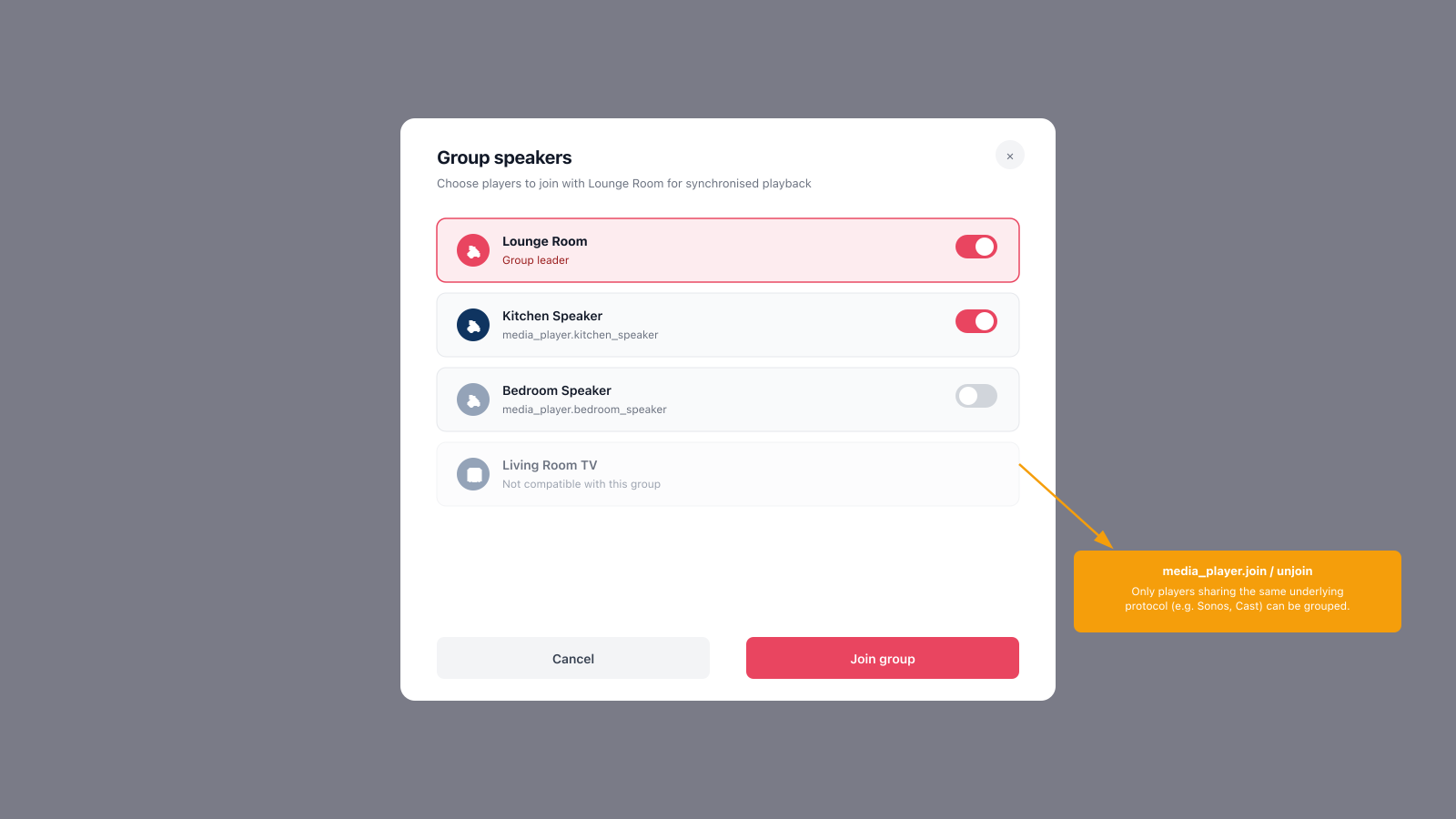
Home Assistant can group compatible media players together for synchronised playback using the media_player.join action, which groups a set of players so they play the same audio together, and media_player.unjoin, which removes a player from a group again. Whether grouping actually works — and how well it stays in sync — depends on the underlying integration: Sonos and Cast-based groups are generally reliable because both protocols were built around multiroom audio from the start, while grouping across entirely different brands (say, a Sonos speaker and a non-Cast smart TV) usually isn't possible, since there's no shared protocol underneath for Home Assistant to bridge. For Google-ecosystem speaker groups specifically, our Google Home speaker group setup guide walks through creating and using speaker groups on that platform, and the same Google Cast guide referenced above covers casting a specific source to a group from Home Assistant.
Automations With Media Players
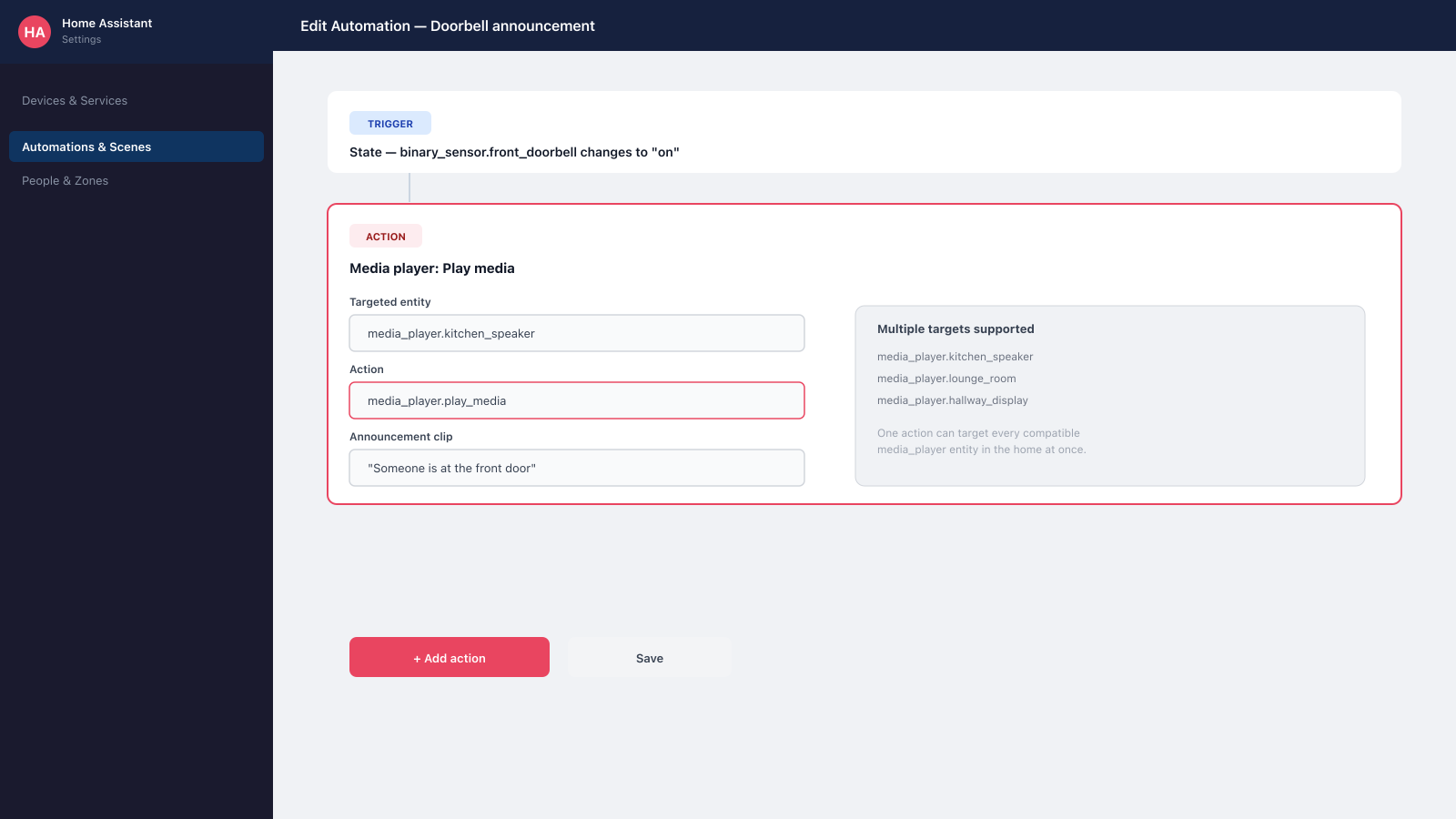
Any media_player action can be called from an automation, not just from a dashboard card. In the Automation editor, add an action, search for "media player", and pick from actions like play/pause, volume set, or play a specific piece of media, then target the entity or entities you want it to apply to. A common pattern is an announcement-style automation: trigger on a doorbell press or a specific time of day, then call a media player action targeting a speaker in the relevant room. Because every integration exposes the same media_player actions, one automation can often target several different brands of speaker at once, provided each device's own integration supports the action being called — not every media_player entity supports every action (a basic Cast-connected TV, for instance, won't support the same source-selection options as an AV receiver).
Troubleshooting Common media_player Problems
An entity stuck on "unavailable" almost always points to a network problem rather than a Home Assistant bug. Cast and Sonos discovery both rely on local network multicast (mDNS/SSDP) to find devices, so an entity going unavailable is worth checking against the device's own Wi-Fi connection first, and against router settings that can block multicast traffic between VLANs or across a mesh Wi-Fi system's separate access points — a very common cause on more locked-down home networks. An entity sitting on "unknown" rather than a real state after a Home Assistant restart is usually just Home Assistant waiting for the device to respond; it should update within a few seconds once the integration reconnects. If a device supports an action from its own app but the equivalent Home Assistant action doesn't work, check the integration's own documentation page — not every media_player integration implements every possible action, and some (like text-to-speech announcements or AV receiver zone control) are explicitly unsupported on certain platforms even though the underlying media_player entity otherwise works fine. If your VLC-based media_player disappeared entirely after updating, that is a removal rather than a bug — see our guide to fixing the VLC integration removal for the migration steps.
Once your media players are set up, the multiroom audio setup guide covers grouping them for synchronised playback with the Music Assistant integration, alongside how Sonos, Alexa, Google Home and AirPlay 2 handle multiroom as alternatives.