What Mushroom Cards is
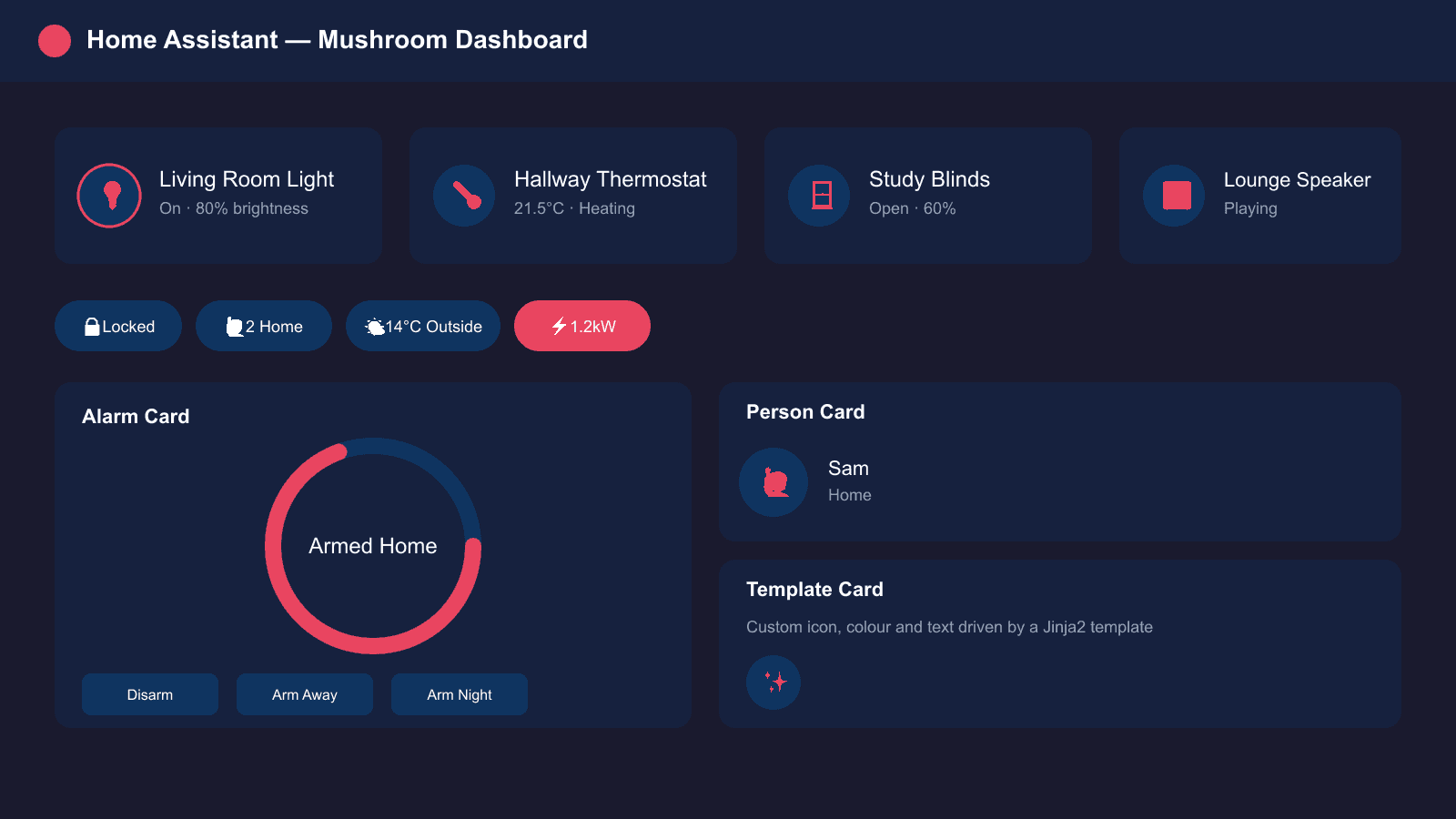
Mushroom is an open-source project built by developer piitaya, hosted on GitHub, with the stated goal of helping users "build a beautiful Home Assistant dashboard easily". Rather than one all-purpose card, Mushroom ships a family of purpose-built cards — one each for lights, climate, covers, media players, locks, fans, humidifiers, vacuums, alarm panels, people, numbers, selects and more — plus a chips card for compact status rows and a template card for fully custom, Jinja2-driven tiles. Every card shares the same rounded, flat design language, so a dashboard built entirely from Mushroom cards looks visually consistent even when it's mixing lights, sensors and climate controls.
The project's headline feature is that every card and every option can be configured through Home Assistant's built-in UI editor — icon pickers, colour pickers and layout toggles are all exposed in the dashboard editor, so YAML is optional rather than required. That makes Mushroom noticeably more approachable than older custom card packs that expect hand-written YAML for every tweak.
How do you install Mushroom Cards via HACS?
You install Mushroom through HACS in three steps, provided HACS is already set up on your Home Assistant instance:
- Open HACS from the Home Assistant sidebar.
- Search for "Mushroom" and select the Mushroom repository (current HACS lists it as a dashboard add-on, so there is no separate "Frontend" section to hunt for).
- Click Download, then reload the page or restart Home Assistant when prompted.
HACS normally registers the card's JavaScript resource automatically; if you want to confirm, look under Settings → Dashboards → Resources (visible with Advanced Mode on).
If Mushroom doesn't appear in a HACS search, add it as a custom repository: open the three-dot menu in HACS, choose Custom repositories, paste the GitHub URL, set the type to Dashboard (older guides call this "Lovelace"), and click Add. As a fallback that doesn't depend on HACS, download mushroom.js from the project's GitHub releases page, copy it into config/www, and add it as a dashboard resource manually.
Mushroom also has an optional companion theme pack, Mushroom Themes, distributed the same way through HACS. It isn't required — the cards render correctly against any Home Assistant theme.
Mushroom card types at a glance
| Card | YAML type | Best for |
|---|---|---|
| Entity | custom:mushroom-entity-card | Sensors and simple toggles |
| Light | custom:mushroom-light-card | Brightness and colour control |
| Climate | custom:mushroom-climate-card | Thermostats and TRVs |
| Template | custom:mushroom-template-card | Custom Jinja2-driven tiles |
| Chips | custom:mushroom-chips-card | Compact status strip at the top of a view |
| Title | custom:mushroom-title-card | Section headings and subtitles |
The full Mushroom card lineup
As of the current release, Mushroom includes the following card types, each mapped to a specific domain or use case:
- Entity card — a generic card for any entity, useful for sensors and simple toggles
- Light card — brightness slider and colour controls for light entities
- Climate card — target temperature and HVAC mode for thermostats and TRVs
- Cover card — open/close/position controls for blinds, garage doors and curtains
- Fan card, Humidifier card, Lock card, Vacuum card — domain-specific controls with the same visual style
- Media card — playback controls and volume for media players
- Alarm card — arm/disarm controls for alarm control panel entities
- Person card — presence status with the person's picture or initial
- Number card and Select card — for input_number/input_select-style entities
- Chips card — a compact row of small pills for quick-glance status, useful for weather, occupancy or a handful of toggles at the top of a view
- Template card — a fully custom tile where icon, colour, text and tap actions are all driven by Jinja2 templates, for anything the built-in cards don't cover
- Title card and Empty card — layout helpers for section headers and spacing
- Update card — shows available Home Assistant or add-on updates
A template badge is also available for users running Home Assistant 2024.8 or later, for showing custom status indicators in a dashboard's badge row.
How do Mushroom cards work together on a dashboard?
Mushroom deliberately doesn't include its own grid or stack layout system — it's designed to sit inside Home Assistant's existing Lovelace layout options (the built-in Sections view, or a Grid/Stack card) rather than reinvent one. A common pattern is:
- Use a chips card as a slim status strip at the top of a view — presence, weather, current power draw.
- Group related entity cards (all the lights in one room, say) inside a vertical or horizontal stack so they read as one unit.
- Reserve the alarm and climate cards, which are visually larger, for their own row rather than squeezing them next to smaller entity cards.
- Use the template card sparingly, for the handful of entities that genuinely need custom logic — most dashboards need only one or two.
Because every option is editable through the dashboard UI editor, it's practical to build a first pass entirely by clicking through the editor, then only drop into YAML mode for anything more advanced, like a template card's Jinja2 expression.
Mushroom pairs well with a broader dashboard rebuild — if you're restructuring views from scratch, it's worth planning the overall dashboard layout first and then substituting in Mushroom cards for the individual entity tiles.
A basic YAML example
Most Mushroom setups never need YAML at all, but it's worth seeing what the editor produces under the hood. A light card, added through the UI editor, generates something close to this:
type: custom:mushroom-light-card
entity: light.living_room
show_brightness_control: true
show_color_control: true
layout: horizontal
The layout option (horizontal, vertical, or default) is common across most Mushroom cards and controls whether the icon sits beside or above the entity name, which is useful for fitting more cards into a narrow column on a phone-sized dashboard. Options such as show_brightness_control follow the same pattern on light and fan cards, toggling whether an inline slider appears on the card itself rather than requiring a tap-through to the more-info dialog.
Common installation issues
Two problems account for most Mushroom install failures. If a card shows as "Custom element doesn't exist", the resource usually wasn't registered — check Settings → Dashboards → Resources for an entry pointing at Mushroom's JavaScript file, and add it manually if it's missing. If cards look unstyled or the wrong colour after an update, it's usually a stale browser cache — a hard refresh (Ctrl/Cmd+Shift+R) resolves most of these. Because Mushroom only adds frontend resources rather than integrations, entities or automations, none of this touches the underlying configuration; the worst case is a dashboard that reverts to the default cards until the resource is fixed.
Is it worth installing?
For anyone who finds the stock Lovelace entity rows cluttered, Mushroom is a low-risk change: it adds no new integrations or automations, only front-end cards, so removing it later just means deleting the resource and reverting to the default cards. Its main trade-off is that it favours a clean, minimal look over deep customisation — users wanting dense information-per-card layouts may prefer pairing it with other HACS card packs, such as the more YAML-driven button-card, rather than relying on Mushroom alone.