What you need before you start
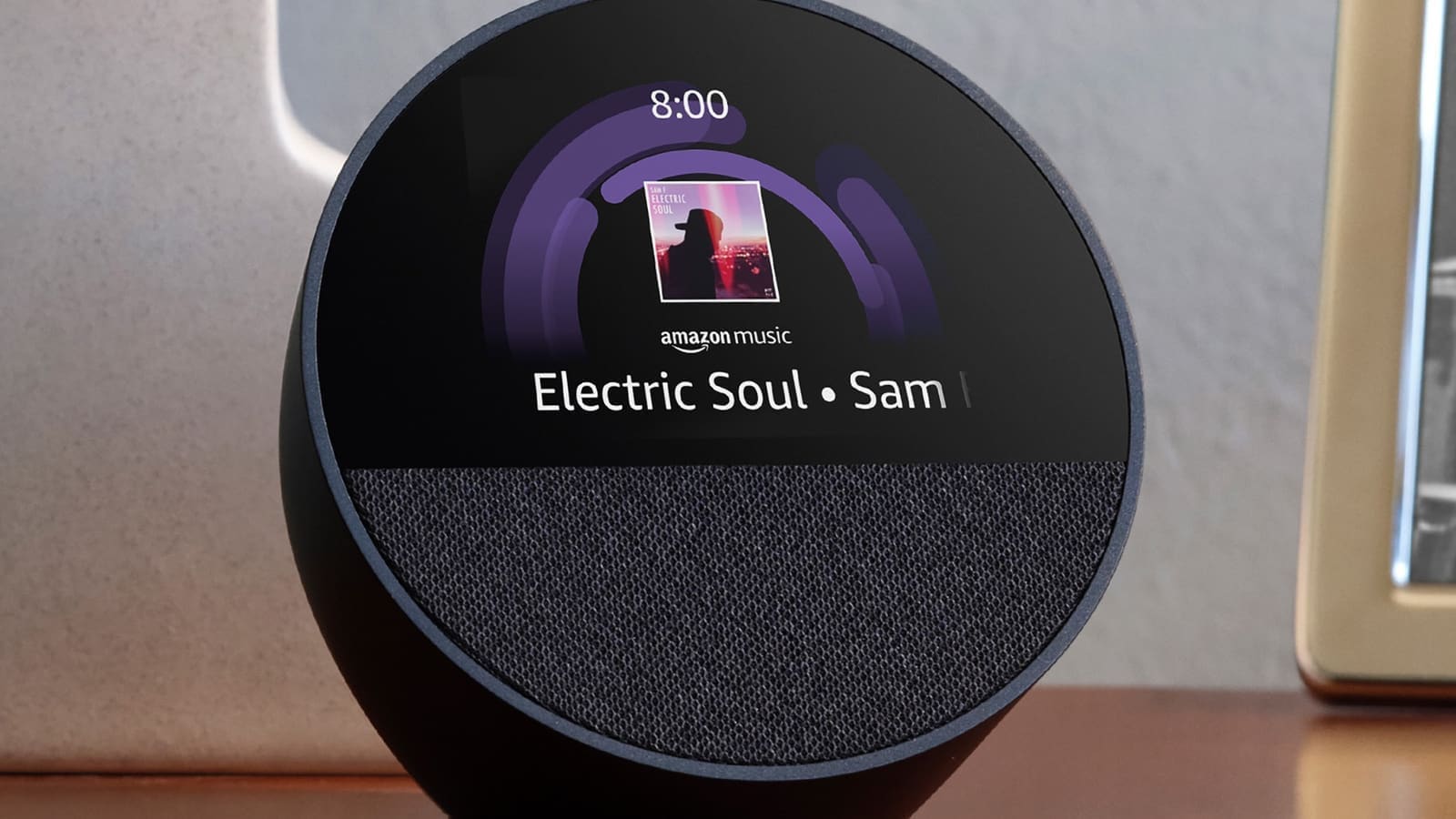
Amazon's own setup guidance is straightforward: you need at least two Alexa-enabled devices — these can be Echo speakers, Echo Show smart displays, or compatible third-party speakers with Alexa built in — plus the Alexa app installed on a phone or tablet. Every device you want in the group has to be registered to the same Amazon account and connected to the same Wi-Fi network; devices on a separate guest network, or registered to a different household member's account, won't show up as an option.
If you're starting from scratch and deciding which Echo to buy for a multiroom setup, our Amazon Echo UK review compares the current range, and the Echo Dot 5 review covers the cheapest device that supports grouping — handy if you just want a low-cost second or third speaker to add to an existing group.
Step 1: Open the Combine Speakers menu
According to Amazon's official set-up guidance, the process runs entirely from the Alexa app. Open the Alexa app and tap Devices at the bottom of the screen, then tap the + icon in the top corner and choose Combine speakers, then select Multi-Room Music.
Step 2: Choose which devices join the group
Follow the prompts to pick which devices belong in the group.
Step 3: Name and save the group
Give the group a name you'll say out loud — something like "Downstairs" or "Everywhere" — and save it.
Once you have more than one Alexa device on the account, Alexa also automatically creates a default group called Everywhere that includes every eligible speaker. You don't have to build this one yourself — it just appears. To rename it or change which devices it includes, go back to Devices, scroll to Speaker Groups, and open it from there. The same screen is where you edit any custom group later: add or remove devices, rename it, or delete it entirely.
Which music services work with Multi-Room Music
Multi-Room Music isn't tied to Amazon Music. Alongside Amazon Music (Prime or Unlimited), it works with third-party streaming services that integrate with Alexa, including Spotify, Apple Music, and internet radio via TuneIn. If Spotify is your main service, our Spotify on smart speakers guide covers linking your account and setting it as the default player, both of which carry over to group playback.
One thing worth checking if a group won't start playing a particular service: cut-price, single-device tiers of some music subscriptions are built to play on one speaker only and can refuse to join a multi-room group at all. If a track plays fine on a single Echo but the group won't start, check your subscription tier before assuming it's a Wi-Fi problem.
Voice commands for everyday use
Once a group exists, Alexa treats its name as a playback target, the same way it treats an individual device name. Useful patterns:
- "Alexa, play music everywhere" — starts playback on the default Everywhere group.
- "Alexa, play [artist or genre] in the [group name]" — targets a named custom group.
- "Alexa, play the news in the kitchen" — plays on a single device by name, ignoring any group.
You can also add a nearby speaker into whatever's currently playing without a pre-built group, by asking Alexa to play the current audio on that device too — useful for an ad hoc party setup that you don't want to save permanently.
Fixing sync lag, dropouts and devices that won't join
Multi-Room Music relies entirely on your home Wi-Fi to keep every speaker's audio in sync, so most problems trace back to network issues rather than a fault with Alexa itself. A few fixes that consistently help, based on Amazon's and third-party troubleshooting guidance:
- Keep every device on the same Wi-Fi network and band. A speaker on the guest network, or bounced onto a different band by your router, won't sync properly with the rest of the group.
- Reduce Wi-Fi congestion. Moving an Echo away from thick walls, microwaves, or other 2.4GHz interference — and onto the 5GHz band where the router supports it — noticeably cuts sync lag.
- Multi-Room Music does not work over Bluetooth. If a speaker is connected to its Echo via Bluetooth rather than natively, it needs to be wired in via the 3.5mm line-in instead, or it simply won't participate in a group.
- Restart devices that keep dropping out. Unplugging power for a few seconds and reconnecting resolves a stuck sync session more often than it should.
- Confirm every device shows as online in the Alexa app's Devices list before assuming the group itself is broken — one offline speaker is enough to stall the whole group.
How Alexa's approach compares to Google Home
If your household runs a mix of Echo and Google Nest speakers, it's worth knowing the two ecosystems don't talk to each other for grouping purposes — an Alexa Multi-Room Music group and a Google speaker group are entirely separate systems that can't include devices from the other brand. Our Google Home speaker group setup guide covers the equivalent process on Nest hardware if you're deciding which ecosystem to commit to, or need to run both side by side. If you're leaning towards higher-fidelity multiroom audio beyond what Echo speakers offer, our best multiroom speakers UK round-up and Sonos vs Denon HEOS comparison cover dedicated multiroom systems with wider hi-fi ambitions.
For most UK households already invested in a handful of Echo speakers, though, Multi-Room Music remains the simplest way to get synced audio through the house without buying new hardware or a separate app — it's built into the Alexa app you're probably using already.
If your household mixes Echo speakers with other brands, or you’re still deciding which route to take, our multiroom audio setup guide compares Alexa against Google Home, AirPlay 2, Sonos and Home Assistant’s Music Assistant side by side.