What a Google speaker group actually is
Google's own terminology matters here because it trips people up. In the Google Home app and support documentation, Google calls this feature a "speaker group" — a saved, named collection of two or more Google-compatible devices that play the same audio in sync. It is not called "multiroom" in Google's interface, even though that's the generic industry term (Sonos, Denon HEOS and Bose all use "multiroom" for the equivalent feature). If you're searching Google's support site, search "speaker group", not "multiroom".
A speaker group can mix device types freely: Nest Mini, Nest Audio, Nest Hub, Nest Hub Max, and any Chromecast-built-in speaker or TV can all sit in the same group, regardless of room. This is different from a stereo pair, which is a special two-speaker configuration for left/right stereo separation — covered below.
How to create a speaker group in the Google Home app
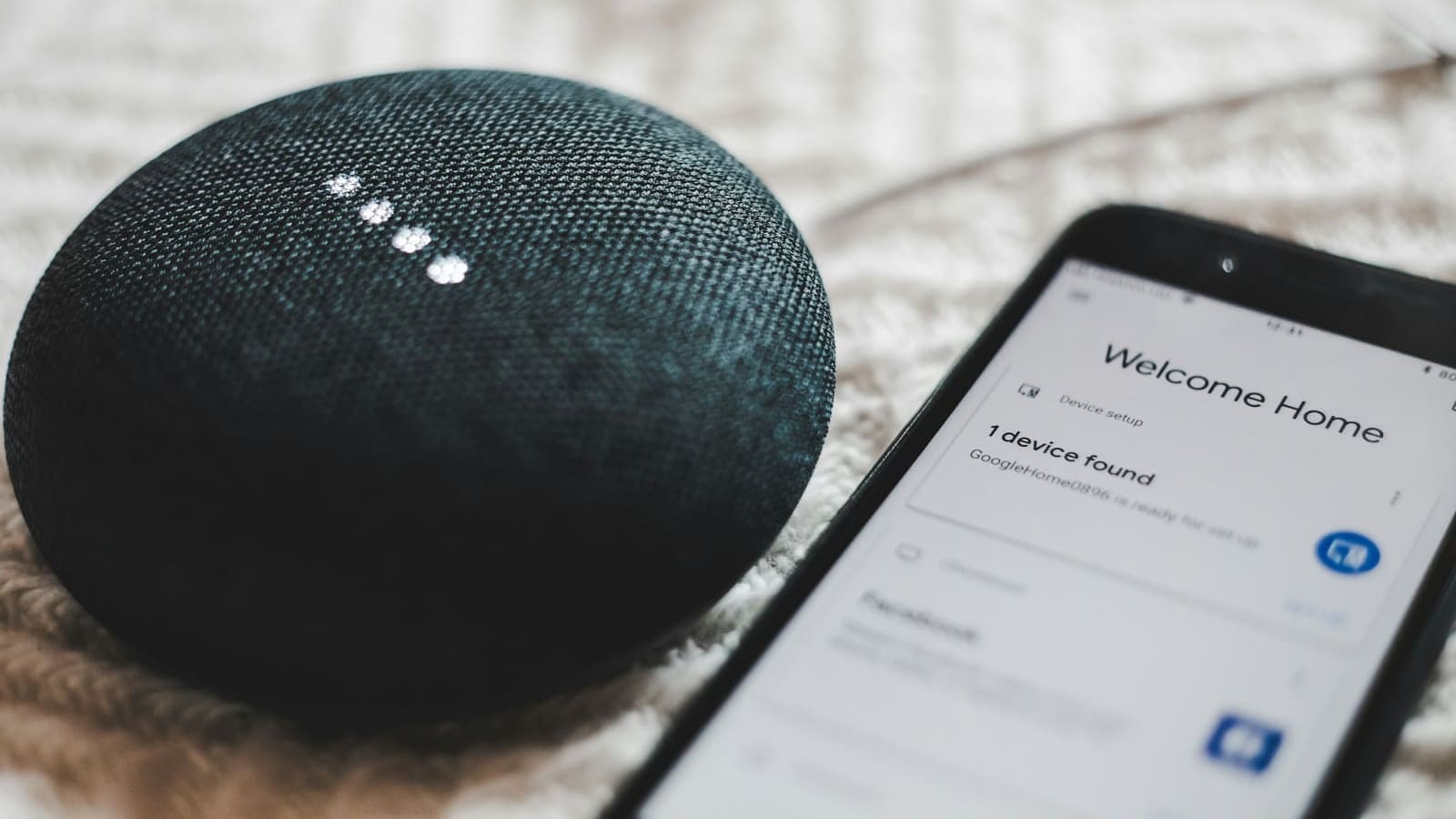
Setup happens entirely on a phone or tablet — Google doesn't support creating groups from a desktop browser, though you can still cast audio to an existing group from Chrome. Before starting, confirm your phone and every speaker are on the same Wi-Fi network and signed into the same Google Account.
- Open the Google Home app.
- Tap Add, then Speaker group.
- Select every device you want in the group — you can mix speakers, displays and Chromecast-enabled devices across different rooms.
- Tap Next, then give the group a memorable name (something you'll say out loud, such as "Downstairs" or "Party Speakers").
- Tap Save.
To edit a group later — adding, removing or renaming — go to Home > All devices, find the group, open its settings and choose Choose devices. One catch worth knowing: if you edit a group while it's actively playing something, playback stops and you'll need to restart it.
You don't have to pre-build a group at all. From the mini-player during active playback, tap the cast icon to add or remove speakers on the fly, or move audio from one speaker to another without ever saving a named group.
Stereo pairing: a different feature entirely
Stereo pairing links exactly two identical speaker models in the same room to act as dedicated left and right stereo channels, rather than each playing full mono sound independently. You could, for example, pair two Nest Mini units or two Nest Audio units — but you cannot stereo-pair a Nest Mini with a Nest Audio, because the models must match.
To set one up: in the Google Home app, go to Home > All devices, touch and hold one of the two matching speakers, then tap Settings > Audio > Stereo pair > Next. Select the two devices, confirm which one is physically on the left and which is on the right when it plays a test tone, assign the pair to a room, and give it a name. Once paired, both speakers respond to media controls as a single unit, but only the microphone on the left speaker actively listens for the Assistant.
The practical difference: a stereo pair behaves as one device with proper stereo separation in a single room; a speaker group is several separate devices playing the same feed in sync across multiple rooms. You can have stereo pairs and standalone speakers together inside the same speaker group.
Controlling groups by voice
Once a group exists, Google Assistant treats its name like any other device target. Useful patterns include "play rock music on Downstairs", "listen to the news on Party Speakers", or "play [podcast name] on Downstairs". You can also extend playback that's already running without a pre-built group — saying "add Living Room display to the music" or "play the music on the Kitchen speaker too" pulls a speaker into an ad hoc, temporary group on the spot.
How this interacts with Chromecast built-in
Every device eligible for a Google speaker group — Nest speakers, Nest displays, and third-party Chromecast-built-in speakers and soundbars — shares the same underlying Cast protocol. That's what makes cross-brand grouping possible: a Nest Audio and a Chromecast-enabled soundbar from a different manufacturer can sit in the same group and stay in sync, because both are Cast receivers taking commands from the same session. First-generation Chromecast (audio-only, not the newer Chromecast built-in speakers) isn't supported for speaker-group creation.
Speaker groups and Home Assistant
If you're also running Home Assistant's Google Cast integration, it's worth understanding where the two systems overlap and where they don't. HA's Cast integration discovers each Cast-enabled device individually and exposes it as its own media_player entity — it does not read or control the named speaker groups you've built in the Google Home app. If you want synchronised playback triggered from Home Assistant itself (for an automation or dashboard button, say), you use HA's own media player join action to group entities together within HA, rather than relying on the Google Home app's saved groups. The two grouping systems run independently, so a group created in one won't appear or play automatically from the other.
For a wider comparison of how Google's ecosystem stacks up against a Home Assistant-first setup for smart speakers generally, see our Home Assistant vs Google Home comparison.
Common problems and fixes
A speaker keeps dropping out of the group
This is almost always a Wi-Fi issue rather than a Google Home app fault — weak signal strength causes a speaker to lag and get dropped from the sync session. Move the router or add a mesh node if the affected speaker is far from the access point, and make sure it isn't on a separate guest network from your phone.
Group playback won't start
Double-check every device in the group is still online in Home > All devices — a single offline speaker can stall the whole group. If you recently edited the group's membership, remember playback needs to be restarted manually; it doesn't resume automatically.
Only one speaker plays instead of the whole group
This usually means the audio was cast directly to a single device rather than to the saved group name — check you selected the group (not an individual speaker) as the cast target, or use the exact group name in your voice command.
Once it's dialled in, a Google speaker group is genuinely one of the more polished bits of the Google Home ecosystem — sync quality across rooms is solid, and mixing Nest hardware with third-party Chromecast-built-in speakers means you don't have to commit to Google-only hardware. If you're comparing which Nest speaker to add to a group in the first place, our Nest Mini review and Nest Audio review cover which suits a small versus larger room. Running Echo speakers instead, or a mix of both? Our Alexa Multi-Room Music setup guide covers the equivalent process on Amazon's side, including why the two ecosystems can't be grouped together.