Why Bother Monitoring a Home Network?
For most people the trigger is one of four things:
- Spotting bandwidth hogs. A single device — a backup job, a misbehaving camera, a housemate's game download — can saturate a home connection and make everything else feel slow. Without visibility, the router just looks slow with no obvious cause.
- Finding rogue or unknown devices. IoT-heavy smart homes are an easy target: cheap bulbs, plugs and cameras from marketplaces sometimes ship with weak security. Knowing exactly what's connected — and noticing something new — is a basic but effective security check.
- Catching outages early. If Home Assistant, a NAS, or a self-hosted service goes down while you're out, you generally don't find out until you try to use it. Uptime monitoring closes that gap.
- Understanding what's normal. DNS-level and traffic tools show which domains and services your devices are actually talking to — useful both for troubleshooting and for noticing something unexpected phoning home.
Device Discovery: Fing
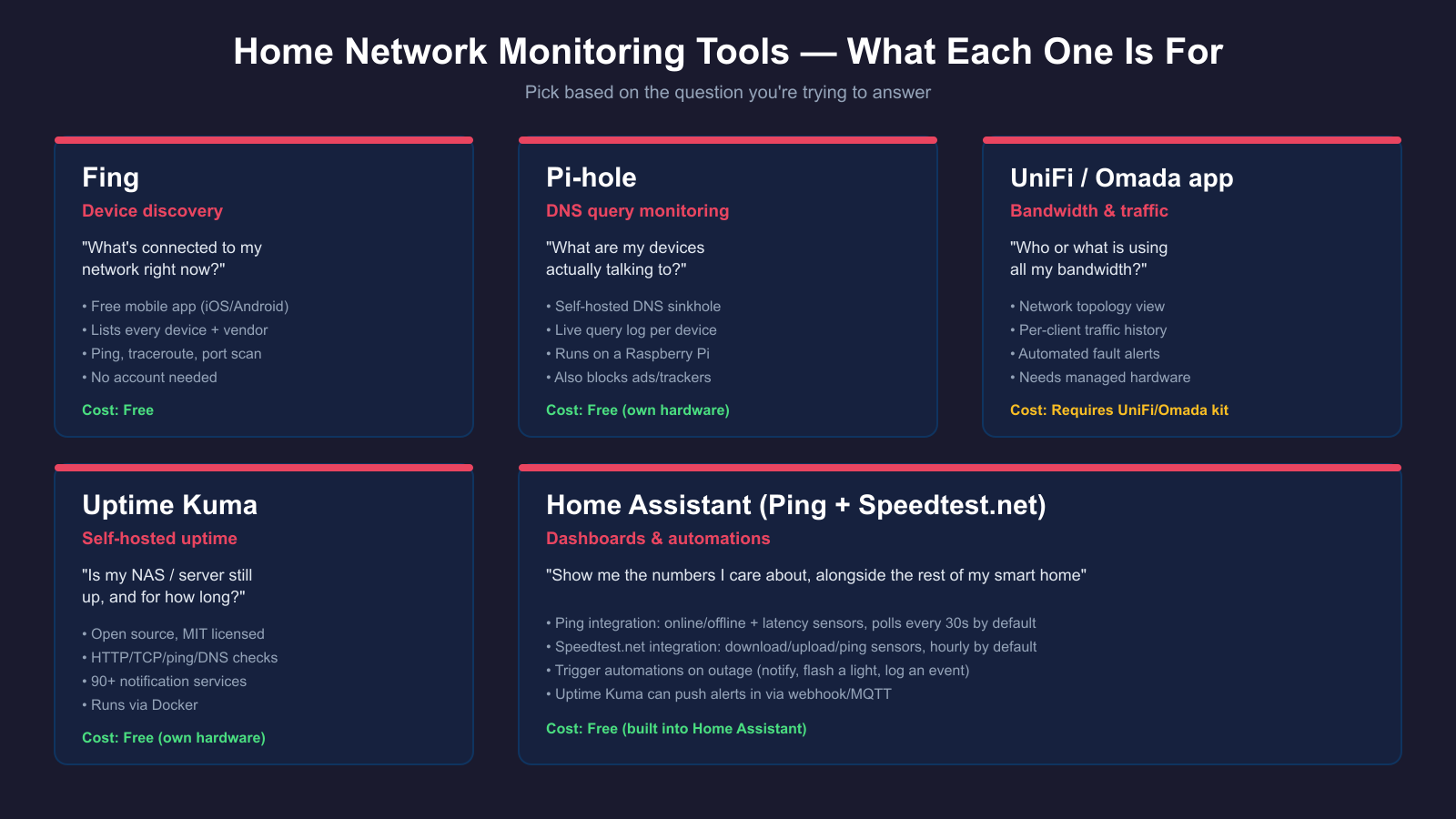
Fing is a free mobile app (iOS and Android) that scans your Wi-Fi network and lists every connected device, with vendor identification, IP/MAC address, and open-port checks. It also includes basic diagnostic tools — ping, traceroute, port scanning — and an internet speed test, all from the phone in your pocket. The core scanning and device list is free with no account required; a paid Fing subscription adds extras such as continuous monitoring alerts and integration with the separate Fingbox hardware, but you don't need either to get value from the app.
Fing is the right first stop if your question is simply "what's on my network right now?" — it's the fastest way to spot a device you don't recognise, or to confirm a smart plug or camera actually joined the network after setup.
DNS-Level Visibility: Pi-hole
Where Fing tells you what's connected, Pi-hole tells you what those devices are talking to. Pi-hole is a free, open-source DNS sinkhole, usually run on a Raspberry Pi, that sits between your router and every device on the network. Every DNS lookup passes through it, and its web dashboard shows a live query log — which device made which request, how often, and whether it was blocked. Beyond ad and tracker blocking, that query log is genuinely useful as a monitoring tool: it's often the easiest way to notice a device that's unexpectedly chatty, or one still phoning home after you thought you'd disconnected it. We cover full setup in our Pi-hole home network guide.
Router and Controller Apps
If you run a mesh system or a managed router/AP setup, some monitoring is already built in — you just have to look for it.
Most consumer routers and mesh apps show a live client list and basic per-device throughput. Prosumer ecosystems go further: Ubiquiti's UniFi Network app and TP-Link's Omada app both give you a live network topology view, per-client traffic stats, and historical usage graphs from the controller dashboard, plus automated alerts when something goes offline or behaves abnormally. Omada specifically advertises 24/7 automated fault detection and scheduled network reports as part of its controller. If you're deciding between the two ecosystems in the first place, see our TP-Link Omada vs Ubiquiti UniFi comparison; if you've already settled on UniFi, our UniFi home setup guide covers getting the app running.
The advantage of controller-level monitoring is that it sees all traffic through the switch or AP, not just what you actively query — but it only exists if you've already bought into a managed ecosystem. If you're on a single consumer router, Fing and Pi-hole get you most of the same visibility for free.
Self-Hosted Uptime Monitoring: Uptime Kuma
Uptime Kuma is a free, open-source, self-hosted monitoring tool (MIT licensed) that you run on a Raspberry Pi, NAS, or small server, typically via Docker. You point it at anything with an address — a website, an internal service, a NAS share, Home Assistant itself, a smart plug's local API — and it checks it on a schedule using HTTP(S), TCP, ping, DNS, or a handful of other methods. It keeps an uptime history and status page, and can send alerts through more than 90 notification services including Telegram, Discord, Slack and email.
This is the tool for the question Fing and Pi-hole don't answer: is this specific thing still up, and for how long has it been up or down? It's particularly useful for self-hosted smart home setups where Home Assistant, a NAS, or a Docker stack quietly falling over is otherwise invisible until you go to use it.
Folding Monitoring into Home Assistant
If you already run Home Assistant, you can pull a useful slice of network monitoring straight into your existing dashboards rather than checking separate apps:
- Ping (ICMP) integration — polls a host every 30 seconds by default and exposes an online/offline binary sensor, plus optional round-trip time, packet loss and jitter sensors. It's a simple, reliable way to track whether a router, NAS, or specific device is reachable, and to build automations that notify you if a device drops offline for more than a few minutes.
- Speedtest.net integration — runs an actual speed test via Speedtest.net and logs ping, download and upload as sensors, on an hourly schedule by default. Useful for tracking whether your broadband is delivering what you're paying for over time, though Home Assistant's own docs note it uses meaningful bandwidth and shouldn't be run too frequently on a constrained connection.
- Uptime Kuma webhook integrations — Uptime Kuma can push its own alerts into Home Assistant via webhook or MQTT, so a service outage can trigger a Home Assistant notification, light flash, or automation alongside its own dashboard.
None of this replaces a dedicated tool like Fing or Pi-hole for deep visibility — but it means the handful of numbers you actually care about day to day (is the internet up, is the NAS up, what's my speed doing) live on the same dashboard as the rest of your smart home.
How to Get Started
You don't need all of these at once. A sensible order for a UK smart home:
- Install Fing on your phone and do a scan. Spend ten minutes identifying every device on the list — this alone catches most "wait, what is that?" moments.
- Set up Pi-hole if you don't already run one — it doubles as ad-blocking and DNS-level visibility, and most UK users run it on a spare Raspberry Pi for well under £50 all in.
- Add the Ping integration in Home Assistant for anything critical — router, NAS, Home Assistant's own host if it's separate hardware — so an outage shows up on your dashboard, not just when something stops working.
- Install Uptime Kuma once you're running more than one or two self-hosted services and want a proper history and alerting, rather than just an online/offline flag.
- Check your router or controller app for built-in traffic graphs — if you're on UniFi or Omada hardware, this is already there and worth a look before adding another tool.
Together these give a UK smart home genuine visibility into what's connected, what it's doing, and whether anything is down — without needing an enterprise network monitoring platform.