How we chose a tablet for a Home Assistant dashboard
We ranked each tablet on how little effort it takes to turn it into a permanent, always-on panel, using the Home Assistant docs rather than forum folklore. The criteria, in order, were:
- A supported kiosk route. Home Assistant documents a kiosk mode for iOS and a launcher mode for Android; anything needing hacks lost points.
- Local control. The dashboard should load from your own Home Assistant over the LAN, with no cloud account in the way.
- Screen and speed. A dashboard with cameras, graphs and a dozen cards needs a tablet that does not stutter.
- Honest UK pricing. Prices below are launch RRPs from the manufacturers or UK retailers, so check today's price before buying.
We left out Amazon Echo Show displays: they are excellent Alexa screens but they are not general-purpose Android tablets, so you cannot run your own Home Assistant dashboard on them in a supported way. If you want a fixed, mains-powered panel with Ethernet instead, see our hands-on review of a PoE Android wall tablet.
Which tablets work best with a Home Assistant dashboard?
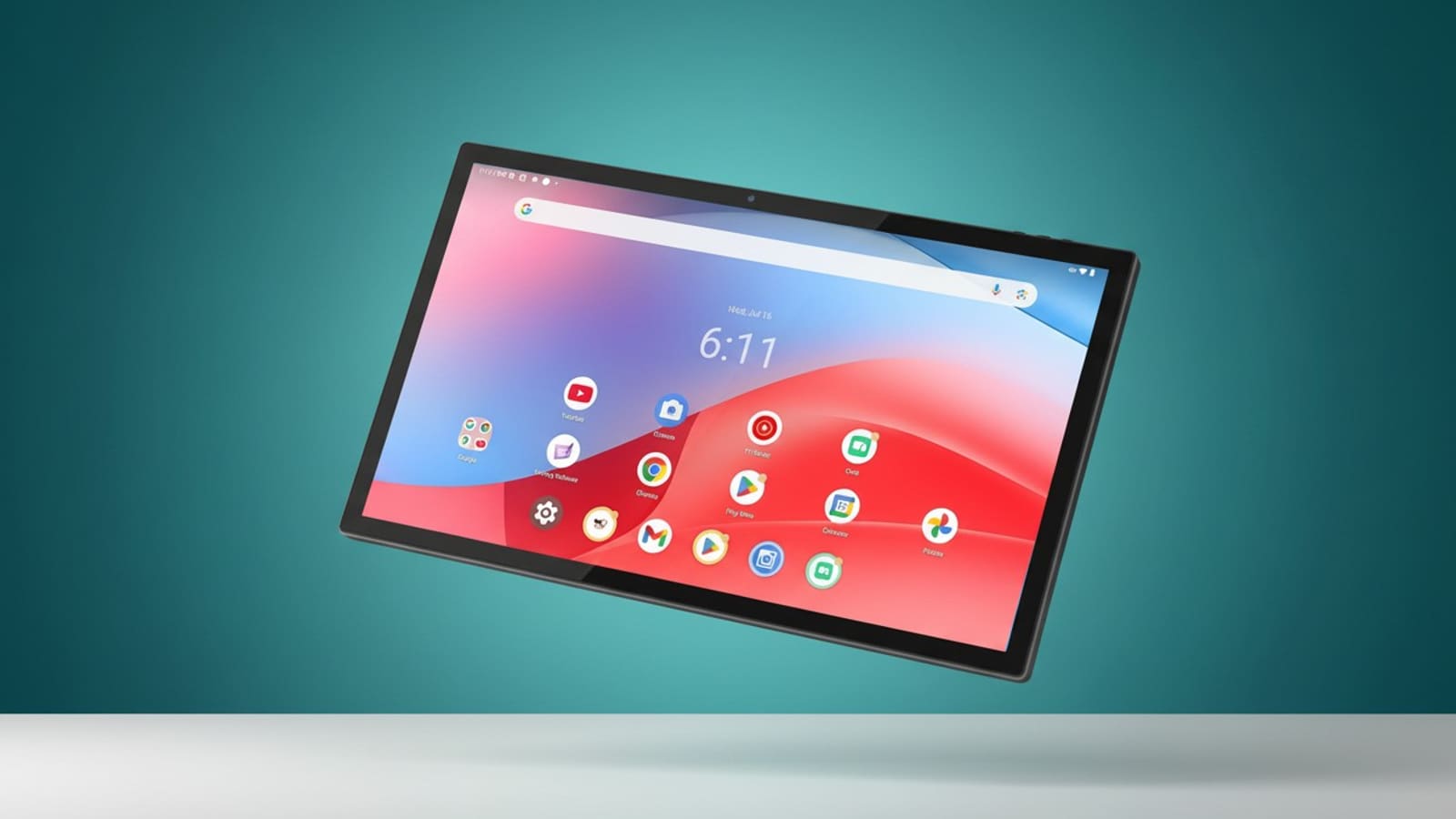
Four stand out, and the right one depends mostly on whether you already live in the Apple, Android or Shelly world. All four can show a dashboard built the way our Home Assistant dashboard guide describes.
1. Samsung Galaxy Tab A9+ — best overall
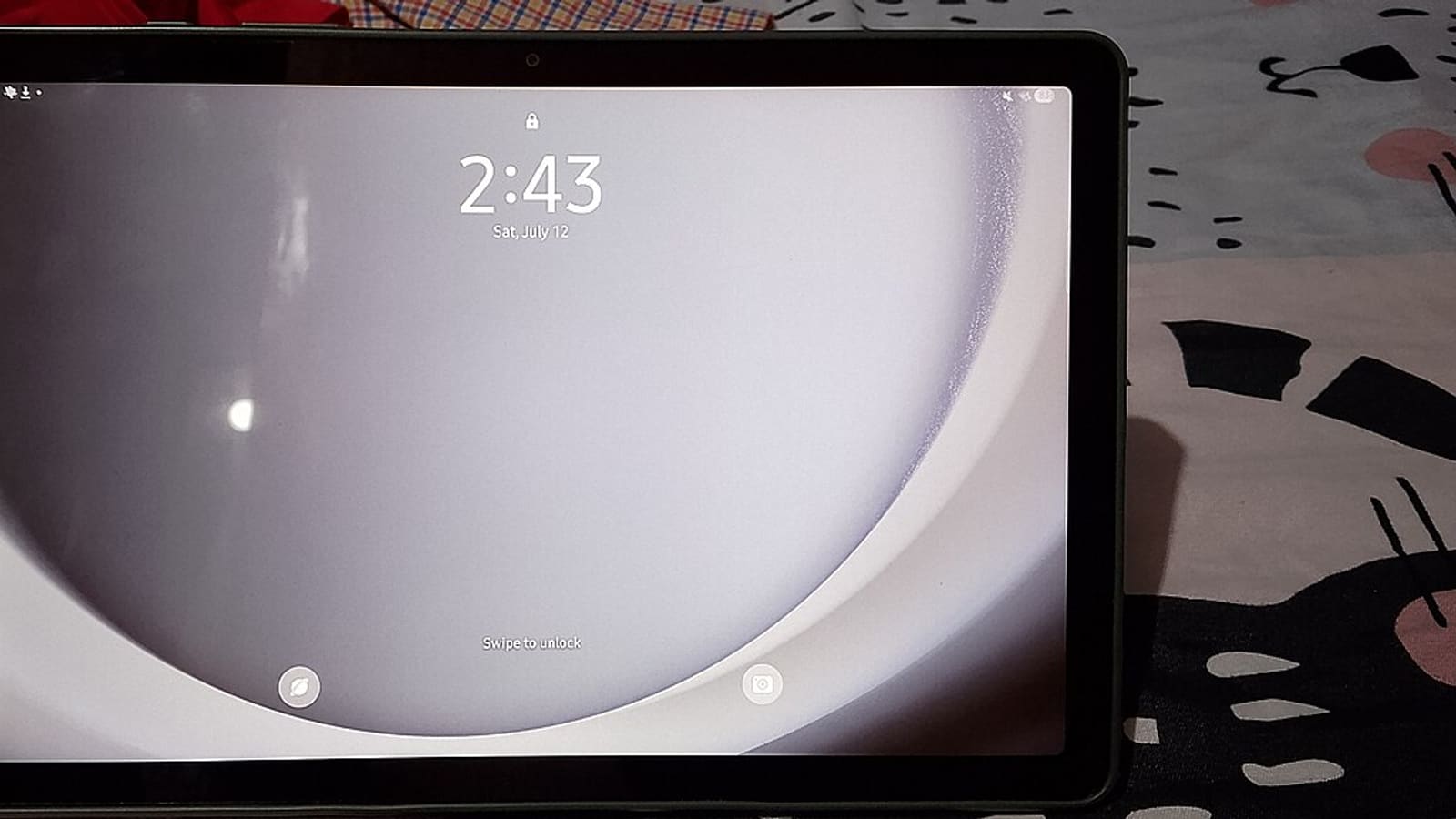
Who it's for: anyone who wants a normal Android tablet that just works as a wall or desk panel. Samsung's UK launch announcement lists an 11-inch LCD with up to 90Hz refresh, 4GB RAM with 64GB storage (or 8GB with 128GB), a 7,040mAh battery, quad speakers and a £239 RRP. That 90Hz screen makes card scrolling and swipes feel smooth, which matters when family members use the panel all day.
The real reason it wins is software. It ships with Google Play, so you can install the Home Assistant Companion app and switch on Use as Home app (launcher) and Keep screen on, exactly as the Companion docs describe. If you want the stricter lockdown, Fully Kiosk Browser covers it and unlocks motion-based screen wake. The catch: Fully Kiosk's kiosk features sit behind its paid PLUS licence (a one-off €8.90 or $10.99 per device plus tax), and Home Assistant's own Fully Kiosk integration requires it too. Samsung's own firmware updates are also finite, so plan on this being a three-to-four-year panel.
See the Galaxy Tab A9+ on Samsung UK
2. Amazon Fire HD 10 (2023) — best budget
Who it's for: a spare-room, kitchen or hallway panel where you want the lowest price. Amazon's UK launch release lists a 10.1-inch 1920 x 1200 screen, 3GB RAM, an octa-core 2.0GHz processor, up to 13 hours of battery and a launch price from £149.99, and it is routinely discounted in sales. For a screen that sits in one place and shows lights, heating and the front door camera, that is plenty.
The catch is Fire OS. It is a modified Android that does not include Google Play, so you install the Companion app or Fully Kiosk Browser through Amazon's own store or by sideloading the APK, and some of the Home Assistant Companion app's features that depend on Google services behave differently. It also shows lock-screen ads unless you pay more or remove them. It is a perfectly good dashboard, but expect a bit more setup than the Samsung and a slower interface when you run a very heavy view.
3. Apple iPad (A16, 11-inch) — best finish and longest support
Who it's for: Apple households that want the nicest screen and the longest software life. UK retailers list the 11-inch Wi-Fi 128GB model at £329, with a 2360 x 1640 Retina display and an A16 chip. It is the only tablet here with a first-party kiosk mode built into the Home Assistant Companion app: it hides the sidebar and top bar, keeps the screen awake, reloads the dashboard on a schedule, and can show a Clock, Dim or Blank screensaver after inactivity.
Two catches. Hiding the sidebar and top bar controls needs Home Assistant 2025.2.0 or later, and the Home Assistant docs are clear that kiosk mode cannot stop someone leaving the app or switching the device off, so they recommend Guided Access for a public-facing panel. It is also the dearest option here and overkill if all you want is a hallway thermostat. For most homes, it earns its price only if you will also use it as a normal iPad.
See the iPad (A16) at John Lewis
4. Shelly Wall Display X2i — best built-in wall panel
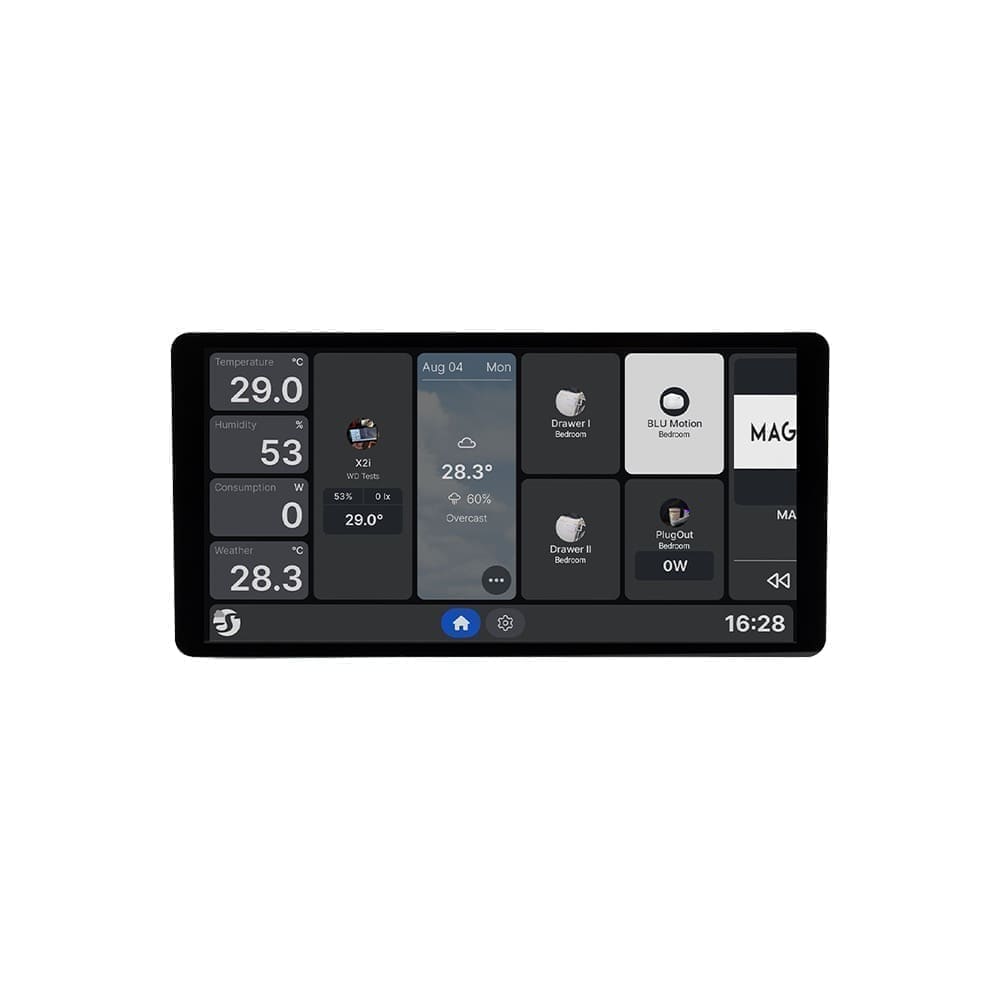
Who it's for: anyone who would rather have no tablet stand, cable or charger on show. It is a 6.9-inch, 1440 x 720 touchscreen running Android 11 with 2GB RAM, designed to fit a standard UK or EU flush wall box and to switch a circuit through a 5A relay. The relay integrates locally with Home Assistant through the Shelly integration, while the screen is a browser you point at your own dashboard.
The catches are depth and neutral: it needs a neutral wire and measures about 36mm deep with the power base fitted, which is chunkier than many back boxes expect, and its built-in temperature sensor reads high from the display's own heat, so use a separate sensor for heating automations. Keep layouts simple, because it is a modest processor. UK stock includes The Pi Hut at about £172.
View the Shelly Wall Display X2i at The Pi Hut
Do you need Fully Kiosk Browser to run a Home Assistant tablet?
No, you do not need Fully Kiosk Browser: the free Home Assistant Companion app can run a perfectly good wall panel on Android and iOS. It becomes worthwhile when you want Home Assistant to control the tablet itself.
The official Fully Kiosk integration exposes the screen on/off switch and brightness, a screensaver, motion detection, a screenshot image, battery level, the current page and a kiosk-lock control, and it can load a URL or speak text through the tablet. The integration polls each device every 30 seconds and requires Fully's Remote Admin, which needs the paid PLUS licence. That is cheap per device, but add it up before you fit six tablets. A sensible approach is to start with the Companion app, then buy Fully on only the panels where you need motion wake or remote screen control.
Who should skip a tablet for a Home Assistant panel?
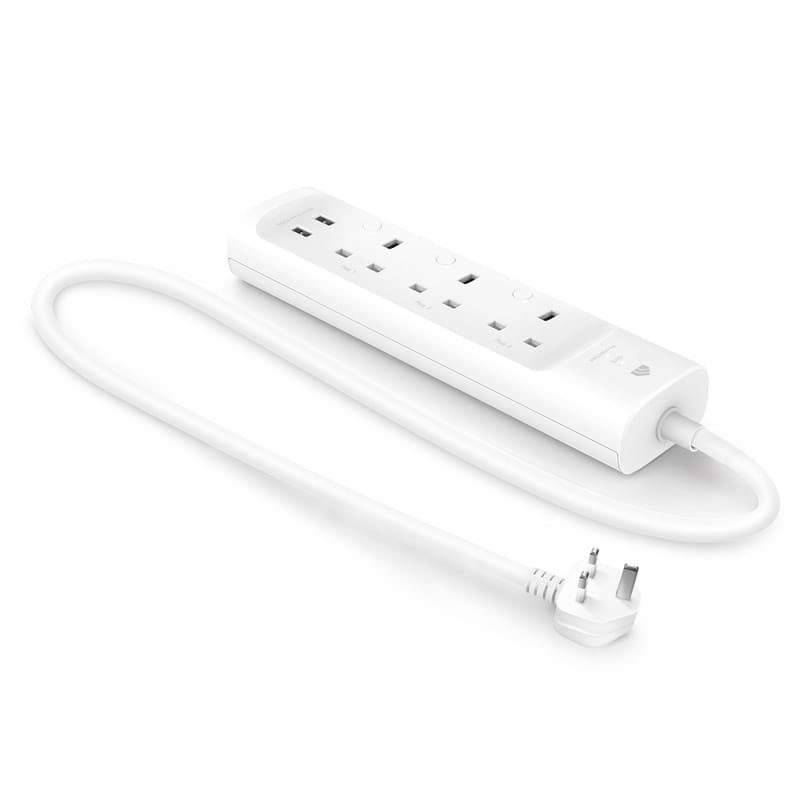
Skip any tablet you cannot keep plugged in safely, and skip unbranded very cheap ones with no update path. Charging a lithium battery at 100% for years eventually swells it, so mount a tablet where you can reach it, and consider a smart plug or a charge-limit feature to cap the battery. Also be careful with older Android tablets stuck on out-of-date software: the Companion app and your browser need current system components.
If you only want a thermostat or light switch on the wall, a tablet is often the wrong tool entirely; a purpose-built wall switch or the Shelly display above is simpler. And before spending anything, test your dashboard on a spare phone or old tablet using our guide to building a Lovelace dashboard to confirm the layout actually earns a permanent screen.