What Is the Home Assistant Lovelace Dashboard?
Lovelace was the internal code name for the dashboard frontend introduced in Home Assistant 0.86 (2018). It replaced a static, automatically generated UI with a fully configurable system driven by YAML configuration. Over time the team built a visual editor on top, and by 2023 the product had matured enough to shed the Lovelace branding — today the Settings menu simply calls it Dashboards. The underlying file format and YAML structure are the same, so tutorials and community resources using the "Lovelace" name remain entirely valid.
Dashboards sit inside the Home Assistant frontend and are served at http://homeassistant.local:8123/. You can create multiple dashboards — one for each floor of your home, for example — and restrict which users can see each one.
The Auto-Generated Dashboard vs Custom Dashboards
Out of the box, Home Assistant generates a dashboard automatically. Every entity you add through an integration appears in an alphabetically sorted list of cards. This is great for getting started, but it quickly becomes cluttered as your device count grows.
To take full control, navigate to Settings → Dashboards, open your default dashboard, and click Take control (sometimes labelled "Edit dashboard"). From this point the dashboard is no longer auto-managed — you decide which cards appear and where. You can also create additional dashboards from the same screen by clicking the + button and choosing a name, icon, and URL path.
If you want a completely fresh start for a second screen or a tablet display, create a new dashboard set to Sections layout (the current default) or the classic Masonry grid. Each dashboard is independent, so changes to one never affect another. For a broader look at organising your Home Assistant interface, see our Home Assistant dashboard guide.
How Do You Add Views and Cards to a Dashboard?
Dashboards are divided into Views — think of them as tabs across the top of the screen. Each view can use a different layout: Sections (responsive columns), Masonry (Pinterest-style), Panel (a single card fills the screen), or Sidebar (a fixed left panel). Add a view by clicking the pencil icon then the + tab in the editor.
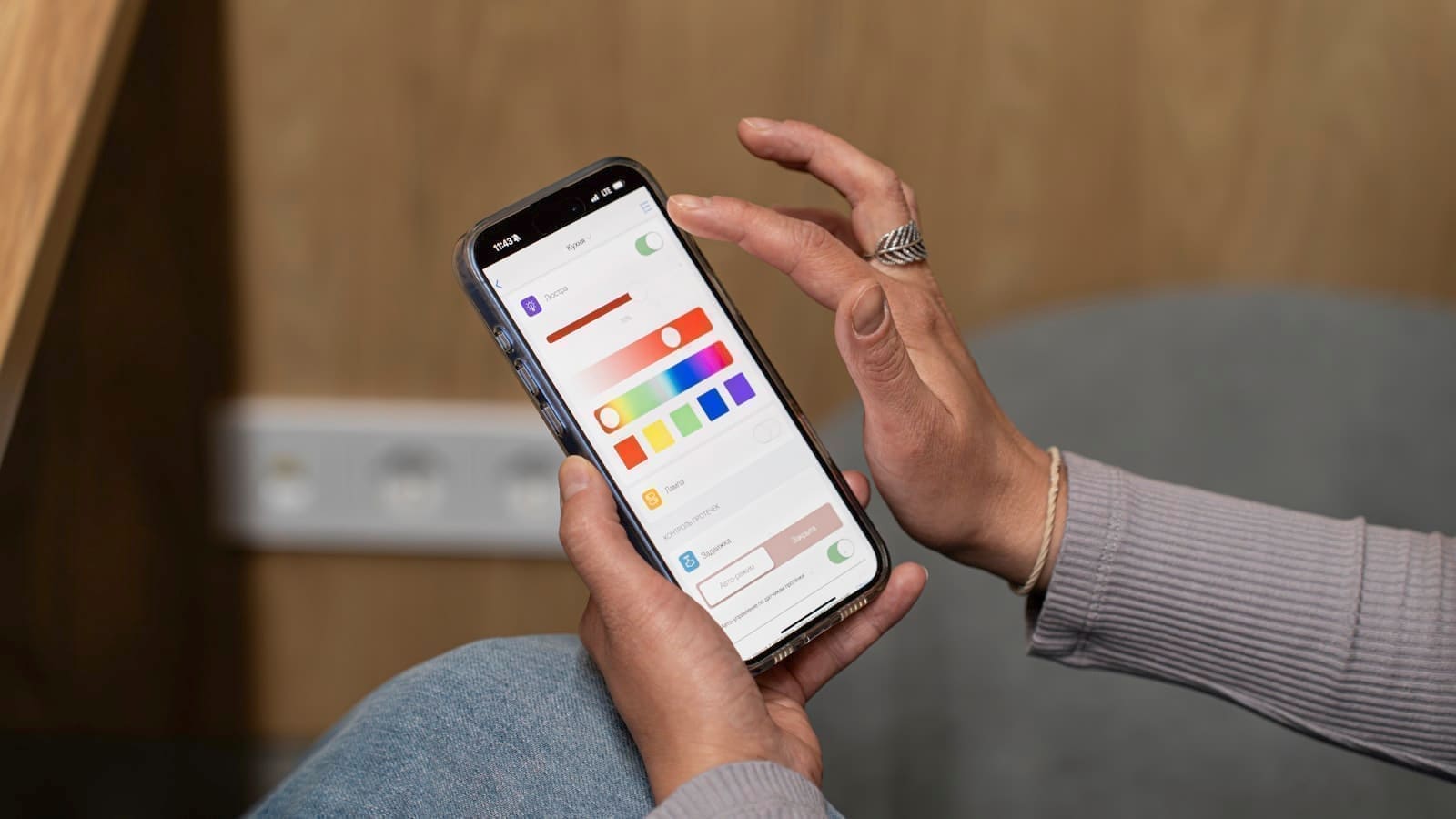
Within a view, you add Cards — the individual tiles that display data or provide controls. Click Add Card, browse the card picker, and configure options in the visual editor. Most options have friendly labels, but you can always click the YAML toggle (the code icon at the top-right of the card editor) to drop into raw YAML for anything the GUI doesn't expose.
Key Built-In Card Types
Home Assistant ships with over 40 card types. These five are the ones you'll reach for most often:
- Entities card — Lists multiple entities in a compact table. Ideal for a room summary showing lights, temperature, and motion sensors in one tile. Supports headers, footers, and custom tap actions per row.
- Button card — A large tap target for triggering a single action or toggling a device. Works well for scenes and scripts. Configurable icon, name, and colour.
- Gauge card — Displays a numeric sensor value (energy, humidity, CO₂) as a dial with configurable severity zones coloured green, amber, or red.
- Media control card — Full playback controls for a media player entity: play/pause, track skip, volume, and source selection. Great for a Sonos or Chromecast group.
- Weather forecast card — Pulls data from any weather integration (Met Office, Open-Meteo) and displays current conditions alongside a multi-day forecast. A UK staple given our unpredictable weather.
Other cards worth knowing: Tile (the new minimalist default), History graph (sensor trends over time), Picture glance (camera snapshot with entity overlays), and Conditional (shows or hides cards based on entity state — see our conditional visibility cards guide for the full syntax).
Visual Editor vs YAML Editing
The visual editor handles the majority of use cases without you needing to touch a config file. Drag cards between positions, resize them (in Sections layout), and configure every exposed option through form fields. This is the recommended starting point for anyone new to Home Assistant.
YAML editing unlocks everything else. Click the three-dot menu on any card and choose Edit, then the code icon, to view the raw YAML block. You can paste in snippets from the Home Assistant documentation or the community forums, add tap_action and hold_action overrides, set templated entity IDs using Jinja2, or use card features not yet exposed in the GUI. The full dashboard YAML is stored at config/ui-lovelace.yaml (or a dashboard-specific file) and can be edited directly in the File Editor add-on or via VS Code server.
A practical tip: configure 80% of a card visually, then switch to YAML to copy the structure as a template for similar cards. This saves a lot of form-filling.
Mushroom Cards: Cleaner UI via HACS
Mushroom is the most popular community card collection for Home Assistant, maintained by developer piitaya on GitHub. It replaces the default card designs with a polished Material-inspired aesthetic — rounded corners, soft colours, and consistent spacing that feels modern on both desktop and mobile. There are 14+ card types covering lights, climate, locks, alarms, media players, vacuums, and a flexible template card for anything else.
Installation requires HACS (Home Assistant Community Store). If you haven't set up HACS yet, our Home Assistant UK setup guide walks you through the process. Once HACS is running:
- Open HACS in the Home Assistant sidebar.
- Go to Frontend (or search across all categories).
- Search for Mushroom.
- Click the result by piitaya, then click Download.
- Restart Home Assistant when prompted.
After restart, Mushroom card types appear alongside the built-in options in the card picker. Every Mushroom card has a full visual editor — you don't need YAML to configure them. You can set icon colours, chip badges, primary and secondary info lines, and tap/hold/double-tap actions all through the GUI.
A popular starting layout uses a grid of Mushroom Title cards as room headers, with Mushroom Entity chips beneath each one for the devices in that room. The result is a dashboard that looks as polished as a commercial smart home app. For the full card lineup and layout tips, see our Mushroom Cards setup guide. If you want deeper control over conditional colours, icons and multi-action buttons than Mushroom offers, the YAML-driven button-card is worth a look too.
Wall-Mounted Tablet Display: Kiosk Mode
A permanently mounted tablet is the natural endpoint for a well-crafted Home Assistant dashboard. The Amazon Fire HD 10 is the most popular choice in the UK — it's reasonably priced, has a bright 10-inch display, and runs a full browser capable of rendering the HA frontend smoothly. You can pick one up from Amazon for under £150.
Browse Amazon Fire HD 10 tablets on Amazon.co.uk
To run Home Assistant in kiosk mode — hiding the header, sidebar, and navigation — install the Kiosk Mode HACS frontend resource by NemesisRE. Once installed, add a YAML block to your dashboard configuration:
kiosk_mode:
  kiosk: true
This hides the top bar and sidebar, giving you a full-screen dashboard. On an Amazon Fire HD, install the Silk browser or sideload Firefox, set the Home Assistant URL as the homepage, and enable Keep screen on in the display settings. Use a right-angle USB-C cable and a recessed wall mount (widely available for under £20 on Amazon) to keep cables tidy.
For overnight dimming, create a Home Assistant automation that sets a low screen brightness via the androidtv integration or uses the companion app's screen-control features — your hallway panel doesn't need to blast light at 3 am.
Tips for a Great Dashboard
- One view per floor or zone. Ground floor, first floor, garden — keep each view focused so you're never scrolling to find a device.
- Use the Tile card for devices, Entities card for sensors. The Tile card's large tap target is great for toggling lights; Entities card packs multiple sensors into a smaller footprint.
- Test on mobile first. Most Home Assistant users check their dashboard from a phone. The Sections layout adapts well; Masonry can get unwieldy on small screens.
- Themes matter. Install a theme like Caule Themes or Noctis via HACS to give your dashboard a coherent look. Set it under your profile icon → Theme.
- Use the Conditional card sparingly. Hiding cards based on state is powerful but can make your dashboard feel broken when things go offline. Keep critical controls always visible.
Related: best Home Assistant add-ons, Home Assistant blueprints guide, and Home Assistant mobile app guide.
For a practical worked example, see how to build a Trading212 portfolio dashboard in Home Assistant — it uses Mushroom cards and mini-graph-card to display live investment data.