Prerequisites
Install the integration first. If you have not already, follow the Trading212 integration setup guide — it walks through installing via HACS, adding your API key, and confirming the sensors are populating. You will also want HACS itself installed to access the community cards used below.
Step 1: Create a dedicated dashboard view
Create a dedicated dashboard view. In Home Assistant go to Settings → Dashboards → Add Dashboard and name it something like "Portfolio". Give it a chart icon (mdi:chart-line). Keeping it separate from your main smart home dashboard means it does not clutter your everyday view.
Step 2: Account overview section
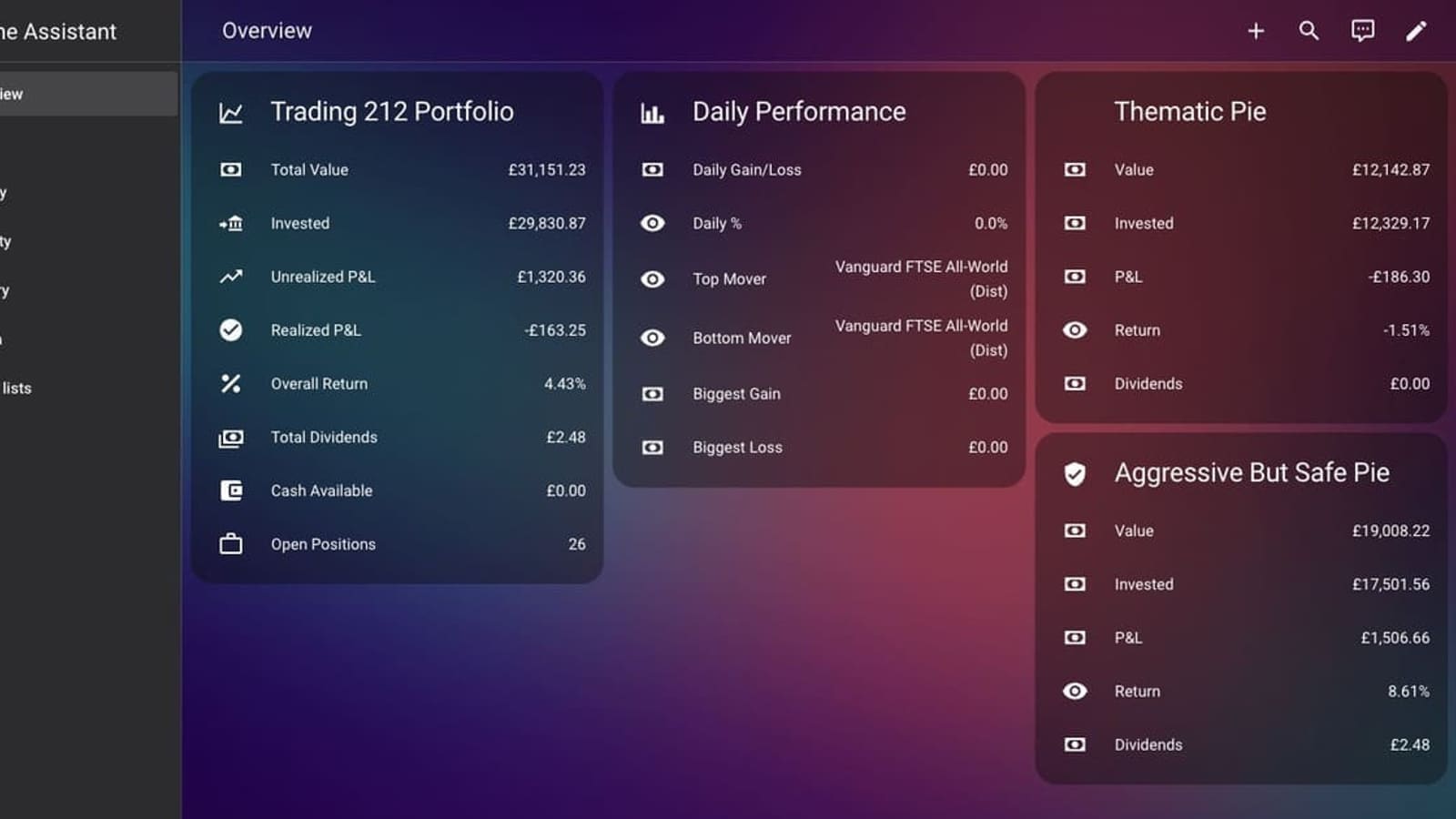
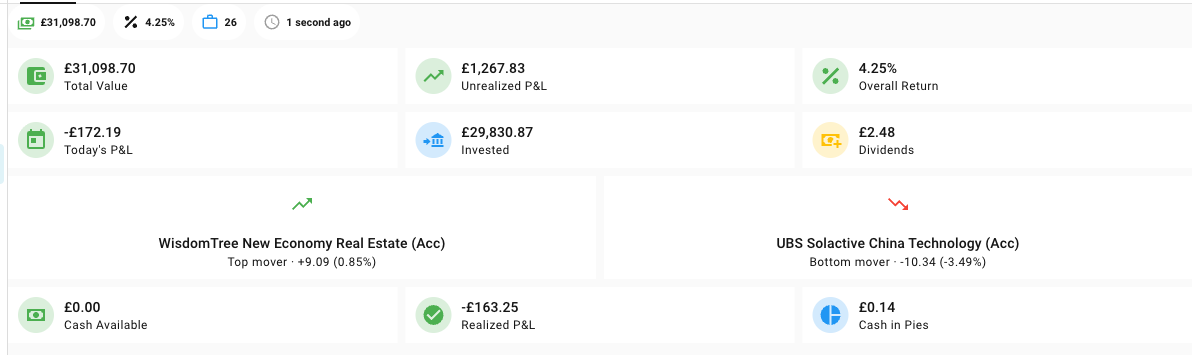
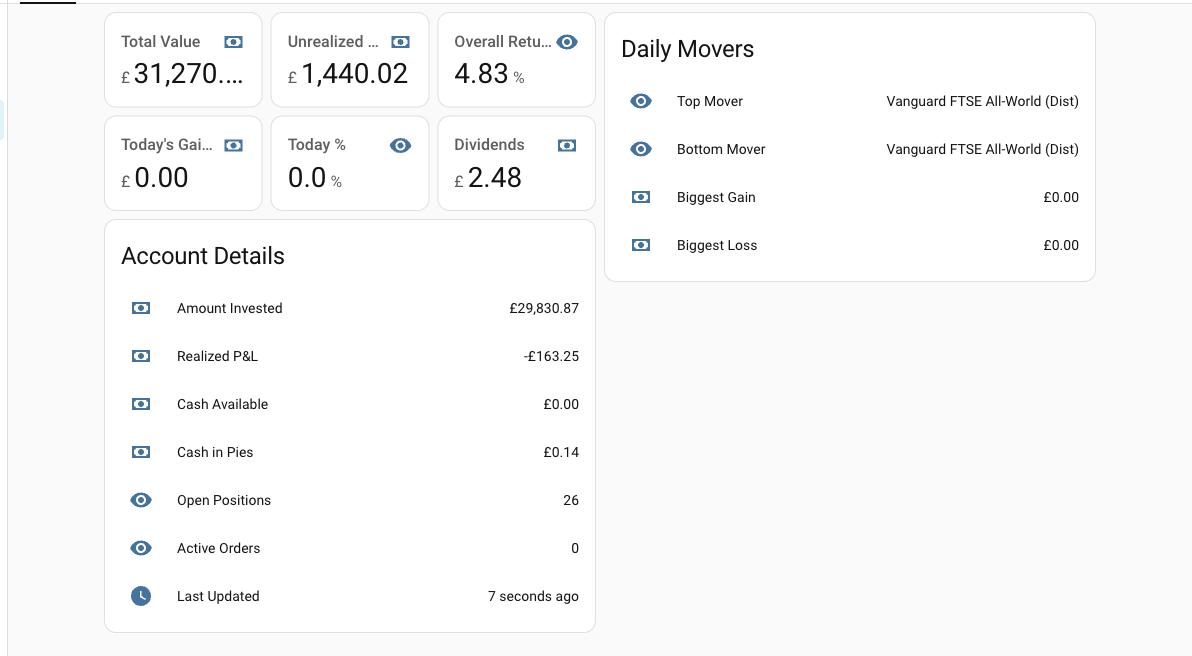
The glanceable summary at the top should answer three questions: how much is the portfolio worth, how is it doing today, and how is it doing overall. Four entities cover this well:
sensor.trading212_total_value— current portfolio valuesensor.trading212_daily_gain_loss— today's pound gain or losssensor.trading212_daily_gain_loss_percent— today's percentage movesensor.trading212_result_percent— all-time return percentage
A Glance card (built-in) works well for these four. Set show_state: true on each entity and give them friendly names like "Today" and "All-time return" so the card reads naturally without needing to know the entity ID schema.
Step 3: Adding Mushroom cards from HACS
Mushroom cards give you a cleaner, more compact layout. Install the Mushroom card bundle from HACS (Frontend → Explore & Download Repositories → Mushroom), then reload your browser. You can then use mushroom-statistic-card for each sensor — it renders a large number, a label, and optional colour-coding based on the state value, which is ideal for P&L figures.
Step 4: Positions and pies
For a full position breakdown, use an Entities card or a custom table. Each open position generates six sensors (value, P&L, P&L %, quantity, average price, current price). An Entities card listing sensor.trading212_<ticker>_pnl_percent for each position gives you a quick league table. If you have many positions, filter by grouping them under a type: group entity card so the view stays manageable.
Pie sensors expose a progress entity that tracks how close each pie is to its savings goal — a good fit for Home Assistant's built-in Statistics card, which renders a bar chart over time and works with any sensor that has a state_class: measurement.
Step 5: Tracking portfolio value over time
Install mini-graph-card from HACS (Frontend → mini-graph-card) and add a card pointing at sensor.trading212_total_value. Set hours_to_show: 168 for a rolling 7-day line chart. Because the integration polls on a configurable interval (default 60 seconds), you will accumulate enough data points within a day or two for a smooth graph. This is the closest you can get to a real-time portfolio chart inside Home Assistant.
Automation ideas
Home Assistant automations are where the integration earns its keep. Rather than opening the Trading212 app to check on your portfolio, HA can push a notification to your phone (via the Companion App) or display an in-dashboard alert whenever something warrants attention. All five examples below use persistent_notification.create — no third-party notification service required. Swap it for notify.mobile_app_<your_phone> to get push notifications instead.
1. Daily portfolio summary
Trigger at market close on weekdays and get a one-paragraph overview of how the day went. UK stock markets close at 4:30 PM.
alias: "Trading212 Daily Portfolio Summary"
trigger:
  - platform: time
    at: "16:30:00"
condition:
  - condition: time
    weekday: [mon, tue, wed, thu, fri]
action:
  - service: persistent_notification.create
    data:
      title: "Trading212 Daily Summary"
      message: |
        Total Value: £{{ states('sensor.trading212_total_value') | float | round(2) }}
        Daily Gain/Loss: £{{ states('sensor.trading212_daily_gain_loss') | float | round(2) }}
        Daily Return: {{ states('sensor.trading212_daily_gain_loss_percent') | float | round(2) }}%
      notification_id: trading212_daily_summary
2. Daily loss alert
Fire a notification when the portfolio is down more than 2% on the day. Adjust the threshold to taste — conservative investors might prefer 1%, those with higher-volatility portfolios might set it at 5%.
alias: "Trading212 Daily Loss Alert"
trigger:
  - platform: state
    entity_id: sensor.trading212_daily_gain_loss_percent
condition:
  - condition: template
    value_template: >
      {{ (states('sensor.trading212_daily_gain_loss_percent') | float(0)) < -2 }}
action:
  - service: persistent_notification.create
    data:
      title: "Trading212 Loss Alert"
      message: >
        Portfolio down
        {{ states('sensor.trading212_daily_gain_loss_percent') | float(0) | abs | round(2) }}%
        today (£{{ states('sensor.trading212_daily_gain_loss') | float | round(2) }})
      notification_id: trading212_loss_alert
3. Morning mover briefing
Start the trading day knowing which position is leading and which is lagging. The top_daily_mover and bottom_daily_mover sensors expose a change_pct attribute you can template directly.
alias: "Trading212 Morning Mover Briefing"
trigger:
  - platform: time
    at: "08:00:00"
condition:
  - condition: time
    weekday: [mon, tue, wed, thu, fri]
action:
  - service: persistent_notification.create
    data:
      title: "Trading212 Daily Movers"
      message: |
        Top: {{ states('sensor.trading212_top_daily_mover') }}
            ({{ state_attr('sensor.trading212_top_daily_mover', 'change_pct') | float(0) | round(2) }}%)
        Bottom: {{ states('sensor.trading212_bottom_daily_mover') }}
            ({{ state_attr('sensor.trading212_bottom_daily_mover', 'change_pct') | float(0) | round(2) }}%)
      notification_id: trading212_movers
4. Portfolio milestone alert
Get a one-off notification when the portfolio crosses a round-number target. Change 10000 to whatever milestone matters to you. The condition checks both the current and previous state so it only fires on the crossing, not on every subsequent poll.
alias: "Trading212 Portfolio Milestone"
trigger:
  - platform: state
    entity_id: sensor.trading212_total_value
condition:
  - condition: template
    value_template: >
      {% set current = states('sensor.trading212_total_value') | float(0) %}
      {% set previous = trigger.from_state.state | float(0) %}
      {{ current >= 10000 and previous < 10000 }}
action:
  - service: persistent_notification.create
    data:
      title: "Portfolio Milestone Reached!"
      message: >
        Your portfolio has crossed £10,000.
        Current value: £{{ states('sensor.trading212_total_value') | float | round(2) }}
        All-time return: {{ states('sensor.trading212_result_percent') | float | round(2) }}%
      notification_id: trading212_milestone_10k
5. Weekly portfolio report
A Sunday evening summary covering the full week. This uses the same sensors as the daily summary but fires once a week, giving you a weekly rhythm rather than daily noise.
alias: "Trading212 Weekly Report"
trigger:
  - platform: time
    at: "18:00:00"
condition:
  - condition: time
    weekday: [sun]
action:
  - service: persistent_notification.create
    data:
      title: "Trading212 Weekly Report"
      message: |
        Portfolio value: £{{ states('sensor.trading212_total_value') | float | round(2) }}
        Invested: £{{ states('sensor.trading212_invested') | float | round(2) }}
        Unrealised P&L: £{{ states('sensor.trading212_unrealized_pnl') | float | round(2) }}
        Total dividends: £{{ states('sensor.trading212_total_dividends') | float | round(2) }}
        Overall return: {{ states('sensor.trading212_result_percent') | float | round(2) }}%
      notification_id: trading212_weekly_report
Tips and caveats
Weekend sensor states. On weekends and bank holidays, daily_gain_loss sensors may hold the Friday closing value rather than going to zero — UK markets are closed. Time-based automations will still fire, so guard against spurious "loss alert" notifications by adding a condition that checks whether the sensor was updated within the last few hours if you want weekend-aware automations.
Sensor naming with special characters. Tickers containing dots or hyphens (e.g. VWRL.L) have their entity IDs slugified — VWRL.L becomes sensor.trading212_vwrl_l_value. If a sensor is not appearing, check the entity registry under Settings → Devices & Services → Trading212 → Entities to find the generated name.
Not financial advice. The sensors are read-only and reflect your existing positions. The integration cannot place or cancel orders. These automations are purely informational.