What Is the Home Assistant Companion App?
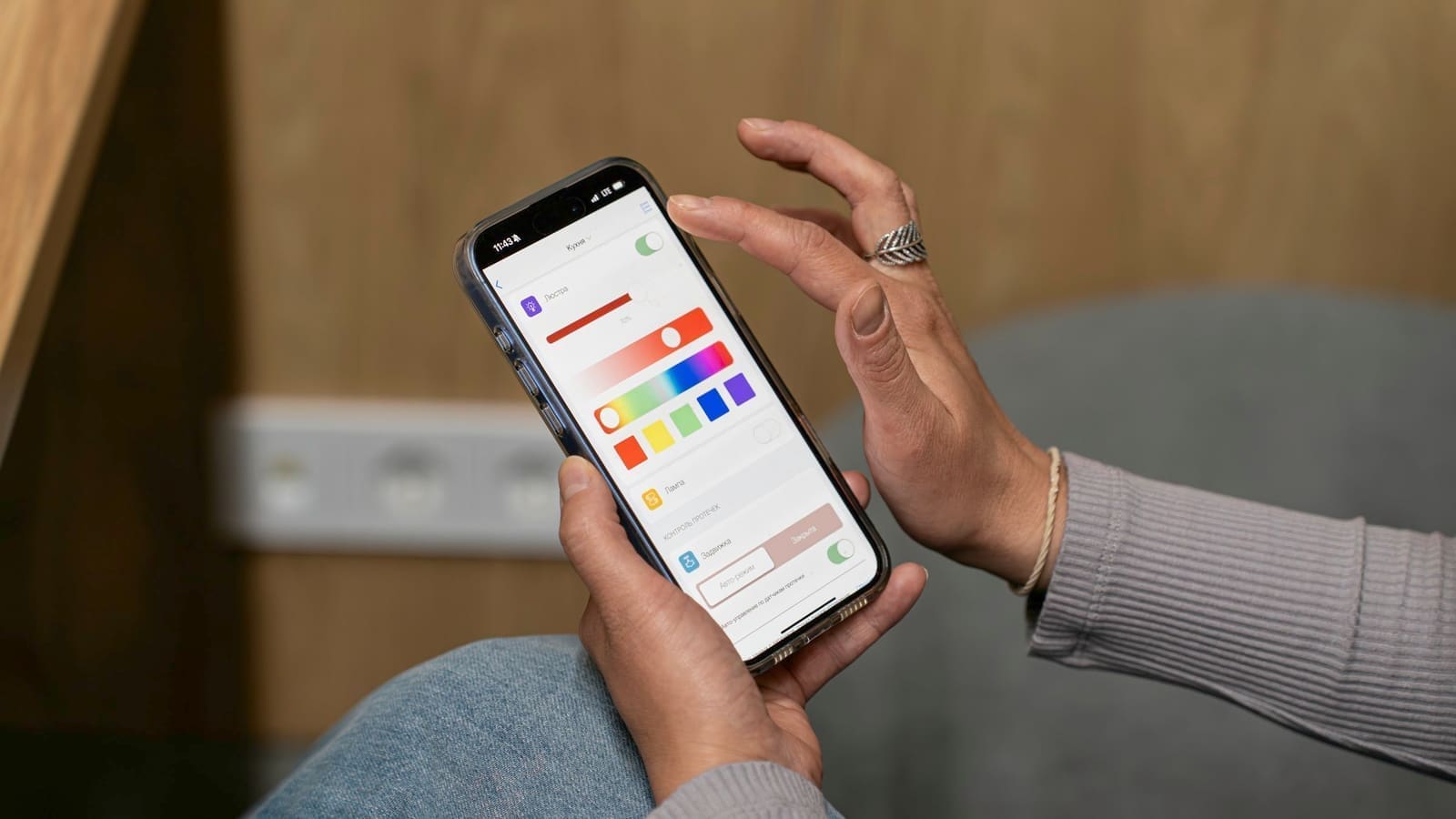
The Home Assistant Companion App is the official mobile client for Home Assistant, maintained by the core team and distributed via the Apple App Store (iOS) and Google Play Store / F-Droid (Android). Unlike opening Home Assistant in a mobile browser, the Companion App adds a layer of deep system integration: it exposes dozens of phone sensors back to Home Assistant (battery level, GPS location, activity state, Wi-Fi SSID, and more), sends rich push notifications from your automations, and supports home-screen widgets plus quick actions — none of which are possible in a plain browser tab.
The app connects to your Home Assistant instance either locally (over your home Wi-Fi) or remotely via a secure cloud connection. For remote access, the easiest route is Nabu Casa, the official cloud subscription at £6.50 per month, which provides an encrypted tunnel with no port forwarding required. You can also self-host remote access via a VPN or a reverse proxy, but Nabu Casa is by far the simplest option and directly funds Home Assistant development.
Before You Start: Prerequisites
Before installing the Companion App you need:
- A running Home Assistant instance — see our Home Assistant UK setup guide if you haven't installed it yet.
- Remote access configured if you want to use the app away from home. Nabu Casa (£6.50/month) is the recommended option; alternatively set up a VPN or a reverse proxy with a valid TLS certificate.
- An iPhone running iOS 16 or later, or an Android phone running Android 7.0 (Nougat) or later.
How to Install and Connect the App
iOS (iPhone and iPad)
Download from the App Store. Search for Home Assistant by Nabu Casa, Inc. and tap Get — it is free with no in-app purchases. Once installed, open the app and tap Connect to Home Assistant. On your home network the app will attempt auto-discovery via mDNS; your instance should appear automatically. Tap it, log in with your Home Assistant credentials, and grant the location and notification permissions the app requests — these unlock the sensor and notification features described below.
If you are setting up remote access via Nabu Casa, sign in at account.nabucasa.com, enable the Remote UI toggle, then paste your *.ui.nabu.casa URL into the app's server field.
Android
Download from Google Play or F-Droid. The Google Play version supports the full feature set including push notifications delivered via Firebase Cloud Messaging (FCM). An F-Droid build is available for users who prefer a fully open-source, Google-free install — push notifications on the F-Droid version use a local WebSocket channel instead of FCM, so the phone must be reachable for notifications to land. Install, open the app, and follow the same auto-discovery or manual URL steps as on iOS.
iOS vs Android: Key Differences
Both platforms support the core feature set, but there are notable differences in what sensor data the app can read:
- iOS offers more motion and activity sensors — including step count (pedometer), activity type (walking, running, driving), and floor level via the barometer. These are sourced from Apple's HealthKit and Core Motion APIs.
- Android exposes more background system sensors — including storage stats, phone call state (without call log permission), and app-specific data points, because Android's background execution model is more permissive.
- Notifications on iOS require explicit permission and are delivered via Apple Push Notification service (APNs) through Nabu Casa's relay — so a Nabu Casa subscription is needed for iOS push notifications even if you self-host remote access. Android can deliver notifications locally over WebSocket without Nabu Casa.
Location Tracking and Presence Detection
One of the most powerful reasons to use the Companion App over a browser is location tracking. The app reports your phone's GPS position back to Home Assistant in three ways:
- GPS zones — you define zones in Home Assistant (e.g. Home, Work, Gym) with a latitude, longitude, and radius. When your phone enters or leaves a zone, Home Assistant fires a
zone.enteredorzone.exitedevent instantly. - iBeacon / BLE — on iOS, the app can detect Bluetooth Low Energy beacons you've placed around the home for room-level presence. Useful for more granular automations than GPS alone can provide.
- Background location updates — the app sends periodic location pings so the
device_trackerentity in Home Assistant stays current even between zone transitions.
A typical use case: trigger your heating control automation to warm the house 20 minutes before you arrive home, based on your phone leaving your work zone. Because it uses real GPS rather than a fixed schedule, it works on irregular days too. For more on presence-based automations, see our dedicated presence detection guide.
Push Notifications from Automations
The Companion App registers your phone as a notification target in Home Assistant. In any automation you can add a Send notification action targeting your device; the message lands as a native push notification with a title, body, and optional action buttons. Common uses include:
- Alert when a door sensor opens while you are away from home.
- Remind you the washing machine cycle has finished (using a smart plug's power monitoring).
- Confirm an automation ran — e.g. "Heating turned off — you left home."
- Camera motion alerts with a thumbnail image embedded in the notification (iOS 15+ and Android 8+).
To send notifications, use the notify.mobile_app_<device_name> service in your automation's action block. The device name is set in the app under Settings → Companion App → Device Name.
Home-Screen Widgets and Quick Actions
Widgets let you control devices and read sensor values without opening the app. On iOS you can add Home Assistant widgets to the Today View or directly to the home screen (iOS 14+). On Android, widgets sit on the home screen and support tap-to-toggle for lights and switches. Both platforms also support quick actions (long-press the app icon on iOS / Android) to trigger a predefined set of HA services — useful for one-tap shortcuts like Good Night or Away Mode.
NFC Tag Scanning
The Companion App can scan NFC tags and trigger Home Assistant automations when a tag is detected. Stick a tag on a bedside lamp, a kettle, or by the front door — tapping your phone to it fires a custom event in Home Assistant that you can use as an automation trigger. Tags are cheap (packs of 10 NTAG213 stickers cost around £5–£8 on Amazon) and are a reliable, zero-latency physical trigger that doesn't depend on Wi-Fi connectivity.
To set up NFC: go to Settings → Companion App → NFC Tags in the app, tap Scan tag, hold your phone near the tag, then save it and create an automation using the tag.scanned event as the trigger.
App vs Browser: Why the Companion App Wins
It is possible to use Home Assistant from a mobile browser, but the Companion App offers capabilities the browser cannot match:
- Push notifications — browsers cannot receive native push from HA without a service worker integration that HA does not ship by default.
- Phone sensors — GPS, battery, activity, and network sensors are unavailable in the browser context.
- Widgets and quick actions — platform-level features not accessible to web apps.
- NFC scanning — requires the app's native NFC integration.
- Faster local connection — the app automatically switches between local LAN and remote URLs, so you get sub-second response times at home and seamless fallback when away.
For more on building out your HA interface once the app is connected, see our guide to creating Home Assistant dashboards and our automations guide to start building the presence-based triggers the Companion App enables.
Troubleshooting Common Issues
App Can't Find My Instance on the Local Network
Check that Home Assistant is advertising via mDNS (the default). In Home Assistant go to Settings → Network and confirm the mDNS checkbox is ticked. Also ensure your phone and HA are on the same Wi-Fi subnet — IoT VLANs can block mDNS. If auto-discovery still fails, enter the IP address of your HA host manually (e.g. http://192.168.1.50:8123).
Remote Access Not Working
If you're using Nabu Casa, check your subscription is active at account.nabucasa.com and that Remote UI is enabled. For self-hosted remote access, ensure your TLS certificate is valid — the app will refuse connections to HA over plain HTTP when connecting remotely.
Notifications Not Arriving on iOS
iOS push notifications route through Nabu Casa's APNs relay. Make sure your Nabu Casa subscription is active, notifications are enabled in iOS Settings for the Home Assistant app, and you are not in Focus/Do Not Disturb mode. In the HA mobile app settings, tap Rebuild Notification Channel to re-register the device token.
Related: Home Assistant presence detection, Home Assistant Telegram notifications, and Lovelace dashboard customisation.