Why Presence Detection Matters
Automations become contextual. Time-based automations fire whether or not anyone is home. Presence-based automations are smarter: your morning routine only runs if you are actually there; your heating drops to an eco setpoint the moment the last person leaves; your outdoor lights turn on only when someone is arriving, not at a fixed sunset time. Every automation improves when it knows who is in the building.
Getting the setup right does take a little planning. The main decision is choosing which tracking method suits each use case. A GPS-based tracker is ideal for away/home transitions; a Bluetooth tracker or mmWave sensor is better for room-level occupancy. Most households benefit from combining at least two methods and linking them through the person entity, which Home Assistant uses to reconcile conflicting signals.
Method 1 — HA Companion App (GPS Zones)
Best for: household-level away/home detection and multi-zone awareness (work, school, shops).
The Home Assistant Companion app for iOS and Android registers as a device tracker and reports your phone's GPS coordinates back to Home Assistant. When the coordinates fall within a defined zone — including the special home zone — the device tracker state changes to the zone name. When you leave all zones, it changes to not_home.
The app uses geofencing rather than continuous GPS polling, which keeps battery consumption reasonable. On iOS, location updates are triggered by significant location changes and zone boundary crossings. On Android the behaviour depends on your manufacturer's battery optimisation settings; it is worth whitelisting the app in your phone's battery settings to prevent missed updates.
Setup is straightforward: install the Companion app, log in to your Home Assistant instance, and grant location permission. The app creates a device tracker entity automatically. You can then link it to a person entity under Settings → People.
Method 2 — Bluetooth Device Trackers
Best for: fast home/away detection without relying on a phone, and multi-room awareness using Bluetooth proxies.
Home Assistant's Bluetooth integration passively listens for Bluetooth Low Energy (BLE) advertisements from nearby devices. Any phone, tag, or BLE sensor that broadcasts a consistent identifier can act as a presence indicator. The integration supports three scanning modes: Auto (passive most of the time, recommended), Active, and Passive. Auto and Passive modes require BlueZ 5.63 or later on Linux hosts.
For room-level presence, Bluetooth proxies extend your detection range significantly. ESPHome-flashed ESP32 devices and Shelly Gen2+ devices can act as proxies, forwarding BLE advertisements to your Home Assistant instance from different rooms. This means a single BLE tag worn or carried around the house can indicate which room you are in, not just whether you are home.
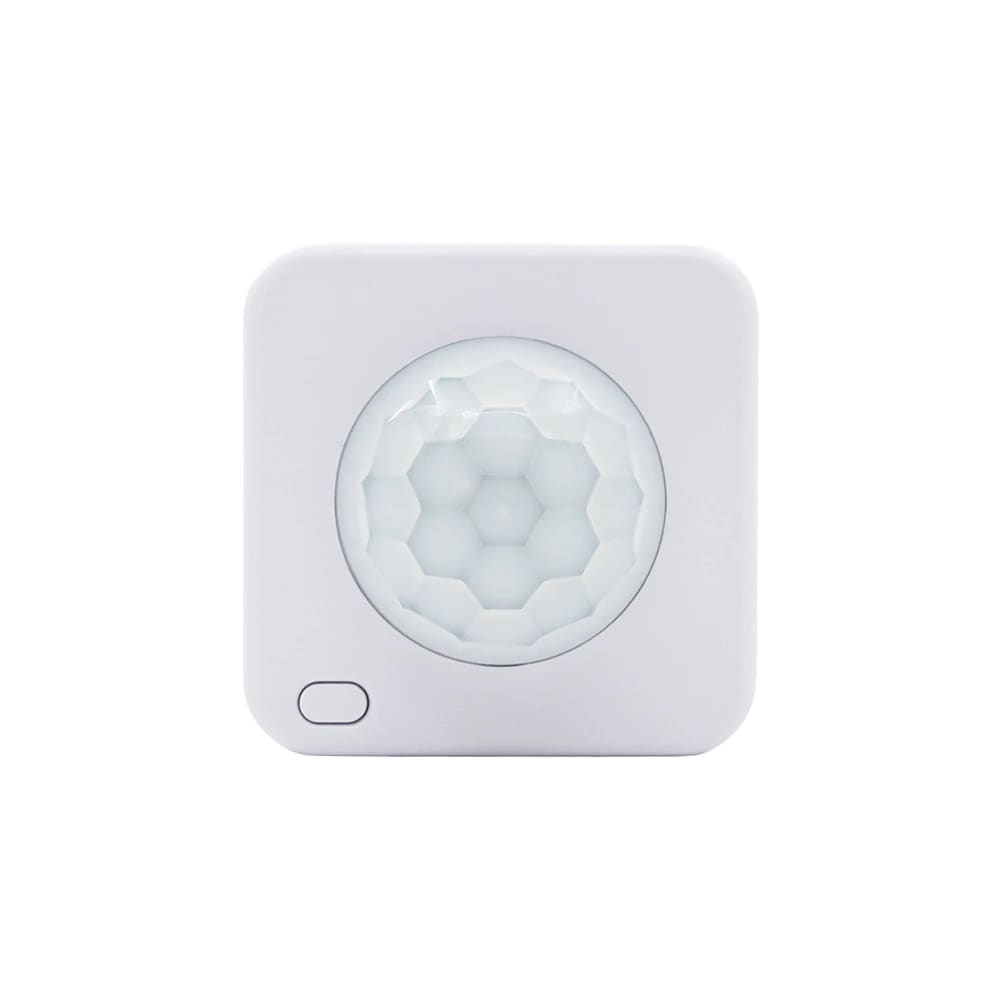
A popular dedicated option is the Shelly BLU Motion, a Bluetooth motion sensor that integrates natively with Home Assistant via the Shelly integration and via BLE proxies. It combines motion detection with BLE presence, giving you a compact sensor that works both as a traditional PIR and as a Bluetooth beacon source. You can find the Shelly BLU Motion on Amazon.co.uk; prices vary by retailer.
Method 3 — Ping and Network-Based Detection
Best for: households where members do not want to share phone location, or as a fallback tracker.
The Ping integration and router-based integrations such as UniFi or Netgear detect devices by their presence on your home network. When a phone connects to your Wi-Fi, it appears as home; when it disconnects, it switches to not_home. This method has two states only — there is no zone or room awareness — but it requires no app and no GPS permission.
The main drawback is false negatives: phones often disconnect from Wi-Fi to save battery, especially during sleep, which can cause spurious not_home states mid-evening. Setting a generous consider_home interval (the period after disconnection before a device is marked away) helps reduce this noise. Many households use ping detection as a secondary tracker alongside GPS, letting the person entity pick the most reliable signal. For a step-by-step walkthrough of configuring Nmap Tracker, Ping, and the Companion app's device_tracker entities, see our Home Assistant device tracker setup guide.
Method 4 — mmWave Radar Sensors
Best for: room-level occupancy detection, including stationary presence (reading, sleeping, working at a desk).
Traditional PIR motion sensors cannot detect a person who is sitting still. Millimetre-wave radar sensors, such as those built around the popular LD2410 and HLK-LD2450 chips, detect micro-movements such as breathing and small postural shifts, making them far more reliable for occupancy-based automations like keeping lights on while someone is working quietly.
These sensors integrate with Home Assistant via ESPHome, which exposes detection range, sensitivity, and zone configuration directly in the Home Assistant UI. A typical ESPHome-flashed ESP32 board with an LD2410 radar module can detect stationary occupancy up to around 6 metres, though optimal placement is usually 2–4 metres from the area being monitored. Unlike cameras, mmWave radar provides no visual data, making it an entirely privacy-preserving approach to occupancy sensing.
For ESPHome-based builds, see the Home Assistant automations guide for examples of wiring occupancy sensors into room-control automations.
The Person Entity — Combining Multiple Trackers
The person entity is the recommended way to track individuals in Home Assistant. It accepts multiple device tracker entities and applies a priority hierarchy to determine the most accurate state at any moment.
When you are at home, the person entity favours stationary trackers (router, Bluetooth) and uses them in preference to GPS. When you are away, it favours GPS trackers, which give zone-level granularity. The documentation describes the logic as: at home, position comes first from stationary trackers and then from GPS; away from home, position comes first from GPS and then from stationary trackers. This prevents the person from appearing not_home just because your phone briefly lost GPS signal.
To set up a person entity, go to Settings → People → Add Person. Give it the person's name and link all relevant device tracker entities. The resulting person.firstname entity is what you should use in automations — not the individual device trackers directly — as it provides the smoothed, combined state.
Setting Up Zones
Zones define named geographic areas that GPS-capable trackers can enter and leave. Home Assistant creates a home zone automatically during onboarding. The default radius is 100 metres, which is appropriate for most residential addresses and accounts for typical GPS accuracy variation.
To add or edit zones, go to Settings → Areas, labels & zones and select the Zones tab. You can drag the centre point on the map and adjust the radius slider. Common zones to create include your workplace, a school, a gym, or a nearby supermarket — each gives you a named state that the person entity can be in, and each can trigger its own automations.
For a full walkthrough of the initial configuration, including zones and network setup, see the Home Assistant UK setup guide.
Example Automations
Arrive home — lights and heating on. Trigger: person.you enters zone zone.home. Action: turn on hall light, set heating to 20°C. This fires as soon as your phone crosses the 100-metre zone boundary, giving the heating a few minutes' head start before you reach the door.
Everyone leaves — eco mode. Trigger: all person entities enter not_home state. Condition: time is between 07:00 and 22:00. Action: set heating to 16°C, turn off all lights, arm security system. Using all persons as a condition prevents the automation firing when one person steps out briefly while others remain home.
Room lights off — mmWave occupancy. Trigger: occupancy sensor in living room reports clear for 5 minutes. Condition: time is after 09:00. Action: turn off living-room lights. This is far more reliable than a standard PIR timer because the radar continues detecting you while you are sitting still.
Bedtime mode — room-by-room. Trigger: bedroom mmWave sensor detects presence after 22:00. Condition: person.you is home. Action: dim bedroom lights to 10%, set heating schedule to night mode, turn off all other rooms. Combining GPS zone (confirms you are home) with mmWave (confirms you are in bed) eliminates false triggers from pets or open windows.
Choosing the Right Combination
Most households get the best results from a layered approach. Start with the Companion app for household-level tracking — it requires nothing beyond your phone and a few minutes of setup. Add a router-based or Bluetooth tracker as a secondary source and link both to person entities. Then, for individual rooms where you want occupancy-sensitive automations (office, living room, bedroom), add mmWave radar sensors via ESPHome.
This three-layer setup — GPS for away/home, Bluetooth for proximity, mmWave for room occupancy — covers virtually every automation scenario and keeps false positives and missed triggers to a minimum. As you add more devices and automations, the person entity's priority logic ensures you always get the most relevant state without having to manage conflicts manually.