What is it, and who makes it?
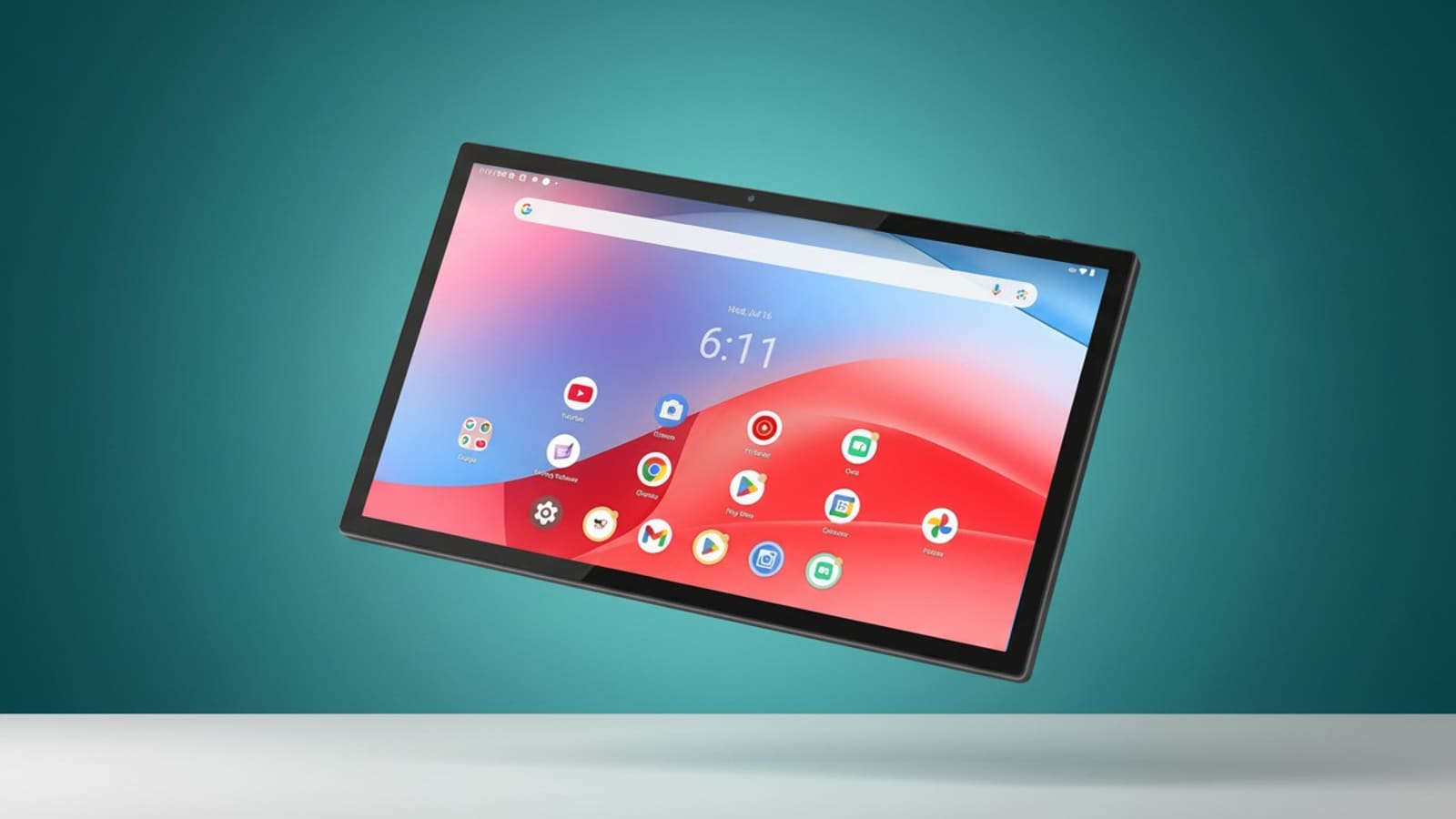
It is the "Ultra-Slim 15.6-inch Smart Home Control Panel" sold on AliExpress by Smart Screen Factory, a store that specialises in wall-mounted smart home control panels, from 4-inch up to 15.6-inch. We had already written up the spec sheet before it arrived; this is the follow-up now that it has been on a wall. Disclosure: Smart Screen Factory supplied this unit free of charge. We did not pay for it and the opinions below are ours. At the time of writing the store listing shows nearly 200 units of this model sold.
How good is the build and how easy is it to install?
The build is better than the price suggests. The white frame and flush glass look tidy on the wall, and once it is fixed in place it stays put. We would call it decent rather than premium, which is a fair description for the money.
Installation is the strongest part of the PoE idea. There is one Ethernet cable to the back of the panel and that is it: no mains adapter, no battery, and no charging cable trailing down the wall. If you already run a PoE switch for cameras or access points, you plug it in and it boots. Our best PoE switch guide covers what to buy if you do not yet have one, and the tablet's PoE+ rating (up to 25.5W) means you should look for an 802.3at-capable port rather than a basic 802.3af one.
Does it stick out of the wall?
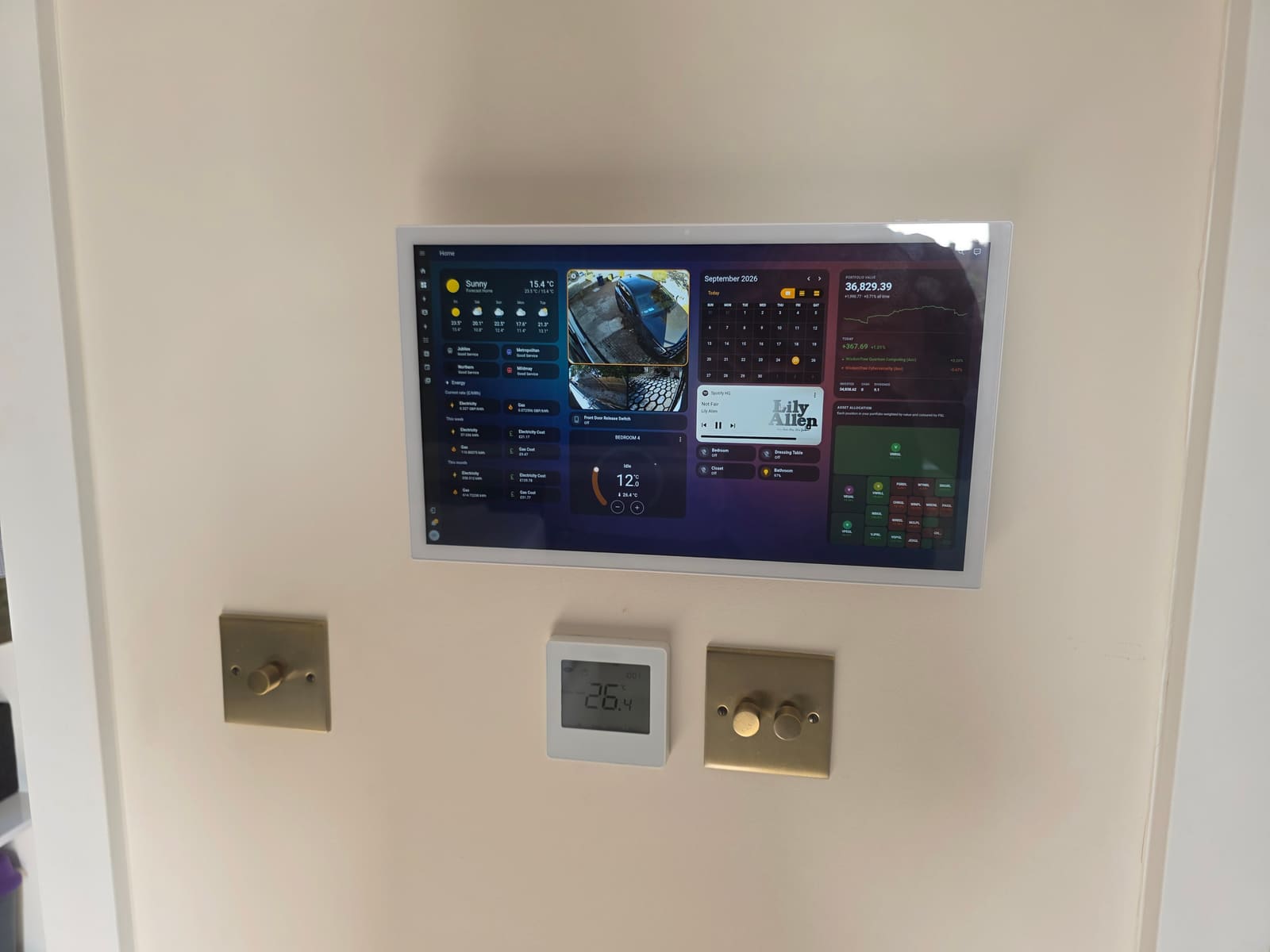
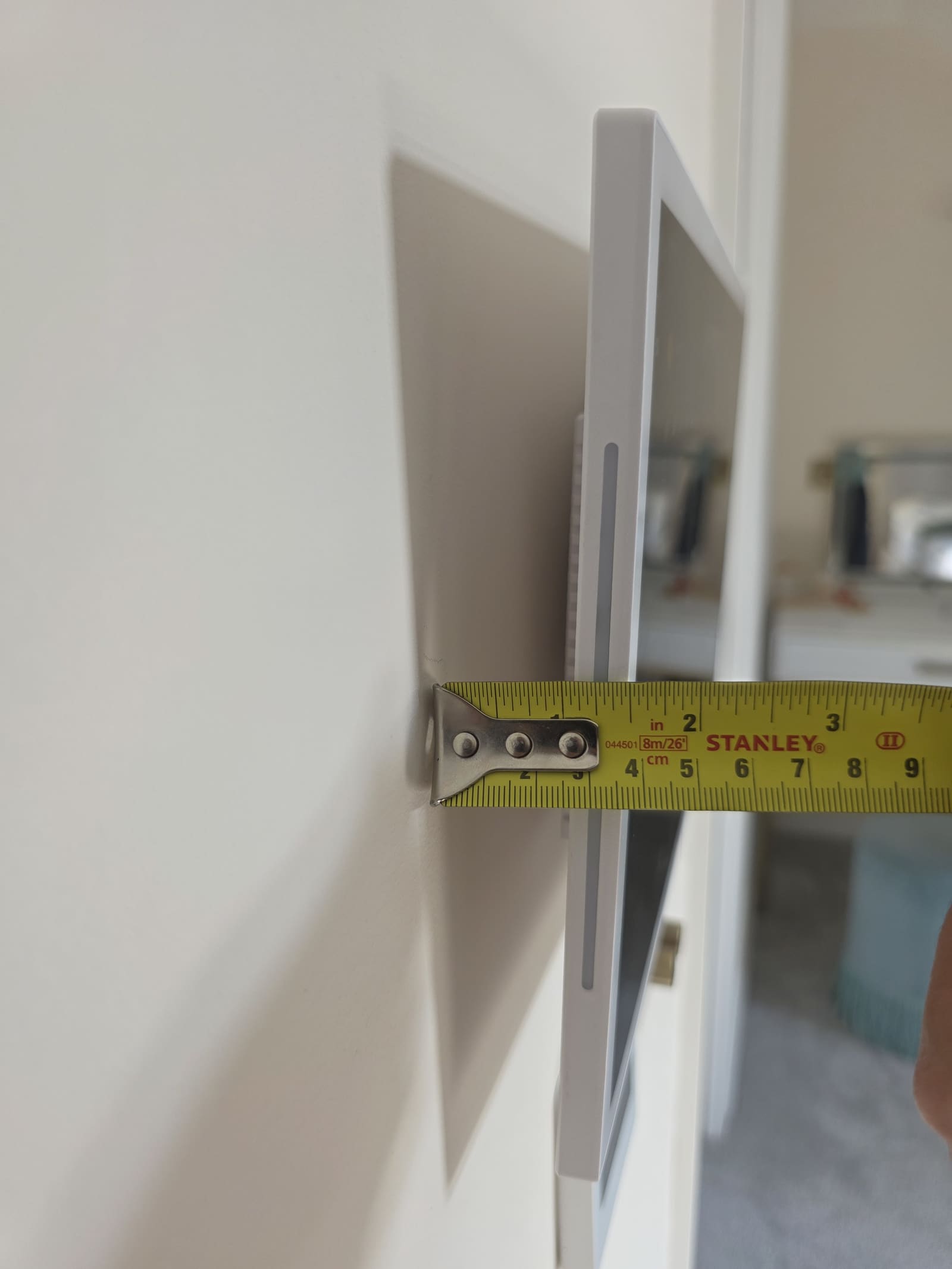
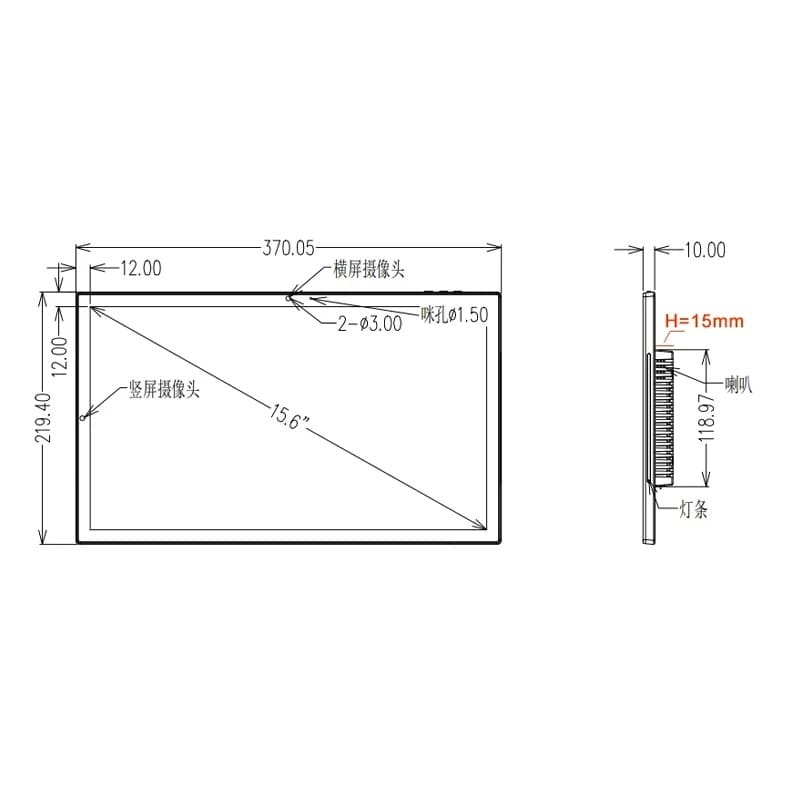
Yes, a little. Measured with a tape from the wall to the front of the frame, ours projects about 4cm. That is more than the 10mm-thin body would lead you to expect, because the rear section and mounting hardware add depth. Beside a light switch it looks a little chunky; on its own it is fine, and it is not a deal-breaker. If you want it truly flush you would need to recess it into the wall, which is a bigger job.
What about the LED light bars?
Both sides of the frame have an RGB light strip. It looks good and adds a bit of personality, but we are not sure how much we would use it day to day. Treat it as a bonus, not a reason to buy.
How do you set up a Home Assistant dashboard for a wall tablet?
Build a separate, purpose-made dashboard rather than reusing your phone one. A wall panel is glanced at from a distance and tapped with one finger, so it needs fewer, larger cards. This is the approach that worked for us, in the order we would do it again.
1. Create a dedicated wall dashboard
In Home Assistant go to Settings → Dashboards and add a new dashboard just for this screen. Home Assistant's own dashboard documentation suggests exactly this: a focused dashboard for the kitchen tablet, a simple one for guests, a detailed one for yourself. The default Sections view type suits a 16:9 landscape panel well, because you can lay cards out in columns and it reflows tidily. Our wider guides on Lovelace cards and YAML and dashboard ideas and kiosk setup go deeper on the card choices.
2. Design for a glance and a finger
At 1920×1080 on 15.6 inches there is room for four columns without anything feeling cramped. Ours groups things by how often you look at them: weather, train-line status and energy costs on the left; a live front-door camera and the bedroom thermostat in the middle; calendar, media player and light toggles on the right; and a Trading 212 portfolio panel on the far edge (see our Trading 212 dashboard guide). Three habits help: keep the things you tap (lights, heating, media) big; keep the read-only information (weather, energy) small and tidy; and do not put anything on the wall that you would be annoyed to see a guest read.
3. Log in once and stay logged in
A wall panel that asks for a password after every restart is useless. Home Assistant's trusted networks provider can skip the login for specific IP addresses. Give the tablet a fixed address on your router, allow only that address, and tie it to a dedicated low-privilege user rather than your admin account. Home Assistant's documentation shows the trusted_networks and trusted_users settings and advises always keeping the standard homeassistant provider alongside as a fallback. We would use a single-address range rather than a whole subnet, so nothing else on your network gets the same free pass.
4. Keep the screen awake and dim it at night
The tablet runs full Android with Google Play, so you can use the Home Assistant Companion App or a kiosk browser. If you want Home Assistant to control the screen itself, the Fully Kiosk Browser integration exposes screen on/off, brightness, motion detection and a "load URL" action. It needs Fully's Remote Admin feature, which requires the paid Plus licence. That lets you dim the panel with an automation at bedtime, so a bright screen is not glowing in a dark hallway.
5. Check it in your real light
The panel is rated at 300cd/m² and in our bright room we had no trouble reading it. Like any glossy screen it picks up some reflection from an angle, so test the position before drilling.
6. Keep the physical switches
We mounted ours above the existing dimmers and the wall thermostat rather than replacing them. A tablet that stops working or loses network should never be the only way to turn a light on.
Does the AliExpress PoE tablet work with Home Assistant?
Yes, and it runs a busy dashboard smoothly. It is a normal Android 14 device, so there is no special integration to install: you open your Home Assistant dashboard in the Companion App or a browser. Our dashboard has a live camera feed, a media player card, a thermostat, a calendar and several data panels on one screen, and it responds without stutter.
Can you automate the LED light bar from Home Assistant?
Yes — the LED bar is a normal MQTT light, not a fixed effect, so you can drive it from any automation. The strip itself is wired to the mainboard's serial port and driven by simple text commands (breathing, constant colour, flashing), and the tablet's own app bridges that serial link to MQTT, publishing a light called LED_Light on topics light/device001/set and light/device001/state. Once your Home Assistant instance is pointed at the same MQTT broker, the bar shows up as a normal light entity.
The one fix it needed
Out of the box, our unit's light only offered a brightness slider, no colour picker, even though the app clearly accepts colour. The cause was a small mistake in the app's MQTT discovery message: it declares "rgb": true, which is not a valid Home Assistant option, so Home Assistant fell back to brightness-only. Publishing a corrected, retained discovery message with "supported_color_modes": ["rgb"] instead fixed it immediately, and colour commands started reaching the bar. We have passed this back to Smart Screen Factory, along with a request to expose the bar's breathing and flashing modes as proper Home Assistant effects, since right now they are only reachable over raw serial commands, not MQTT.
A genuinely useful automation, not a gimmick
Once colour control worked, we built a small weekday automation: between 7am and 8am, the bar turns green if it is not raining and the four tube lines shown on our own dashboard (Jubilee, Metropolitan, Northern and Mildmay) all report Good Service, or red if it is raining or any of those lines has a problem. It rechecks every 15 minutes in that window, so a look at the wall on the way out the door tells you, at a glance, whether it is worth grabbing an umbrella or checking the tube status before you leave.
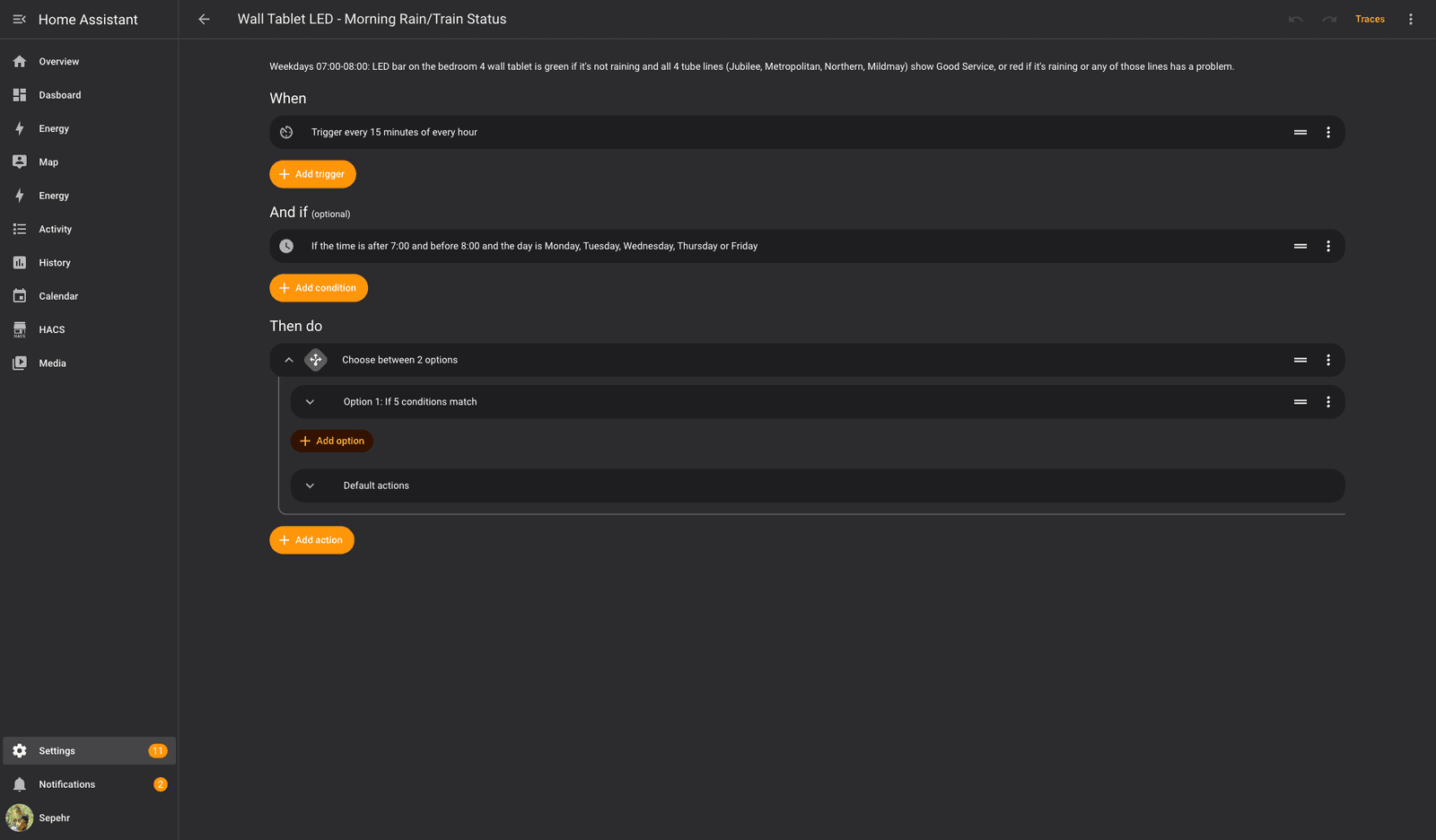
None of this needed anything beyond stock Home Assistant: an MQTT integration, a weather entity, and whatever line-status sensors your transport integration already gives you. Swap in your own commute, your own bus routes, or a school-run reminder, and the same pattern works.
Copy this simplified rain-only automation
Our automation also checks tube-line status, which is specific to us. Here is the same idea stripped down to just rain, using only a weather entity and the LED light — swap in your own entity IDs and it will work on any Home Assistant install:
alias: Wall tablet LED rain warning
triggers:
  - trigger: time
    at: "07:00:00"
actions:
  - choose:
      - conditions:
          - condition: state
            entity_id: weather.home
            state:
              - rainy
              - pouring
              - lightning-rainy
        sequence:
          - action: light.turn_on
            target:
              entity_id: light.led_light
            data:
              rgb_color: [255, 0, 0]
    default:
      - action: light.turn_on
        target:
          entity_id: light.led_light
        data:
          rgb_color: [0, 255, 0]
Replace weather.home with your own weather entity and light.led_light with the light bar's entity ID (check Settings → Devices & Services → Entities if you are not sure), then paste this into Settings → Automations & Scenes → Create Automation → Edit in YAML.
What are the alternatives, and are there smaller versions?
Smart Screen Factory sells the same idea in several sizes, so you can pick the one that suits the wall. We have only tested the 15.6-inch model; the details below come from the store listings, so check each page for the current spec and price.
| Model | Size and notes (from the listing) |
|---|---|
| 15.6-inch Ultra-Slim (the one we tested) | Android 14, PoE, LED light bar, Google Play |
| 15.6-inch Slim Edge | Android 14, PoE, LED light, RK3576, Google Play |
| 10-inch Slim | Android 14, PoE, LED lights on four sides, Play Store |
| 10.1-inch metal body | Android 14, PoE, metal body, Play Store |
| 8-inch aluminium | Android 14, PoE, CNC aluminium body, RS485, RJ45, Play Store |
| 5.5-inch metal body | Android, PoE, metal body, RS485, RJ45, Bluetooth, Wi-Fi, Play Store |
Everyone has a different wall, so a smaller panel is worth considering if 4cm of projection or a 15.6-inch footprint feels like too much. The 10-inch and 8-inch models suit hallways and beside-the-door spots, and the 5.5-inch is closer to a smart switch plate. Other routes exist too: a repurposed consumer tablet on a wall mount is cheaper if you already own one, but it needs a mains lead and a battery that ages. Our dashboard guide covers that approach.
Who should buy this PoE wall tablet?
It suits Home Assistant users who already have, or are happy to run, an Ethernet cable to the wall. It is a strong fit for a new build or renovation, for anyone who already has a PoE switch, and for people who want a large, bright, always-on control panel without a battery or a visible power lead. It is a weaker fit if you cannot run Ethernet, if you need a perfectly flush finish, or if you prefer the returns comfort of a UK retailer.
Verdict
We like this tablet. For roughly £200–£240 you get a large, bright 15.6-inch Android 14 panel that installs with one cable, feels solidly built, sits stable on the wall and handles a genuinely busy Home Assistant dashboard without complaint. The one caveat is the projection of about 4cm, which is more than we would like but not a problem in practice; the LED side lights are a pleasant extra we may rarely use. If PoE is an option for you, it is easy to recommend.