
What Is AI Automation Suggester?
AI Automation Suggester is a community-built integration for Home Assistant, maintained by ITSpecialist111 on GitHub. It reached version 1.5.7 in June 2026 and has accumulated over 750 GitHub stars, reflecting sustained adoption across the Home Assistant community.
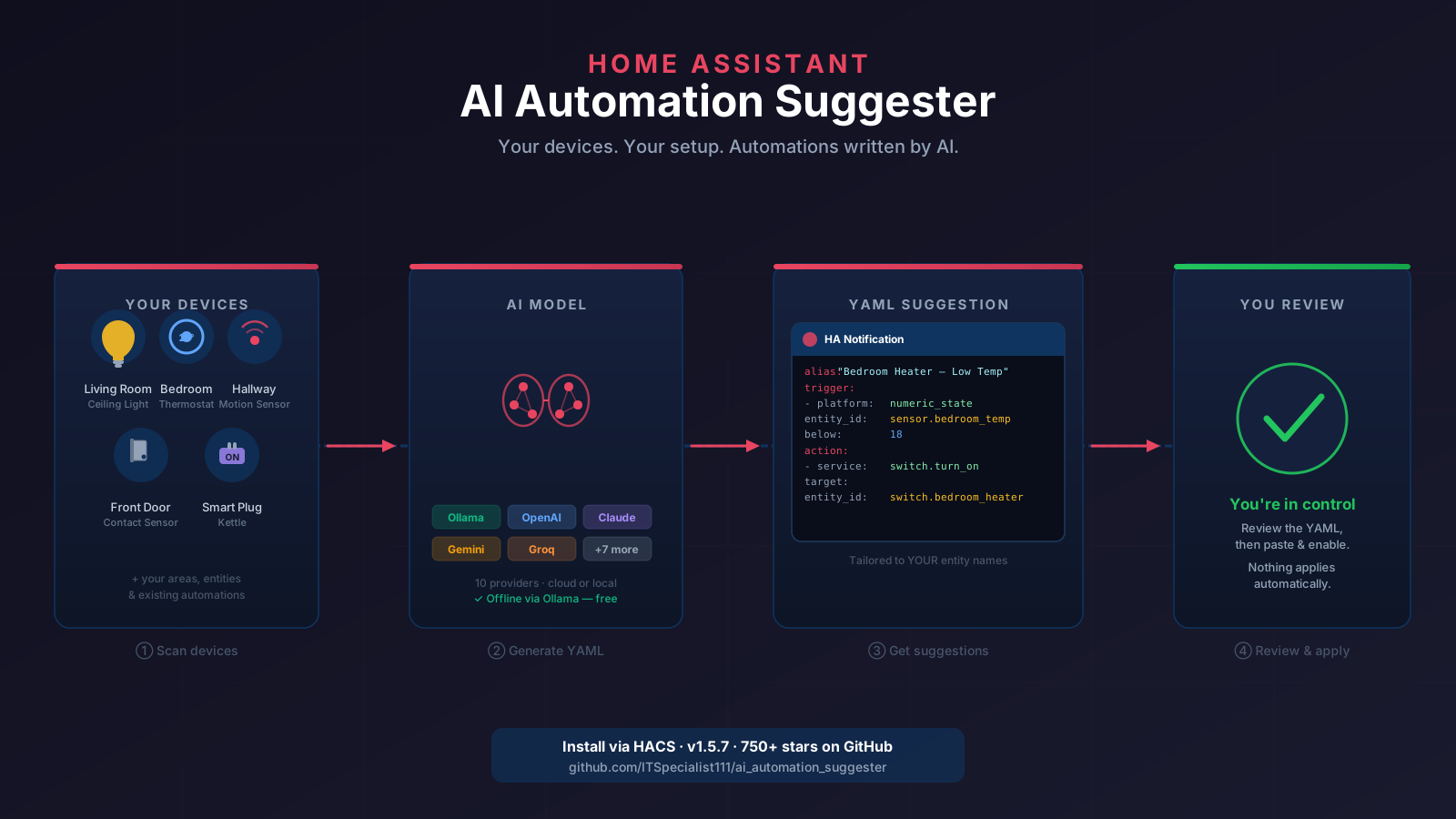
At its core, the integration acts as a bridge between your Home Assistant instance and a large language model. It does the tedious work of packaging your smart home's context into a structured prompt, calling the AI, and then surfacing the generated YAML in a format you can review and copy directly into your automations editor. The key word is review — nothing is applied automatically.
It works with Home Assistant 2024.1 or later and is compatible with standard Home Assistant OS, Container, and Supervised installations.
How It Works
The integration follows a five-step process each time you request suggestions:
- Snapshot: It collects your current entities, devices, areas, and (optionally) existing automations into a structured dataset.
- Prompt building: That dataset is formatted into a detailed system prompt that gives the AI model full context about your setup — including device names, entity states, and which areas they belong to.
- Provider call: The prompt is sent to your chosen AI provider (cloud or local).
- Parsing: The AI's response is parsed, with the integration preferring structured JSON and falling back to fenced YAML blocks.
- Surface: Suggestions arrive as Home Assistant persistent notifications and are also stored in sensor attributes for use in dashboard cards.
You can trigger a new batch of suggestions manually via Developer Tools → Services, calling ai_automation_suggester.generate_suggestions. The integration also ships with example automations you can import: one that triggers whenever a new entity is added to Home Assistant, and one for a weekly review on a schedule.
Installing AI Automation Suggester via HACS
If you do not have HACS installed yet, our guide to Home Assistant custom components covers the setup process from scratch. Once HACS is running:
- Open Home Assistant and go to HACS → Integrations.
- Click the menu icon (top right) and choose Custom repositories, or use the search bar — AI Automation Suggester is listed in the default HACS catalogue.
- Find AI Automation Suggester, click it, and press Download.
- Restart Home Assistant to load the new component.
- Go to Settings → Devices & Services → Add Integration, search for AI Automation Suggester, and follow the setup wizard.
During setup, you will choose your AI provider and enter the relevant API key (or local server URL if using Ollama or LocalAI).
Choosing Your AI Provider
AI Automation Suggester supports ten providers, split between cloud APIs and local models. This is one of the integration's most important features — because local models mean no ongoing costs and no data leaving your home.
Cloud providers
The integration works with OpenAI (including GPT-4o), Anthropic (Claude Sonnet), Google Gemini, Groq, Mistral, Perplexity, OpenRouter, and Azure OpenAI. Cloud providers generally give the best-quality suggestions because frontier models have deep knowledge of Home Assistant's YAML schema and automation patterns. The trade-off is cost — each suggestion batch uses tokens, so costs accumulate if you run it frequently. For most households, running it once a week or whenever you add new devices is perfectly manageable.
Local providers: Ollama and LocalAI
If privacy or cost is your priority, Ollama and LocalAI let you run a model entirely on your own hardware — a spare PC, a Raspberry Pi 5 with sufficient RAM, or even the same machine running Home Assistant. There is no API key, no subscription, and your entity data never leaves your local network.
Ollama is the easier option for most people: install it on any machine on your network, pull a model like llama3 or mistral, point the integration at your local Ollama URL, and you are ready. Suggestion quality with local models is lower than frontier cloud models, but still more than good enough for common automation patterns like presence detection, time-based lighting, and temperature thresholds.
What a Suggestion Looks Like
After the integration runs, you will see a persistent notification in your Home Assistant UI. The notification contains the AI's reasoning — a plain-English explanation of why it is suggesting this automation — followed by a YAML block ready to paste into the automation editor.
Because the AI has seen your actual entity IDs and area names, the suggestions reference your real devices. If you have a motion sensor called binary_sensor.hallway_motion and a light called light.hallway_ceiling, the suggestion will use those exact entity IDs rather than placeholders you have to substitute manually. The YAML typically includes a trigger, one or two conditions (such as a time constraint or a light level check), and the action — so it is immediately usable, not just a starting point.
Suggestions are also stored as sensor attributes, which means you can build a Lovelace dashboard card that displays them at a glance without navigating to the notification centre.
Is It Safe to Use?
Nothing is applied automatically. This is the most important thing to understand about AI Automation Suggester. The integration surfaces YAML for your review — it does not create, enable, or modify any automation without you explicitly doing so. You read the suggestion, decide whether it makes sense for your home, and paste it into the automation editor (or import it via the YAML editor in Settings → Automations).
That review step is actually valuable beyond just safety. Reading through a suggestion often teaches you something about Home Assistant's YAML syntax — many users report that the integration has accelerated their understanding of how Home Assistant automations work, not just saved them time writing them.
If you use a cloud provider, your entity names and state data are sent to that provider's API. For most households this is not a concern, but if you have entities with sensitive names or you prefer total data privacy, use Ollama or LocalAI instead.
Getting Better Suggestions Over Time
The quality of suggestions scales directly with the quality of your entity naming. If your motion sensor is called binary_sensor.0x12ab45cd (a common default from Zigbee pairing), the AI will produce generic suggestions or may skip it entirely. Rename entities and areas to be descriptive — Hallway Motion Sensor, Kitchen Ceiling Light, Bedroom Thermostat — and the suggestions become markedly more specific and useful.
You can also guide the AI with a custom system prompt, a configuration option that lets you add your own context. For example: "We are a family of four. The master bedroom is used by adults, rooms 2 and 3 by children. The house follows a 10pm bedtime routine." That context shapes suggestions around your lifestyle rather than generic patterns.
The integration also supports exclusion filters — you can tell it to ignore certain domains (such as media_player) or specific entities that you do not want suggestions for, keeping the output focused.
Who Should Use It
AI Automation Suggester is particularly well-suited to three kinds of Home Assistant user. First, people who are new to automations and find YAML syntax intimidating — the integration produces working examples you can learn from as well as use. Second, experienced users who have accumulated a large number of devices and want a quick audit of automation opportunities they might have missed. Third, anyone who has just set up a new area or added a batch of new devices and wants a first-pass set of automations without spending an afternoon in the editor.
If you are still getting to grips with the fundamentals, read our complete guide to Home Assistant automations first — understanding triggers, conditions, and actions will help you evaluate the AI's suggestions critically rather than just copy-pasting them blindly.