Why does homeassistant.local stop working?
- Wrong port for your install: Home Assistant has used port
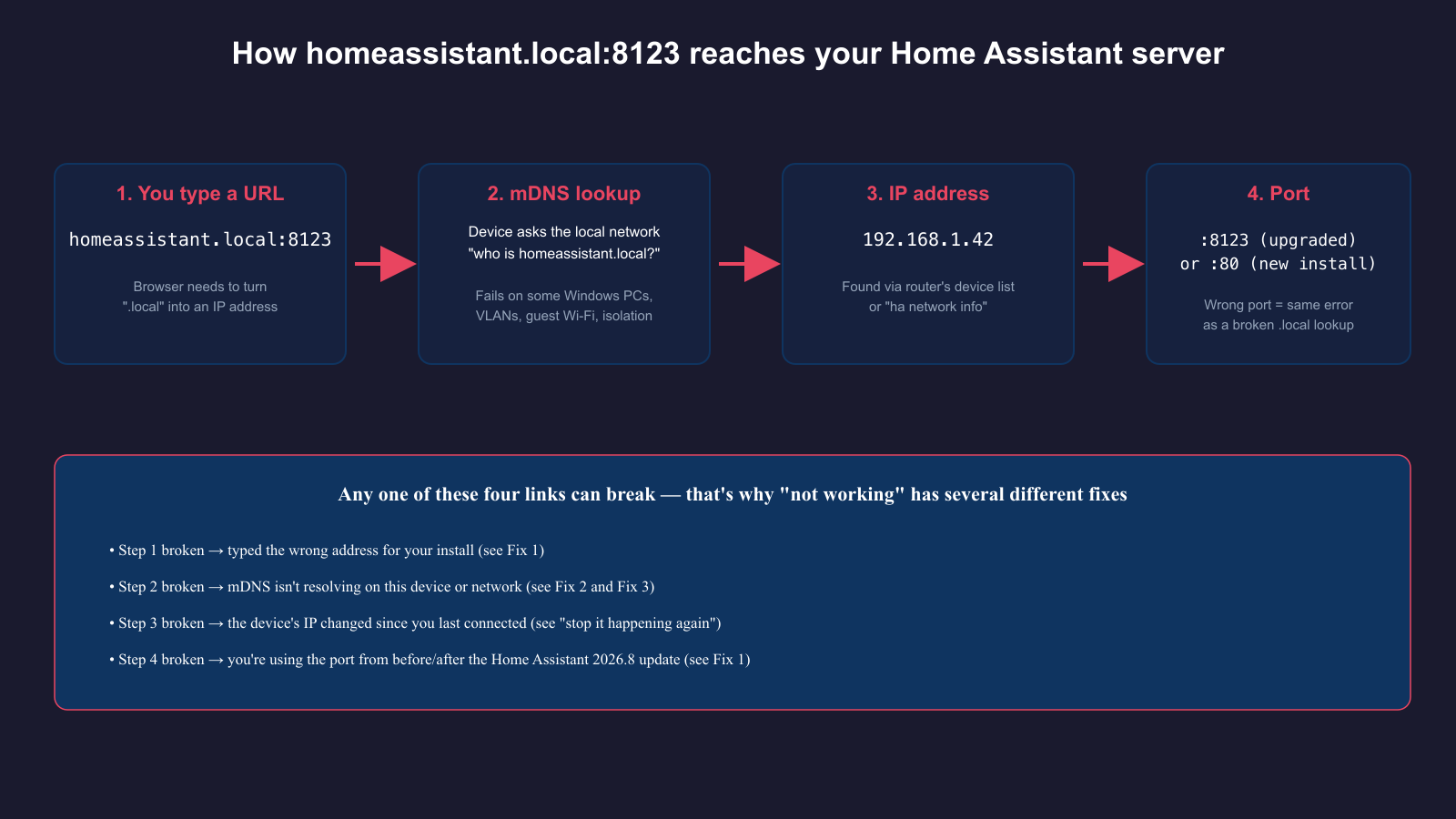
8123since its earliest releases, but the 2026.8 update switched new installations to plain port 80 by default, with the change exposed under Settings > System > Network. Type the wrong one for your install and the browser can't connect — searching literally for “homeassistant.local:80” or “homeassistant:80” is one of the most common ways people land on this exact error. - mDNS (Bonjour) isn't resolving:
.localaddresses depend on multicast DNS, a local-network-only broadcast protocol. It doesn't route across VLANs, is commonly blocked by router features like AP/client isolation on guest Wi-Fi, and isn't supported the same way on every device. - Your browser is stuck on a cached HTTPS redirect: if you (or a previous reverse-proxy setup) ever loaded Home Assistant over HTTPS at that address, some browsers remember it and refuse to fall back to plain HTTP, even after you remove the proxy.
- Home Assistant Container/Core doesn't advertise itself the same way: Home Assistant OS and Supervised installs actively advertise their hostname on the network; a bare Container or Core install typically doesn't, so
.localresolution is less reliable on those setups from the start.
Fix 1: Which port does your Home Assistant install actually use?
Before touching any network settings, work out whether this is even a port problem. If your Home Assistant instance was set up before August 2026, or you upgraded an existing install rather than starting fresh, it almost certainly still runs on http://homeassistant.local:8123 — the four-digit port is not optional for you. If you installed Home Assistant fresh on version 2026.8 or later, new installs default to plain port 80 instead, so the correct address has no port number at all: just http://homeassistant.local. Existing installations are only switched over if you explicitly confirm a one-time prompt in the UI; if you don't respond within five minutes, Home Assistant automatically reverts to 8123, so don't assume the update alone changed your port. Try both addresses in a fresh browser tab before moving on — you'll know it worked when the Home Assistant login screen loads instead of a connection error.
Fix 2: How do you bypass mDNS with the IP address?
If you've confirmed the port and it still won't load, the fastest way to get back in is to skip name resolution altogether and connect by IP address. Open your router's admin page and look for a connected-devices or DHCP client list — Home Assistant usually shows up there by hostname. On Home Assistant OS or Supervised, you can also get the address directly from the device itself: from the Supervisor's Terminal & SSH add-on, or a keyboard and monitor plugged into the machine, run ha network info to list its current IP. Once you have it, browse to http://<ip-address>:8123 (or port 80, per Fix 1) — for example http://192.168.1.42:8123. If that loads straight away, the server itself is fine and the problem is entirely in how your device is trying to resolve .local, which the next fix addresses.
Why won't homeassistant.local resolve on Windows or a guest Wi-Fi network?
It won't resolve because the two most common causes both revolve around multicast traffic being restricted, either on the device or on the network it's connected to. Windows 10 and 11 include only limited multicast DNS support out of the box; software that historically bundled a full mDNS responder, such as Apple's Bonjour (installed alongside iTunes or Bonjour Print Services), fills the gap on many machines, so a Windows PC that's never had one of those installed can fail to resolve .local names that resolve fine from a phone or Mac on the same network. Separately, mDNS is a local-subnet broadcast — it does not cross VLANs, so if your Home Assistant device sits on an isolated IoT VLAN while your laptop is on the main network, .local lookups will fail even though both can otherwise reach the internet. Guest Wi-Fi networks compound this: many routers enable AP or client isolation on the guest SSID specifically to stop connected devices from seeing each other, which blocks the multicast traffic mDNS relies on by design — some Virgin Media Hub 3 users have reported exactly this pattern affecting smart-home device discovery, with no isolation toggle exposed to turn it off. If you're on a guest network or a segmented VLAN, connecting your laptop or phone to the same network segment as Home Assistant — or using the IP address from Fix 2 — is more reliable than chasing mDNS settings.
Fix 3: How do you clear a cached HTTPS redirect?
If homeassistant.local worked before and now fails specifically in one browser while a different browser or a private/incognito window loads it fine, the cause is usually a cached redirect rather than mDNS at all. Browsers that once loaded the address over HTTPS — commonly because a reverse proxy was set up and later removed — can keep enforcing HTTPS for that hostname and refuse to fall back to plain HTTP, producing a connection error that looks identical to a DNS failure. Clearing that specific site's browsing data (not just cache, but site settings or HSTS state) in the affected browser, or simply testing in a private window first, tells you whether this is the issue before you spend time on router settings.
When should you stop relying on .local at all?
If you've fixed the immediate problem but keep hitting it again after every router reboot or network change, it's worth moving off .local resolution as your primary way in rather than re-diagnosing it each time. For remote access away from home, Nabu Casa's Home Assistant Cloud gives you a stable HTTPS URL that works over the internet without exposing your instance directly or relying on port forwarding. If you're running Home Assistant behind a reverse proxy (nginx, Caddy, or similar) so it's reachable on standard port 80/443 alongside other services, you need to explicitly enable use_x_forwarded_for and list your proxy's address under trusted_proxies in the http: section of your configuration — without both settings, Home Assistant rejects proxied requests outright rather than just failing to resolve the hostname, which is a different error worth ruling out separately. See our Home Assistant network setup guide for a full walkthrough of VLANs, static IPs and remote access options together, and our Home Assistant UK setup guide if you're configuring a new instance from scratch and want to avoid this problem from day one.
How do you stop homeassistant.local not working from happening again?
You stop it recurring by taking your device's IP address out of the guesswork rather than trying to make mDNS more reliable. Log into your router and set up a static IP or DHCP reservation for Home Assistant's MAC address, so it gets the same IP every time it reconnects, then bookmark http://<that-ip>:<your-port> directly instead of relying on the hostname day-to-day. Keep homeassistant.local as a fallback for when you're on an unfamiliar device rather than your main way in, and if you regularly need access away from home, set up Nabu Casa remote access once rather than fighting port forwarding and dynamic DNS every time your ISP changes your public IP.