What the HomeKit Bridge actually does
Bridge mode vs device (accessory) mode. Home Assistant's HomeKit integration can run in two modes. Bridge mode — the default — bundles all your chosen entities into a single virtual accessory visible in the Apple Home app. This is what you want for the vast majority of setups: it is efficient, keeps the Home app tidy, and handles lights, switches, sensors, covers, climate devices, and fans without any extra fuss.
Accessory (device) mode is required only for a small set of entity types where Apple demands an independent connection: cameras with live video streaming, television and AV receiver media players, activity-based remotes, and locks (when you want full lock code management). For those you create a separate HomeKit integration entry set to accessory mode, exposing just that one entity. You can run bridge mode and multiple accessory-mode entries side by side.
What the bridge does in practice is act as a local HomeKit accessory server, advertised on your network via mDNS (Bonjour). When you add it to the Apple Home app, iOS registers every exposed entity as an individual accessory within that bridge. Lights appear as lights, sensors appear as sensors, and scenes appear as switches you can trigger with a tap or a Siri command.
What you need before you start
- Home Assistant 2023.5 or later running on any supported platform (Home Assistant OS, Supervised, Container, or Core). The HomeKit Bridge integration has been built-in since HA 0.65; the UI-based setup arrived later.
- An Apple device — iPhone or iPad running iOS 16 or later to scan the pairing QR code and set up the bridge in the Home app.
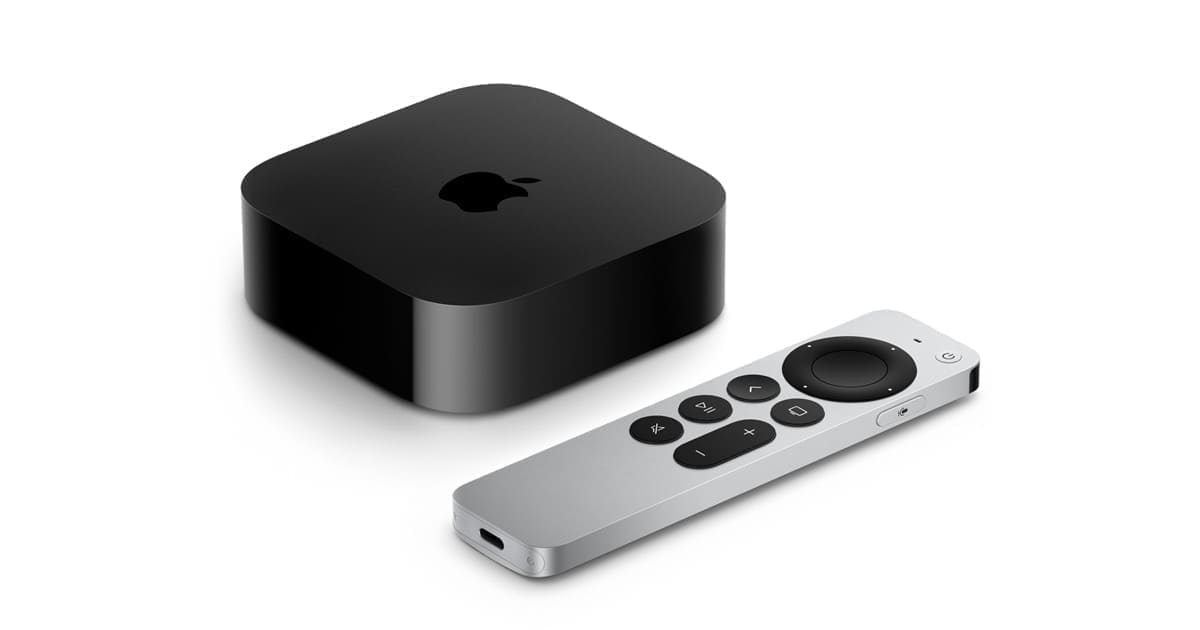
- A home hub for remote access — if you want to control your HA devices while away from home, you need an Apple TV (4th generation or later), HomePod, or HomePod mini set as a home hub. Without a hub, HomeKit only works on your local Wi-Fi network. The Apple TV 4K (3rd generation) and HomePod mini are the most popular choices for UK users.
- Network access on port 21063 — the HomeKit protocol uses TCP port 21063 by default. If you have a firewall on your HA host or between your HA VLAN and the rest of your network, this port must be open. mDNS discovery uses UDP port 5353.
Step 1: Add the HomeKit Bridge integration
Go to Settings → Devices & Services → Add Integration and search for HomeKit Bridge. Select it and Home Assistant will guide you through initial configuration. You will be asked to name the bridge (the name appears in the Apple Home app) and choose which domains to include. The default selection usually includes light, switch, climate, cover, and sensor — you can adjust this at any point from the integration's options page.
Step 2: Scan the pairing code
Once the integration is running, a notification will appear in Home Assistant with an eight-digit PIN and a QR code. Open the Apple Home app on your iPhone or iPad, tap the + button, and choose Add Accessory. Point the camera at the QR code in the HA notification or on your HA dashboard. iOS will warn you that the accessory is not certified — tap Add Anyway. This is expected; the HA bridge is a software accessory and does not carry Apple's MFi certification.
Enter the PIN if prompted, assign the bridge to a home and room, then tap through the remaining prompts. Within a few seconds your Home Assistant entities will begin appearing in the Apple Home app.
Step 3: Configure which devices are exposed
Filtering entities. By default the bridge exposes a broad set of entities, which can quickly overwhelm the Home app if you have a large HA setup. Use the integration's options to control exactly what is shared. You have three levels of control:
- Domain filter — include or exclude entire entity types (e.g. exclude all
sensorentities if you only want controllable devices in HomeKit). - Entity ID glob patterns — fine-grained matching, for example
light.living_room_*to expose only living room lights. - Area filter — expose only entities in a specific HA area, which keeps things well-organised for multi-room setups.
The 150-accessory limit per bridge is worth keeping in mind. If you have a very large installation — hundreds of Zigbee devices, for instance — you can create a second HomeKit Bridge integration entry pointing to a different port (e.g. 21064) to spread the load.
Step 4: Verify in Apple Home
Open the Home app and confirm your devices are appearing correctly. Lights should show brightness sliders, climate entities should show a thermostat tile, and binary sensors (door/window, motion) should show as contact or occupancy sensors. If an entity type is not supported by HomeKit, it simply will not appear — this is normal. Unsupported types include most HA-specific entities like input booleans and helpers, though you can expose automations and scripts as HomeKit switches if you want Siri-triggered shortcuts.
Siri commands that work
Once the bridge is paired, Siri can control any entity exposed through it using the entity's name as set in Home Assistant (unless you rename it in the Home app). Some useful commands:
- “Hey Siri, turn on the kitchen lights”
- “Hey Siri, dim the living room to 40 per cent”
- “Hey Siri, set the thermostat to 20 degrees”
- “Hey Siri, open the garage door”
- “Hey Siri, is the front door locked?”
- “Hey Siri, turn on Good Night” (triggering a HA scene exposed as a switch)
Apple Intelligence (on supported devices) can also chain HomeKit commands — “Hey Siri, when I leave home, turn everything off” — creating Home automations that run even when your iPhone is away, provided a home hub is present.
Automations in Apple Home
One underrated benefit of the bridge is the ability to trigger Home Assistant scenes and scripts from Apple Home automations. Expose a HA script as a switch, then use the Home app to run it at sunrise, when someone arrives, or when an NFC tag is tapped. The reverse also works: you can use HA's automations guide to react to state changes in HomeKit accessories (like an Apple TV switching to a specific input).
Troubleshooting common issues
Accessories show as “No Response”
This is almost always a network issue. Check the following in order:
- Port 21063 open — on the HA host, run
ss -tlnp | grep 21063to confirm the port is listening. If you run HA in Docker, you need to publish the port:-p 21063:21063. - mDNS / Bonjour propagation — your Apple devices discover the bridge via mDNS (UDP 5353). If HA is on a separate VLAN, you need an mDNS repeater (Avahi in reflector mode on a Linux gateway, or the mDNS Repeater add-on in HA OS). Without it, the bridge is invisible across VLANs.
- Multiple network interfaces — HA sometimes binds the HomeKit server to the wrong interface. In the integration's YAML configuration, set
advertise_ip: YOUR_HA_IPto force the correct address. - Older home hubs — a first-generation HomePod or an Apple TV HD acting as hub can cause intermittent unresponsiveness. Upgrading to a HomePod mini or Apple TV 4K resolves most hub-related issues.
Pairing fails or QR code not recognised
Delete the HomeKit Bridge integration entry and re-add it — this generates a fresh pairing code. Also confirm your iPhone and HA are on the same Wi-Fi network during pairing. You cannot pair over a VPN or across VLANs without mDNS forwarding in place.
Entities not appearing after pairing
The bridge sends entity updates incrementally. After first pairing, tap Done in the Home app and wait up to two minutes for all accessories to populate. If entities are still missing, check the domain filter in the integration options — a common mistake is accidentally excluding a domain you intended to include.
Bridge keeps unpairing itself
This usually happens when the HA instance changes IP address. Give your HA host a static IP (or a DHCP reservation on your router) and the bridge will stay paired across reboots. Also ensure all iOS devices acting as home admins run iOS 13 or later.
HomeKit Bridge vs native HomeKit devices
It is worth understanding when to use the bridge versus when to buy a natively HomeKit-compatible device. The bridge is ideal when you already own devices that do not support HomeKit — Zigbee bulbs, Z-Wave sensors, generic Wi-Fi switches — and want them in Apple Home without replacing hardware. It gives you full control and costs nothing beyond what you already run.
Native HomeKit devices (those with the Works with Apple Home logo) connect directly to your home hub without HA acting as a middleman. For a set-and-forget experience — particularly for locks and security devices where reliability is critical — native HomeKit hardware has an edge. If you are comparing the broader ecosystems, our Apple HomeKit vs Google Home guide covers the trade-offs in detail, and our Homebridge vs Home Assistant article explains the difference between the two most popular HomeKit bridge approaches.
For users who also want Alexa compatibility alongside HomeKit, the same HA installation can run both integrations concurrently — see our Alexa integration guide for the parallel setup.
Advanced configuration via YAML
The UI covers most use cases, but advanced users can drop into configuration.yaml for granular control. Useful YAML-only options include setting a custom port, forcing advertise_ip, excluding specific entity IDs by glob, and enabling safe_mode during debugging. Refer to the official Home Assistant HomeKit integration docs for the full schema — the configuration options change periodically as the integration matures.