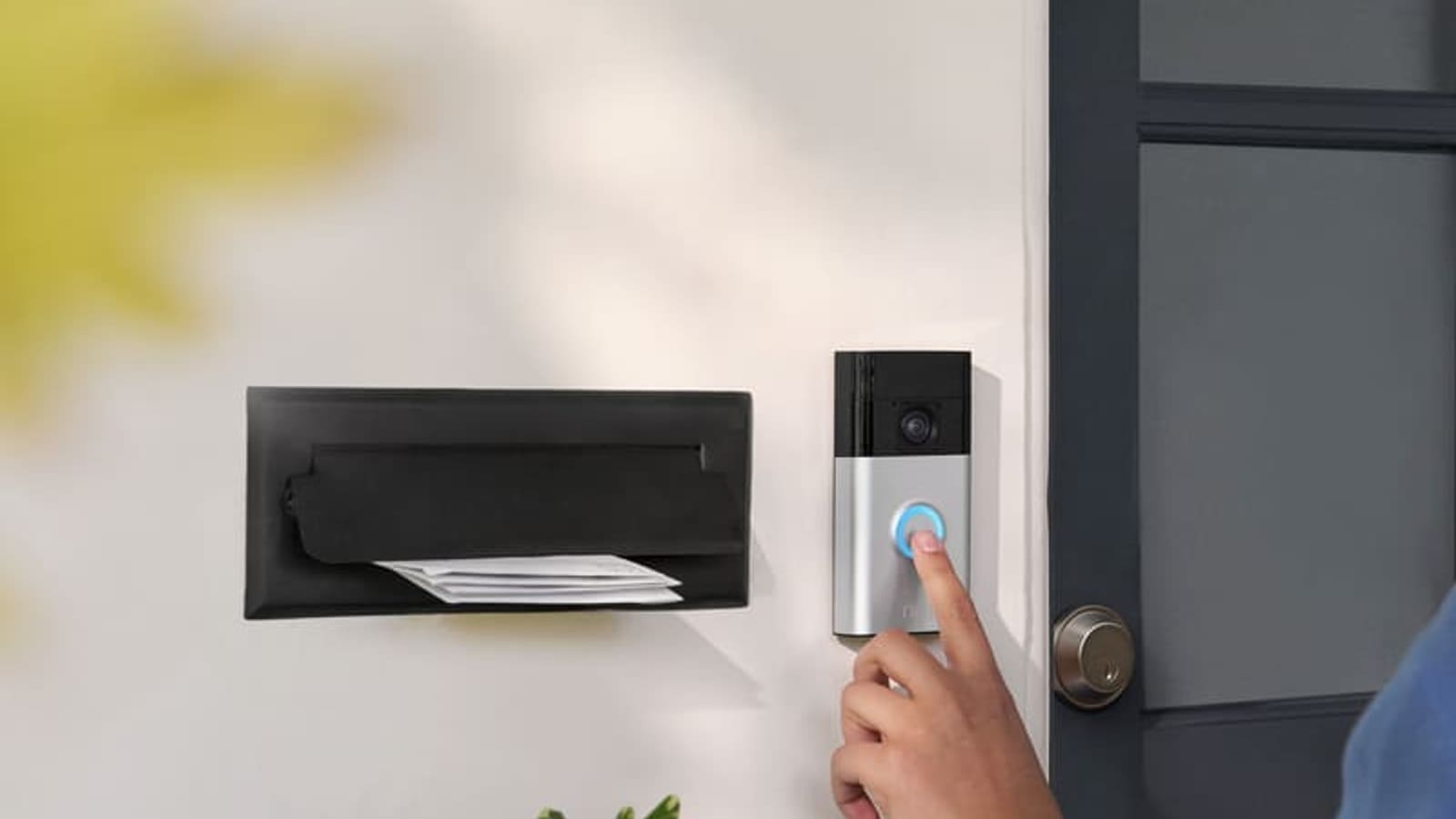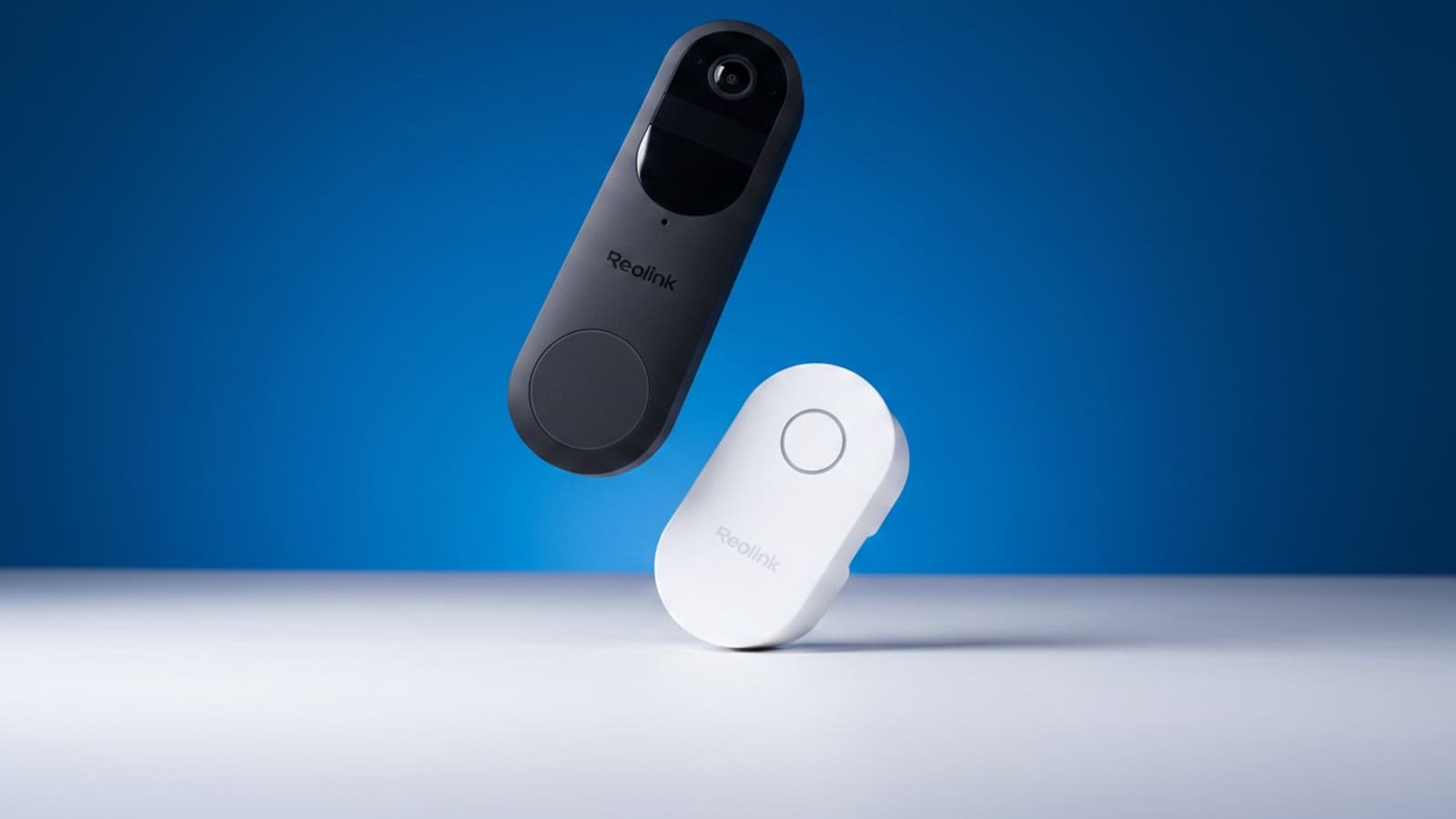
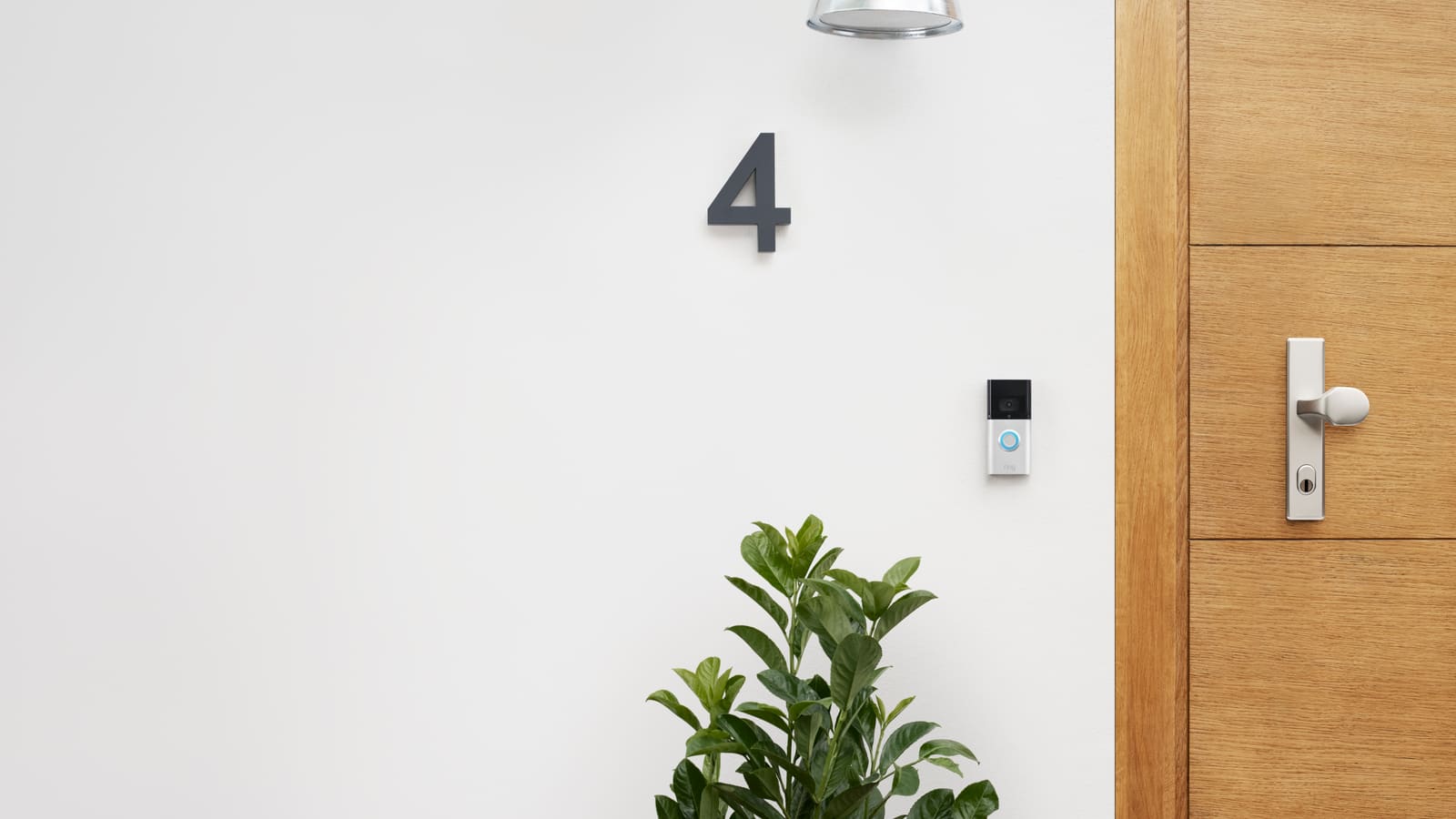
What do you need before you start?
- The Ring app on your phone, signed in as the account owner. Only the owner can change Wi-Fi or release a device.
- Your Wi-Fi name and password to hand. Wi-Fi passwords are case sensitive, and Ring doorbells use 2.4GHz networks.
- A small tool for the faceplate on removable-battery and wired models, plus a screwdriver if your doorbell is bolted to the wall by a security screw.
- Five minutes, and for wired models, the ability to switch off the doorbell circuit at the consumer unit.
Step 1: Decide whether you need a reset or just a power cycle
A power cycle restarts the doorbell and keeps its settings, so it is the first thing to try when the doorbell is offline, slow or unresponsive. A factory reset wipes the setup and is the right call when the power cycle fails, when you are changing the Wi-Fi router for good, or when you are passing the doorbell on.
Ring describes the two as separate procedures: a power cycle is a reboot without resetting, while the factory reset is the 20-second setup-button hold. Ring also advises that if a device stays offline or unresponsive, you should factory reset or power cycle it before attempting a new setup.
Step 2: Power cycle the doorbell first
How you power cycle depends on how the doorbell is powered.
- Battery doorbells: remove the battery pack for 10 seconds, then put it back.
- Plug-in devices: unplug for 10 seconds, then plug back in.
- Wired doorbells: turn off the power source, either the light switch or the circuit breaker, then turn it back on after 10 seconds. Ring's page does not spell out the wait for this method, so allow a similar pause. Switch the breaker off properly rather than working on live wiring.
Give the doorbell a minute or two to reconnect, then check whether it appears online in the app. If it does, you are done and nothing needs setting up again.
Step 3: Find the setup button on your doorbell
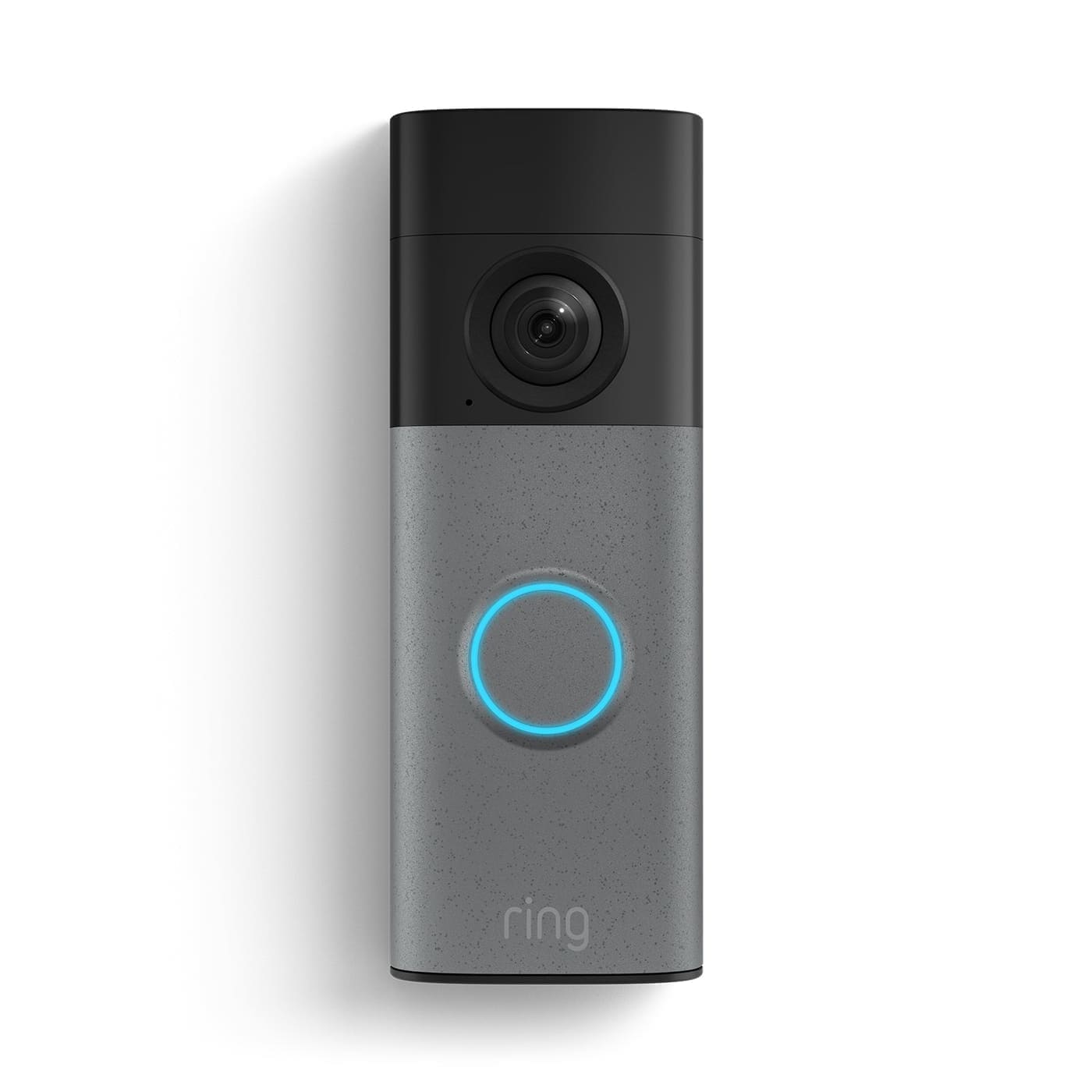
Ring uses a single "setup button" for both pairing and factory resets, and where it lives depends on how your doorbell is powered. Check the table below before you take the doorbell off the wall.
| Doorbell type | Where the setup button is |
|---|---|
| Internal (built-in) battery | On the back of the device |
| Removable battery | On the front, under the faceplate |
| Wired | Under the faceplate, on the right-hand side |
If you are unsure which type you own, the app shows the model name under Devices, and Ring publishes a model-identification guide. For other Ring products the button is elsewhere: on top of most cameras, inside the battery compartment on Outdoor Cams, and on the right side of most Chimes. Our Ring camera guide explains the camera range.
Step 4: Hold the setup button for 20 seconds
Press and hold the setup button for a full 20 seconds, then release. Count it out rather than guessing, because a short press only puts the doorbell into setup mode and does not reset it.
Take care when removing the faceplate on a removable-battery or wired doorbell so you do not drop it or strain the wiring. Refit it once the reset is done.
If you have a battery doorbell that will not power on at all, Ring's advice is different: charge it for 30 minutes with a USB wall charger plugged into a socket. If that does not wake it, unplug the charger, then hold the front button while factory resetting for 30 seconds.
Step 5: Set the doorbell up again in the Ring app
After the reset, you may need to set the doorbell up again in the Ring app, so open it and follow the add-a-device prompts. If the doorbell is still on your account and simply lost its Wi-Fi, try the lighter route first: open the menu, tap Devices, choose the doorbell, tap the Device Health tile, then under Network tap Reconnect or Change Network and follow the prompts.
Watch the doorbell's light patterns and listen for audio cues while it reconnects. Our Ring doorbell installation guide covers the full first-time setup flow, which is the same process you will run again after a reset.
Common problems and fixes: why won't my Ring doorbell reconnect to Wi-Fi?
The most common cause is the wrong Wi-Fi band. Ring doorbells and cameras work on 2.4GHz networks, and if your router merges 2.4GHz and 5GHz under one name the doorbell may not find the network it expects. Ring suggests trying a 2.4GHz network if the device keeps disconnecting, and says a guest network also works.
Doorbell keeps dropping offline: move the router or add a mesh node closer to the front door; our best mesh Wi-Fi guide and Wi-Fi extender guide cover the options. Ring's last-resort advice is to factory reset the device and set it up from scratch.
Wrong password: passwords are case sensitive, so retype it carefully.
No Reconnect option in the app: only the account owner sees it, and shared users cannot change the network.
Battery will not wake: follow the 30-minute charge and 30-second button hold described in Step 4.
How do you reset a Ring doorbell before selling it?
Do not rely on a factory reset when you sell or give away a doorbell, because the reset does not remove it from your account. Ring states that cancelling your subscription, physically uninstalling the device or deleting the app will not release ownership either. Ownership is released only in the Ring app, not on ring.com.
- Open the Ring app, tap the menu, then Settings.
- Under Location Details, tap Transfer Ownership, then Create Request.
- Tap Transfer devices to someone else and select the doorbell. You can transfer up to 25 devices at once, and a Ring Alarm brings its connected devices with it.
- Enter the new owner's email, or skip that step to simply remove the devices from your account, then confirm.
Transfers cannot be cancelled, so make sure you really mean it, and transferring a device does not cancel its Ring subscription, which you must end separately; see our Ring doorbell subscription cost guide for what you would be paying. Once the doorbell has been released, a factory reset by you or the buyer gives it a clean start.
If you are buying a second-hand doorbell that is still tied to someone else's account, tap Set Up a Device in the app, follow the prompts, choose Request Ownership and pick Request All or Only This Device. The device stays on the current owner's account for up to 15 days after a request. Doorbells, cameras and Chimes are then removed automatically if the owner does not respond; Ring Alarm devices are not.
What to do next
With the doorbell back online, check that motion zones and notification settings look right, since they may need redoing. If you are weighing up replacing an ageing model instead of resetting it, our best Ring doorbell guide compares the current range.