What do you need before you start?
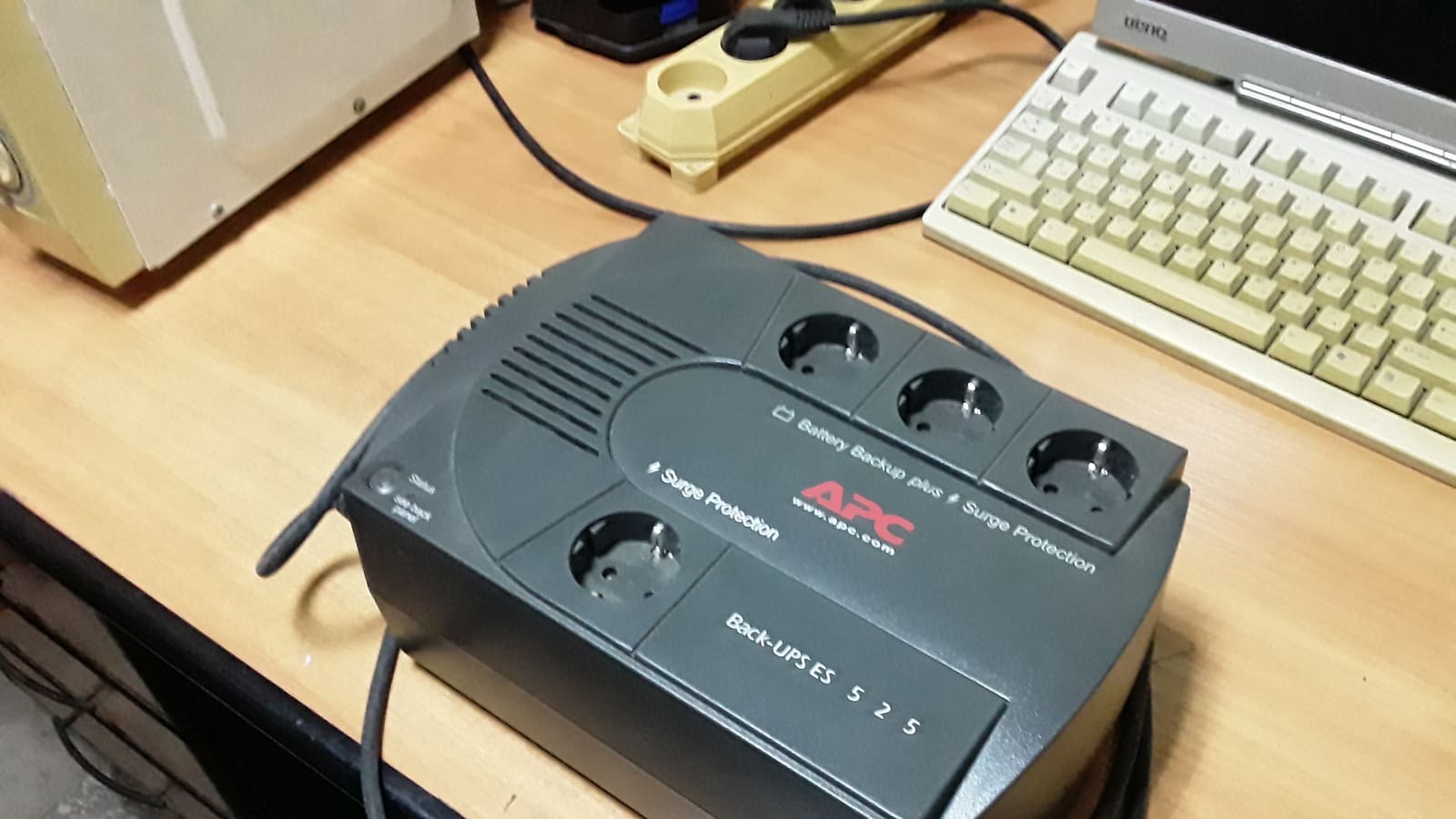
- A UPS with a data connection: a USB or network-enabled unit that Network UPS Tools (NUT) supports. Our UPS buying guide compares models that work well with Home Assistant.
- A NUT server: the Home Assistant NUT integration cannot talk to a UPS directly, so something has to run the NUT server. That can be a NAS, a Raspberry Pi or a Home Assistant add-on.
- Your router and Home Assistant host on the UPS: both must keep running through a cut, or the alert cannot leave the house.
- The Companion app: for phone push notifications. See the notifications guide if you have not set it up yet.
What does a power cut alert actually need to do?
A good alert answers three questions: has the mains failed, how long can the house stay online, and has it come back. Home Assistant can only answer them if it keeps running through the outage, which is why the UPS comes first and the automation second.
Think of the alert as two automations rather than one. The first fires when the supply drops and tells you the clock has started. The second fires when it returns, so you are not left wondering whether the freezer, the heating or the alarm came back by themselves. A third, optional rule warns you when the UPS battery is running low and a clean shutdown is near.
Step 1: Put the right devices on the UPS
Plug in only the kit that must survive a short outage: the Home Assistant host (a Raspberry Pi, mini PC or Home Assistant Green), the router or ONT, and any Zigbee or Thread coordinator that is a separate box. A small unit lasts far longer on a few watts than on a full desk setup, so leave the TV and the network switch for the rest of the sockets unless you need them.
Check that the router really is the device in your hallway cupboard. Many UK fibre installs have a separate ONT (the box on the wall) as well as a router, and both need power for the internet to stay up. If your broadband comes in through a cable or phone line, the street cabinet or exchange may also lose power in a wider outage, in which case the internet drops regardless of your own battery and the push notification will not arrive. For that case, see the mobile-data fallback in the problems section below.
Step 2: Install the NUT server
The Home Assistant docs are clear that the NUT integration needs a NUT server to monitor the UPS. Choose whichever of these is least effort in your house:
- A NAS you already own: many NAS operating systems include a NUT or UPS service. Connect the UPS to the NAS by USB and enable the network UPS server option.
- A Raspberry Pi or small Linux box: install the
nutpackage, connect the UPS by USB and configure it as a server. - A Home Assistant add-on: if the UPS is plugged into the Home Assistant machine, a community NUT add-on can run the server for you.
Whichever you use, give the NUT server a fixed IP address or a DHCP reservation. The Home Assistant docs warn that it cannot detect an address change automatically, so a server that moves will silently stop reporting. Test the connection by running upsc on the NUT machine, which lists every variable your UPS exposes.
Step 3: Add the NUT integration to Home Assistant
Go to Settings > Devices & services. If Home Assistant discovered the server it will appear as Discovered and you can set it up in one click. Otherwise select Add integration, choose Network UPS Tools (NUT), and enter the host, the port (the NUT default is 3493) and, if you configured one, a username and password.
The integration creates sensors for the status, battery charge, load and more, but only those your UPS actually reports. Most of the diagnostic sensors are disabled by default, so if one you want is missing, enable it from the entity settings. Open Settings > Devices & services > Entities and write down the exact entity IDs, because the examples below use the documentation's sensor.ups_status and sensor.ups_battery_charge, and yours may differ.
Step 4: Build the “power has gone” automation
This is the same pattern as the official NUT documentation. The integration translates the raw status into readable text, and the documentation's example triggers when the status sensor changes to On Battery, Battery Discharging. Check the exact wording your UPS produces by looking at the sensor in Developer tools > States during a short test, because status text can vary a little by model.
alias: "Power cut: UPS on battery"
triggers:
  - trigger: state
    entity_id: sensor.ups_status
    to: "On Battery, Battery Discharging"
actions:
  - action: notify.send_message
    target:
      entity_id: notify.my_device
    data:
      title: "Power cut at home"
      message: "Mains power has failed and the UPS is now on battery."
mode: single
Replace notify.my_device with your own notification target. If you prefer the visual editor, you can paste the YAML straight into it and Home Assistant converts it for you.
Step 5: Add the “power is back” automation
The restore alert is the one people forget, and it is the one that stops you driving home early. Trigger on the status leaving the battery state and returning to online.
alias: "Power restored: UPS back on mains"
triggers:
  - trigger: state
    entity_id: sensor.ups_status
    from: "On Battery, Battery Discharging"
    to: "Online"
actions:
  - action: notify.send_message
    target:
      entity_id: notify.my_device
    data:
      title: "Power is back"
      message: "Mains power has returned. UPS battery is at {{ states('sensor.ups_battery_charge') }}%."
mode: single
Your UPS may call the healthy state something other than “Online”, for example “Online, Charging” while the battery refills. If the restore alert never fires, that is almost always the reason. Either use the exact string you see, or replace the to: line with a condition that the new state does not contain “Battery”.
Step 6: Warn yourself before the battery runs flat
The official examples include a low-battery rule, and it earns its place here. A small UPS may only last tens of minutes, so knowing it is down to a quarter lets you decide whether to shut something down or head home.
alias: "UPS battery low"
triggers:
  - trigger: numeric_state
    entity_id: sensor.ups_battery_charge
    below: 25
actions:
  - action: notify.send_message
    target:
      entity_id: notify.my_device
    data:
      message: "The UPS battery charge is below 25 percent."
mode: single
The 25 per cent figure is the documentation's example and a sensible default, not a rule. If your Home Assistant host takes a while to shut down cleanly, raise it. NUT can also be set to shut down the NUT server host automatically at a low-battery threshold, which is a better safeguard for the filesystem than any notification.
Step 7: Test it properly
Do not trust the automations until you have pulled the plug. With the household aware, unplug the UPS from the wall for about a minute, watch the status sensor change in Developer tools > States, confirm the notification arrives on your phone, then plug it back in and confirm the restore message. Run this test once on mobile data, with Wi-Fi switched off on the phone, so you know the alert reaches you when you are out.
If you want to check the maths on how long you are covered, the UPS's load and runtime sensors, where reported, give a rough guide. Treat any runtime figure as an estimate that shrinks as the battery ages.
What if you have no UPS?
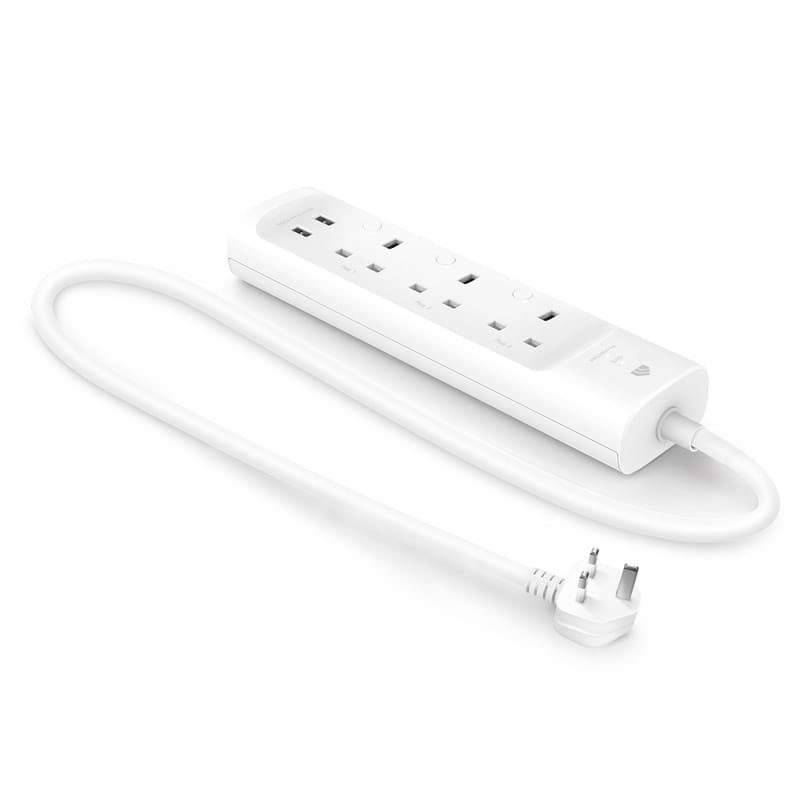
You can still detect a cut, but only partly. A mains-powered smart plug or energy monitor that stays on the grid will show as unavailable when the supply fails, while a Zigbee coordinator on a battery-backed Home Assistant box keeps running. Alert on that device becoming unavailable for a few minutes, and the result is a rough power cut notification.
The weakness is latency and false alarms. Mains Zigbee devices can take a while to be marked unavailable, and one dropping off the mesh for other reasons looks identical to a power cut. That is why the UPS route is the dependable one. Our smart plug roundup covers plugs that report reliably, and a whole-home energy monitor gives you an even clearer signal, because its clamp reading drops to zero when the supply goes.
Who do you tell when the power goes?
Report an unplanned power cut to your local network operator, not your energy supplier. Ofgem says you can report it on your network operator's website or call 105, which is free and puts you through to your electricity network operator. Your supplier only matters if the supply was cut because of a faulty meter.
The alert is also useful evidence. Ofgem says network operators must restore supply within 12 hours outside severe weather, and that you are paid automatically if you are without power for long enough. For homes, Ofgem lists £100 where under 5,000 properties are affected for more than 12 hours, with an extra £45 for each further 12-hour period. Compensation does not cover damage to appliances. The timestamps your notifications leave in Home Assistant give you a record of exactly when the supply dropped and returned if you ever need to query a payment.
Common problems and fixes: why did my notification not arrive?
The router was not on the UPS: without it, the phone has no route to Home Assistant's cloud relay or your own remote access. Put the router and ONT on the UPS, or accept that you will only see the alert on your return.
The wider network lost power: if the street cabinet or exchange goes down, your own battery cannot help. A cheap 4G/5G router as a failover gives the Home Assistant host an independent connection.
The status text did not match: state triggers compare against the exact string. Open Developer tools and copy what your UPS really reports, including the commas.
The restore alert fires repeatedly: a UPS that flips between online and battery in a flaky supply will send a pair of alerts every time. Add a for: duration of a minute to the battery trigger to ignore brief blips, then keep the restore rule as is.
The sensors vanished after a NUT server reboot: that usually points back to the server's IP address changing, so reserve it in your router.
What to do next
Once the basic alert works, build on it. Use the same status sensor to switch off non-essential loads, flash a light, or announce the cut on a smart speaker. In winter, pair it with the frost alert for frozen pipes, because a long cut with the boiler controls offline is exactly when pipes are at risk. And make sure your Home Assistant backups are stored off the box, so a flat battery never takes your configuration with it.< If you are setting this up for a relative who lives alone, our guide to checking on an elderly parent with Home Assistant shows how to combine a power-cut alert with no-activity and sensor-offline alerts.