Why Backing Up Home Assistant Matters
Home Assistant stores a surprising amount of irreplaceable data: your automations and scripts, device configuration files, add-on settings, SSL certificates, custom integrations in the custom_components folder, and months of sensor history. A microSD card running 24/7 has a finite lifespan, and a botched update can occasionally leave a system unbootable. Without a recent backup you face a full rebuild from scratch.
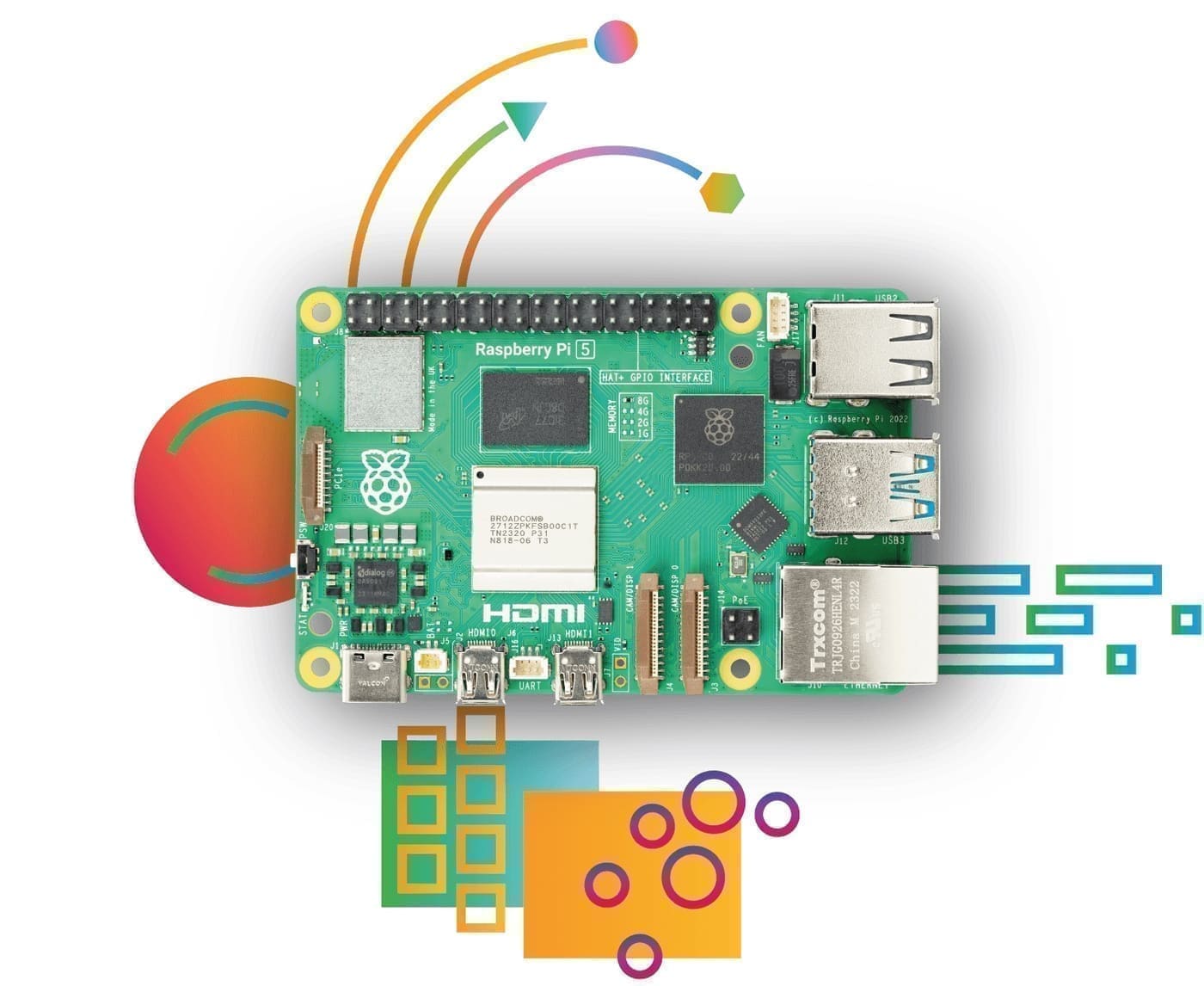
If you are still planning your hardware or starting fresh, our Home Assistant UK setup guide covers the best hardware choices — getting backups right from day one is especially important on SD-card-based installs like Raspberry Pi.
Full Backup vs Partial Backup
Home Assistant supports two backup modes:
- Full backup — captures everything: the
configdirectory (all your YAML, integrations, and automations),share,ssl,media, and any manually installed add-ons. This is the recommended default. - Partial backup — lets you choose any combination of those directories and specific add-ons. Useful for lighter, more frequent snapshots or when you only want to capture config changes without large media files.
Backup files are saved as encrypted .tar archives by default. Since Home Assistant 2025.2, filenames include a human-readable creation date, making it easy to identify the right file even outside the Home Assistant interface.
Creating a Manual Backup
You can trigger a backup at any time from the Home Assistant UI:
- Go to Settings → System → Backups.
- Select Backup now, then choose Manual backup.
- Pick whether you want a full or partial backup, give it a descriptive name, and select your storage location(s).
- Click Create backup. The process typically completes in under a minute for most installs.
Home Assistant also prompts you to create a backup before any system update — always accept this offer.
Setting Up Automatic Backups
Relying on manual backups is risky; automated backups run even when you forget. To configure a schedule:
- Go to Settings → System → Backups and select Set up backups.
- Choose a frequency (daily or specific days of the week) and a time — either "System optimal" or a custom hour.
- Enable Pre-update backup so a snapshot is always taken before Home Assistant updates itself.
- Set a retention count so old backups are automatically pruned and storage does not fill up.
For more complex schedules — for example, backing up only after a specific automation runs — you can use the backup.create_automatic action inside an automation, introduced in Home Assistant 2025.2.
Downloading Backups to Your PC
Keeping a copy of your backup on a local PC or a USB stick is good practice. From Settings → System → Backups, select Show all backups, tap the three-dot menu on a backup, and choose Download backup. The encrypted .tar file will appear in your browser's Downloads folder. As of 2025.2, when you download via the UI the file is decrypted on the fly, so you receive a plain archive you can inspect without needing your encryption key.
For long-term local storage, a dedicated USB stick plugged into your Home Assistant hardware works well. A SanDisk 64 GB USB stick provides plenty of space for dozens of full backups and keeps them physically separate from the main boot device.
Cloud Backup Options
Storing backups only on the same device that runs Home Assistant defeats the purpose — a hardware failure would take the backup with it. Home Assistant offers several cloud options:
Home Assistant Cloud (Nabu Casa)
Subscribers to Home Assistant Cloud get up to 5 GB of included cloud backup storage. Backups stored here are always encrypted and can be used to restore directly during the onboarding wizard on a new device — no USB stick or file transfer required.
Google Drive and OneDrive
Since Home Assistant 2025.2, native integrations for Google Drive and Microsoft OneDrive allow you to set either service as a backup destination alongside (or instead of) local storage. Configure them under Settings → System → Backups → Manage backup locations. Encryption can be enabled or disabled per location, though cloud locations are recommended to remain encrypted.
Dropbox
Since Home Assistant 2026.7, Dropbox joins Google Drive and OneDrive as a native cloud backup destination — add it the same way, under Settings → Devices & Services → Add Integration, then select it as a location for your backup schedule. See our roundup of every new integration in 2026.7 for the other additions in that release.
Samba / Network Share
If you have a NAS or a Windows PC with a shared folder on your local network, Home Assistant can write backups directly to it. Add the share under Settings → System → Storage → Add network storage and select "Backup" as the usage type. This approach is free, keeps data on your own hardware, and works well with Synology NAS units, which gained dedicated backup support in Home Assistant 2025.2.
Restoring Home Assistant from a Backup
Restoring on the Same Device
- Go to Settings → System → Backups.
- Select the backup you want to restore from.
- Choose which components to restore (full restore is recommended unless you only need config files).
- Click Restore. Home Assistant will restart and apply the backup. Log in with your original credentials.
Migrating to a New Device
When setting up a fresh Home Assistant instance, the onboarding wizard offers a "Restore from backup" option. Upload your .tar file (or connect to Home Assistant Cloud if you backed up there), enter your encryption key, choose which components to restore, and the wizard will configure the new instance from the backup. This is the cleanest way to migrate from a Raspberry Pi to a more powerful machine like a mini-PC.
Once you have your backups working reliably, explore our best Home Assistant add-ons guide — add-ons like File Editor and the Samba share add-on make ongoing maintenance much easier.
Backup Best Practices
- Follow the 3-2-1 rule: keep three copies, on two different media types, with one stored off-site (cloud).
- Test your restores. A backup you have never tested is a backup you cannot trust — do a practice restore on a spare SD card every few months.
- Store your encryption key safely. Without it you cannot restore an encrypted backup. Keep it in a password manager.
- Back up before every major update. Enable pre-update backups in the automatic schedule settings.
- Set a retention policy. Keeping the last 7 daily backups is a sensible default; increase this if cloud storage allows.
Related: best Home Assistant add-ons, Home Assistant on Raspberry Pi 5, and Home Assistant Docker setup guide.