Pi 5 vs Pi 4 for Home Assistant
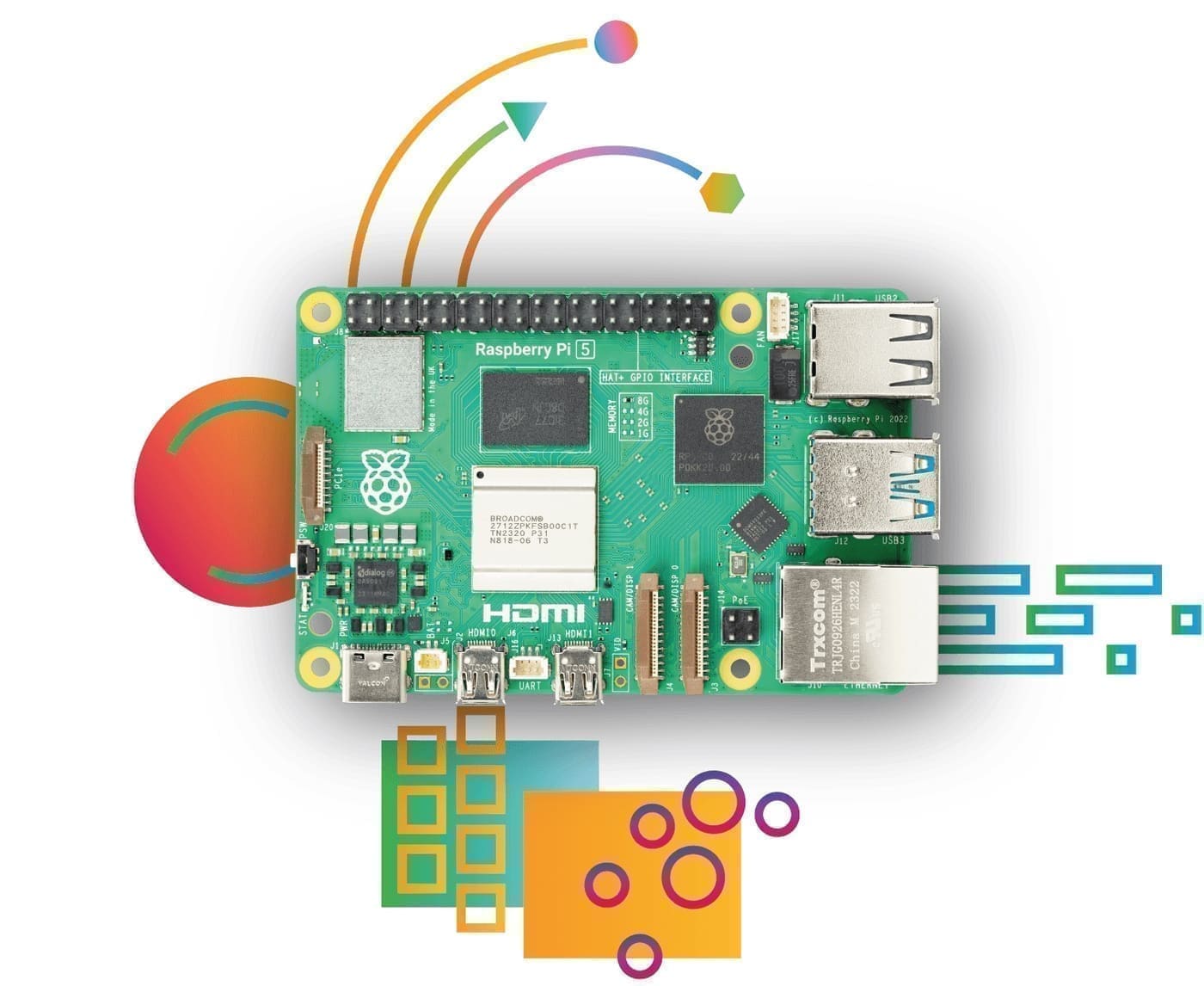
Raw performance is the headline difference. The Pi 5 uses a quad-core Arm Cortex-A76 processor clocked at 2.4 GHz — a significant step up from the Cortex-A72 in the Pi 4. In practice, Home Assistant dashboards load almost instantly, automations execute without perceptible delay, and full system backups that took over two minutes on a Pi 4 with an SSD can complete in around 30 seconds on a Pi 5 with NVMe storage.
The other major upgrade is the PCIe 2.0 x1 interface. With a suitable M.2 HAT, you can attach an NVMe SSD directly to the board, giving you far faster and more durable storage than a microSD card. This is particularly valuable for Home Assistant, which performs many small read/write operations throughout the day — exactly the kind of workload where SD cards degrade fastest.
The Pi 4 remains a perfectly capable Home Assistant host, especially if you already own one. However, if you are buying new hardware in 2026, the Pi 5 is the clear choice: the price premium over the Pi 4 is modest, and the performance and longevity gains are substantial. For a broader look at getting started, see our Home Assistant UK setup guide.
What You Need: UK Kit List
Start with the right parts and you will avoid the most common frustrations. Here is what you need:
- Raspberry Pi 5 (4GB or 8GB) — The 4GB model is sufficient for most Home Assistant installs. The 8GB model is worth considering if you plan to run many add-ons simultaneously or add local AI processing later. UK retailers (The Pi Hut, Pimoroni, CPC) typically stock both. Expect to pay around £60 for 4GB and £80 for 8GB. View the Raspberry Pi 5 on raspberrypi.com.
- microSD card, 32GB minimum, Class 10 / A2 — Home Assistant requires at least 32 GB of storage. An A2-rated card (Application Performance Class 2) handles the random read/write pattern of HAOS far better than a standard card. The SanDisk Extreme range is a reliable choice. View the SanDisk Extreme microSD range.
- Official Raspberry Pi 27W USB-C Power Supply — The Pi 5 demands more power than previous models. Raspberry Pi's own 27W USB-C PSU (with Power Delivery support) is the recommended option; using a Pi 4 supply or a generic charger can cause instability or under-voltage warnings.
- Case with active cooling — The Pi 5 generates more heat than the Pi 4, especially under the sustained loads typical of a 24/7 server. A case with active cooling — such as the Argon ONE V3 — keeps temperatures in check and extends board life. View the Argon ONE V3 case on argon40.com.
- Ethernet cable — Wired networking is strongly recommended for the initial setup and for reliable long-term operation. Wi-Fi works but adds an extra variable when troubleshooting connectivity.
Optional but recommended: an M.2 HAT and a small NVMe SSD (120GB is plenty). Running HAOS from NVMe rather than microSD dramatically improves responsiveness and eliminates the risk of card corruption after months of continuous writes.
Step 1: Download Raspberry Pi Imager and prepare your microSD card
The official Raspberry Pi Imager makes flashing straightforward. Download it from raspberrypi.com/software and install it on your Windows, Mac, or Linux machine. Then insert your microSD card into the card reader on your computer.
Step 2: Flash Home Assistant OS onto the card
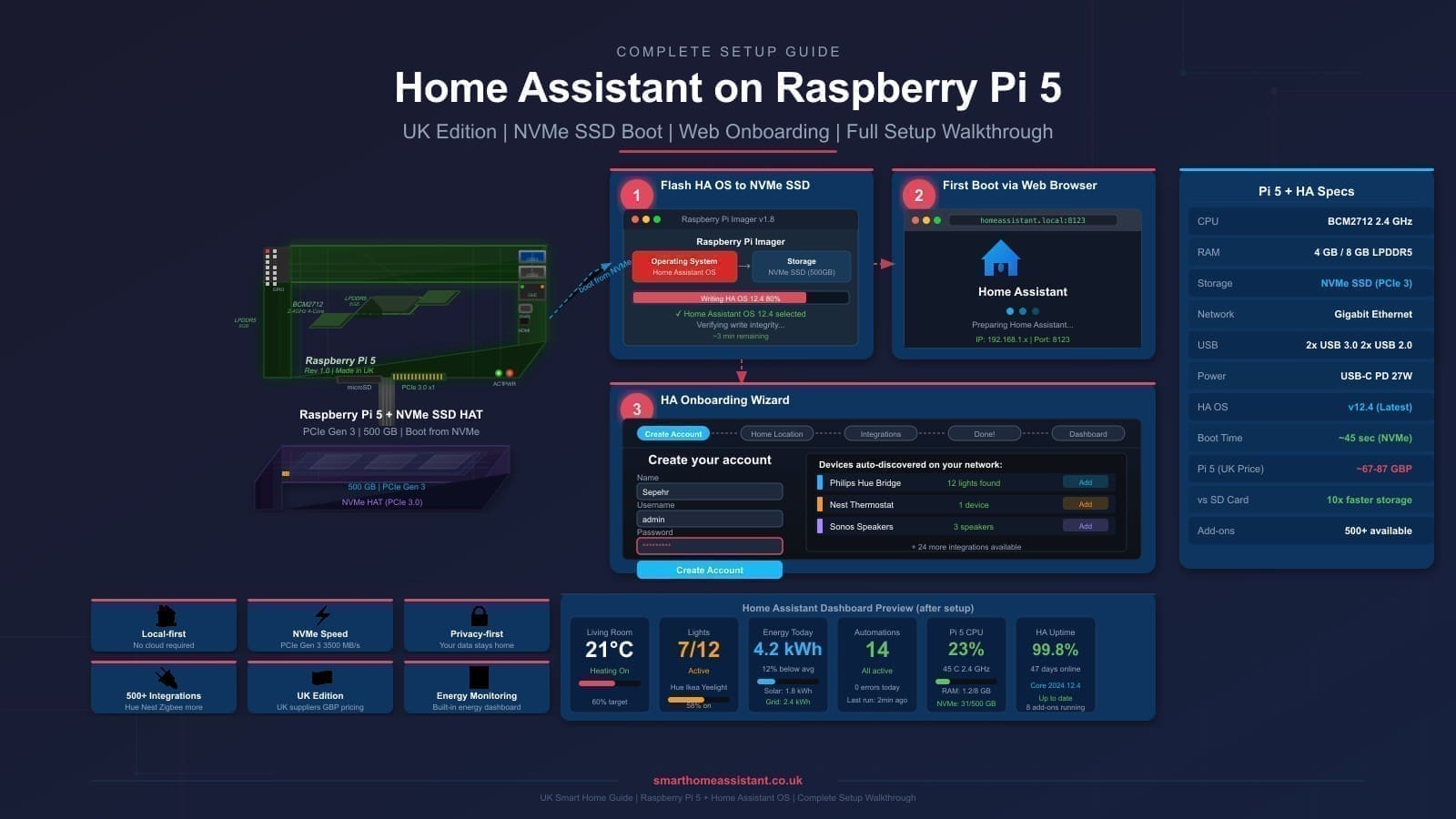
- Open Raspberry Pi Imager and click Choose OS. Navigate to Other specific-purpose OS → Home automation → Home Assistant. Select Home Assistant OS for Raspberry Pi 5.
- Choose Storage and select your microSD card. Double-check you have the right device — the write process will erase it.
- Click Next, then Write. The imager will download the image (around 1.1 GB compressed), write it, and verify the card. This typically takes five to ten minutes.
- When the imager shows Write Successful, click Finish and remove the card.
Step 3: Boot your Raspberry Pi 5 for the first time
Insert the SD card into your Raspberry Pi 5, connect an Ethernet cable to your router, then plug in the 27W USB-C power supply. Then wait for first boot — the Pi 5 will expand the filesystem, download the latest Home Assistant Core, and start the onboarding service. On a Pi 5 with a good SD card, this takes around one to two minutes.
Step 4: Complete the Home Assistant onboarding wizard
Once the Pi has booted, open a browser on any device on the same network and navigate to http://homeassistant.local:8123. If your router does not support mDNS, try the Pi's IP address directly — you can find it in your router's DHCP table.
You will be greeted by the Home Assistant onboarding screen. Create your owner account, name your home, and set your location (for sunrise/sunset automations and UK energy tariff data). Home Assistant will then scan your network and offer to configure any devices it discovers automatically — smart speakers, Philips Hue bridges, Sonos players, and many others are detected in seconds.
The onboarding wizard also prompts you to install the Home Assistant mobile app (iOS and Android), which gives you remote access, location tracking, and push notifications. If you plan to use Zigbee devices, you will need a USB Zigbee coordinator — see our Home Assistant Zigbee stick UK guide for the best options and setup steps.
Performance Notes and SSD Upgrade
Running HAOS from a quality microSD card on a Pi 5 is already noticeably faster than a Pi 4. Dashboards are responsive, and the system handles automations and integrations without lag. However, for a home automation hub that runs around the clock, a microSD card is the weakest link: even the best cards are rated for a finite number of write cycles.
The Pi 5's PCIe 2.0 interface — accessible via an M.2 HAT — changes this picture entirely. With an NVMe SSD attached, HAOS boots faster, backups complete in a fraction of the time, and you effectively eliminate the risk of storage-related failures. If you want to migrate from SD card to SSD after setting up, the Home Assistant backup and restore workflow makes it straightforward: back up via Settings → System → Backups, flash HAOS to the SSD using Imager, restore the backup, and you are done.
The Pi 5 also has 8GB and 16GB RAM options, though the 4GB model is ample for even ambitious Home Assistant installs — Home Assistant OS typically uses well under 2 GB of RAM during normal operation, leaving plenty for add-ons such as ESPHome, Mosquitto, Node-RED, and even local AI voice processing.
Pi 5 vs HA Green vs HA Yellow
The Home Assistant team sells two purpose-built devices: the HA Green and the HA Yellow. Here is how they compare to a Pi 5 build:
- HA Green — A plug-and-play appliance running HAOS on a Rockchip RK3566 chip with 4GB RAM and 32GB eMMC storage. It is quieter and simpler than a Pi setup — no flashing required — but the RK3566 is slower than the Pi 5's Cortex-A76 and there is no PCIe expansion. Retail price is around £99.
- HA Yellow — Based on a Raspberry Pi Compute Module 4, with a built-in Zigbee radio and M.2 slot for NVMe storage. It is a compelling option if you want integrated Zigbee without a USB stick, but it uses the older CM4 processor (Cortex-A72, same generation as Pi 4) and requires a CM4 module purchased separately. Prices vary significantly depending on the CM4 spec.
- Raspberry Pi 5 — The fastest of the three, with the most flexibility: any storage option, any USB peripherals, and the largest community of add-on developers. The trade-off is that setup takes a little longer and you need to source your own case and cooling. For most technically confident UK buyers, the Pi 5 offers the best long-term value.
If you simply want Home Assistant running with zero fuss and do not need maximum performance, the HA Green is a sensible choice. If you are comfortable with a small amount of DIY and want room to grow, the Pi 5 wins.
Related: Home Assistant UK setup guide, Home Assistant backup and restore, and Raspberry Pi NAS setup UK.