Before You Start: Docker vs Home Assistant OS
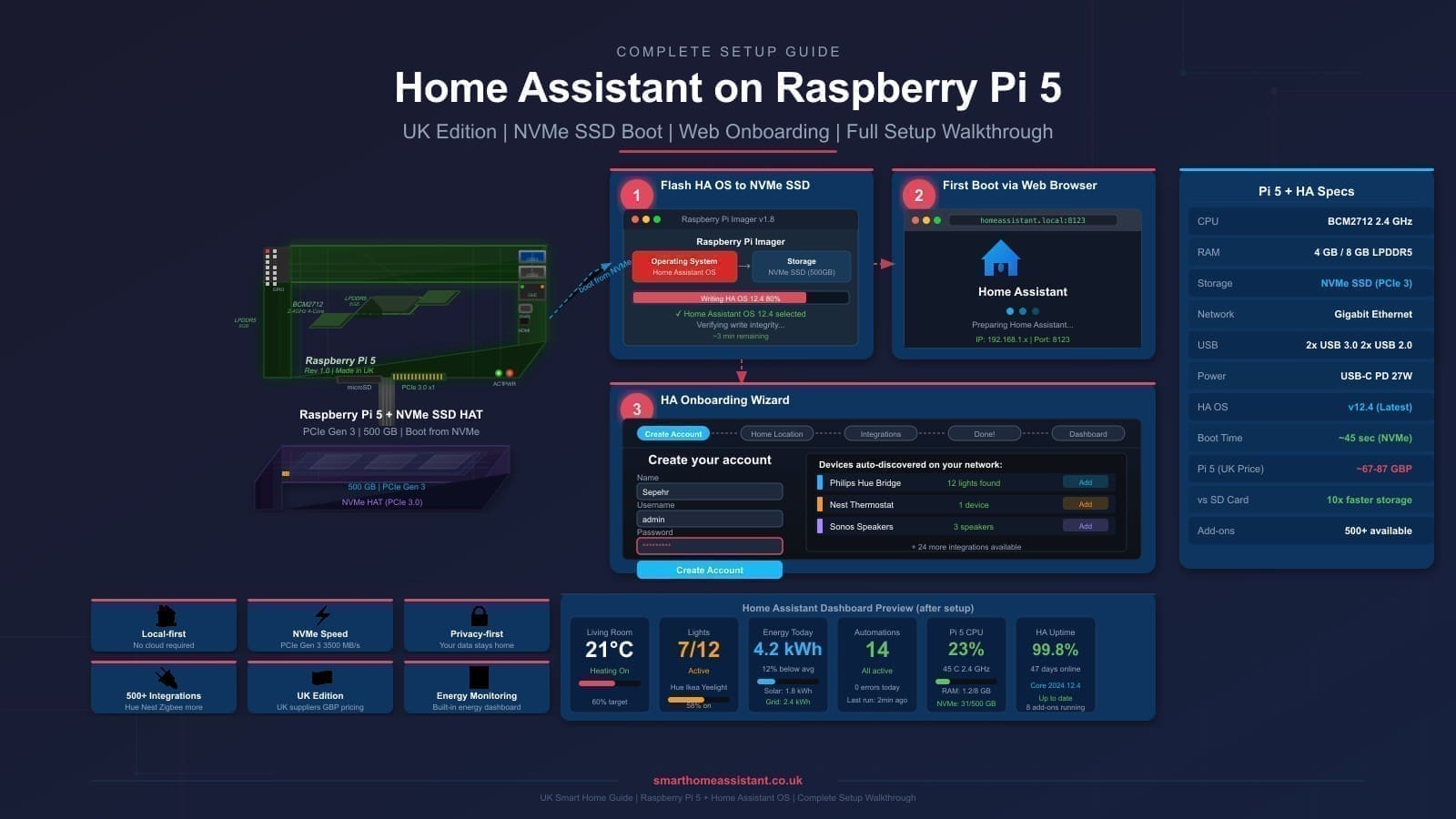
Home Assistant OS (HAOS) is the recommended route for most users. It ships with the Supervisor, which means one-click add-ons, automated backups, and a managed update path. If you are new to Home Assistant, the Home Assistant UK setup guide covers HAOS installation on a Raspberry Pi or generic x86 machine.
Home Assistant Container (the Docker method described here) removes the Supervisor entirely. You gain the freedom to run Home Assistant on a host you already manage, but you lose access to the add-ons ecosystem. Tools such as Mosquitto MQTT broker, Zigbee2MQTT, and Node-RED must be run as separate containers and configured manually. If you rely heavily on add-ons, weigh that trade-off carefully before proceeding.
Prerequisites
Docker Engine. Install Docker Engine on your Linux host by following the official Docker documentation for your distribution. Docker Desktop for Mac or Windows can also run Home Assistant in development, but is not recommended for always-on home automation use. Confirm Docker is running with:
docker --version
docker ps
A persistent config directory. Home Assistant stores all configuration, integrations, and automations in a single directory. Decide where this will live on your host — for example /opt/homeassistant/config — and create it before running the container:
mkdir -p /opt/homeassistant/configStep 1: Run the Home Assistant container
The official image is hosted on the GitHub Container Registry at ghcr.io/home-assistant/home-assistant:stable. The :stable tag tracks the latest stable release. There are two ways to start the container — a single docker run command, or Docker Compose, which is the cleaner option once you add companion services such as an MQTT broker.
Using docker run
The full docker run command from the Home Assistant documentation is:
docker run -d \
  --name homeassistant \
  --privileged \
  --restart=unless-stopped \
  -e TZ=Europe/London \
  -v /opt/homeassistant/config:/config \
  --network=host \
  ghcr.io/home-assistant/home-assistant:stable
Key flags explained:
-d— run detached (background).--privileged— required for device access (USB Zigbee sticks, Z-Wave dongles).--restart=unless-stopped— container restarts automatically after a reboot.-e TZ=Europe/London— sets the container timezone so automations fire at the correct local time.-v /opt/homeassistant/config:/config— bind-mounts your config directory into the container. Replace the host path with wherever you created the directory.--network=host— uses the host network stack, which is required for mDNS and device discovery protocols such as Zeroconf and SSDP to work correctly on your LAN.
Using Docker Compose (recommended)
Create a docker-compose.yml in your preferred location:
version: "3.8"
services:
  homeassistant:
    image: ghcr.io/home-assistant/home-assistant:stable
    container_name: homeassistant
    privileged: true
    restart: unless-stopped
    environment:
      - TZ=Europe/London
    volumes:
      - /opt/homeassistant/config:/config
    network_mode: host
Start it with:
docker compose up -dAnd stop it with:
docker compose downThe Compose file is easier to read, version-control, and extend when you later add a Mosquitto container for MQTT. See the Home Assistant MQTT guide for how to wire up a broker alongside your Home Assistant container.
Step 2: Access Home Assistant and complete onboarding
Once the container is running, Home Assistant is accessible at http://<your-host-ip>:8123. The first-boot onboarding wizard will guide you through creating an account and setting your home location.
Step 3: Pass through USB devices
If you use a Zigbee or Z-Wave USB stick, you need to pass the device through to the container. Find the device path on your host (commonly /dev/ttyUSB0 or /dev/ttyACM0) and add it to your Compose file:
    devices:
      - /dev/ttyUSB0:/dev/ttyUSB0
Remove --privileged if you take this more targeted approach — it is more secure to expose only the specific device rather than granting full host access. If you are using a Zigbee coordinator, the Home Assistant Zigbee2MQTT guide covers the full integration setup.
Updating Home Assistant
Unlike HAOS, Docker does not offer a one-click update button from the UI. Updates require pulling the new image and recreating the container. With Docker Compose:
docker compose pull
docker compose up -d
If you are using bare docker run, the update sequence is:
docker pull ghcr.io/home-assistant/home-assistant:stable
docker stop homeassistant
docker rm homeassistant
docker run -d \
  --name homeassistant \
  --privileged \
  --restart=unless-stopped \
  -e TZ=Europe/London \
  -v /opt/homeassistant/config:/config \
  --network=host \
  ghcr.io/home-assistant/home-assistant:stable
Your configuration, automations, and history are stored in the /config bind mount and are unaffected by recreating the container. Always check the Home Assistant release notes before updating — occasionally a release contains breaking changes to integrations or the configuration format.
Viewing Logs
Container logs are the primary debugging tool when something goes wrong. Stream them with:
docker logs -f homeassistantHome Assistant also writes more detailed logs to /config/home-assistant.log inside your bind-mounted config directory. You can open this file from the Home Assistant UI under Settings → System → Logs once the instance is running.
Backups Without the Supervisor
The Supervisor backup system is not available in the Docker container install. You are responsible for backing up your /config directory. A simple approach is a nightly cron job that archives the directory to a remote location or NAS share. For a full strategy covering what to include and how to restore, see the Home Assistant backup and restore guide.
Add-ons and the Supervisor
The Supervisor and its add-on store are not available with the Docker container install. Each add-on you would otherwise install through the UI must instead be run as a separate Docker container. Common examples:
- Mosquitto MQTT:
eclipse-mosquittoimage, configured viamosquitto.conf. - Zigbee2MQTT:
koenkk/zigbee2mqttimage. - Node-RED:
nodered/node-redimage. - ESPHome:
esphome/esphomeimage. - AppDaemon: official Docker image, for running Python-based automations alongside Home Assistant — see our Home Assistant AppDaemon guide for the setup and API basics.
Each of these is well-documented and can be added to the same docker-compose.yml as separate services. This manual approach gives you more control over versions and configuration, but it does require more initial effort than the Supervisor add-on store.
Is Docker the Right Install Method for You?
Choose Docker if you already run a Linux server or NAS (such as a Synology or TrueNAS system), want Home Assistant alongside other containerised workloads, and are comfortable managing updates and companion services manually. If you would rather keep Home Assistant fully isolated in its own virtual machine alongside other services, see our Proxmox home server setup guide, which covers running Home Assistant OS as a VM with full Supervisor support instead. If you are starting fresh and want the simplest path to a fully featured smart home platform, running Home Assistant OS on a Raspberry Pi 5 is a lower-effort option that unlocks the full add-on ecosystem and automated backups from day one.
Related: home server setup UK guide, Home Assistant backup and restore, and Home Assistant on Raspberry Pi 5.