What do you need before you start?
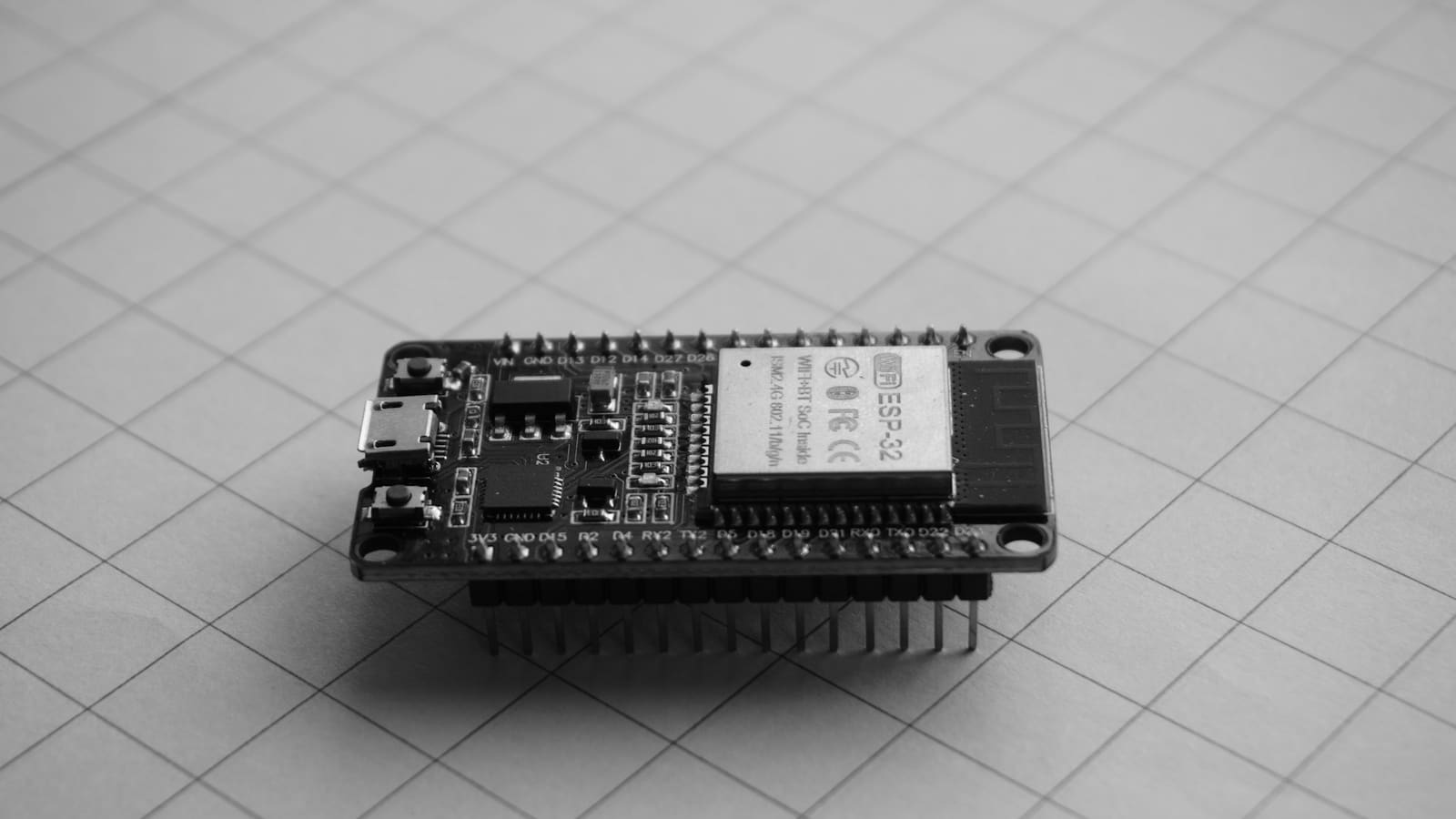
- The board itself: in hand, not just a product listing. ESP32 dev boards vary between brands and revisions, so a case designed for one clone often won't fit another.
- Digital calipers: a cheap pair is plenty. A ruler won't get you close enough for snap-fit lids.
- A 3D printer and a slicer: if you are new to printing, the guide to slicing a 3D model for the first time covers the bit between a model file and a finished part.
- CAD software or a ready-made model: see Step 3 for both routes.
- Your firmware plan: know which sensors and cables the box has to expose. If you haven't flashed the board yet, start with ESPHome for Home Assistant: a beginner's guide and the ESPHome Device Builder walkthrough.
Step 1: Measure the board and everything on it
Put the board on a flat surface and record length, width, the height of the tallest component and the position of every mounting hole. Measure the USB port too: its centre height from the board and its opening width decide where the cut-out goes. Espressif's own ESP32-DevKitC V4 guide lists a micro-USB port as the default power and programming connector, but many clone boards ship with USB-C instead, so check yours.
Write the numbers down in a small table so you can reuse them when you change boards:
| Measurement | Why it matters |
|---|---|
| Board length and width | Sets the inner cavity size |
| Tallest component, with headers fitted | Sets the cavity depth. Pins on the underside add height if you use headers. |
| Mounting holes (if any) | Many dev boards have none, so you need standoffs or rails instead |
| USB port position and width | Position of the cable cut-out |
| Antenna end of the module | The area to keep clear (Step 2) |
Add clearance in the model rather than in your measurements. A starting point is 0.2 to 0.4 mm of gap per side, tightening or loosening after your test print, because every printer and filament shrinks a little differently.
Step 2: Plan where the antenna, USB port and sensors go
Does a plastic case block ESP32 Wi-Fi?
A plastic case does not meaningfully block Wi-Fi, but a tight one can still hurt range. Espressif's hardware design guidelines recommend a clearance of at least 15 mm in all directions around a base board's PCB antenna inside the housing, and say to test throughput and range on the finished product. Treat that as the number to design to: leave the antenna end of the module overhanging empty space, with no screws, wires or metal next to it.
Practical consequences:
- Put the antenna end at one end of the box and keep the cavity there empty, rather than centring the board.
- Keep cables away from the antenna. Route sensor wires out the far end.
- Avoid metal screws, magnets and foil near it, and don't mount the case flat against a metal surface.
- Mount the box high and away from large metal objects like a fridge or radiator, if you can choose.
Next, decide what has to be reachable. The USB port needs an opening if you will reflash it in place, or you can power it over a header and leave the case sealed once it's working. Buttons, LEDs and sensors each need a window or a standoff. A light sensor needs a clear opening; a PIR or motion sensor looks through a window sized to its lens; and a temperature or humidity sensor wants airflow.
That last point matters because a powered board warms the air in a closed box. A temperature sensor inside the case will read higher than the room. Give it vents on two opposite faces, or mount it on a short lead outside the box, and place it away from the regulator and the module.
Step 3: Model the case (or download one)
You have three realistic routes, in order of effort:
- Download and adapt a model. Printable cases exist for the popular dev boards on Printables, Thingiverse and MakerWorld. Check the listing states which exact board it fits, and compare its internal dimensions with your Step 1 numbers before you print anything.
- Use a parametric box generator. Several free tools let you type in the inner dimensions and get a box and lid. This is the fastest route to a case that matches your measurements.
- Design your own. A box with a lid is a simple first CAD project. NozzleNotes compares the free options in FreeCAD vs Fusion 360 vs Tinkercad; Tinkercad is the quickest for a rectangular case.
Whichever route you take, build in these details:
- Wall thickness of about 2 mm or more, so the part doesn't flex.
- Screw posts or a friction-fit lid. Screw into plastic with self-tapping screws, or use heat-set inserts if you plan to open the case often. Snap-fit lids are neat, but fatigue after a few openings, especially in a brittle material.
- A strain-relief path for the USB or power cable so tugging it doesn't pull on the board.
- A mounting method: keyhole slots for screws, a flat back for double-sided tape, or a magnet pocket (kept away from the antenna).
- Vent slots where a sensor or regulator needs airflow. Short slots usually bridge fine without supports; test a small one first.
Orient the model so the lid and base each print on their flattest face. That avoids supports and keeps the visible surfaces clean.
Step 4: Choose a filament and print settings
For a case that sits near warm electronics, material matters more than looks. PLA softens at roughly 55 to 61 °C, which a box in a sunny window or next to a radiator can reach. PETG's glass transition is typically around 75 to 85 °C, which makes it the usual sensible default. For a hot location or outdoors, step up to ASA or ABS.
| Material | Heat tolerance (approx.) | Best for |
|---|---|---|
| PLA | Softens around 55–61 °C | Prototype fit-checks and cool indoor spots |
| PETG | Softens around 75–85 °C | General indoor cases, sensor boxes, cupboards |
| ASA / ABS | Higher than PETG | Sunny windows, garages, outdoor or hot locations |
Figures are typical values; always check the datasheet for your own spool, as formulations vary. NozzleNotes has a fuller comparison in ABS vs PETG.
For print settings, there is no magic recipe: three perimeters and a moderate infill (around 15 to 25 per cent) give a rigid case without wasting plastic. Print the base and lid flat, and slow the first layer for good bed adhesion. If your lid will be a push-fit, print it in the same filament as the base so both shrink the same way.
A note on the chip itself: Espressif's datasheet gives an operating temperature of –40 to 125 °C for ESP32 chips without in-package flash, with –40 to 85 °C for variants with in-package flash or PSRAM. The plastic around it, not the silicon, is the weak link in a warm room.
Step 5: Print a quick test fit first
Before you commit hours to the full case, print a thin test piece: just the floor of the box with the posts, or the lid's lip. Drop the board in. If it's tight, add 0.1 to 0.2 mm to the cavity; if it rattles, take it back. This one small print saves a failed overnight job.
When the test piece fits, print the real case. Check the USB cut-out with the actual cable you use. Chunky cable ends often need a bigger opening than the bare port.
Step 6: Assemble, flash and test in place
Seat the board, route the cable through the strain relief, close the lid and power the board up. Then test the thing that the case could have affected: signal strength. Add a Wi-Fi signal sensor to the board's ESPHome config so the reading (in dBm, where values closer to zero mean a stronger signal) shows up in Home Assistant:
sensor:
  - platform: wifi_signal
    name: "WiFi Signal"
    update_interval: 60s
Compare the Wi-Fi signal reading with the board sitting out in the open and then sealed inside. If it drops noticeably, move the board so its antenna end has more empty space, or reprint with a longer cavity at that end.
Leave it running for a day and look at the temperature readings if the box holds a sensor. A steady upward drift compared with a thermometer in the same room means the sensor needs vents or a lead outside the box.
Common problems and fixes: why won't it fit, or why is Wi-Fi weak?
The board won't go in: the usual cause is printed holes coming out smaller than modelled. Add 0.2 mm to the cavity and re-measure with the calipers.
The lid is loose, or a snap tab cracked: snap tabs are weakest across the layer lines. Orient the tab so the layers run along it, or switch to screws.
Wi-Fi range dropped: check the antenna clearance against the 15 mm guidance above, move cables away from it and keep the case off metal surfaces.
The case warped or sagged near the board: that is the sign of PLA in a warm spot. Reprint in PETG, or ASA if it is somewhere hot.
Sensor readings are too high: add vent slots, or move the sensor out on a short lead away from the regulator.
What should you make next?
Once one case works, keep the board measurements as a template and reuse them for the next project. A wall-mounted version of the same box, with a window for a presence sensor or an e-paper screen, is a natural follow-up. If you want to add infrared or radio control to a board like this, our guide to Home Assistant RF devices covers the ESPHome IR/RF proxy option.