What is a Bluetooth proxy and why would you want one?
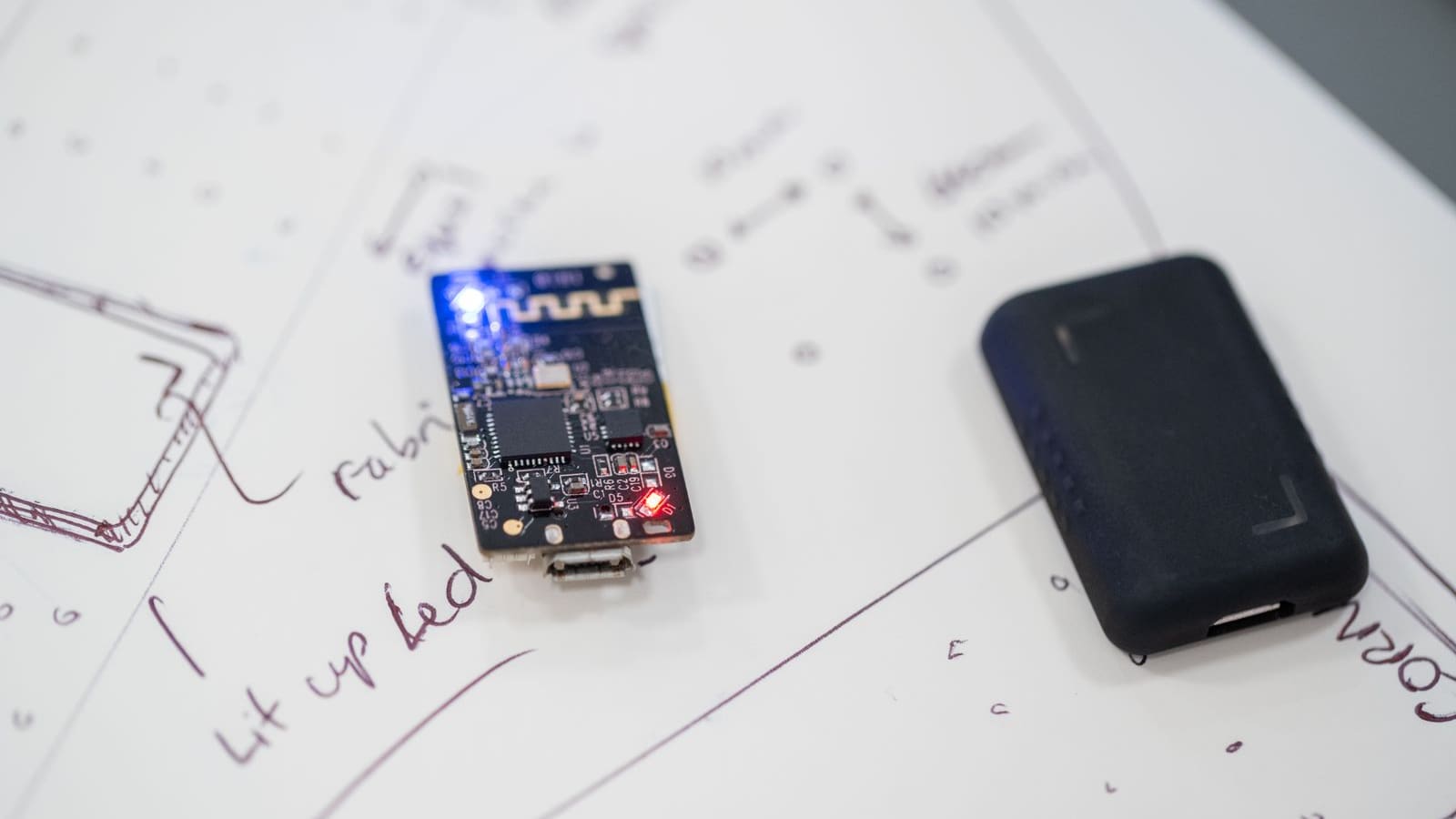
A Bluetooth proxy is a small networked radio that listens for Bluetooth Low Energy (BLE) devices and forwards what it hears to Home Assistant. Bluetooth is short range, so a Home Assistant server tucked in a cupboard rarely reaches a thermometer in the loft or a set of scales in the bathroom. A proxy in or near those rooms fixes that without moving the server. Per Home Assistant's Bluetooth documentation, proxies and local adapters are both treated as "scanners", and the number of remote scanners is limited only by the host system's performance.
It is the cheapest way to bring BLE gadgets such as temperature sensors, plant monitors and body scales into Home Assistant reliably. If you already run ESPHome, our ESPHome guide covers the wider platform; a proxy is just one of the simplest things it can do.
What do you need before you start?
- An ESP32 board: a plain ESP32 for Wi-Fi, or an Ethernet-capable board such as the Olimex ESP32-PoE-ISO for a wired proxy. ESPHome's installer page notes the generic ESP32 option works only with a "plain" ESP32, not the ESP32-C3 or other variants.
- A USB cable and a desktop computer: the browser installer needs WebSerial, which ESPHome says requires a desktop browser such as Google Chrome or Microsoft Edge.
- Home Assistant with the ESPHome integration: it normally discovers new devices automatically on the same network. Discovery relies on mDNS, with DHCP discovery as a fallback.
- Your Wi-Fi name and password: a 2.4 GHz network the ESP32 can join, unless you are using Ethernet.
- A Bluetooth device to test with: any BLE gadget Home Assistant already supports, such as the ones in our smart temperature and humidity sensor round-up.
You do not need a dedicated Bluetooth dongle on the server. ESPHome proxies work alongside any local adapter, and Home Assistant picks whichever scanner has the best signal for each device.
Step 1: Pick the right hardware
Choose between a Wi-Fi proxy and an Ethernet proxy. A Wi-Fi ESP32 is the simplest and cheapest, but the Bluetooth and Wi-Fi radios share one antenna, so busy networks can hurt performance. Home Assistant's documentation ranks Ethernet-connected ESPHome proxies with passive scanning as the best-performing option and Wi-Fi proxies with active scanning as the lowest, because Ethernet takes Wi-Fi traffic off the radio.
If you go wired, the Home Assistant team says it uses the Olimex ESP32-POE-ISO-EA for testing, recommends the "-EA" variant for better RF performance and advises against the ESP32-POE-ISO-WROVER-EA. Note that when you install the Olimex board through ESPHome's website, Wi-Fi is disabled, so it must be connected by Ethernet. Other boards on the installer page, including the LilyGO T-ETH-POE and Wireless-Tag WT32-ETH01, need extra tooling and are better suited to people comfortable with a flasher.
For a first proxy, a plain ESP32 dev board on Wi-Fi is the easiest route. Reserve PoE boards for rooms where the Wi-Fi is poor or you want a permanent, tidy install near a network cable.
Step 2: Flash ESPHome from your browser
Open the Bluetooth proxy page on ESPHome's site using Chrome or Edge on a desktop. Plug your ESP32 into the computer with a data-capable USB cable (some charge-only cables will not show the board). Select the Bluetooth proxy option, pick your board from the device cards and follow the "Start the installation" prompts for that board.
ESPHome describes the process as needing "no programming or other software" and just a few clicks. When the browser asks for a serial port, choose the one that appears when the ESP32 is plugged in. The installer writes the firmware and then asks for your Wi-Fi details so the board can join your network. Wait for it to report success before unplugging.
If the board does not appear in the port list, try a different USB cable or port first. This fixes more failed flashes than any other change.
Step 3: Adopt the proxy in Home Assistant
Once the ESP32 joins your network, Home Assistant should show it as a discovered ESPHome device. Go to Settings, then Devices & services, find the discovered device and select Add. If it does not appear, add it manually through Add Integration, choose ESPHome and enter the proxy's hostname or IP address and port.
Home Assistant's ESPHome documentation notes that discovery depends on each device having a unique name, so avoid reusing a name from another ESPHome node. If a new device clashes with an offline one, Home Assistant offers Name Conflict Resolution (needs ESPHome 2025.4.0 or later) with a choice to migrate the existing configuration or overwrite it. Overwriting erases the old device's settings and history, so choose carefully.
If the firmware has encryption enabled, Home Assistant asks for the Noise pre-shared key, a 32-byte base64 string. The ready-made installer usually handles this for you, but a self-built config will show the key in its YAML.
Step 4: Choose a scanning mode
Open the ESPHome integration entry for your proxy and select Configure. On recent firmware you can choose how the proxy scans. The docs describe three modes:
- Auto (default): mostly passive, with brief active scans when needed. Home Assistant says this saves about 95–96% of scan-related battery drain compared with continuous active scanning.
- Active: the fastest updates but the highest battery use on nearby devices.
- Passive: the lowest battery use, though some integrations may lack data.
Stick with Auto unless you have a reason not to. Active scanning is mainly needed when you first add a device, as it requests extra scan-response data. After first connection, the mode stored in Home Assistant overrides any later YAML changes, so use the Configure menu rather than editing the file.
Do not confuse scanning mode with active connections. ESPHome keeps these separate: active connections let the proxy actually connect to a device to read or control it (needed for things like smart scales or some locks), while scanning only listens for broadcasts.
Step 5: Place the proxy where it helps
Put the proxy close to the devices it needs to serve, not next to the server. A good rule is one proxy per floor or per distant room cluster, spaced far enough apart that they do not interfere with each other, as Home Assistant advises.
- Keep it away from network gear: ESPHome recommends at least 3 m from routers, switches and other network equipment, since electromagnetic interference degrades reception.
- Avoid 2.4 GHz noise: Home Assistant lists Wi-Fi access points, power cables and appliances as interference sources.
- Use a decent power supply: a flaky USB adapter causes random disconnects that look like Bluetooth problems.
- Consider an external antenna on Ethernet boards: ESPHome recommends one for wired proxies.
Mounting near a doorway or hallway ceiling, away from the router cupboard, usually works well in UK homes with thick internal walls.
Step 6: Check it is working and move your devices over
Go to the Bluetooth configuration in Home Assistant, where proxies appear alongside local adapters under Adapters. The page offers an Advertisement Monitor, which shows devices currently advertising in range, and a Connection Monitor, which shows connected devices. There is also a network map showing how devices connect through your scanners.
Walk to the room with your Bluetooth gadget and confirm it appears via the new proxy. Devices already added to Home Assistant do not need re-pairing: Home Assistant automatically chooses the scanner with the strongest signal. If a gadget was working poorly from the server's adapter, you should see it switch to the proxy and become more reliable.
Once it works, you can use it with devices like the smart scales in our smart scales guide, which rely on BLE connections from within Home Assistant.
Can you tune the proxy with YAML?
Yes, and it is optional. The proxy can be adopted into the ESPHome Device Builder, where its configuration is a short YAML file. Our ESPHome Device Builder guide covers the editor. The core of a proxy looks like this:
esp32_ble_tracker:

bluetooth_proxy:
  active: true
The ESPHome documentation lists a few useful options:
- active: enables GATT connections. It defaults to true on ESP32.
- connection_slots: the number of simultaneous connections. The ESP32 default is 3 and the maximum is 9, though the docs advise not going above 5 for stability and memory, and say Ethernet proxies can generally handle 4. Each slot uses about 1 KB of RAM.
- cache_services: caches GATT services to speed up connections. It defaults to true.
Devices that disconnect after a short exchange free their slot, so you can serve more devices than you have slots. Passive advertisement data does not use slots at all. ESPHome also recommends leaving the default scan parameters alone, since changing the interval or window usually gives no real benefit and can cause Wi-Fi instability on Wi-Fi proxies or overheating on PoE ones.
If you hit memory problems, ESPHome suggests using the ESP-IDF framework rather than Arduino, and considering disabling the Web Server component.
Do other devices work as Bluetooth proxies?
Some do, with limits. Home Assistant lists Shelly Gen2 and newer devices and the SMLIGHT SLZB-U as proxies that listen for advertisements, but neither supports active connections. That means they are fine for passive sensors such as temperature broadcasters but cannot connect to devices that need a two-way link. ESPHome proxies are the only type listed as supporting active connections. ESPHome also supports RP2040/RP2350 (Pico W family) boards as full proxies, while BK72xx and LN882x chips are advertisement-only.
Already own a compatible Shelly? It may give you a free passive scanner in a distant room, useful for sensors that only broadcast. For anything you need to control, such as a window opener or smart scales that connect on demand, use an ESP32.
Why is my Bluetooth device still unavailable?
The device is out of range of every proxy: check the Advertisement Monitor. If it never appears, move a proxy closer or add one. Bluetooth reaches only a few metres through UK brick and plaster walls.
The proxy is next to the router: relocate it at least 3 m away from routers, switches and power adaptors.
Connections are slow or time out: Home Assistant notes performance is limited by the weakest adapter that has the best signal. After adding better hardware, disable the older, weaker adapters so Home Assistant stops preferring them.
The proxy runs out of connection slots: too many always-connected devices on one proxy. Add a second proxy nearby instead of raising slots past about 5.
The ESP32-C3 or another variant will not install: the ready-made installer supports only plain ESP32 boards. Use a supported board or build the YAML yourself in Device Builder.
The device drops after a Wi-Fi change: the proxy joins the network by name, so after changing your router or SSID it needs reflashing or reconfiguring.
What should you do next?
Once your first proxy is stable, add one per floor, then use the Bluetooth network map to see which devices connect through which scanner. If you are monitoring doors and windows with BLE sensors, our smart window sensor guide shows which models suit Home Assistant. Keep an eye on slot usage if you add connection-hungry devices, and prefer Ethernet where you can run a cable.