
What do you need before you start?
- Home Assistant: any recent release. Scripts, helpers and areas are all core features.
- Areas set up: lights and media players assigned to areas such as Living room and Kitchen. Home Assistant actions can target an
area_id, so one line switches off every light in that area. - Something to lock or sense (optional): a smart lock, plus door, window or garage contact sensors, if you want the "is anything open?" check.
- The Companion app: for the phone alert with an action button. Our Home Assistant notifications guide covers setting it up.
Step 1: Write down what goodnight means in your house
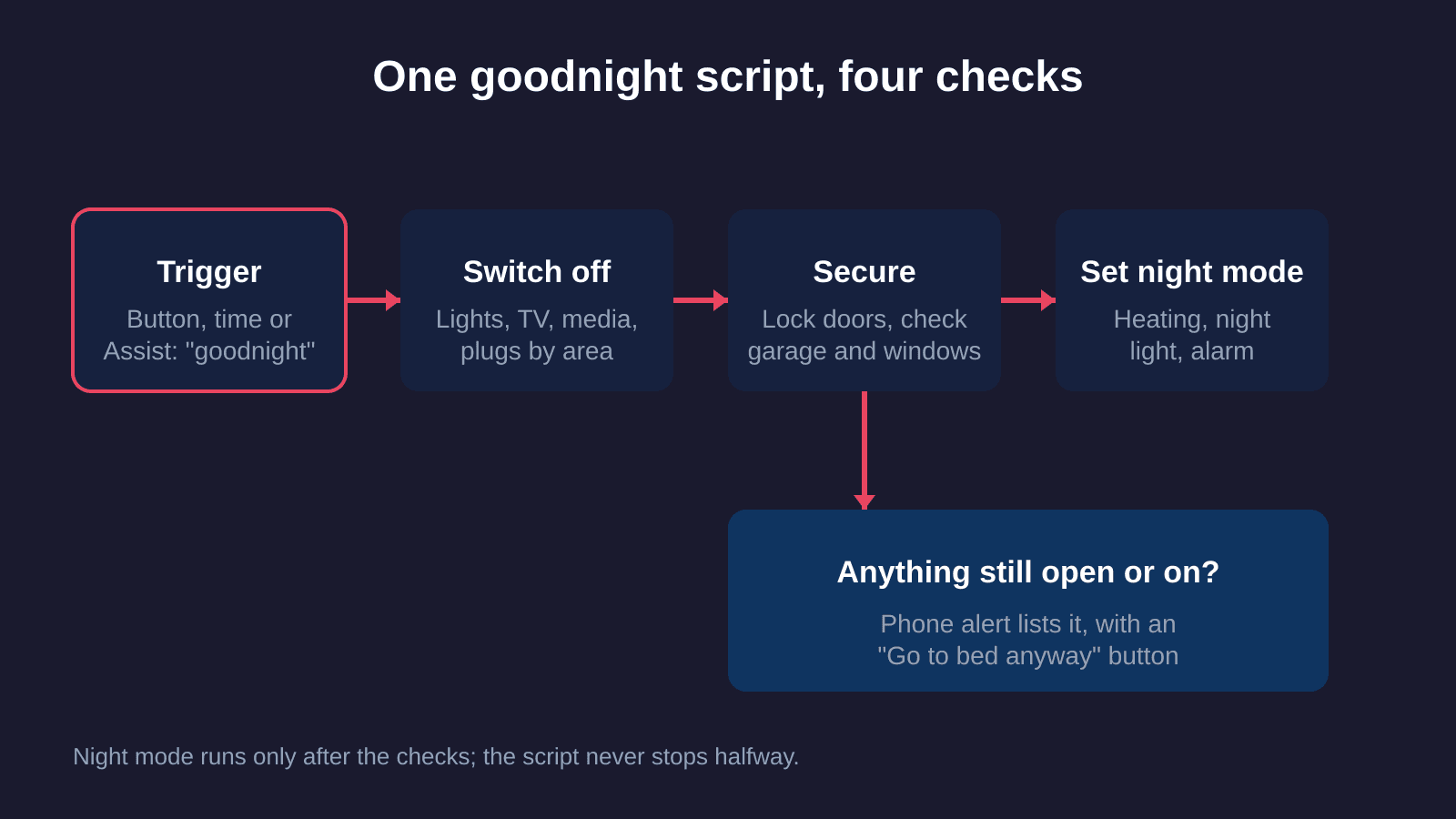
Before touching YAML, list the things you actually do at bedtime, in the order you do them. A typical UK household has: downstairs lights off, TV and soundbar off, front door locked, back door and garage checked, heating turned down, a landing or bathroom night light on, and the alarm set. Yours will differ, and that is the point.
Split the list into two groups. Things that just happen (lights, media, plugs) belong in the script without ceremony. Things that might fail (a door that will not lock, a window left open) need a check and a message. Keeping those apart is what stops the script being either too dumb to be useful or too chatty to tolerate.
Step 2: Create the script and switch off lights and media
Go to Settings → Automations & scenes → Scripts, create a new script, open the YAML editor and paste the start of the routine. Replace the area IDs with your own, which are the lowercase versions of your area names.
script:
  goodnight:
    alias: Goodnight
    mode: single
    sequence:
      - alias: Downstairs lights off
        action: light.turn_off
        target:
          area_id:
            - living_room
            - kitchen
            - hallway
        data:
          transition: 5
      - alias: Media off
        action: media_player.turn_off
        target:
          area_id: living_room
        continue_on_error: true
The mode: single setting means a second press while the script is running is ignored with a warning, instead of starting a duplicate run. The Home Assistant script documentation lists the other modes, including restart, queued and parallel. continue_on_error: true lets the script carry on if one step fails, for example a TV that is unreachable, so one flaky device cannot stop the rest of the routine.
The light integration documents light.turn_off with an optional transition, so the lights fade over five seconds rather than snapping off. Run the script from its page and confirm the right lights go out before moving on.
Step 3: Lock the doors
If you have a smart lock, add a lock step. The lock integration provides lock.lock, and it also defines a jammed state for a lock that tried to move but got stuck, such as a misaligned bolt. That is exactly the failure you want to hear about at 11pm rather than discover at 7am.
      - alias: Lock front door
        action: lock.lock
        target:
          entity_id: lock.front_door
        continue_on_error: true
      - alias: Give the bolt a moment
        delay: "00:00:10"
Locks that report their state back take a few seconds to confirm, so the short delay lets the state settle before the next step reads it. If you also want a reminder when a door has simply been left unlocked during the day, our door left unlocked reminder guide builds that as a separate automation.
Step 4: Check for anything still open or unlocked
This is the step that makes the routine worth having. The script builds a list of every door, window and garage sensor that is open, plus any lock that is not locked, and sends it to your phone. If the list is empty, it stays silent.
      - alias: Work out what is still open
        variables:
          open_things: >-
            {{ states.binary_sensor
               | selectattr('attributes.device_class', 'in', ['door', 'window', 'garage_door'])
               | selectattr('state', 'eq', 'on')
               | map(attribute='name') | list }}
          unlocked: >-
            {{ states.lock
               | rejectattr('state', 'eq', 'locked')
               | map(attribute='name') | list }}
          problems: "{{ open_things + unlocked }}"
      - alias: Warn if anything needs attention
        if:
          - condition: template
            value_template: "{{ problems | count > 0 }}"
        then:
          - alias: Ask what to do
            action: notify.mobile_app_your_phone
            data:
              title: Before bed
              message: "Still open or unlocked: {{ problems | join(', ') }}"
              data:
                actions:
                  - action: GOODNIGHT_ANYWAY
                    title: Go to bed anyway
          - alias: Wait for an answer
            wait_for_trigger:
              - trigger: event
                event_type: mobile_app_notification_action
                event_data:
                  action: GOODNIGHT_ANYWAY
            timeout: "00:10:00"
            continue_on_timeout: true
Replace notify.mobile_app_your_phone with your own phone's notify action, which you will find in Developer tools → Actions. The notification carries an action button, and the Companion app sends a mobile_app_notification_action event back to Home Assistant when you tap it, which is the pattern described in the Companion app's actionable notification documentation.
Because continue_on_timeout is true, the script moves on after ten minutes whether or not you tapped. That is deliberate: the warning has done its job, and a bedtime script that hangs all night waiting for you is worse than none. A window sensor that is genuinely meant to be open, such as a bathroom trickle vent, should be excluded by adding a condition on its entity ID, or by giving it a different device class.
The same list is useful in reverse. Our window open rain alert guide shows how to group your window sensors, and a group makes this step shorter and easier to read.
Step 5: Set night mode
With the house secured, finish with the comfort settings. These go at the end so that a failed lock or an open window never leaves you with the heating down and the alarm in a confusing state.
      - alias: Night temperature
        action: climate.set_temperature
        target:
          entity_id: climate.hallway
        data:
          temperature: 17
      - alias: Landing night light
        action: light.turn_on
        target:
          entity_id: light.landing
        data:
          brightness_pct: 5
          transition: 3
      - alias: Remember that it is bedtime
        action: input_boolean.turn_on
        target:
          entity_id: input_boolean.bedtime
The last step uses an input_boolean helper, a virtual on/off switch stored in Home Assistant. Create it under Settings → Devices & services → Helpers → Create helper → Toggle. Other automations can then use "bedtime is on" as a condition: for example, to keep a hallway motion light dim overnight, or to stop a washing machine notification waking the house. Turn the helper off in a morning automation.
Pick your own night temperature. The 17°C above is only an example, and the right figure depends on the home and who lives in it. If you want the heating schedule itself to follow the same logic, see our Home Assistant heating control guide.
Step 6: Choose how you trigger it
A script has no triggers of its own, so it only runs when something starts it. You have three sensible options and can use all of them.
| Trigger | How | Best for | Catch |
|---|---|---|---|
| Dashboard or bedside button | Add the script as a button card, or press a Zigbee or Matter button wired to an automation that calls script.goodnight | Reliable, no surprises | You have to remember to press it |
| Voice | Expose the script to Assist and say "goodnight" | Hands-free | Needs a voice assistant device or the phone app |
| Time-based fallback | An automation that calls the script at a set time if bedtime is still off | Households that go to bed at a regular hour | Can fire when someone is still up, so keep it a notification, not an action |
To call the script from an automation, use action: script.goodnight. The script documentation notes that the automation waits for the script to finish, which matters here because of the ten-minute wait in Step 4. If you would rather the automation not block, call it with script.turn_on instead.
automation:
  - alias: Bedside button runs goodnight
    triggers:
      - trigger: state
        entity_id: event.bedside_button
    actions:
      - action: script.goodnight
Your button entity will have a different name, and some buttons expose separate single, double and long press events. Check Developer tools → States for the real entity ID and event type before you build the trigger.
Should the routine be a script, a scene or an automation?
A script is the right tool for a bedtime routine because it runs a sequence with checks and waits, and it runs only when you call it. A scene records a set of states and restores them, which suits "movie night" but cannot ask a question or skip a step when a door is open. An automation reacts to triggers and conditions, so it is best used as the thing that starts the script, not as the routine itself.
If you already have a scene for evening lighting, call it from the first step of the script. Mixing them is fine: the script handles the logic and the scene handles the look.
Common problems and fixes: why does the script skip steps?
The script stops at the first error: add continue_on_error: true to steps that talk to flaky devices, such as TVs and cloud-connected plugs. Without it a failed step ends the whole run.
A light stays on: the light may not be in the area you targeted. Check its area in the entity settings, or add its entity ID alongside the areas.
The open-things list is empty when a window is open: the sensor probably has no device class, so the filter ignores it. Set the device class in the entity settings, or list the entity IDs explicitly.
The phone alert never arrives: test the notify action on its own from Developer tools → Actions, then check the phone's battery optimisation settings for the Companion app.
Tapping the button does nothing: the action name in the notification (GOODNIGHT_ANYWAY) must match the event_data in the wait step exactly, including capitals.
The lock reports jammed: the script cannot fix a misaligned bolt. It is flagged as an unlocked lock in your list, so you will be told, and the door itself needs attention in the morning.
What should you build next?
Pair the routine with a few single-purpose alerts so the checks are not all in one place: the oven left on alert and the smoke alarm alert both belong in a house that is asleep. If you are away rather than in bed, the holiday mode guide is the longer-running cousin of this routine. A mirror-image "good morning" script, triggered by your alarm or the first motion sensor, completes the pair.
The arrival end of the day has its own guide: a welcome home automation switches on the hall light and warms the house when you get in.
Pair it with a morning ramp: our Home Assistant wake up light guide fades the bedroom lamp up before your alarm.