What do you need before you start?
- The Companion app on each phone: it supplies the GPS location and a device tracker. Our device tracker guide covers the setup.
- A person entity: one per household member under Settings → People, linked to that phone's tracker.
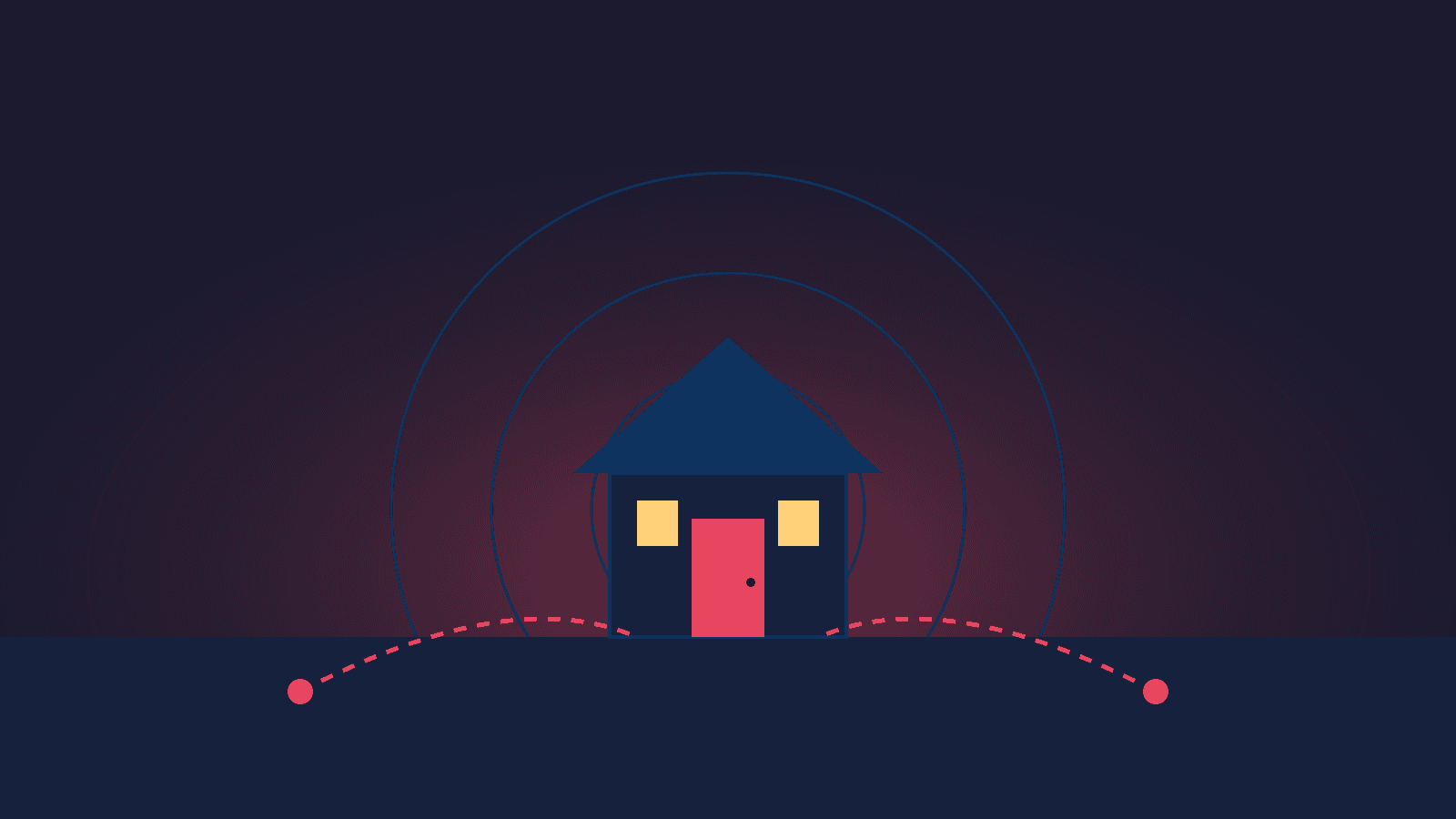
- A correctly sized home zone: the default
zone.homeradius is set from your home location. Check it on the map before you trust it. - Something to control: a hall light is enough. A smart lock, a thermostat or an alarm panel are optional extras for later steps.
Is phone GPS reliable enough to trigger things at home?
Mostly, but not to the metre, so design for that. Home Assistant's person integration combines the trackers linked to a person and picks the state from them. At home, a connection tracker such as your router wins over GPS, and away from home GPS takes precedence. That is sensible, but it means the moment of "arrival" depends on which tracker updates first.
In practice, a GPS-only person can fire a minute or two before you reach the door, or occasionally late if the phone has been put into battery saving. Adding a second tracker, such as the phone's Wi-Fi connection to your router, makes the state more dependable. Treat the automation as a convenience, not a security control, and keep that in mind before Step 5. The presence detection guide compares the options in more depth.
Step 1: Check your home zone and people
Open Settings → Areas, labels & zones → Zones and look at the home zone on the map. If the circle is small, a phone can drop in and out at the edge. A radius of 100 metres or more is a common starting point for a terraced house in a built-up street, but you will need to test your own. Then open Settings → People and confirm each person has the Companion app's device tracker attached.
Finally, watch the person entity in Developer tools → States while someone walks or drives away and comes back. You want to see it change from home to not_home and back, in a sensible place, before you build anything on top of it.
Step 2: Create the basic arrival trigger
Create a new automation and paste this into the YAML editor. Replace person.alex and light.hallway with your own entities.
alias: Welcome home - hall light
description: Hall light on when Alex arrives
triggers:
  - trigger: zone
    entity_id: person.alex
    zone: zone.home
    event: enter
actions:
  - action: light.turn_on
    target:
      entity_id: light.hallway
    data:
      brightness_pct: 70
mode: single
The zone trigger fires when the person enters or leaves the zone, and the event option chooses which. Here it is enter. Test it by turning off Wi-Fi on the phone, leaving the zone, then coming back, or use the automation's Run menu to check the action half works on its own.
Step 3: Only run it when it is dark
A hall light switching on at noon is pointless. Add a condition so the action only runs after sunset, with an offset so it starts a little before it is properly dark. The sun condition supports an after_offset, and a negative value moves the time earlier.
conditions:
  - condition: sun
    after: sunset
    after_offset: "-01:00:00"
  - condition: sun
    before: sunrise
    before_offset: "01:00:00"
Those two blocks as written would both have to be true at once, which is almost never the case, so wrap them in an or. Use this instead:
conditions:
  - condition: or
    conditions:
      - condition: sun
        after: sunset
        after_offset: "-01:00:00"
      - condition: sun
        before: sunrise
        before_offset: "01:00:00"
The Home Assistant documentation describes the sun condition as an older one and recommends the newer sun and sun elevation conditions for new automations, so you may prefer those in the visual editor. If you have a light sensor in the hallway, an illuminance threshold is more accurate than the clock in winter, when a grey afternoon is dark before sunset.
Step 4: Ignore short trips and handle two people
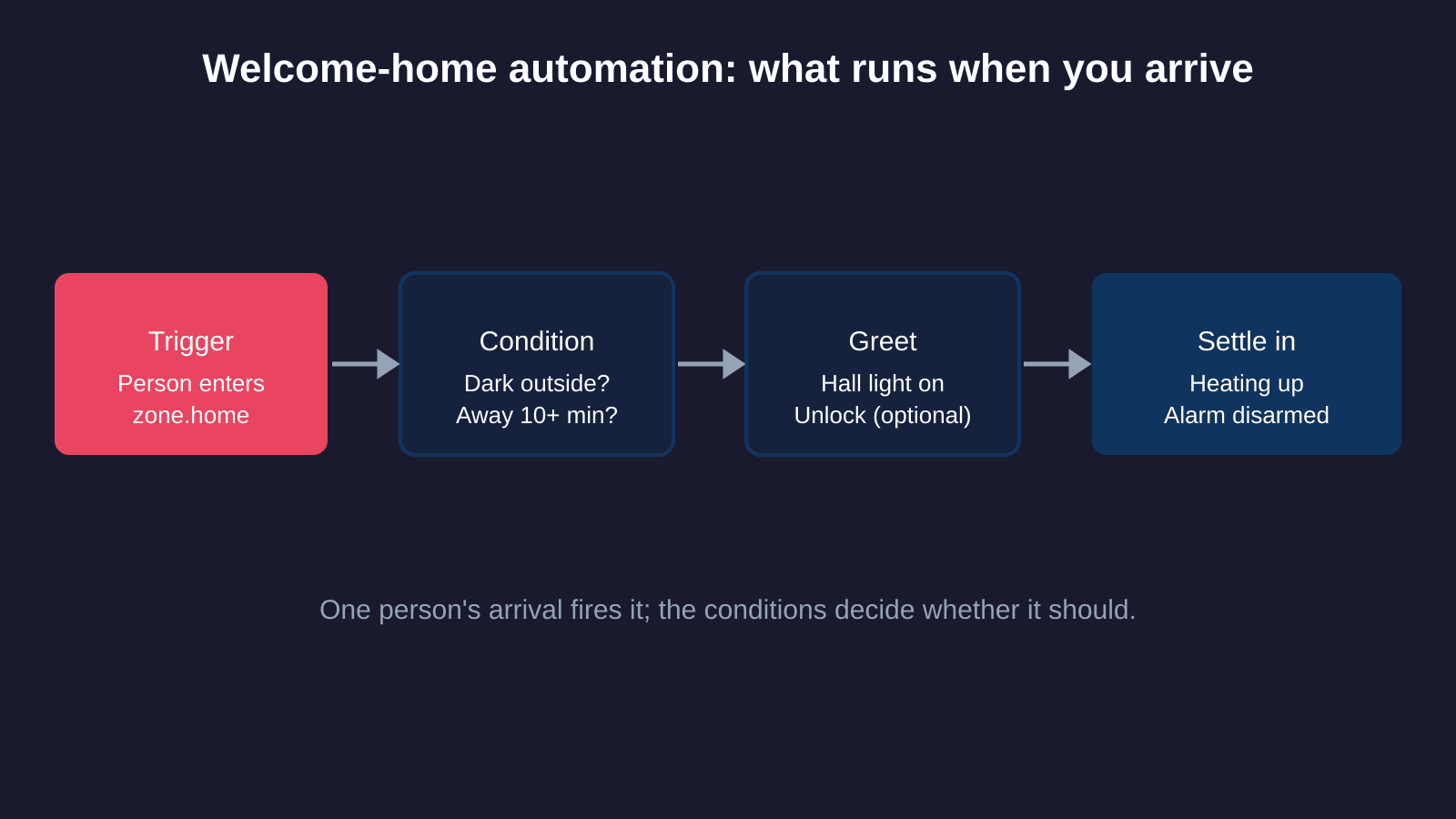
The classic annoyance is the bin run: you step out, the phone drops out of the zone, you step back in and the house greets you. Add a trigger-level duration so the person must have been away for a while. This version fires for either of two people and only if they were away for ten minutes first.
triggers:
  - trigger: state
    entity_id:
      - person.alex
      - person.sam
    from: not_home
    to: home
conditions:
  - condition: template
    value_template: >-
      {{ (now() - trigger.from_state.last_changed).total_seconds() > 600 }}
Here trigger.from_state.last_changed is when the person last became not_home, so the template measures how long they were away. If you want to skip the greeting when someone is already in, add a state condition that the other person is not home, or flip it round so the second arrival does nothing new. Because the trigger lists both people, either arrival runs the same actions, and mode: single stops a second arrival a few seconds later from starting a duplicate run.
Step 5: Add heating, lock and alarm actions carefully
The extras are where convenience meets risk. Heating is harmless: set the thermostat to your comfortable temperature when the first person arrives, using the guidance in our heating control guide. The lock and alarm need more thought.
Home Assistant's lock integration offers lock.unlock as an action, and some locks also support lock.open to release the latch. Before you automate it, remember that a phone's GPS position is not proof that the person carrying it is at the door. Many people prefer a middle path: the arrival automation sends a notification with an Unlock button, so a human confirms it. The notifications guide shows how actionable notifications work, and the door left unlocked reminder pairs well with it.
actions:
  - action: light.turn_on
    target:
      entity_id: light.hallway
  - action: climate.set_temperature
    target:
      entity_id: climate.living_room
    data:
      temperature: 20
  - action: notify.mobile_app_alex_phone
    data:
      message: "Welcome home. Unlock the front door?"
      data:
        actions:
          - action: UNLOCK_FRONT
            title: Unlock
You then need a second automation that listens for the mobile_app_notification_action event with the UNLOCK_FRONT action name and calls lock.unlock. For an alarm panel, the same rule applies: disarming on a GPS arrival is a decision to make deliberately, and our alarm panel guide explains the options. If you are choosing a lock for this, the best smart lock guide lists models that work with Home Assistant.
What if you arrive and nothing happens?
The automation never fires: open the person entity history. If it never changed to home, the problem is the tracker, not the automation. Check the Companion app's location permission is set to always allow and that battery optimisation is not stopping it.
It fires at the end of the road, not the door: the zone radius is too large, or GPS accuracy is poor. Shrink the zone or add a second tracker, such as the phone's Wi-Fi connection, so the router confirms you are in.
It fires twice: the person entity flipped between states because two trackers disagreed. The ten-minute away check in Step 4 removes most of these, and mode: single catches the rest.
The light comes on in daylight: the sun condition is missing or wrapped wrongly. Test the condition alone from the automation's trace view, which shows which condition stopped the run.
It works for one person but not the other: compare the two person entities. A phone with location sharing set to "while using" will not report in the background.
What should you build next?
A matching goodbye automation completes the pair: switch off lights, lower the heating and arm the alarm when the last person leaves. If you want the house to look occupied while you are away, the holiday mode guide picks up where this one stops, and the motion night light guide is a good second hallway automation. For the evening end of the day, see the bedtime routine.