
What do you need before you start?
- A dehumidifier that restarts by itself. Press its power button on, set its own humidity dial to maximum or continuous, then pull the plug and reinsert it. If it starts running again, a smart plug can control it. If it comes back in standby, the plug cannot switch it on; look for a model with an auto-restart feature, or one with its own Home Assistant integration.
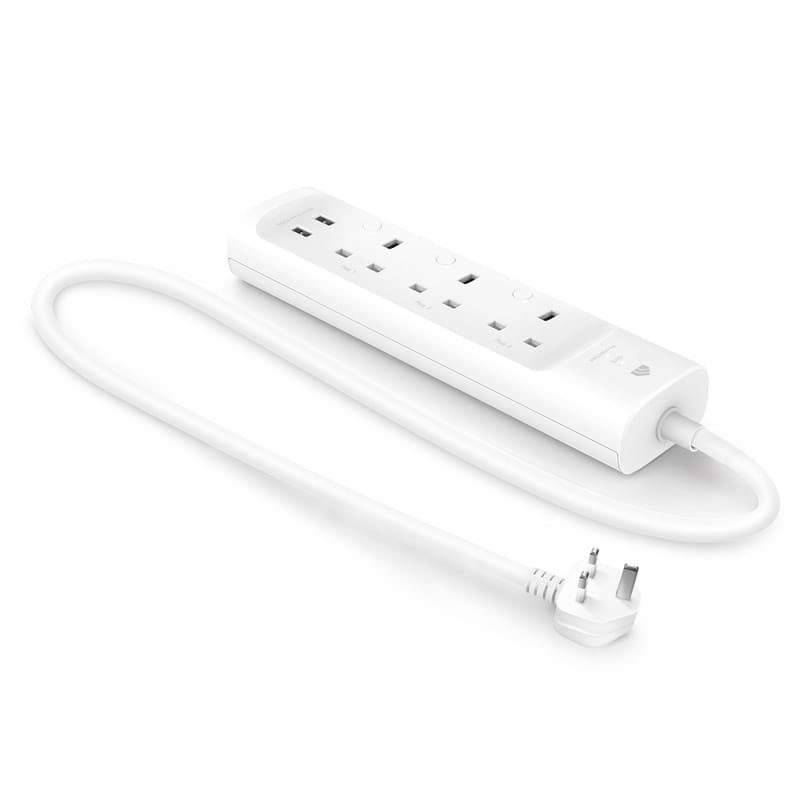
- A smart plug that Home Assistant controls locally, rated for the dehumidifier's power draw. Check the figures on both labels. Our best smart plugs guide covers sensible options, and a plug with energy monitoring unlocks the tank-full alert in Step 3.
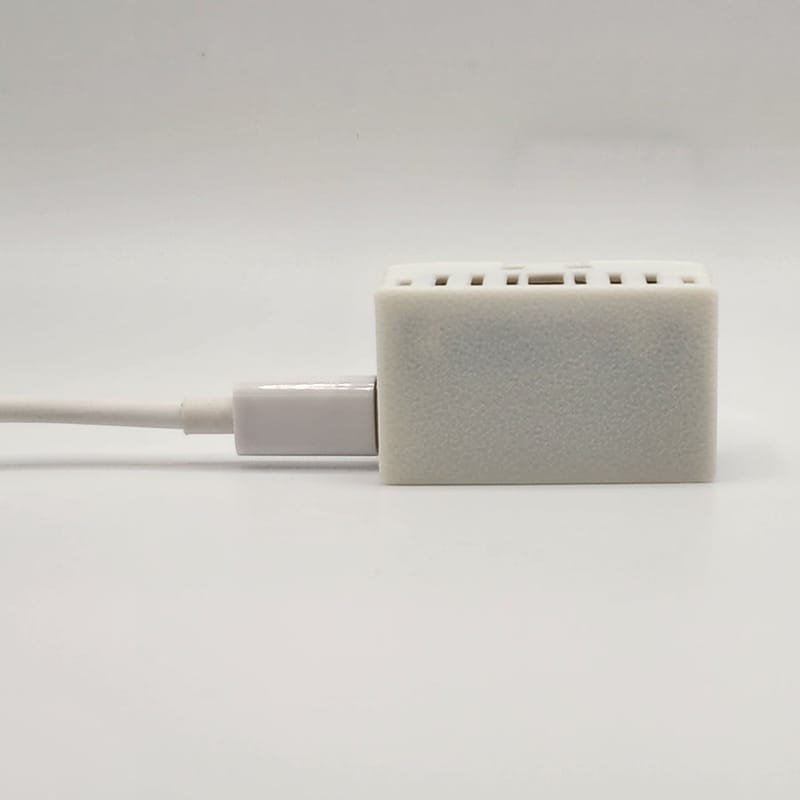
- A humidity sensor in the room, away from the dehumidifier's exhaust. A Zigbee or Bluetooth sensor is fine, and our temperature and humidity sensor guide compares them.
- The Companion app for the phone alert; see the notifications guide if you have not set it up.
What humidity should a dehumidifier aim for?
Aim for 40 to 60% relative humidity. The Centre for Sustainable Energy recommends keeping humidity between 40% and 60% and says there is a risk of mould growth once it goes above 60%. For a dehumidifier it advises setting the unit to under 60% where possible.
A target of 55% gives a little headroom below that line, and it avoids drying the air harder than necessary, which costs more electricity. Treat 55% as a starting value to adjust for your home. A dehumidifier treats a symptom, so if a wall stays wet or the reading will not fall, look for a leak, a blocked vent or a damp source first.
Step 1: Check the sensor and the plug are in Home Assistant
Open Settings → Devices & services → Entities and find two entities: your humidity sensor (a sensor with a percent unit) and the plug's switch (a switch). The examples use sensor.lounge_humidity and switch.dehumidifier_plug; swap in your own names.
Turn the switch on and off from the entity dialog and confirm the dehumidifier starts and stops each time. This is the restart test from the prerequisites: if the unit only runs after you press its button, stop here, because nothing below will work.
Step 2: Create the Generic Hygrostat
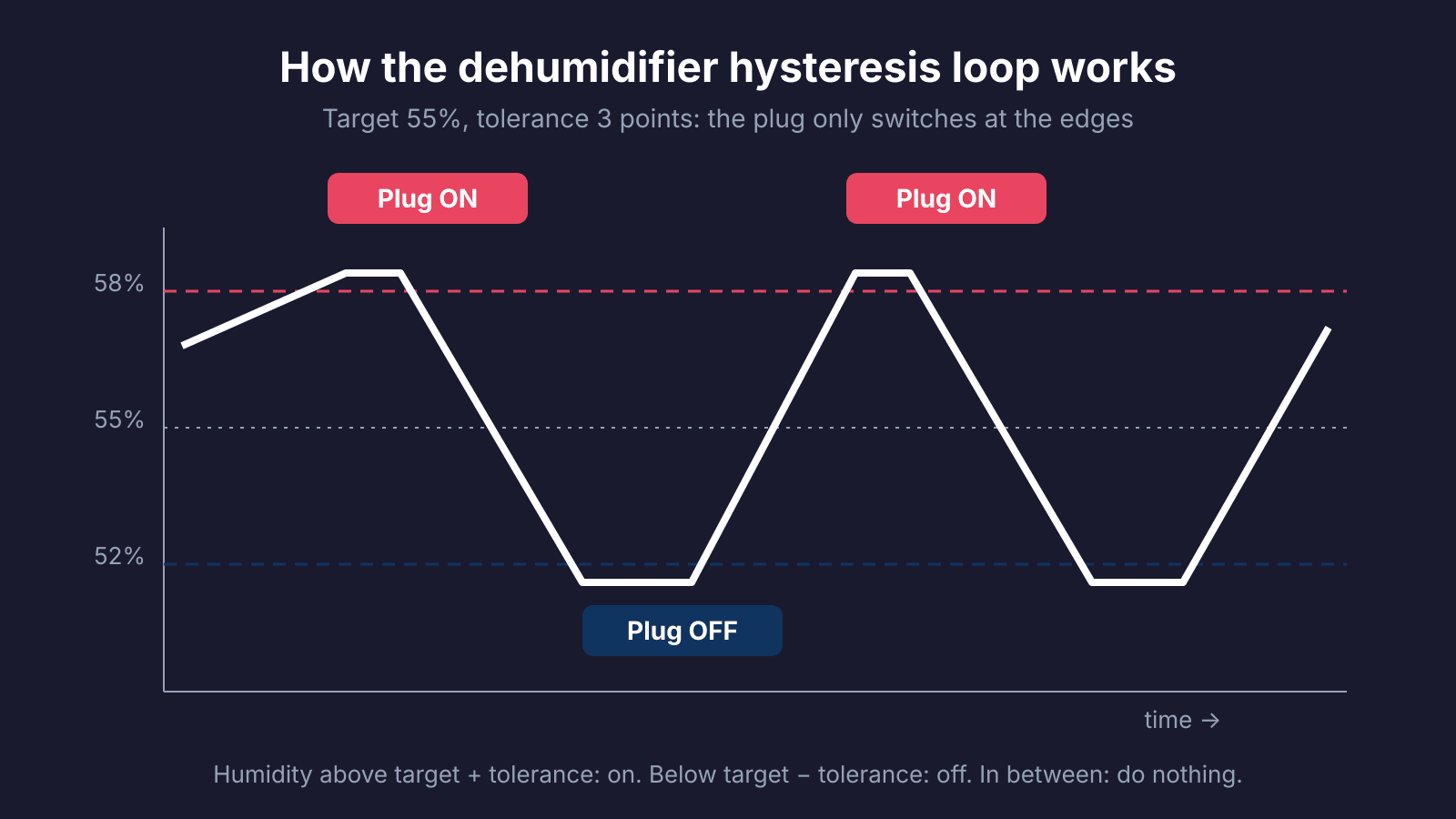
The Generic Hygrostat integration wraps a switch and a humidity sensor into one humidifier entity with a target. Home Assistant's documentation says you can add it under Settings → Devices & services → Helpers → Create helper → Generic hygrostat, although the UI offers a more limited set of options than YAML. Choose the plug as the switch, the sensor as the humidity sensor, and set the device class to dehumidifier.
For the full option set, use YAML. There is no separate dehumidifier setting; the documentation says you pick it with device_class:
humidifier:
  - platform: generic_hygrostat
    name: Lounge dehumidifier
    unique_id: lounge_dehumidifier
    humidifier: switch.dehumidifier_plug
    target_sensor: sensor.lounge_humidity
    device_class: dehumidifier
    min_humidity: 40
    max_humidity: 70
    target_humidity: 55
    dry_tolerance: 3
    wet_tolerance: 3
    min_cycle_duration:
      minutes: 10
    sensor_stale_duration:
      minutes: 30
Restart Home Assistant or reload YAML, and a humidifier.lounge_dehumidifier entity appears. Each option earns its place:
- Tolerances set how far humidity may drift from the target before the plug switches. Start with equal values, then widen them if the dehumidifier cycles too often. The documentation notes they are only applied when the sensor changes, not at start-up.
min_cycle_durationstops the switch changing state again within ten minutes, which protects a compressor from rapid on/off cycling.sensor_stale_durationtreats the sensor as unavailable if it goes quiet for 30 minutes. The documentation says the humidifier is turned off for safety when the sensor is unavailable, so a dead sensor battery will not leave the unit running all night.
One Generic Hygrostat entity controls one switch, so a second room needs its own entry. If you want to keep things tidy, our helpers guide explains how helpers fit into the rest of your setup.
Step 3: Add a tank-full alert
A dehumidifier with a full tank usually stops pulling water out and may stop drawing normal power, while Home Assistant still thinks it is working. With an energy-monitoring plug you can spot that. This automation fires when the dehumidifier is meant to be running, the room is still humid, and the plug has drawn almost nothing for 20 minutes:
alias: Dehumidifier tank may be full
triggers:
  - trigger: numeric_state
    entity_id: sensor.dehumidifier_plug_power
    below: 10
    for:
      minutes: 20
conditions:
  - condition: state
    entity_id: switch.dehumidifier_plug
    state: "on"
  - condition: numeric_state
    entity_id: sensor.lounge_humidity
    above: 60
actions:
  - action: notify.mobile_app_your_phone
    data:
      title: "Dehumidifier stopped"
      message: "Humidity is still high but the dehumidifier is drawing no power. Empty the tank?"
      data:
        tag: dehumidifier-tank
The 10 W threshold is a guess to be measured, not a rule. Watch sensor.dehumidifier_plug_power in Developer tools → States while the unit runs and while its tank is full, then pick a value between the two readings. The for duration matters because some compressor models pause during a defrost cycle; twenty minutes avoids most false alarms. Our energy monitoring guide has more on reading power from plugs.
If your model has a drain hose, run it to a sink or drain and skip this step entirely.
Step 4: Restrict when it can run
You may not want a dehumidifier running while you sleep, or you may want it limited to a cheaper electricity window. Because the hygrostat is an ordinary humidifier entity, you can turn it off and on with a time-based automation. Switching the hygrostat off stops it controlling the plug; switching it on hands control back:
alias: Dehumidifier daytime window
triggers:
  - trigger: time
    at: "09:00:00"
    variables:
      state: "on"
  - trigger: time
    at: "21:00:00"
    variables:
      state: "off"
actions:
  - action: "humidifier.turn_{{ state }}"
    target:
      entity_id: humidifier.lounge_dehumidifier
Adjust the times to suit you. If you are on a time-of-use tariff, run the window against your cheap period instead; the Octopus Agile cheapest-slots guide shows how to find those periods in Home Assistant. A quiet unit can often run overnight in a bedroom, but a noisy one will not, so use your own judgement.
Step 5: Pause it when a window is open
Running a dehumidifier with a window open wastes electricity, because it is trying to dry the outdoor air. If you already have a window contact sensor, add one more automation that turns the hygrostat off after five minutes of an open window and back on when it closes:
alias: Dehumidifier window pause
triggers:
  - trigger: state
    entity_id: binary_sensor.lounge_window
    to: "on"
    for:
      minutes: 5
    variables:
      state: "off"
  - trigger: state
    entity_id: binary_sensor.lounge_window
    to: "off"
    variables:
      state: "on"
actions:
  - action: "humidifier.turn_{{ state }}"
    target:
      entity_id: humidifier.lounge_dehumidifier
This pairs naturally with the heating version of the same idea in our window-open heating guide. Be aware that the daytime window in Step 4 and this pause both toggle the same entity, so the last trigger to fire wins. If that bothers you, add a time condition to the window pause so it only acts inside your running hours.
Step 6: Test it before you trust it
Raise the humidity on purpose by setting the target to a few points below the current reading with Developer tools → Actions and humidifier.set_humidity, then confirm the plug switches on after the tolerance is exceeded. Set it back afterwards. Open the humidifier entity's history to see how often it cycles over a day, and widen the tolerances if it is more than a few times an hour.
Finally, check the failure case. Unplug the sensor's battery or pause its integration, wait for the stale duration, and confirm the hygrostat shuts the plug off. Then test the tank alert by temporarily lowering its humidity condition.
Give it a week before judging the result. Look at the humidity graph alongside the plug's on and off history: you want to see the reading held inside the 40 to 60% band, with the plug running for stretches rather than flickering. If the room still drifts above 60% overnight with the unit working, the dehumidifier is undersized or the moisture source is bigger than it can handle, and more automation will not fix that. Note how much water you empty each day too, since a sudden change is a useful clue to a leak or a new habit such as drying washing indoors.
Common problems and fixes
The plug turns on but the unit stays in standby: the dehumidifier does not resume after power loss. Choose a model with auto-restart, or use a model with its own integration.
The hygrostat entity says off: it is the controller that must be on. Turn humidifier.lounge_dehumidifier on; the time window in Step 4 may have turned it off.
It never starts although humidity is high: the sensor may be stale or unavailable, and the documentation says the hygrostat turns off when its sensor is unavailable. Check the sensor's battery and last update time. Also confirm the reading is above the target plus tolerance.
It switches on and off too often: widen the tolerances and increase min_cycle_duration. Sensors placed near the exhaust air read artificially dry.
The humidity will not drop below 60%: the unit may be too small for the room or there is a moisture source. Check for leaks and drying laundry indoors, keep trickle vents open as the CSE advises, and see the best smart dehumidifiers guide.
What should you build next?
Add a warning for when humidity stays high despite the dehumidifier with the Home Assistant mould alert. A power-cut alert tells you if the unit has lost power, and a goodnight routine can switch the dehumidifier window off for the night.