Should Home Assistant lock the door automatically?
Usually not. An automation that locks a door on its own can lock someone out, or lock a door that is standing open. A reminder with a button leaves the decision to a person, which is safer for a front door. Many smart locks also have their own auto-lock setting, which is worth enabling at the lock itself because it works without Home Assistant.
Treat this guide as a safety net on top of that, not a security system. If you have not bought a lock yet, our best smart locks for the UK guide covers the options, and the Matter lock manager guide shows how to manage codes on a Matter lock.
What do you need before you start?
- A lock Home Assistant can see. Lock is a building-block integration, so your lock arrives through another integration, such as Matter, Z-Wave, Zigbee or a manufacturer's own. It must expose a
lockentity. - The Companion app on each phone that should be alerted, which provides the
notify.mobile_app_<phone>action. The mobile app guide covers setup. - Your entity ID. Find it under Settings → Devices & services → Entities. The examples use
lock.front_door; swap in your own. - Optional: a door contact sensor, so the reminder can tell a shut door from an open one. Not essential, since a lock only knows its bolt position.
Step 1: Check what the lock reports
Open Developer tools → States and search for your lock. According to the Home Assistant lock documentation, the main states are locked, unlocked and open, plus the in-between locking, unlocking and opening, and jammed when the bolt gets stuck before finishing. A lock can also show unavailable or unknown.
Lock and unlock the door by hand and by app, and watch the state follow. If it lags or never updates, fix the connection first, because every later step relies on it. The docs also warn that on a lock with a separate latch, unlocked does not mean the door is open, so the door can still be held shut until the handle is turned.
Step 2: Create the basic reminder
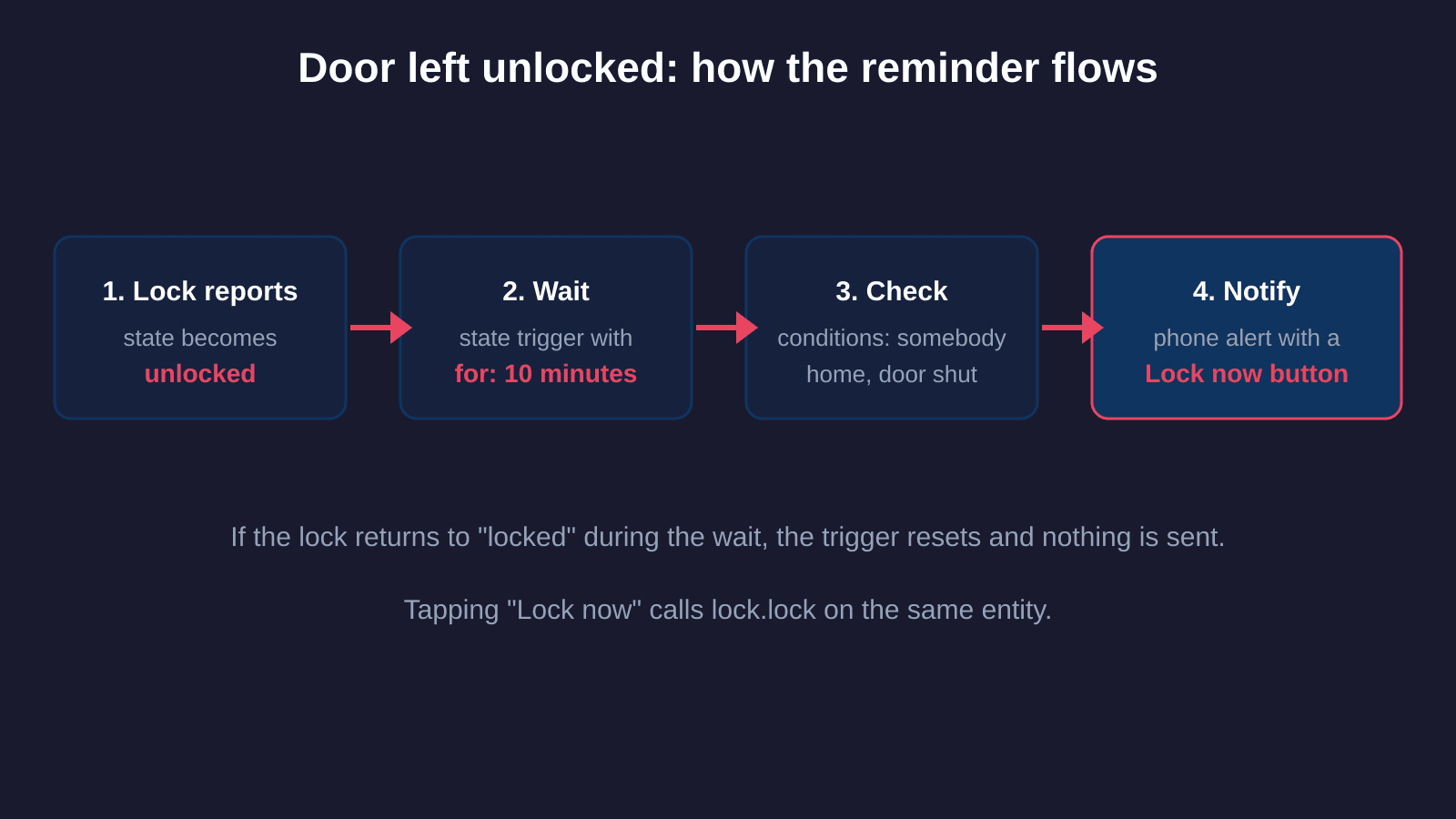
Go to Settings → Automations & scenes → Create automation, switch to YAML from the three-dot menu, and paste this. The for option is the heart of it: the trigger only fires once the lock has stayed unlocked for the full ten minutes. If it changes state before then, the timer starts over.
alias: Front door left unlocked
mode: single
triggers:
  - trigger: state
    entity_id: lock.front_door
    to: "unlocked"
    for:
      minutes: 10
actions:
  - action: notify.mobile_app_your_phone
    data:
      title: "Front door unlocked"
      message: "The front door has been unlocked for 10 minutes."
      data:
        tag: front-door-unlocked
Pick a delay that suits your routine. Ten minutes allows for unloading the car or taking out the bins; five suits a flat with a communal door. The automations guide explains triggers and modes if any of this is unfamiliar. The same pattern powers our garage door left open notification.
Step 3: Add a Lock now button
A reminder is more useful if you can act on it from the lock screen. The Companion app documentation says you add an actions list under data, each with an action identifier and a title, and the app fires a mobile_app_notification_action event when you tap one. Replace the actions block in Step 2 with this:
actions:
  - variables:
      action_lock: "{{ 'LOCK_' ~ context.id }}"
  - action: notify.mobile_app_your_phone
    data:
      title: "Front door unlocked"
      message: "The front door has been unlocked for 10 minutes."
      data:
        tag: front-door-unlocked
        actions:
          - action: "{{ action_lock }}"
            title: "Lock now"
  - wait_for_trigger:
      - trigger: event
        event_type: mobile_app_notification_action
        event_data:
          action: "{{ action_lock }}"
    timeout:
      minutes: 30
    continue_on_timeout: false
  - action: lock.lock
    target:
      entity_id: lock.front_door
Two details come straight from the Companion documentation. Building the identifier from context.id stops one run responding to another run's button. And a timeout matters, because the docs warn that waiting for a response can block the script, so a missing reply would otherwise hold the automation open. Android supports three action buttons per notification, so there is room for a second, such as "Leave it".
Step 4: Only remind when it makes sense
Without conditions, the alert fires while you are mid-barbecue in the garden. Add a conditions block between triggers and actions so the reminder only runs when it is useful. This version stays quiet when nobody is home and respects a "guest mode" switch:
conditions:
  - condition: not
    conditions:
      - condition: state
        entity_id: input_boolean.guest_mode
        state: "on"
For a presence check, use a person entity: a state condition on person.you with state: "not_home" turns this into a "you left the house unlocked" alert, which is the most valuable variant. Our presence detection guide covers making that reliable. A second automation, triggered when the person entity leaves home while the lock is unlocked, gives an instant alert rather than a ten-minute one.
Step 5: Alert on a jammed lock
A jammed lock is a worse problem than a forgotten one, because the door may look locked and not be. The lock documentation describes jammed as the bolt getting stuck before finishing, for example from a misaligned bolt or an obstruction. Give it its own alert with no delay:
alias: Front door lock jammed
triggers:
  - trigger: state
    entity_id: lock.front_door
    to: "jammed"
actions:
  - action: notify.mobile_app_your_phone
    data:
      title: "Front door lock jammed"
      message: "The lock could not finish moving. Check the bolt and door alignment."
      data:
        tag: front-door-jammed
Note that the HA docs mention lock conditions such as lock.is_jammed and matching triggers in recent versions, so you may prefer those in the visual editor. The state trigger above works everywhere.
Does it work if the lock goes offline?
No, and you should plan for that. If the lock drops off your network, its state becomes unavailable, and Home Assistant cannot tell you whether the door is locked. Add a third small automation with a state trigger to unavailable and a for of one hour, sending a plain notification. A dead battery is the usual cause, which is why our low battery alerts guide is a natural companion to this one.
Reminding every household member
Each phone needs its own notify.mobile_app_ action, so duplicate the action block per person, or create a notify group in your configuration to send to several devices with one call. Be careful with the Lock now button across several phones: whoever taps first wins, and the others see a stale alert. Using the same tag lets a later notification replace an earlier one, as the Companion documentation describes. Going away for a few days? Pair this with our holiday mode guide.
Common problems and fixes
The reminder never fires: check the state in Developer tools. A trigger of to: "unlocked" needs the lock to actually report that value, and some locks report open when a latch is released. Add open as a second trigger if yours does.
It fires while I am unloading the car: lengthen the for delay, or add the presence condition from Step 4.
The Lock now button does nothing: confirm the automation is still waiting. A timeout, or a restart of Home Assistant, ends the wait. Send a fresh notification and tap again.
The lock does not respond to lock.lock: test the action from Developer tools → Actions. If the lock is jammed, free the bolt by hand first.
I get the alert after I have already locked it: the for timer resets whenever the state changes, so this usually means the lock reported unlocked again later. Check the lock's history graph for flapping, which points to a weak signal.
What to do next
With one reminder working, the same pattern covers other "left open" situations. Our notifications guide shows the full range of alert types, from critical alerts to notification groups, and the window open heating guide is another state-with-delay automation worth copying.
To lock up and check the house in one go at night, build a Home Assistant bedtime routine that locks the doors and lists anything left open.
If you also unlock on arrival, read the welcome home automation guide first, which explains why an Unlock button on your phone beats unlocking from GPS alone.