What Is Frigate NVR?
Frigate is a complete, local NVR designed specifically for Home Assistant. It was created by Blake Blackshear and is actively maintained as an open-source project. At its core, Frigate uses OpenCV for motion detection and TensorFlow Lite for object detection, processing your camera feeds entirely on your local network.
Unlike commercial NVR software, Frigate is engineered to be efficient: it only performs CPU-intensive object detection when motion is first detected by a lightweight pre-filter, dramatically reducing resource usage across multiple cameras. Every event — a person walking up the drive, a car on the road, a cat in the garden — is stored locally as a clip or snapshot with configurable retention rules. Nothing is uploaded to a cloud server.
Key features include:
- Real-time object detection for person, car, dog, cat, and more (using standard COCO classes)
- Configurable detection zones and privacy masks
- Intelligent recording retention (keep clips with detected objects; discard empty motion)
- Native Home Assistant integration via HACS and MQTT
- RTSP re-streaming so your cameras are accessible without creating multiple direct connections
- Built-in web UI for reviewing events, clips, and live feeds
Hardware Requirements
Minimum: a modern CPU with AVX and AVX2 instruction support. Most processors made after 2011 include these extensions, but older budget chips may not. As a baseline, Frigate's planning documentation recommends at least 4 GB RAM for a small installation, rising to 8 GB if you use enrichment features such as facial recognition or licence plate recognition, and 16 GB or more for eight or more cameras.
Common home server choices that work well with Frigate in the UK:
- Intel NUC (i5/i7) — capable of running HA OS and Frigate together; Intel Quick Sync hardware decoding reduces CPU load significantly
- Raspberry Pi 5 (8 GB) — a compact, affordable option, especially paired with a Coral TPU; the Pi Hut sells both in the UK
- Beelink Mini PC / Minisforum UM series — good value x86 hardware widely available from Amazon UK and Scan.co.uk
- Proxmox/bare-metal server — for advanced users who already run a homelab
AI Accelerators — Do You Need One?
Frigate strongly recommends a dedicated AI accelerator for any practical, multi-camera deployment. Without one, the CPU handles all inference — manageable for testing, but slow for real-time use with multiple cameras.
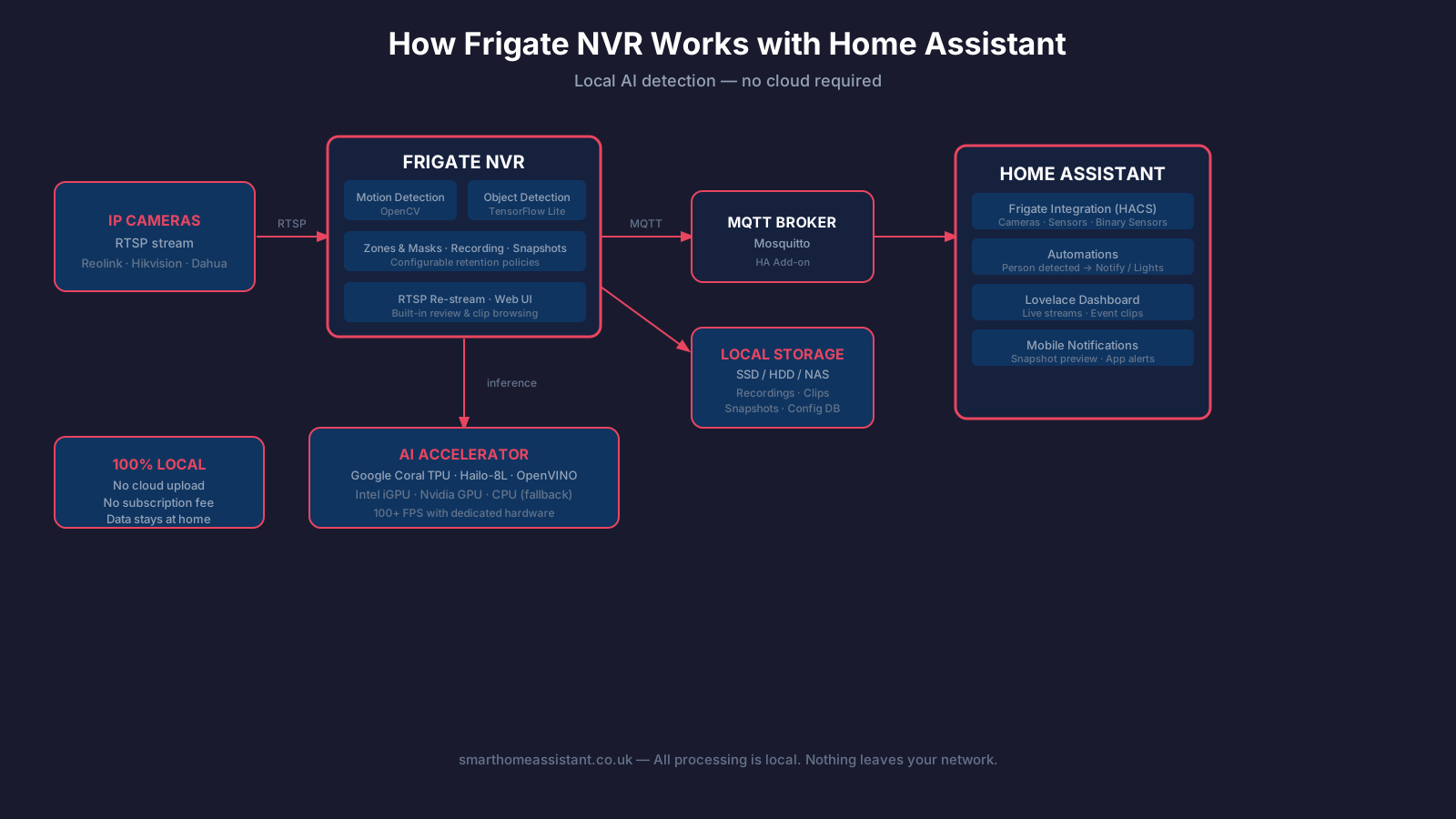
The most widely used options are:
- Google Coral USB Edge TPU — a USB stick-sized accelerator, widely available on Amazon UK for around £30–£60. Can process 100+ frames per second with very low CPU overhead. Handles around four cameras at 5 fps comfortably. The USB variant is the easiest to set up as it requires no kernel drivers.
- Hailo-8L (M.2 / Raspberry Pi HAT) — a newer alternative that Frigate now officially supports. Uses YOLOv6n by default for better accuracy. Available from authorised Raspberry Pi resellers including The Pi Hut.
- Intel OpenVINO (integrated GPU) — if your host has an Intel processor with integrated graphics (most post-2012 Intel CPUs), Frigate can offload detection to the iGPU at no extra cost. An excellent zero-spend option for NUC and mini-PC owners.
- Nvidia GPU — suitable for larger installs or those already running an Nvidia card; Frigate supports ONNX/TensorRT backends.
Note: as of late 2024, Frigate's own documentation notes that the Coral TPU is no longer the only recommended choice. OpenVINO on Intel iGPU or Hailo-8L are now equally supported and may be easier to source in the UK.
Storage Requirements
Storage is often the most under-estimated requirement. Frigate stores video recordings, object clips, and snapshots locally. Frigate's documentation recommends:
- SSD for the config database and frequently accessed files — improves UI responsiveness and reduces write latency
- HDD for bulk recordings — surveillance-rated drives such as the WD Purple or Seagate SkyHawk are designed for 24/7 write cycles and are available from Scan.co.uk and Amazon UK
- NAS (network-attached storage) — supported, but introduces latency; a local drive is preferred for best performance
A rough guide: a single 1080p camera recording continuously at a typical surveillance bitrate uses around 10–15 GB per day. Frigate's intelligent retention (keep clips with detected objects, discard empty segments) dramatically reduces this. Four cameras with seven-day event-only retention typically need 100–300 GB, depending on activity levels.
Step 1: Install Frigate
The simplest route is the official Frigate add-on for Home Assistant Supervisor. This works if you are running Home Assistant OS or Home Assistant Supervised. If you are using Home Assistant Container or Core, see the Docker method below.
Before you start, make sure you have the MQTT broker set up — Frigate requires a shared MQTT server to communicate with Home Assistant. The Mosquitto broker add-on is the standard choice.
- In Home Assistant, go to Settings → Add-ons → Add-on Store.
- Click the three-dot menu (top right) and select Repositories.
- Add the Frigate add-on repository:
https://github.com/blakeblackshear/frigate-hass-addons - Search for Frigate and install the stable release.
- Set the add-on's Protected mode to off if you need to pass through hardware (e.g. a Coral USB device).
- Start the add-on and open the web UI at port 5000.
Docker Compose Alternative
If you prefer to run Frigate separately from HA (for example, on a dedicated Proxmox VM or bare-metal Debian server), Docker Compose is Frigate's recommended approach. A minimal docker-compose.yml for a system with a Coral USB device looks like this:
services:
  frigate:
    image: ghcr.io/blakeblackshear/frigate:stable
    privileged: true
    volumes:
      - /etc/localtime:/etc/localtime:ro
      - ./config:/config
      - /path/to/storage:/media/frigate
    ports:
      - "5000:5000"
      - "8554:8554"
    devices:
      - /dev/bus/usb:/dev/bus/usb  # Coral USB
    shm_size: "128mb"
    restart: unless-stopped
Adjust shm_size upward if you have more than two cameras — Frigate provides a formula: (width × height × 1.5 × 20 + 270480) / 1048576 + 40 MB per camera stream.
Step 2: Add your RTSP cameras
Frigate works with any camera that exposes an RTSP stream. Almost all IP cameras marketed for NVR use — including Reolink, Hikvision, Dahua, and many own-brand models — support RTSP. See our Reolink camera review for a camera that works out of the box with Frigate. PTZ cameras that support ONVIF can also be controlled by Frigate.
Camera configuration lives in Frigate's config.yml file. A basic two-camera setup:
mqtt:
  enabled: true
  host: 192.168.1.X  # Your MQTT broker IP
  user: mqtt_user
  password: mqtt_password

cameras:
  front_door:
    ffmpeg:
      inputs:
        - path: rtsp://username:password@192.168.1.10:554/stream1
          roles:
            - detect
            - record
    detect:
      width: 1920
      height: 1080
      fps: 5
  back_garden:
    ffmpeg:
      inputs:
        - path: rtsp://username:password@192.168.1.11:554/stream1
          roles:
            - detect
            - record
    detect:
      width: 1280
      height: 720
      fps: 5
A detection rate of 5 fps is sufficient for most security use-cases and keeps hardware load manageable. Frigate processes the full-resolution record stream independently of the detect stream, so you can record at higher quality while detecting at a lower resolution.
Step 3: Configure zones and masks
Zones let you restrict where Frigate generates alerts, so you are not notified every time a car passes on the road outside your front window. A zone is a polygon drawn over the camera frame, defined by co-ordinate pairs. Frigate considers an object to be inside a zone when the bottom-centre of its bounding box crosses the zone boundary.
cameras:
  front_door:
    zones:
      driveway:
        coordinates: 0,800,600,800,600,1080,0,1080
        objects:
          - person
          - car
      porch:
        coordinates: 600,600,1200,600,1200,1080,600,1080
        objects:
          - person
    review:
      alerts:
        required_zones:
          - porch
Masks work differently: they prevent any detection in the masked area entirely. Use masks to exclude a busy road, a waving tree, or a reflective window that causes false triggers. Privacy masks can also be used to exclude areas you do not want recorded (for example, a neighbour's garden visible at the edge of the frame).
Step 4: Integrate Frigate with Home Assistant
The official Frigate integration is installed via HACS (Home Assistant Community Store). Once installed, it adds cameras, image sensors, binary sensors for motion and object detection, and switches for toggling detection and recording — all surfaced as standard HA entities.
The integration communicates via the shared MQTT broker. When Frigate detects a person in the porch zone, it publishes an event to MQTT. Home Assistant receives it within milliseconds and can trigger any automation you configure. See our automations guide for the full picture of what HA automations can do.
A practical example automation — send a mobile notification with a snapshot when a person enters the porch zone:
alias: Person at front door
trigger:
  - platform: state
    entity_id: binary_sensor.front_door_person_occupancy
    to: "on"
condition:
  - condition: state
    entity_id: input_boolean.home_occupied
    state: "off"
action:
  - service: notify.mobile_app_your_phone
    data:
      title: "Person at front door"
      message: "Someone is at the porch."
      data:
        image: /api/frigate/notifications/{{ trigger.to_state.attributes.id }}/thumbnail.jpg
Other useful automations include: turn on smart lights when a person is detected at night, announce on a smart speaker via HA media player, or arm/disarm a virtual alarm based on presence detection combined with camera activity.
Frigate+ Subscription: Is It Worth It?
Frigate+ is an optional paid subscription that gives access to cloud-trained custom object detection models built specifically for home security scenarios. These models are trained on user-contributed annotated clips and are claimed to produce more accurate and relevant detections than the standard MobileNet model — for example, fewer false positives from shadows or small animals.
Crucially, the Frigate+ models still run entirely locally. You download the model file and it runs on your hardware — the subscription only covers model access, not ongoing cloud processing. As of 2026, Frigate+ costs $3.99/month or $35/year (USD), payable directly to the project. It is optional: Frigate works fully without it, using free open-source models.
Privacy Advantages Over Ring and Nest
The privacy case for Frigate is straightforward. Cloud-based systems such as Ring and Google Nest upload continuous video to servers in the United States. Ring has a documented history of data-sharing partnerships with US law enforcement agencies. Nest footage has been caught up in data breaches. Both require active subscriptions to retain more than a few hours of history — Ring Protect starts at £3.49/month per camera in the UK.
With Frigate, your footage never leaves your network. Detection happens on your hardware. Storage is on your own drives. There is no subscription, no data-sharing agreement, and no single point of failure in a third-party cloud. If your internet goes down, Frigate keeps recording and detecting locally.
For households where privacy is a priority — or where GDPR compliance for footage of public spaces matters — local NVR is the defensible choice. For further reading, see our smart home security tips and our comparison of the best smart CCTV systems in the UK.
Getting Started: Quick Checklist
- Running Home Assistant OS or Supervised? Use the Frigate add-on.
- Running Docker? Use Docker Compose on a Debian-based host.
- Add the Mosquitto MQTT broker add-on and note your broker IP.
- Find your camera's RTSP stream URL (check the manual or the Frigate-supported cameras list).
- Install a Coral TPU or rely on Intel iGPU via OpenVINO for hardware-accelerated detection.
- Start with two objects:
personandcar. Tune zones once you see where detections fire. - Install the Frigate integration via HACS and link it to your MQTT broker.
- Build one automation, test it, then expand.
Choosing which camera brand to feed into Frigate? Our Hikvision vs Dahua UK guide compares the two most common ONVIF-compatible options for a self-hosted setup like this one.
Still choosing a camera to feed into Frigate? Our security cameras buying guide covers power types, local vs cloud storage, and resolution/night vision trade-offs before you commit to hardware.