What Is a Matter Bridge?
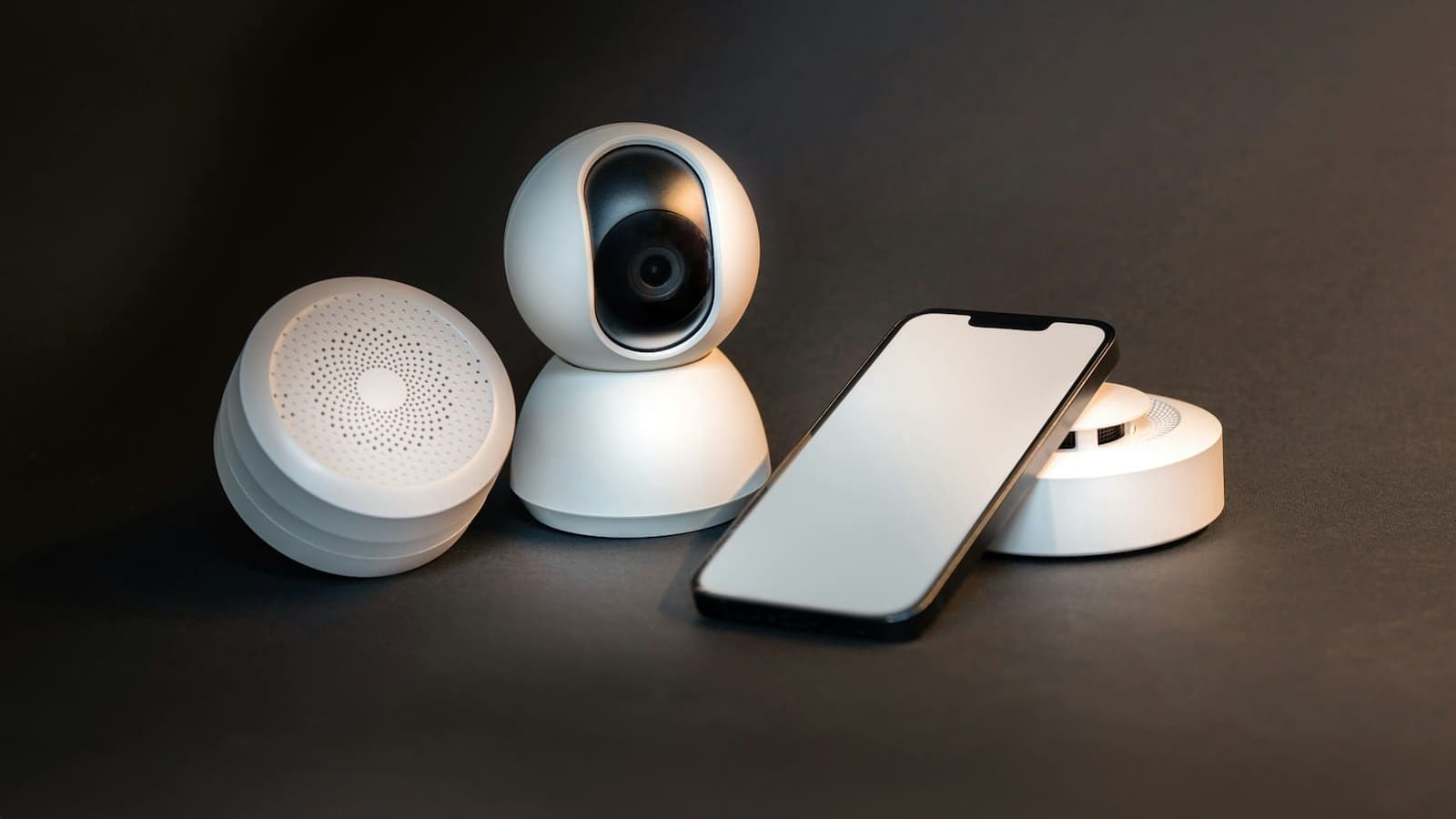
In the Matter specification, a bridge is a device that translates non-Matter accessories into Matter endpoints, making them discoverable by any Matter controller on the same network. Think of it as a universal interpreter: your Zigbee temperature sensor speaks a different language to Alexa, but through a Matter bridge, Alexa sees it as a standard Matter sensor it already understands.
Home Assistant itself is a Matter controller — it can add and control native Matter devices. It does not natively expose its own entities as a Matter bridge. That role is filled by two popular community add-ons: Home Assistant Matter Hub (HAMH) and Matterbridge. Both simulate Matter bridges over your local network using the same open Matter SDK that Apple, Google and Amazon use.
Why Bridge Through Home Assistant?
Several scenarios make bridging worthwhile:
- Legacy devices: Older Zigbee or Z-Wave kit will never get native Matter firmware. Bridging lets them join modern ecosystems anyway.
- DIY devices: ESPHome sensors and custom integrations can be made visible in Apple Home or Alexa via the bridge — no native Matter chip needed.
- Multi-ecosystem households: One person uses Apple Home, another uses Google Home. A single Matter bridge exposes the same devices to both, simultaneously.
- Local control: Because Matter communicates over your LAN using IPv6/UDP, the bridge works entirely offline. No Nabu Casa subscription is required, though it remains an option for remote access.
Requirements
Before you start, check that you have the following:
- Home Assistant OS, Supervised, or Container — version 2023.6 or later is recommended for stable Matter support.
- Home Assistant Matter Hub add-on (or Matterbridge) — installed from a community repository within Home Assistant.
- A stable local network — IPv6 must be enabled on your router. Matter uses IPv6 multicast for device discovery; without it, controllers will not see the bridge.
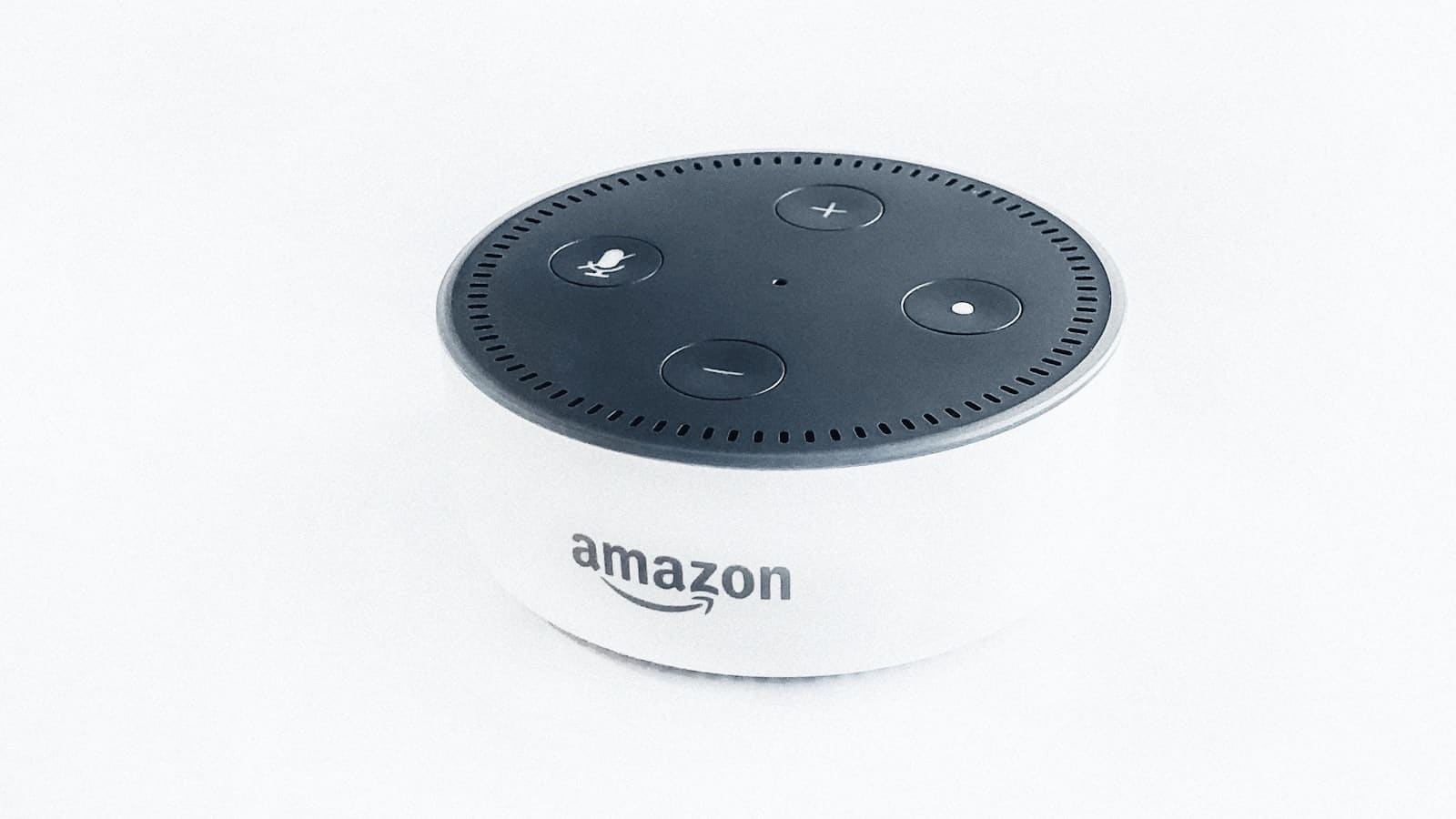
- A Matter-compatible controller app — Apple Home (iOS 16.2+), Google Home (Android or iOS), or Amazon Alexa (with at least one Matter-capable Echo device such as the Echo 4th Gen or Echo Hub).
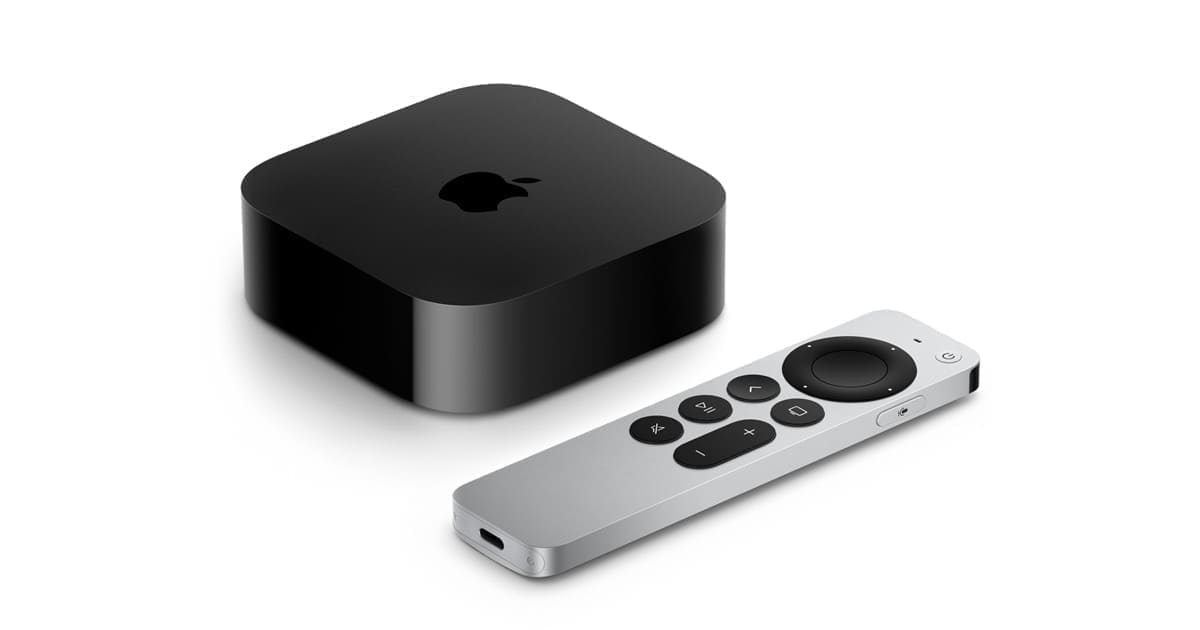
- For Thread-based Matter devices: a Thread border router such as the Home Assistant Connect ZBT-2, an Apple HomePod Mini, Apple TV 4K (3rd gen), or Google Nest Hub 2nd Gen. The ZBT-2 must be set to Thread mode (it cannot run Zigbee and Thread simultaneously).
Step 1: Add the custom repository
Home Assistant Matter Hub (HAMH) is the most widely used bridge add-on for Home Assistant. Here is how to install it. Navigate to Settings → Add-ons → Add-on Store. Click the three-dot menu in the top-right corner and select Repositories. Paste the following URL and click Add:
https://github.com/t0bst4r/matterbridge-home-assistant
Refresh the store page. The Home Assistant Matter Hub add-on will appear in the list.
Step 2: Install and start the add-on
Click Home Assistant Matter Hub → Install. Once installation finishes, toggle Start on boot and Watchdog, then click Start. Open the add-on's Web UI to access the bridge dashboard.
Step 3: Create a bridge
Inside the HAMH web interface, click Create Bridge. Give it a name (e.g. "Apple Home Bridge") and choose a port (the default 5540 is fine for the first bridge). You can run multiple bridges on different ports to expose devices to different ecosystems separately — useful if you want Apple Home to see one set of devices and Alexa another.
Step 4: Select entities to expose
HAMH lets you filter entities by device, area, domain, or label. It is best practice to include only entities you actively want in each ecosystem — avoid exposing everything, as some entity types (media players, cameras) have limited or no Matter support and will cause errors. Lights, switches, sensors, locks, covers (blinds), and climate entities are all well-supported.
Step 5: Pair the bridge with your controller
Once your bridge is configured, click Generate QR Code. Then:
- Apple Home: Open the Home app → tap the + → Add Accessory → scan the QR code.
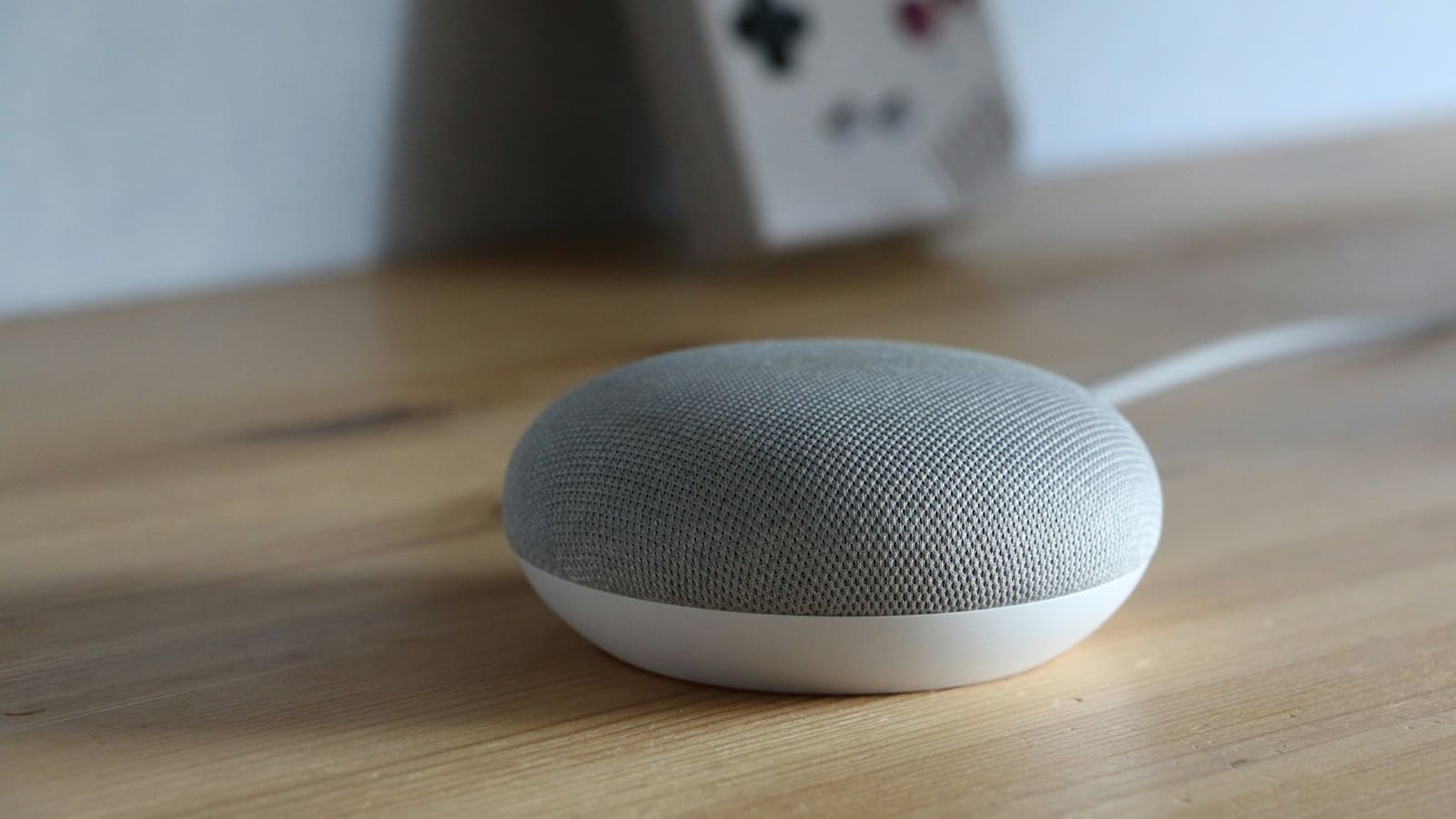
- Google Home: Open the Google Home app → + → Set up device → New device → follow Matter pairing. You need a physical Google Hub (Nest Hub, Nest Mini, etc.) on the same network — the app alone is insufficient.
- Amazon Alexa: Open the Alexa app → Devices → + → Add Device → Matter → scan the code. You must have at least one Amazon Echo (4th Gen or later) or Echo Hub as a Matter controller on your network.
Each QR code is single-use for initial pairing. For subsequent pairings on additional controllers, generate a new pairing code from within the already-commissioned controller app.
Bridging Zigbee Devices to Matter
If your Zigbee devices are already running in Home Assistant via Zigbee2MQTT or ZHA, they appear as entities in Home Assistant and can be exposed through HAMH without any extra configuration on the Zigbee side. The bridge picks them up from the Home Assistant entity registry.
A few things to keep in mind:
- Zigbee devices must be paired to a single Zigbee coordinator — this is a protocol-level constraint, not a Home Assistant limitation. If a device is already paired to another Zigbee hub, it cannot simultaneously join your Home Assistant Zigbee network.
- HAMH maps entity capabilities to Matter device types automatically. A dimmable Zigbee bulb becomes a Matter extended colour light; a contact sensor becomes a Matter contact sensor.
- Features that have no Matter equivalent (e.g. Zigbee device-specific attributes) are silently dropped on the Matter side.
For a full walkthrough of adding Zigbee devices to Home Assistant, see the Zigbee2MQTT setup guide or the Matter vs Zigbee vs Z-Wave comparison.
Thread Border Router Setup
Matter devices can run over Wi-Fi or Thread. The Matter bridge works independently of Thread — it bridges Home Assistant entities to Matter controllers over your Wi-Fi/Ethernet network. However, if you want Home Assistant to also control Thread-based Matter devices (rather than just exposing non-Matter devices), you need a Thread border router.
The Home Assistant Connect ZBT-2 (the successor to SkyConnect) is the recommended choice for Home Assistant users. Set in Thread mode, it acts as an OpenThread Border Router (OTBR), connecting your Home Assistant instance to the Thread mesh network. Note that the ZBT-2 can run either Zigbee or Thread — not both at the same time. If you need both protocols, you will need two USB adapters.
Alternatively, an Apple HomePod Mini or Apple TV 4K (3rd gen) already includes a Thread border router. Google Nest Hub (2nd Gen) and Nest Wi-Fi Pro also serve as Thread border routers. These third-party border routers are visible to Home Assistant's OpenThread Border Router integration.
For a deeper dive into Thread, see the Thread protocol guide.
Ecosystem Compatibility
Apple Home is the most reliable Matter controller for the HAMH bridge. Entity types map cleanly to HomeKit accessories, pairing is straightforward, and automations carry over. Cameras and media players are not supported via Matter bridge — use the HomeKit bridge guide for those entity types instead, as that uses the older HomeKit Accessory Protocol which has broader device coverage.
Google Home requires a physical Google hub device (Nest Hub, Nest Mini, Nest Audio) on the same network. The Google Home app alone will refuse the Matter pairing — it needs a local hub to anchor the Matter fabric. Google Home's Matter device type support is broad for lights, plugs, and sensors, but thermostat and lock bridging can be inconsistent.
Amazon Alexa requires an Echo 4th Gen, Echo Hub, or another Matter-capable Amazon device on the network. Alexa imposes a per-bridge limit of approximately 80–100 devices; if you have a large Home Assistant installation, split your entities across two bridges on different ports. Alexa's Matter support for climate entities (thermostats) is more limited than Apple's.
Limitations to Know
Matter bridging is powerful but not without constraints:
- Cameras are not supported: The Matter specification does not yet include cameras as a device type. Use dedicated integrations (HomeKit Secure Video, Google Nest Cam, Ring Skill) for camera sharing.
- Media players are unsupported: Matter has no media player device type. Sonos, Chromecast, and similar devices cannot be bridged this way.
- IPv6 is mandatory: If your router has IPv6 disabled, Matter device discovery will fail. Most modern UK routers from BT, Sky, and Virgin have IPv6 enabled by default, but check your router settings if pairing fails.
- VLANs and network segmentation: Matter uses multicast DNS (mDNS) which does not cross VLAN boundaries without specific mDNS reflector configuration. If your smart home devices are on a separate IoT VLAN, Matter discovery will break unless you configure inter-VLAN mDNS forwarding.
- Entity attribute gaps: Some Home Assistant entity attributes have no Matter equivalent. A climate entity in Matter only supports basic heating/cooling modes — advanced features like schedule programmes or humidity sensors may not appear on the controller side.
- Single-use QR codes: The initial pairing QR code is consumed on first use. To add the same bridge to a second controller, generate a new code through the first controller's app (Apple Home or Google Home will provide a sharing QR code).
Troubleshooting Common Issues
Bridge not discovered by controller app: Confirm that IPv6 is enabled on your router and that multicast traffic is not blocked. Restart the HAMH add-on and try pairing again. Ensure the phone you are using for pairing is on the same Wi-Fi network as Home Assistant.
Devices appear offline in Apple Home / Google Home: This usually means the Home Assistant instance is unreachable on the local network, or the HAMH add-on has stopped. Check the add-on logs in Home Assistant and ensure the Watchdog option is enabled.
Google Home rejects the QR code: Verify that a Google hub device (not just the app) is powered on and on the same network. Google Home enforces this requirement strictly for Matter commissioning.
Alexa shows "Device Unresponsive": Check whether you have exceeded the ~100 device limit for your bridge. Create a second bridge on a different port and distribute your entities between them.