What You Need Before You Start
HomeKit has a short list of requirements before you pair your first accessory:
- An Apple ID with iCloud Keychain and two-factor authentication enabled. Go to Settings > [Your Name] > iCloud and make sure both are switched on.
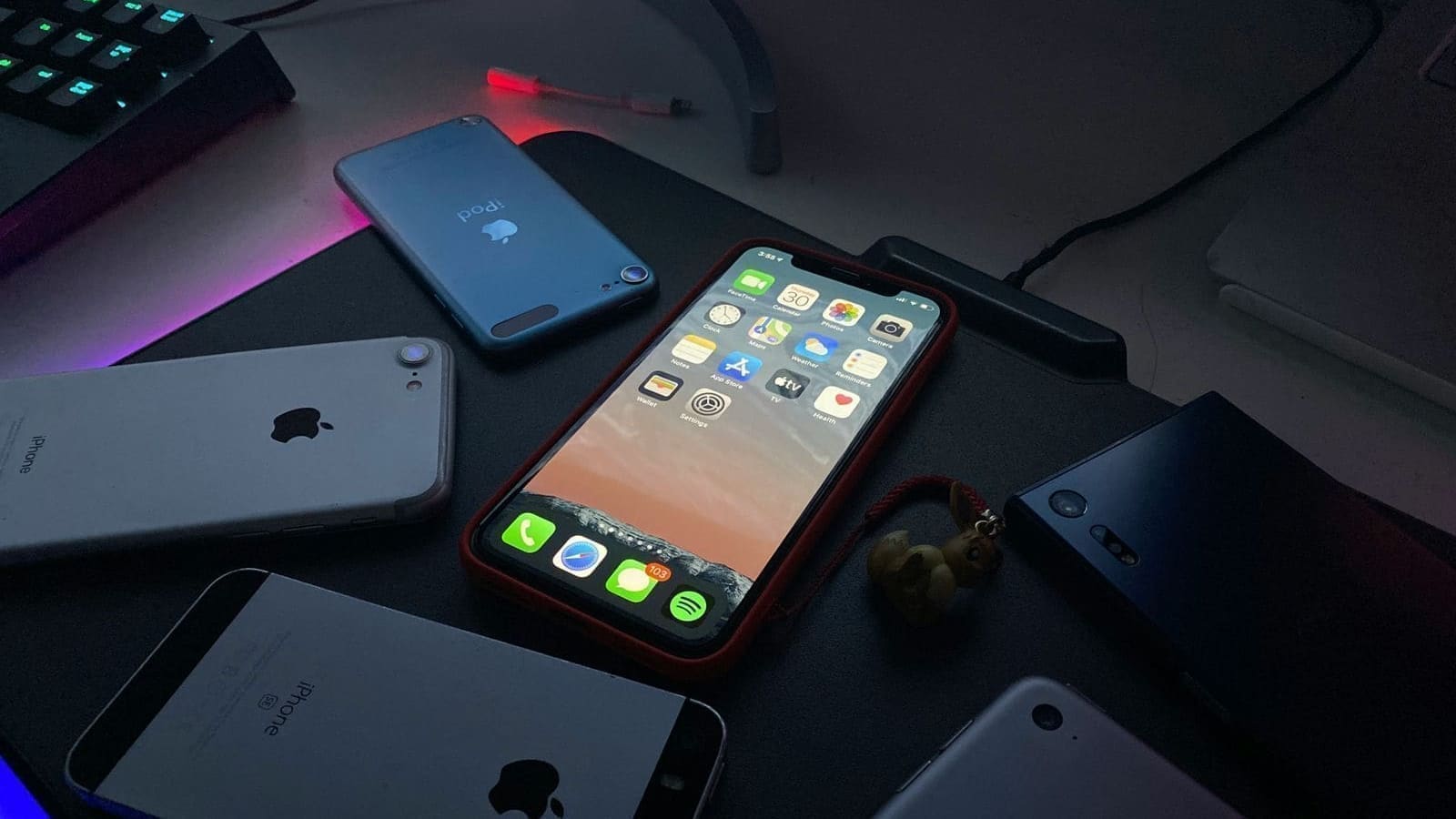
- An iPhone or iPad running a recent version of iOS/iPadOS. The Home app is pre-installed; no third-party software is needed.
- A 2.4 GHz or 5 GHz Wi-Fi network. Most HomeKit devices connect directly to Wi-Fi; Thread-based accessories use a mesh radio handled by your hub.
- A home hub (see below) if you want remote access, automations, or shared control with family members.
For day-to-day local control — switching a light on while you are sitting in the same room — you can technically manage without a hub. In practice, you will almost certainly want one to get the most out of HomeKit.
Choosing a HomeKit Hub
A hub keeps your HomeKit home running when your iPhone is not present: it handles automations, lets you control devices remotely, enables HomeKit Secure Video for compatible cameras, and is required for all Matter accessories. Apple officially supports three hub devices:
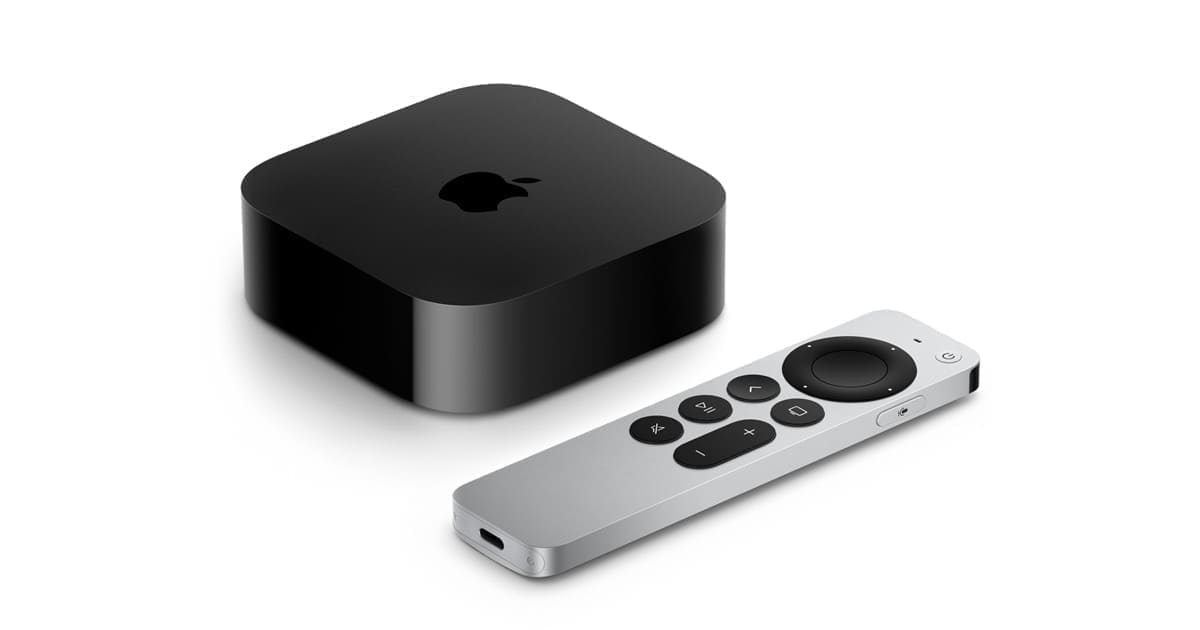
Apple TV 4K (3rd generation or later)
Best all-round choice for most UK households. If you already subscribe to Apple TV+ or use the Apple TV for streaming, this is the hub to get. The Apple TV 4K (3rd gen, from around £129) doubles as a Thread border router, meaning it can communicate with Thread-based accessories — the next generation of low-power, mesh-networked smart home devices. Setup is automatic: open Settings > AirPlay and Apple Home, assign the Apple TV to a room, and it becomes your hub with no extra steps.
HomePod mini
Best dedicated HomeKit hub at an affordable price. The HomePod mini (£99 in the UK) plugs in and becomes a hub automatically during setup. It also acts as a Thread border router and doubles as a Siri speaker. Many HomeKit users buy one HomePod mini as a permanent, always-on hub and add a second in a different room for Siri coverage throughout the house. It does not support HomeKit Secure Video on its own, but paired with an Apple TV 4K it covers all bases.
HomePod (2nd generation)
Best audio + hub combination. At around £299, the full-size HomePod delivers room-filling sound alongside all the hub capabilities of the mini. Overkill if you primarily want a hub, but a strong choice if you also want a premium speaker in your living room.
Our recommendation for UK buyers: Start with an Apple TV 4K if you already stream TV, or a HomePod mini if you want the simplest, most affordable dedicated hub. Either supports Thread, Matter, and all HomeKit automations. For more on how HomeKit compares to rival platforms, see our Apple HomeKit vs Google Home comparison.
Step-by-Step HomeKit Setup
Step 1 — Set Up Your Hub
Plug in your HomePod mini or Apple TV. Follow the on-screen prompts on your iPhone; both devices auto-configure as hubs when you are signed in to the same Apple ID. Assign the hub to a room in the Home app — this determines which automations it can trigger based on location (for example, "when someone arrives home").
Step 2 — Create Your Home
Open the Home app on your iPhone. Tap the "+" button and select "Add Home" if this is your first setup. Give your home a name and add the rooms that match your layout — kitchen, living room, bedroom, and so on. Accurate room assignments help Siri resolve commands like "turn off the lights downstairs" correctly.
Step 3 — Pair Your First Accessory
HomeKit accessories are paired by scanning an eight-digit HomeKit setup code — usually printed on the device, its packaging, or displayed as a QR code in the manufacturer app. In the Home app, tap "+" > "Add Accessory", point your camera at the QR code or type the code manually, and the accessory joins your home within seconds. Matter devices use a similar QR-based pairing flow.
Step 4 — Organise Into Rooms and Zones
Assign each accessory to the correct room. You can also group rooms into zones (for example, "upstairs" or "ground floor"), which lets Siri target entire zones with a single command.
Step 5 — Create Scenes and Automations
Scenes let you set multiple accessories at once with a single tap or voice command. Create a "Good Morning" scene that raises the thermostat to 20 °C, turns on the kitchen lights at 50%, and starts your coffee machine. Automations trigger scenes automatically based on time, your location, a sensor reading, or another accessory state — no tapping required.
Best HomeKit Devices Available in the UK
Smart Lighting — Philips Hue
Philips Hue remains the gold standard for HomeKit lighting in the UK. The Hue ecosystem covers everything from standard E27 bulbs to GU10 downlights, LED strips, and outdoor fittings. Starter kits (bridge + two bulbs) start from around £50–£80 depending on retailer. The Philips Hue Bridge connects to your router via Ethernet and pairs all Hue bulbs to HomeKit through a single accessory entry. More recent Hue bulbs also support Matter over Bluetooth, removing the need for the bridge altogether. For a full comparison of smart bulb options, see our guide to the best smart bulbs UK.
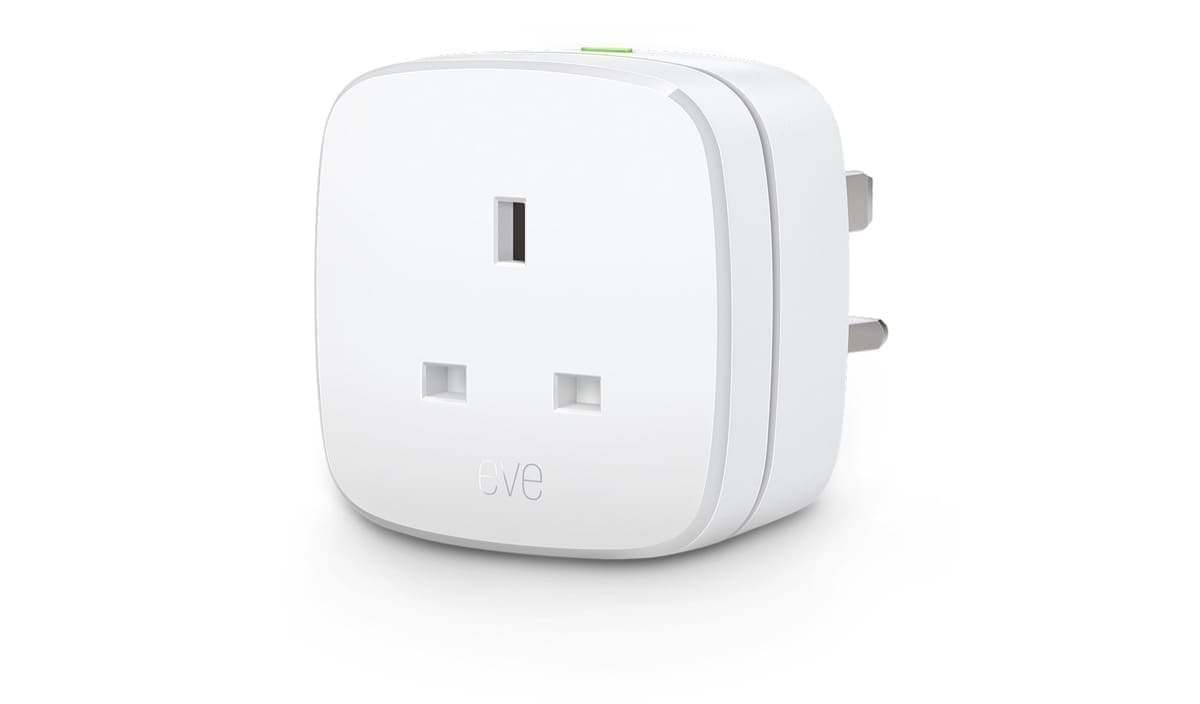
Smart Plugs — Eve Energy
Eve Energy is the go-to HomeKit smart plug for UK users. It fits a standard UK three-pin socket, includes built-in energy monitoring so you can track the power draw of whatever is plugged in, and supports Thread for ultra-low latency switching. Eve designs its products with privacy in mind — all processing happens locally on the device. Prices typically range from £35–£45 per plug.
Heating — Tado and Netatmo
Tado° is the most widely used HomeKit-compatible thermostat system in the UK, compatible with most combi boilers found in British homes. The Tado° Wireless Smart Thermostat Starter Kit (V3+) includes the thermostat and Internet Bridge and works with HomeKit, Alexa, and Google Home. Tado's geofencing automatically turns heating down when everyone leaves the house and warms the home before you return. Prices for the V3+ starter kit are typically in the £100–£150 range. Netatmo offers a HomeKit-compatible smart thermostat and valve radiator heads (TRVs) that are well suited to multi-zone heating in larger UK homes.
Smart Locks — Yale
Yale is the most established HomeKit lock brand for UK doors. Unlike many US-designed smart locks that only suit cylindrical or deadbolt locks, Yale's Conexis L1 and Linus Smart Lock are designed around British night latch and mortice lock standards. The Yale Linus Smart Lock replaces the thumb turn on a euro cylinder and retains your existing key cylinder, making installation straightforward. It supports HomeKit, Matter, and Z-Wave, and connects via a Wi-Fi bridge included in the kit.
Security Cameras — Netatmo
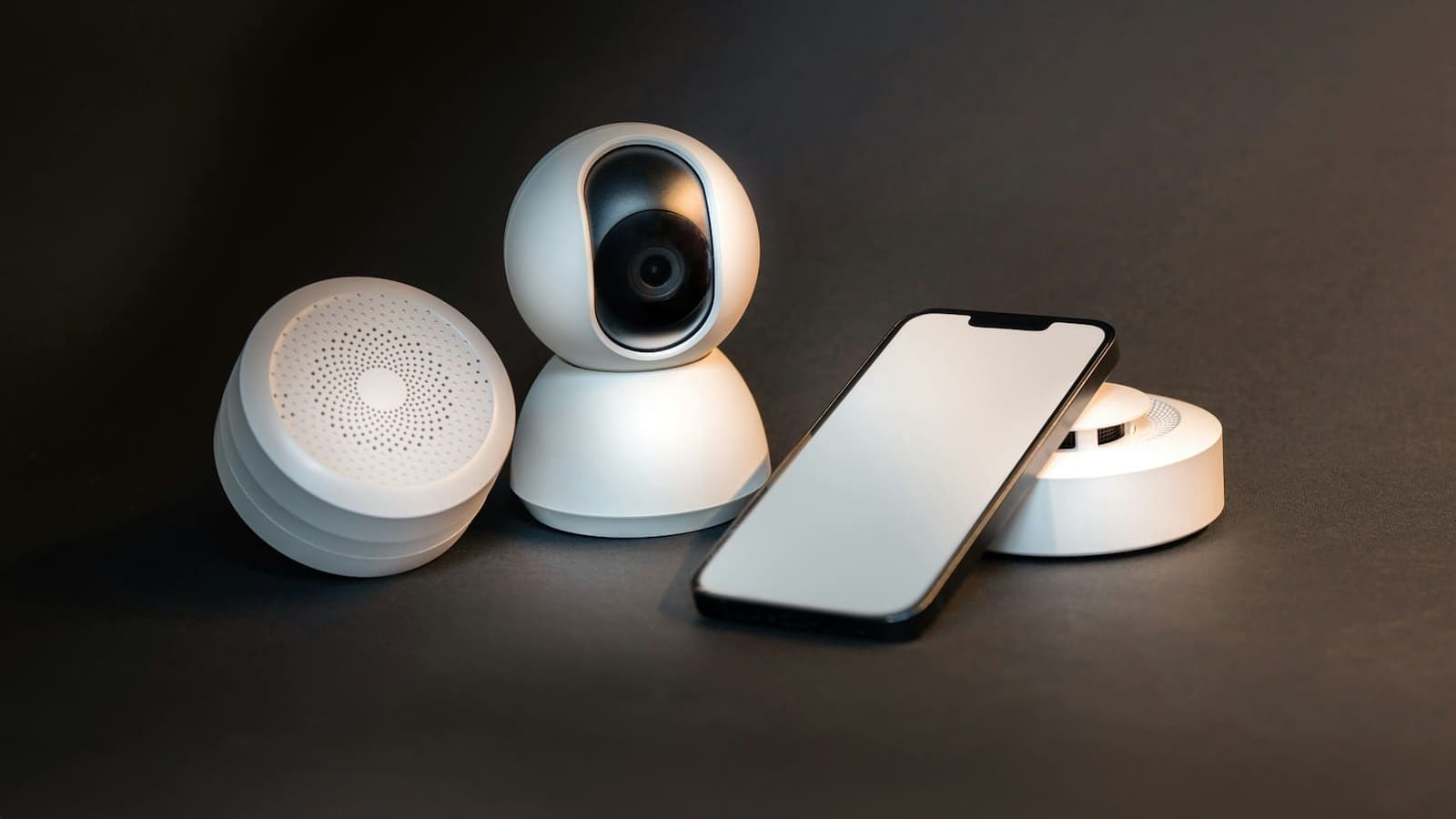
Netatmo's Smart Indoor and Outdoor Cameras support HomeKit Secure Video, which means footage is processed on-device by your hub before being encrypted and stored in iCloud — Apple never sees the content. There is no mandatory subscription; iCloud+ plans (from £0.79/month for 50 GB) unlock HomeKit Secure Video storage. This is a significant privacy and cost advantage over Ring and Arlo, which require paid cloud subscriptions for full functionality.
Contact and Motion Sensors — Eve Door & Window and Eve Motion
Eve's sensor range integrates natively with HomeKit and Thread. The Eve Door & Window contact sensor can trigger automations when a door opens — turning on a hallway light at night, for instance. The Eve Motion sensor works well for garden lights and room-entry lighting automations.
Useful Siri Commands for Your HomeKit Home
Once your accessories are set up, Siri handles most day-to-day control without you needing to open the Home app. Useful commands for a UK setup include:
- "Hey Siri, turn off all the lights downstairs."
- "Hey Siri, set the living room to 21 degrees."
- "Hey Siri, lock the front door."
- "Hey Siri, good night." (triggers your Good Night scene)
- "Hey Siri, are the lights on in the kitchen?"
- "Hey Siri, turn the bedroom lights to 30%."
- "Hey Siri, open the living room blinds at sunrise."
Siri commands work on iPhone, iPad, Apple Watch, HomePod, and Apple TV — so you have multiple control points around the home.
HomeKit Automations — Ideas to Get You Started
Automations are where HomeKit earns its keep. A few practical examples for UK homes:
- Arrive home: When your iPhone arrives at the home geofence, turn on the hallway lights, unlock the front door, and set the heating to your preferred temperature.
- Leave home: When the last person in the family leaves, switch off all lights, lock all doors, and turn the heating to eco mode.
- Bedtime: At 10:30 pm, trigger a Good Night scene that dims all lights to zero over five minutes, locks the front door, and turns the thermostat down to 17 °C.
- Morning routine: At 7:00 am on weekdays, gradually brighten the bedroom lights to 80% and set the thermostat to 20 °C.
- Motion-triggered garden lights: When the Eve Motion sensor in the garden detects movement between sunset and sunrise, turn on the outdoor lights for ten minutes.
Bridging Non-HomeKit Devices
Not every smart home device ships with native HomeKit support — particularly older Zigbee or Z-Wave accessories, and many cheaper Wi-Fi devices. Two approaches let you bring these into HomeKit without replacing them.
Home Assistant with the HomeKit Bridge integration can expose hundreds of non-HomeKit devices to the Apple Home app. If you already run Home Assistant on a Raspberry Pi or similar machine, adding the HomeKit Controller and HomeKit Bridge integrations takes under ten minutes and makes your entire HA setup appear as native HomeKit accessories. See our Home Assistant HomeKit bridge guide for the full walkthrough.
Homebridge is a lighter-weight option that runs as a Node.js service and translates thousands of non-HomeKit devices into HomeKit accessories via community plugins. If you only want HomeKit bridging without the full Home Assistant stack, Homebridge is quicker to set up. Our Homebridge vs Home Assistant guide compares both approaches.
HomeKit vs Google Home vs Amazon Alexa
HomeKit, Google Home, and Amazon Alexa all work well in UK homes. The right choice depends on the devices you already own and your priorities:
- HomeKit — best for privacy, Apple device users, and people who want local processing. Device selection is narrower, but quality is consistently high.
- Google Home — best for Android users and households that want the strongest AI assistant integration. Google Assistant handles follow-up questions and conversational commands better than Siri in many scenarios.
- Amazon Alexa — best for breadth of device compatibility and voice shopping. The largest ecosystem of compatible devices at the widest range of price points.
Since 2024, Matter has reduced the importance of platform lock-in: a Matter device can work across HomeKit, Google Home, and Alexa simultaneously. This means you can buy a Matter-certified plug or bulb today and use it with HomeKit without worrying about switching costs later. See our full Apple HomeKit vs Google Home breakdown for a deeper look at how the platforms compare for UK buyers. For a deeper dive into the Thread protocol that underpins Matter's mesh networking, our Thread protocol guide explains how it works and which hubs support it.